
ASUS XA12 ROG STRIX SCOPE II RX/RXRD/CA/PBT
ASUS ROG Strix Scope II Gaming Keyboard User Manual
Model: XA12 ROG STRIX SCOPE II RX/RXRD/CA/PBT
Brand: ASUS
Introduction
The ASUS ROG Strix Scope II Gaming Keyboard is a high-performance mechanical keyboard designed for competitive gaming and efficient daily use. It features pre-lubed ROG RX Red Linear Optical switches for consistent and responsive keystrokes, sound-dampening foam for improved acoustics, and durable PBT doubleshot keycaps. This manual provides comprehensive instructions for setting up, operating, and maintaining your keyboard.
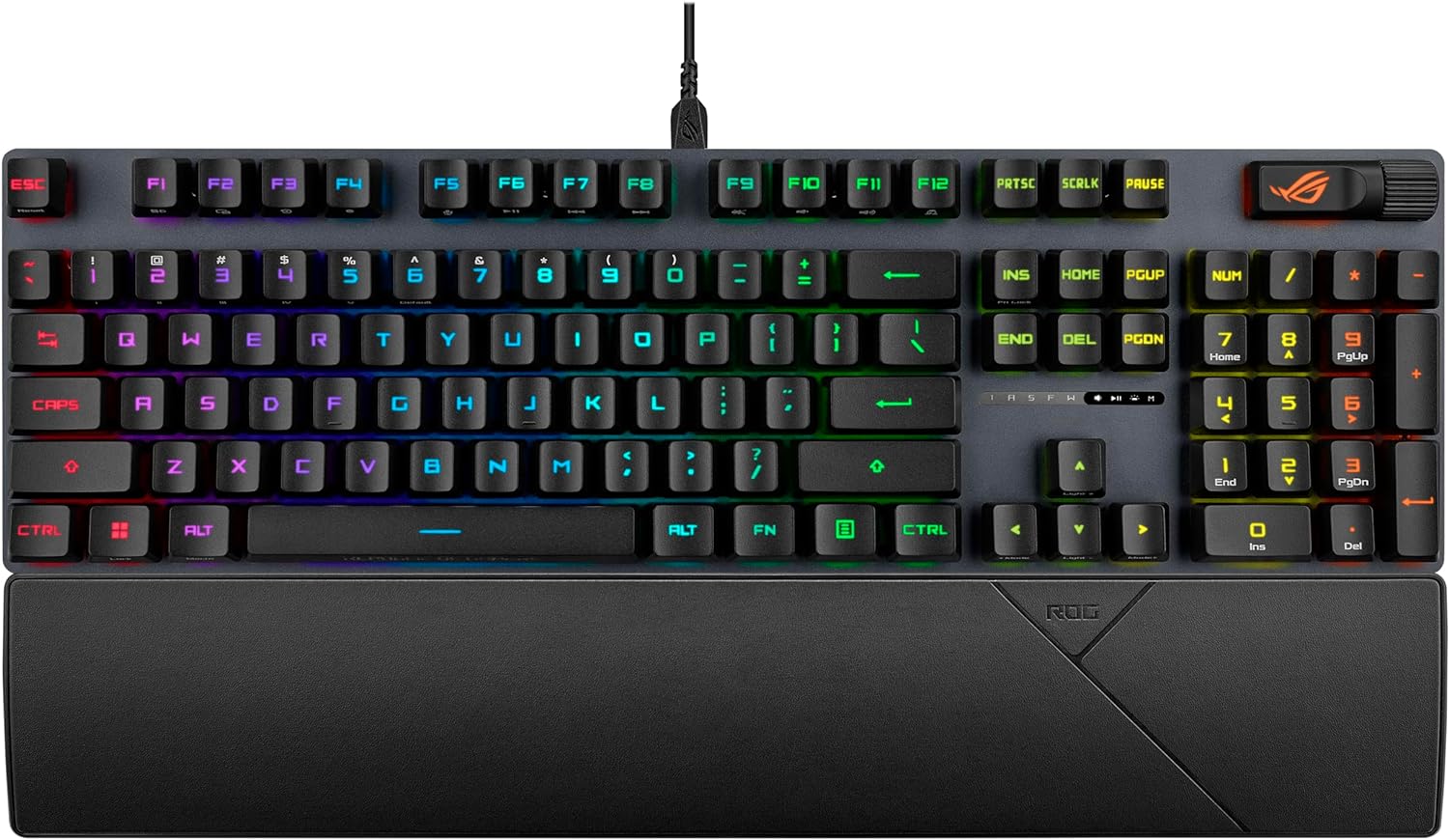
Figure 1: Top-down view of the ASUS ROG Strix Scope II Gaming Keyboard featuring vibrant RGB lighting and a detachable wrist rest.
What's in the Box
Verify that all items are present in your package:
- XA12 ROG STRIX SCOPE II RX/RXRD/CA/PBT keyboard
- Wrist rest
- ROG-themed spacebar keycap
- USB cable
- ROG stickers
- Quick start guide
- Warranty booklet
Setup
Connecting the Keyboard
- Locate the USB cable provided in the box.
- Connect the USB-C end of the cable to the port on the top edge of the keyboard.
- Connect the USB-A end of the cable to an available USB port on your PC or gaming console.
- The keyboard will automatically be recognized by your operating system.
Attaching the Wrist Rest
The included wrist rest can be magnetically attached to the front edge of the keyboard for enhanced comfort during extended use.

Figure 2: Side profile of the keyboard illustrating the magnetic attachment point for the wrist rest.
Operating Instructions
Key Features and Functions
- ROG RX Optical Switches: Pre-lubed for smooth, consistent keystrokes with minimal debounce delay. Features centralized lighting for bright, even illumination.
- IP57-rated Durability: Designed to be waterproof and dust resistant, ensuring long-lasting performance.
- PBT Doubleshot Keycaps: Highly durable keycaps that resist shine and wear over time, providing a consistent typing feel.
- Sound-Dampening Foam: Integrated foam absorbs pinging noises and echoes, contributing to a quieter and more pleasant typing experience.
Multimedia and Control Knob
The keyboard features a multifunction button and a three-way knob located on the top right. These controls allow for quick adjustments to media playback, volume, and keyboard lighting.
- Volume Control: Rotate the knob to adjust the system volume. Press the knob to mute/unmute.
- Media Playback: Use the dedicated media keys (often combined with Fn key) or the multifunction button to control play/pause, skip forward, and skip backward.
- Lighting Control: The knob can also be used to cycle through lighting effects or adjust brightness. Refer to the quick start guide for specific key combinations.
Video 1: Official product video demonstrating the features of the ASUS ROG Strix Scope II RX Gaming Keyboard, including its RGB lighting, IP57 rating, ROG RX Red Optical Switches, sound-dampening foam, and multi-function controls.
Streaming Hotkeys
The F1–F5 keys are pre-programmed as hotkeys for convenient access to Xbox Game Bar functions and recording features. These hotkeys allow for quick actions during gaming sessions without interrupting gameplay.
- F1-F5: Pre-programmed for Xbox Game Bar and recording. Specific functions may vary and can be customized via software.
Maintenance
Cleaning the Keyboard
- Disconnect the keyboard from your computer before cleaning.
- Use a soft, lint-free cloth slightly dampened with water or a mild cleaning solution to wipe down the keycaps and chassis.
- For deeper cleaning between keycaps, use compressed air to remove dust and debris.
- Avoid using harsh chemicals, abrasive cleaners, or excessive moisture, as these can damage the keyboard.
Storage
When not in use, store the keyboard in a cool, dry place away from direct sunlight and extreme temperatures to prolong its lifespan.
Troubleshooting
| Problem | Possible Cause | Solution |
|---|---|---|
| Keyboard not responding | Loose USB connection, driver issue, or system conflict. | Ensure USB cable is securely connected. Try a different USB port. Restart your computer. Check device manager for driver issues. |
| RGB lighting not working or inconsistent | Software settings, power issue, or firmware. | Check lighting settings in ASUS Armoury Crate software. Ensure keyboard is receiving sufficient power. Update keyboard firmware. |
| Keys not registering or double-typing | Debris under keycap, switch malfunction, or software issue. | Use compressed air to clear debris. If issue persists, contact ASUS support for switch replacement or repair. Reinstall keyboard drivers. |
| Multimedia keys/knob not functioning | Software conflict or incorrect mode. | Ensure ASUS Armoury Crate software is running and updated. Check if the knob is in the correct mode (volume, media, lighting). |
Specifications
| Feature | Detail |
|---|---|
| Model Number | XA12 ROG STRIX SCOPE II RX/RXRD/CA/PBT |
| Switches | ROG RX Red Linear Optical switches (pre-lubed) |
| Keycaps | PBT Doubleshot |
| Durability Rating | IP57 (Waterproof & Dust Resistant) |
| Connectivity | USB 2.0 (Wired) |
| Layout | 104 Keys (Full-size) |
| Special Features | Volume Roller, Backlit RGB, Wrist Rest, Streaming Hotkeys (F1-F5) |
| Material | Polybutylene Terephthalate (Keycaps) |
| Item Weight | 1.8 pounds |
| Package Dimensions | 18.5 x 7 x 3 inches |
| Compatible Devices | PC, Gaming Console |
Warranty and Support
Your ASUS ROG Strix Scope II Gaming Keyboard comes with a manufacturer's warranty. Please refer to the included warranty booklet for detailed terms and conditions, including warranty period and coverage.
For technical support, troubleshooting assistance, or to inquire about repairs, please visit the official ASUS support website or contact their customer service. Keep your proof of purchase for warranty claims.
Official ASUS Support: www.asus.com/support/
Ask a question about this manual
Ask about setup, troubleshooting, compatibility, parts, safety, or missing instructions. Manuals+ will review the question and use this page’s manual context to help answer it.