
1. Introduction
Thank you for choosing the XZEAL XZ-6010 LED 34-inch Quad HD Curved Gaming Monitor (XZMO341B). This high-quality device is designed to provide an immersive visual experience for gaming enthusiasts. Featuring a 1500R curved screen, Flicker-free technology, and a rapid 4 ms response time, this monitor delivers sharp, clear, and fluid visuals, reducing eye strain during extended use. With a maximum resolution of 3440 x 1440 pixels and a 100 Hz refresh rate supported by AMD FreeSync, it ensures detailed and tear-free gameplay. This manual provides essential information for setup, operation, maintenance, and troubleshooting to help you get the most out of your monitor.

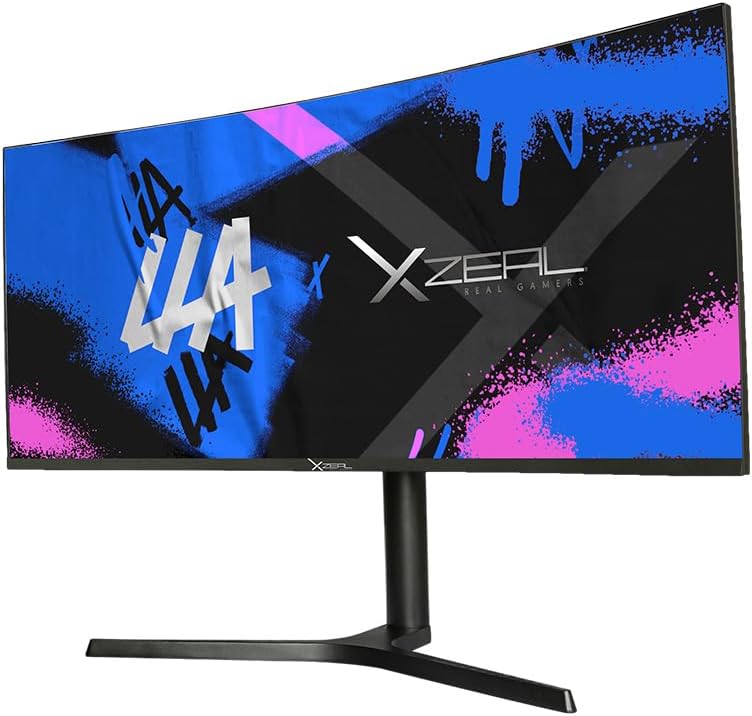
Front view of the XZEAL XZ-6010 34-inch curved gaming monitor, displaying a vibrant graphic.
2. Safety Information
Please read all safety instructions carefully before using this product. Failure to follow these instructions may result in electric shock, fire, or damage to the monitor.
- Do not expose the monitor to rain, moisture, or extreme temperatures.
- Ensure the monitor is placed on a stable, flat surface to prevent it from falling.
- Use only the power adapter and cables provided by the manufacturer.
- Do not block ventilation openings.
- Avoid placing heavy objects on the power cord.
- Unplug the monitor from the power outlet during lightning storms or when unused for long periods.
- Do not attempt to service the monitor yourself. Refer all servicing to qualified service personnel.
3. Package Contents
Verify that all items are present in your product package. If any items are missing or damaged, please contact your retailer.
- XZEAL XZ-6010 34-inch Curved Gaming Monitor
- Monitor Stand (Neck and Base)
- Power Adapter and Power Cable
- HDMI Cable
- DisplayPort Cable
- User Manual
4. Setup
4.1 Assembling the Stand
- Carefully remove the monitor from its packaging, keeping it protected on a soft surface.
- Attach the stand neck to the stand base, securing it with the provided screw(s).
- Align the assembled stand with the mounting slot on the back of the monitor.
- Gently push the stand into the slot until it clicks into place or secure it with the provided screw(s).
Back view of the XZEAL monitor, illustrating the stand assembly process.
4.2 Connecting the Monitor
Before connecting, ensure all devices are powered off.
- Power Connection: Connect the power adapter to the monitor's power input, then plug the power cable into a wall outlet.
- Video Connection:
- For optimal performance, connect your computer's graphics card to the monitor using the provided DisplayPort cable.
- Alternatively, use the HDMI cable to connect to devices such as gaming consoles or other computers.
- Audio Connection (if applicable): If your monitor has an audio output, connect external speakers or headphones.

Rear view of the XZEAL monitor, showing the input ports including HDMI and DisplayPort.
5. Operating Instructions
5.1 Powering On/Off
Press the power button, usually located on the back or bottom of the monitor, to turn the monitor on or off. The power indicator light will illuminate when the monitor is on.
5.2 On-Screen Display (OSD) Menu Navigation
The OSD menu allows you to adjust various monitor settings. Typically, buttons on the back or bottom of the monitor are used to access and navigate the OSD.
- Press a designated OSD button to open the menu.
- Use the navigation buttons (up/down/left/right or joystick) to move through menu options.
- Press the select/enter button to confirm a selection or enter a sub-menu.
- Press the exit/back button to return to the previous menu or exit the OSD.
5.3 Adjusting Settings
Within the OSD menu, you can customize settings such as:
- Brightness/Contrast: Adjust the overall luminance and contrast of the display.
- Color Settings: Modify color temperature, gamma, and individual RGB levels.
- Input Source: Manually select between HDMI and DisplayPort inputs.
- Game Mode: Activate pre-set display modes optimized for different game genres.
- AMD FreeSync: Ensure this setting is enabled in the OSD and on your graphics card for tear-free gaming.
- Flicker-Free: This technology is always active to reduce eye strain.
6. Maintenance
6.1 Cleaning the Monitor
- Always unplug the monitor before cleaning.
- Use a soft, lint-free cloth slightly dampened with water or a mild, non-abrasive screen cleaner.
- Do not spray cleaner directly onto the screen.
- Avoid using benzene, thinner, ammonia-based cleaners, or abrasive materials, as they can damage the screen or casing.
6.2 General Care
- Keep the monitor away from direct sunlight and heat sources.
- Ensure adequate ventilation around the monitor.
- Avoid touching the screen with sharp objects.
7. Troubleshooting
If you encounter issues with your monitor, refer to the table below for common problems and solutions.
| Problem | Possible Cause | Solution |
|---|---|---|
| No image on screen | Power cable disconnected; Video cable disconnected; Incorrect input source selected | Check power and video cable connections; Select correct input source via OSD. |
| Image is blurry or distorted | Incorrect resolution; Graphics card driver issue | Set display resolution to 3440x1440; Update graphics card drivers. |
| Flickering or tearing during gaming | AMD FreeSync not enabled | Ensure AMD FreeSync is enabled in monitor OSD and graphics card settings. |
| Monitor does not power on | Power cable not connected; Faulty power adapter | Check power cable connection; Test power adapter with another device if possible. |
8. Specifications
Key technical specifications for the XZEAL XZ-6010 Monitor:
| Feature | Detail |
|---|---|
| Brand | XZEAL |
| Model Number | XZMO341B |
| Screen Size | 34 Inches |
| Display Resolution | 3440 x 1440 pixels (Quad HD) |
| Curvature Rating | 1500R |
| Refresh Rate | Up to 100 Hz (with AMD FreeSync) |
| Response Time | 4 ms |
| Panel Type | VA |
| Color Gamut | 16.7 Million Colors |
| Video Inputs | 1x HDMI, 1x DisplayPort |
| Special Features | Flicker-Free Technology, AMD FreeSync, Game Mode |
| Product Dimensions | 30 x 1 x 20 cm; 1.2 kg (Monitor only, without stand) |
9. Warranty and Support
XZEAL products are manufactured to high-quality standards. For information regarding warranty coverage, please refer to the warranty card included with your product or visit the official XZEAL website. For technical support, troubleshooting assistance, or service inquiries, please contact XZEAL customer support through their official channels.