1. Introduction
This manual provides essential instructions for the safe and efficient use of your Panasonic TX-32MSW504S 32-inch HD LED Smart Android TV. Please read this manual thoroughly before operating your television and retain it for future reference.
The Panasonic TX-32MSW504S combines impressive image quality with powerful sound and smart entertainment features. It offers access to a wide range of streaming services and applications through Android TV. Key features include a Bright Panel for vivid images, HD Color Engine for realistic colors, Surround Sound for an immersive audio experience, and integrated Google Assistant and Chromecast for enhanced control and content casting.

Figure 1: Front view of the Panasonic TX-32MSW504S TV. The screen displays a clear, colorful image of a person standing on a rock overlooking a vast mountain and forest landscape. The TV has a slim bezel and a silver finish.
2. Safety Information
To ensure safe operation and prevent damage, please observe the following safety precautions:
- Power Supply: Connect the TV only to an AC power source within the specified voltage range. Do not overload power outlets.
- Ventilation: Ensure adequate ventilation around the TV. Do not block ventilation openings or place the TV on soft surfaces that may impede airflow.
- Water and Moisture: Do not expose the TV to rain, moisture, or excessive humidity. Keep liquids away from the TV.
- Cleaning: Unplug the TV before cleaning. Use a soft, dry cloth. Do not use liquid cleaners or aerosol sprays.
- Placement: Place the TV on a stable, level surface to prevent it from falling. Keep it away from direct sunlight, heat sources, and strong magnetic fields.
- Servicing: Do not attempt to service the TV yourself. Refer all servicing to qualified service personnel.
3. Package Contents
Verify that all items are present in the package:
- Panasonic TX-32MSW504S TV Unit
- Remote Control
- TV Stand (Pedestal)
- Owner's Manual
- Power Cable
- AAA Batteries (2x) for Remote Control
4. Setup
4.1 Unpacking
Carefully remove the TV and all accessories from the packaging. Retain the packaging materials for future transport or if servicing is required.
4.2 Stand Installation
To attach the TV stand:
- Place the TV face down on a soft, clean surface to prevent screen damage.
- Align the stand components with the designated slots on the bottom of the TV.
- Secure the stand using the provided screws. Note that the screws are self-tapping and may require a small, precise screwdriver. Ensure they are tightened securely.
- Carefully lift the TV to its upright position on a stable surface.
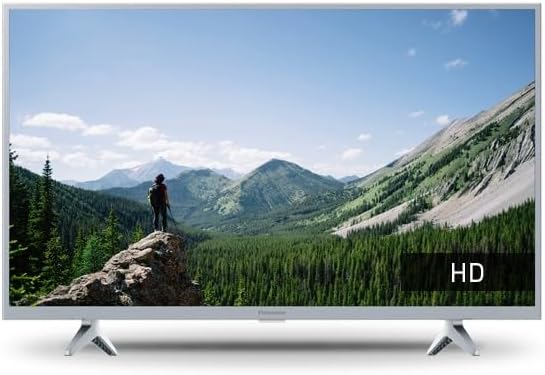
Figure 2: Rear view of the Panasonic TX-32MSW504S TV, illustrating the stand attachment points and various input ports.
4.3 Connecting Power
Connect the power cable to the TV's power input and then plug the other end into a wall outlet.
4.4 Connecting External Devices
Your TV supports various connections:
- HDMI: For high-definition audio and video devices (e.g., Blu-ray players, game consoles).
- USB: For connecting USB storage devices (e.g., flash drives) to play media or for channel list management.
- Bluetooth: For wireless connection to compatible audio devices or other peripherals.
- Wi-Fi/Ethernet: For internet connectivity.
4.5 Initial Setup Wizard
Upon first power-on, the TV will guide you through an initial setup process:
- Language Selection: Choose your preferred language.
- Network Connection: Connect to your Wi-Fi network or an Ethernet cable for internet access.
- Google Account Setup: Sign in with your Google account to access Android TV features, apps, and services. Note that full functionality, including channel list sorting, may be limited without a Google account.
- Channel Scan: Scan for available TV channels (Antenna/Cable/Satellite).
- Privacy Settings: Review and adjust privacy settings as desired.
5. Operating Instructions
5.1 Remote Control
The remote control allows you to navigate the TV's interface. Insert the two AAA batteries into the remote control, ensuring correct polarity. Familiarize yourself with the main buttons:
- Power: Turns the TV on/off.
- Navigation (Arrow) Buttons: Move through menus and options.
- OK/Enter: Confirms selections.
- Back: Returns to the previous screen.
- Home: Accesses the Android TV home screen.
- Volume +/-: Adjusts volume.
- Channel +/-: Changes channels.
- Google Assistant Button: Activates voice control.
- App Shortcut Buttons: Direct access to popular streaming services.
5.2 Android TV Features
Your TV comes with Android TV built-in, providing access to a vast array of entertainment:
- Streaming Apps: Download and enjoy apps like Disney+, Netflix, Amazon Prime Video, YouTube, and more from the Google Play Store.
- Google Assistant: Press the Google Assistant button on your remote and speak commands to search for content, control smart home devices, get answers, and more.
- Chromecast Built-in: Cast movies, shows, apps, and games directly from your mobile phone, tablet, or laptop to your TV screen. Look for the Cast icon within compatible applications.
5.3 Picture and Sound Settings
Customize your viewing and listening experience:
- Bright Panel: This technology enhances brightness and contrast for clear, colorful images, even in well-lit rooms.
- HD Color Engine: The image processing chip optimizes dark and light areas to deliver realistic colors.
- Filmmaker Mode: Developed with leading directors, this mode ensures that color, contrast, aspect ratio, and frame rate are displayed exactly as intended by the filmmaker. Access this mode through the picture settings.
- Surround Sound: The integrated high-quality speakers and audio processing create an immersive soundstage with clarity, richness, and depth. Adjust sound modes in the audio settings.
5.4 Channel Management
After scanning for channels, you may wish to sort them. For this model, channel list sorting is primarily managed via a USB stick. Consult the on-screen menu for instructions on exporting and importing channel lists using a USB device.
6. Maintenance
6.1 Cleaning the TV
- Screen: Gently wipe the screen with a soft, lint-free cloth. For stubborn marks, slightly dampen the cloth with water or a specialized screen cleaner (apply to cloth, not directly to screen).
- Cabinet: Wipe the TV cabinet with a soft, dry cloth. Do not use abrasive cleaners or solvents.
- Always unplug the TV from the power outlet before cleaning.
6.2 Software Updates
Your TV may receive software updates to improve performance and add new features. Ensure your TV is connected to the internet. You can usually check for updates manually through the TV's settings menu (System > About > System update).
Information regarding guaranteed software updates for this model is not available.
7. Troubleshooting
If you encounter issues with your TV, refer to the following common problems and solutions:
| Problem | Possible Cause / Solution |
|---|---|
| No Power | Check if the power cable is securely plugged into the TV and the wall outlet. Test the outlet with another device. |
| No Picture / Black Screen | Ensure the TV is on. Check the input source (HDMI, TV) is correctly selected. Verify external devices are powered on and connected. |
| No Sound | Check the volume level. Ensure Mute is not activated. Verify audio cables for external devices. If using external speakers, check their power and connections. |
| Remote Control Not Working | Check and replace batteries. Ensure there are no obstructions between the remote and the TV's IR sensor. |
| Network Connection Issues | Restart your router/modem. Check Wi-Fi password. Try connecting via Ethernet cable if Wi-Fi is unstable. |
| System Freezes / Crashes | Unplug the TV from the power outlet for a few minutes, then plug it back in. If issues persist, a factory reset may be necessary (refer to settings menu). |
| Channel Sorting Difficulty | This model primarily supports channel sorting via USB stick. Refer to the TV's on-screen help or the full digital manual for detailed steps. |
If the problem persists after trying these solutions, please contact Panasonic customer support.
8. Specifications
| Feature | Detail |
|---|---|
| Brand | Panasonic |
| Model Number | TX-32MSW504S |
| Screen Size | 32 Inches |
| Display Technology | LCD |
| Resolution | 768p |
| Refresh Rate | 60 Hz |
| Operating System | Android TV |
| Special Features | Chromecast, Google Assistant, Bright Panel, HD Color Engine, Filmmaker Mode |
| Connectivity Technology | Bluetooth, HDMI, Wi-Fi |
| Total USB Ports | 2 |
| Compatible Devices | Television, Cellphones |
| Product Dimensions (D x W x H) | 17.9D x 72.6W x 47.6H centimeters |
| Color | Silver |
| Batteries | 2 AAA batteries (included) |
| Country of Origin | Poland |
9. Warranty and Support
For warranty information, please refer to the warranty card included with your product or visit the official Panasonic website for your region. Keep your proof of purchase for warranty claims.
For technical support, troubleshooting assistance beyond this manual, or inquiries about spare parts, please contact Panasonic customer service. Information regarding the availability of spare parts for this model is not available.
You can find contact details for Panasonic support on their official website: www.panasonic.com