
1. Introduction
The MOMAX Smart Tracker Tag BR7D is a compact and lightweight device designed to help you locate your personal items using the Apple Find My network. This MFi-certified tracker connects directly to your iPhone, iPad, or Mac, allowing you to track items, receive left-behind alerts, and activate a sound to pinpoint their location. It features IP66 water resistance and a replaceable CR2032 battery for long-term use.
Important Note: This device is compatible with iOS devices only and does not support Android.
2. Setup
2.1. Activate the Tracker
Before first use, you must remove the battery insulation tab. Gently pull the tab from the side of the tracker to activate the battery.
Video: Demonstrates how to remove the battery insulation tab from the MOMAX Smart Tracker Tag to activate it.
2.2. Pair with Apple Find My
- Ensure your iOS device (iPhone, iPad, or Mac) has Bluetooth enabled and location services are active.
- Open the Find My app on your iOS device.
- Navigate to the Items tab.
- Tap + (Add Item) and then select Other Supported Item.
- The app will search for nearby trackers. Once the MOMAX tracker (e.g., MOMAX BR7D) appears, select it.
- Follow the on-screen prompts to name your item and assign an emoji.
- Confirm the settings to complete the pairing process.

Image: Visual guide for pairing the MOMAX Smart Tracker Tag with the Apple Find My app.
3. Operating the Tracker
3.1. Locating Nearby Items (Sound Playback)
If your item is within Bluetooth range (approximately 20 meters), you can make the tracker emit a loud sound (up to 80 dB) to help you find it.
- Open the Find My app.
- Select the item you wish to locate from the Items tab.
- Tap Play Sound. The tracker will beep until you tap Stop Sound.
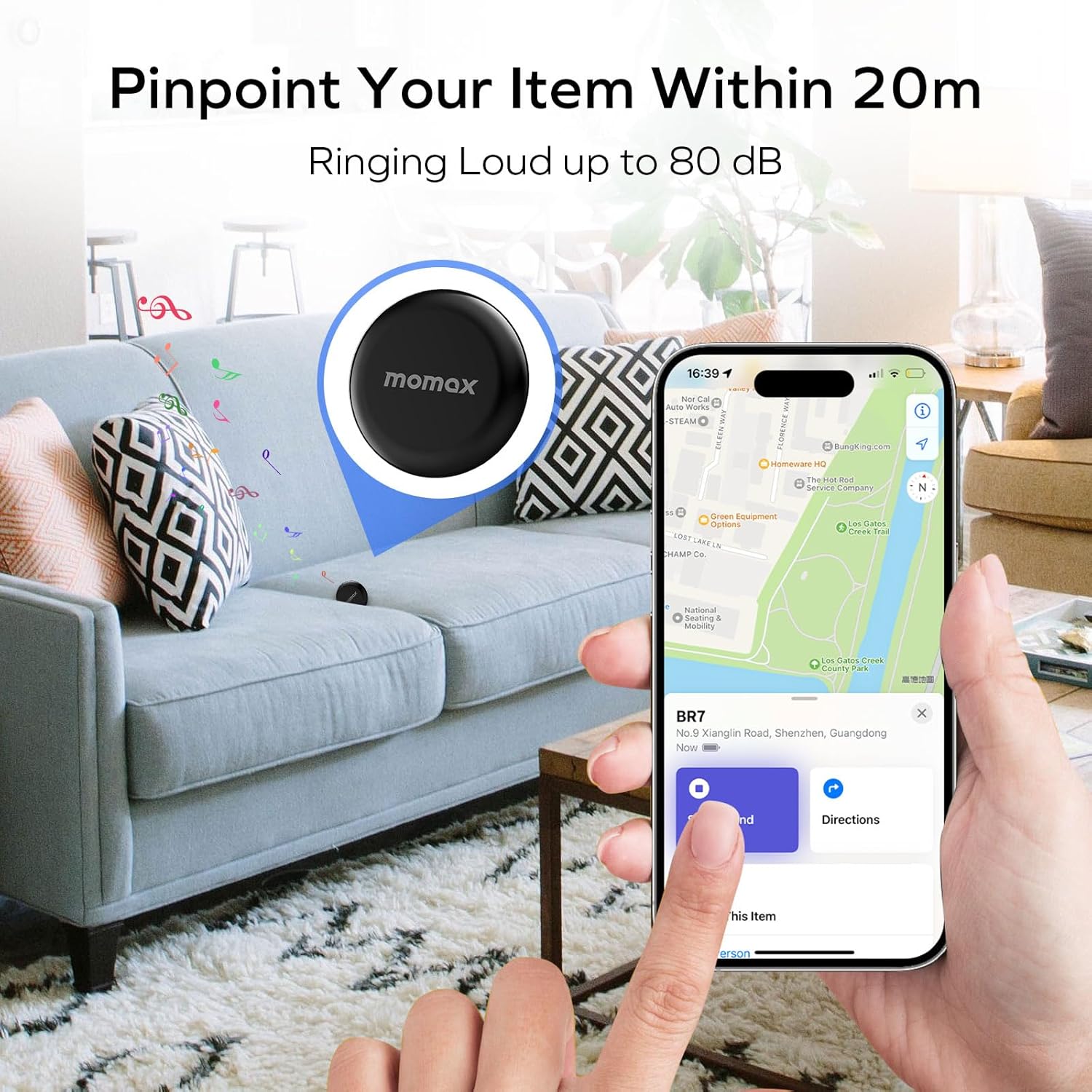
Image: The MOMAX Smart Tracker Tag can be pinpointed within 20 meters by playing a loud sound.
3.2. Locating Far Away Items (Map Tracking)
If your item is out of Bluetooth range, the Apple Find My network, composed of millions of Apple devices, can help locate it. The tracker sends out a secure Bluetooth signal that can be detected by nearby devices in the Find My network. These devices then send the location of your tracker to iCloud, which you can see on a map in the Find My app.
- Open the Find My app.
- Select the item from the Items tab.
- The app will display the last known location of your item on a map, along with the time it was last detected.
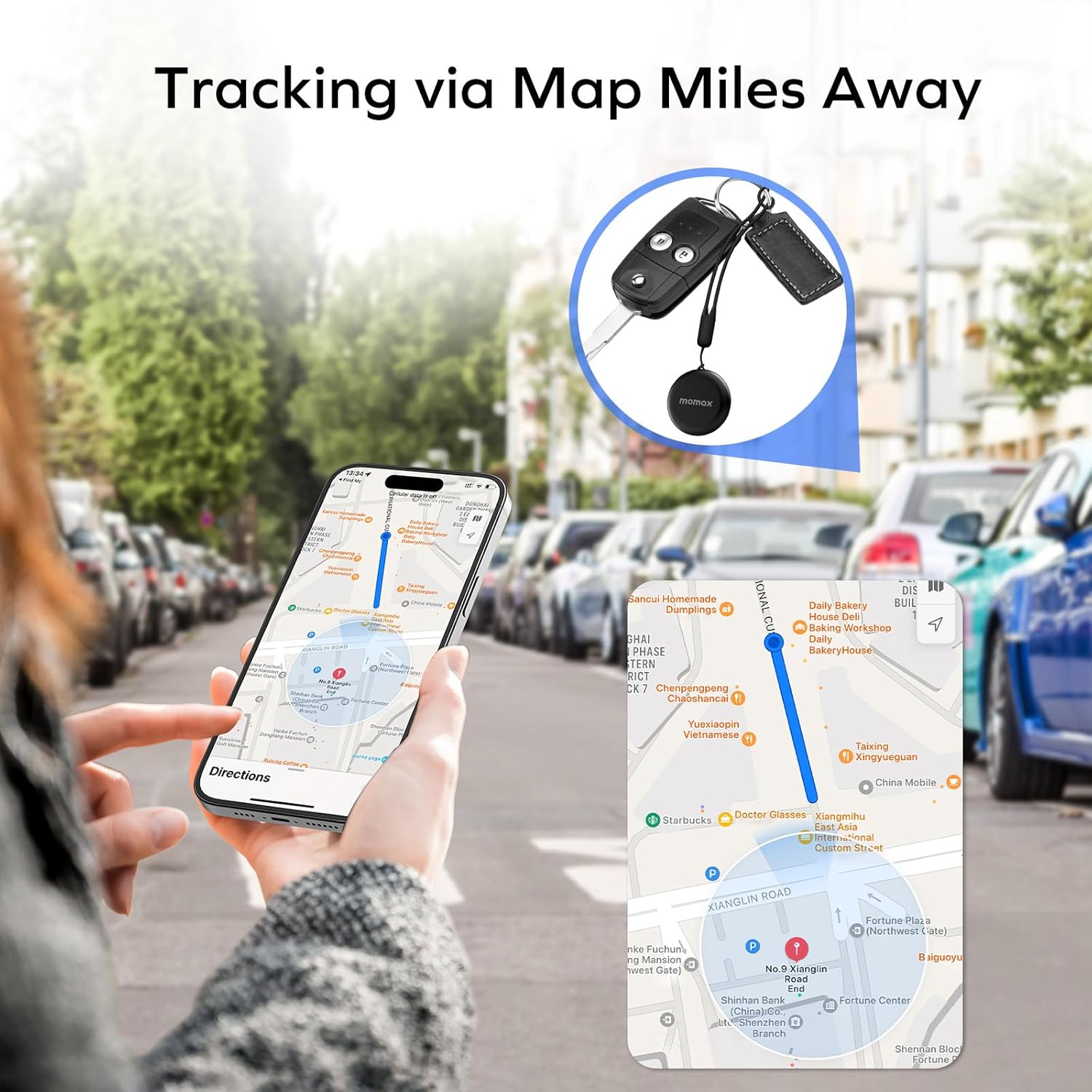
Image: Tracking the MOMAX Smart Tracker Tag via map, even when miles away.
3.3. Left-Behind Alerts
Receive instant notifications if you leave your tracked item behind. This feature helps prevent loss by alerting you when the tracker disconnects from your device's range (approximately 100 meters).
- In the Find My app, select your MOMAX Smart Tracker Tag.
- Scroll down and enable Notify When Left Behind.
- You can customize locations where you don't want to be notified (e.g., your home).
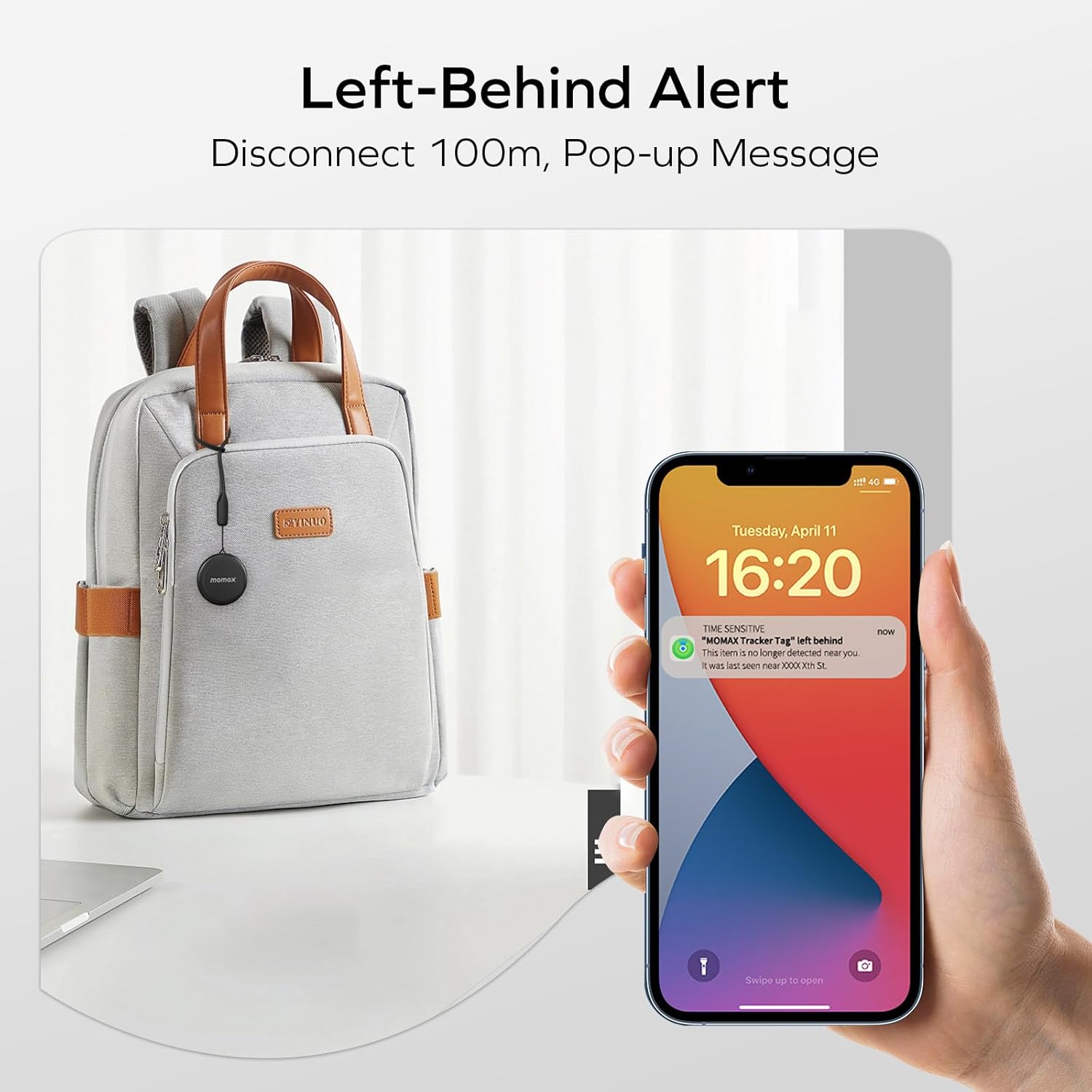
Image: Example of a 'Left-Behind Alert' notification on an iPhone.
3.4. Lost Mode
If your item is truly lost, you can put your tracker into Lost Mode. This allows you to display a message and contact information to anyone who finds your item.
- In the Find My app, select your MOMAX Smart Tracker Tag.
- Scroll up and select Lost Mode.
- Follow the prompts to enter a phone number or email address where you can be contacted.
- Activate Lost Mode.
3.5. Identifying a Found Item
If you find a MOMAX Smart Tracker Tag that doesn't belong to you, you can use your iOS device to identify it.
- Open the Find My app.
- Go to the Items tab and select Identify Found Item.
- Hold your device near the found tracker.
- If the tracker is in Lost Mode, you will see information about the owner and how to contact them.
4. Maintenance
4.1. Battery Replacement
The MOMAX Smart Tracker Tag uses a replaceable CR2032 coin cell battery, providing approximately 1 year of standby time. When the battery is low, you will receive a notification on your iOS device.
- Locate the small notch on the side of the tracker.
- Insert a small, flat tool (like a disassembly tab or SIM ejector pin) into the notch.
- Gently pry open the two halves of the tracker case.
- Remove the old CR2032 battery.
- Insert a new CR2032 3V battery with the positive (+) side facing up. You should hear a beep confirming correct installation.
- Align the two halves of the case and press them firmly together until they click into place.
Caution: Use only recommended tools to avoid damaging the device during battery replacement.

Image: Step-by-step guide for CR2032 battery replacement.
5. Troubleshooting
- Tracker not pairing: Ensure the battery insulation tab is removed, Bluetooth is enabled on your iOS device, and the Find My app has location permissions. Try resetting the tracker by removing and reinserting the battery.
- Cannot register multiple items: If you encounter issues pairing a second or subsequent tracker, ensure any previous pairings are correctly removed or reset the device. The Find My network supports up to 32 trackers (iOS 17 only).
- Battery life is shorter than expected: Battery life can vary based on usage frequency and environmental conditions. Ensure you are using a fresh, genuine CR2032 battery.
- Location not updating: The tracker relies on nearby iOS devices in the Find My network to update its location. In areas with fewer Apple devices (e.g., rural areas), location updates may be less frequent.
- Sound is not loud enough: The tracker emits sound up to 80 dB. Ensure there are no obstructions muffling the sound.
6. Specifications
| Brand | MOMAX |
| Model | BR7D |
| Dimensions | 32 x 32 x 7 mm |
| Weight | 6 g |
| Battery Type | CR2032 (replaceable) |
| Battery Life | Approx. 1 year (standby) |
| Water Resistance | IP66 |
| Compatibility | iOS devices only (iPhone, iPad, Mac) |
| Connectivity | Apple Find My Network |
| Sound Level | Up to 80 dB |
7. Warranty & Support
The MOMAX Smart Tracker Tag BR7D comes with a 1-year warranty from the date of purchase. If you encounter any issues with your product, please do not hesitate to contact our customer support team. We are committed to providing solutions, including refunds or product exchanges, for any manufacturing defects or performance problems.
For support, please refer to the contact information provided with your purchase or visit the official MOMAX website.