1. Introduction
This manual provides comprehensive instructions for the installation, configuration, and use of the WayPonDEV CDW-C9852BE Wi-Fi 6 Module. This module integrates Wi-Fi 6 (802.11ax) and Bluetooth 5.0 capabilities, designed for enhanced wireless connectivity in compatible systems.
The CDW-C9852BE module is specifically designed for use with NGFF (Next Generation Form Factor) M.2 2230 PCIE Bus slots. Ensure your system has a compatible M.2 2230 slot before installation.
2. Package Contents
Verify that all items are present in the package:
- 1 x RTL8852BE NGFF M.2 Wi-Fi Card (CDW-C9852BE)
- 2 x Antennas
3. Product Specifications
| Feature | Description |
|---|---|
| Model | RTL8852BE / CDW-C9852BE |
| Wireless Class | AX1800 |
| Interface | NGFF (M.2) |
| Connector Type | M.2 Key A/E |
| Wireless Standards | IEEE 802.11a/b/g/n/ac/ax |
| Transfer Rate (802.11b) | Up to 11 Mbps |
| Transfer Rate (802.11a/g) | Up to 54 Mbps |
| Transfer Rate (802.11n) | Up to 300 Mbps |
| Transfer Rate (802.11ac) | Up to 867 Mbps |
| Transfer Rate (802.11ax) | Up to 1200 Mbps (1.2 Gbps) |
| Bluetooth Version | Bluetooth 5.0 |
| Operating Systems | Windows 10 64-bit, Windows 11 64-bit |
| Dimensions | 22mm x 30mm (M.2 2230 form factor) |
Note: This module is designed for M.2 2230 slots with Key A/E. It is not compatible with M.2 Key M or MiniPCIe slots.
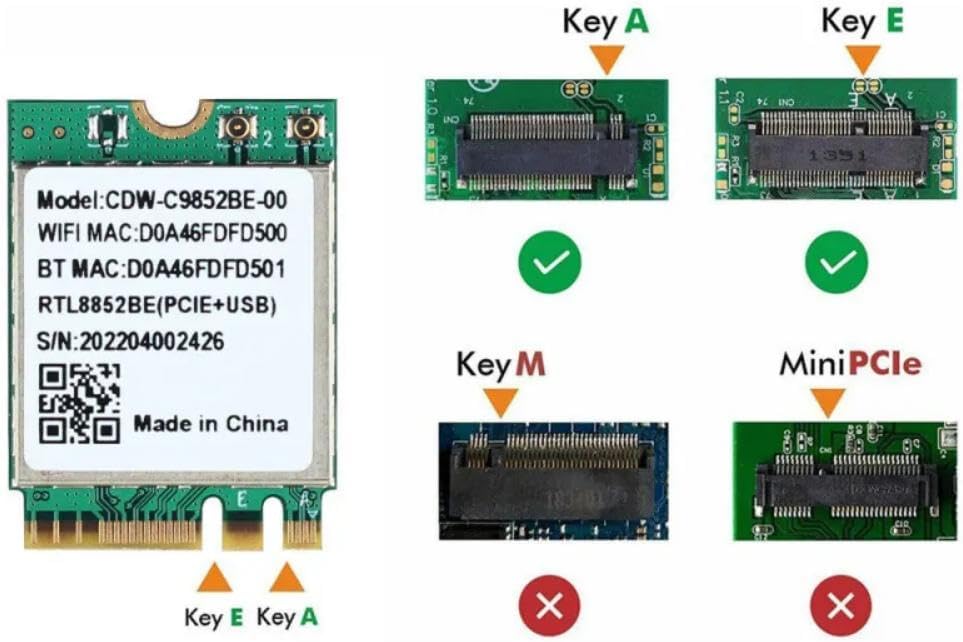
Image: Illustration of M.2 Key A/E compatibility, showing the correct slot type for installation.
4. Installation Guide
4.1. Hardware Installation
- Preparation: Power off your computer and disconnect all power sources. Open the computer case or access panel to locate the M.2 slot.
- Locate M.2 Slot: Identify an available M.2 2230 slot (Key A/E) on your motherboard. Refer to your computer's motherboard manual for exact location.
- Insert Module: Gently align the WayPonDEV CDW-C9852BE module with the M.2 slot. Insert the module at a slight angle (approximately 30 degrees) into the slot until the gold contacts are fully seated.
- Secure Module: Press the module down towards the motherboard. Secure it with the screw provided with your motherboard or computer case.
- Attach Antennas: Connect the two included antennas to the corresponding connectors on the module. Ensure a firm connection.
- Close Case: Close the computer case or access panel and reconnect all power sources.

Image: The WayPonDEV CDW-C9852BE module, highlighting the antenna interfaces and the M.2/NGFF connector for proper installation.
4.2. Driver Installation
After hardware installation, operating system drivers are required for the module to function correctly. The WayPonDEV CDW-C9852BE uses the Realtek RTL8852BE chipset.
- Initial Boot: Power on your computer. Windows 10 or Windows 11 may attempt to install a generic driver automatically.
- Verify Installation: Open Device Manager (search for "Device Manager" in Windows). Look under "Network adapters" for the Wi-Fi device and "Bluetooth" for the Bluetooth device. If they appear with a yellow exclamation mark or as unknown devices, drivers need to be installed or updated.
- Obtain Drivers:
- Visit the official WayPonDEV or Realtek website for the latest RTL8852BE drivers for Windows 10/11.
- Alternatively, some computer manufacturers (e.g., Dell, Lenovo) provide specific drivers for the RTL8852BE chipset used in their systems. Searching their support sites for "RTL8852BE driver" may yield results.
- Install Drivers: Follow the instructions provided with the downloaded driver package. This typically involves running an executable file.
- Restart: Restart your computer after driver installation is complete.
Important: Generic Windows Update drivers may not always provide full functionality, especially for Bluetooth. Manual installation of the correct Realtek RTL8852BE drivers is recommended for optimal performance.

Image: Visual representation of Windows 10 and Windows 11 operating system compatibility for the module.
5. Operation
5.1. Connecting to Wi-Fi
- Ensure drivers are installed.
- Click the Wi-Fi icon in the Windows taskbar.
- Select your desired Wi-Fi network from the list.
- Enter the network security key (password) if prompted.
- Click "Connect."
5.2. Pairing Bluetooth Devices
- Ensure Bluetooth drivers are installed.
- Go to Windows Settings > Devices > Bluetooth & other devices.
- Turn on Bluetooth.
- Put your Bluetooth device (e.g., headphones, mouse, keyboard) into pairing mode.
- Click "Add Bluetooth or other device" and select "Bluetooth."
- Select your device from the list and follow on-screen prompts to complete pairing.

Image: Demonstrates the Bluetooth 5.0 capabilities of the module, showing connectivity with common devices such as headsets, smartphones, game controllers, and printers.
6. Maintenance
The WayPonDEV CDW-C9852BE Wi-Fi 6 Module requires minimal maintenance. Keep the interior of your computer clean and free of dust to ensure optimal airflow and prevent overheating. Avoid physical damage to the module and its antenna connections.
7. Troubleshooting
7.1. Wi-Fi or Bluetooth Not Detected
- Check Physical Connection: Ensure the module is securely seated in the M.2 slot and the screw is tightened.
- Driver Installation: Verify that the correct Realtek RTL8852BE drivers for your operating system (Windows 10/11 64-bit) are installed. Check Device Manager for any unknown devices or devices with error symbols.
- BIOS/UEFI Settings: Some motherboards may have options to enable/disable M.2 slots or wireless modules in the BIOS/UEFI settings. Consult your motherboard manual.
7.2. Poor Wi-Fi Performance or Disconnections
- Antenna Connection: Ensure both antennas are securely connected to the module.
- Driver Update: Update to the latest drivers from the manufacturer's website.
- Interference: Keep the computer away from sources of electromagnetic interference (e.g., microwaves, cordless phones).
- Router Placement: Ensure your Wi-Fi router is optimally placed and within range.
7.3. Bluetooth Not Functioning
- Dedicated Bluetooth Driver: Ensure you have installed the specific Bluetooth driver for the RTL8852BE, not just a generic Wi-Fi driver.
- Windows Bluetooth Service: Check if the Bluetooth Support Service is running in Windows Services.
- Device Compatibility: Ensure the Bluetooth device you are trying to pair is compatible and in pairing mode.
8. Support & Warranty Information
For any after-sales problems, technical assistance, or warranty inquiries, please contact WayPonDEV customer support:
- Amazon Store: Click on the "WayPonDEV" store link on the product page and use the "Ask a question" feature.
- Email: Contact us via email at wpd@youyeetoo.com.
- Forum: Visit our community forum at forum.youyeetoo.com/ to leave a message or find solutions.
Please retain your proof of purchase for warranty claims.


