1. Introduction
The PETSTIBLE Smart Home Touch Screen Control Panel is a central hub designed to integrate and manage various smart home devices. This device features a 4-inch LCD touch screen, an integrated Zigbee hub, and supports Wi-Fi and wired LAN connectivity. It allows users to control smart switches, plugs, sensors, lights, and curtain switches, as well as activate smart scenes through the Smart Life/Tuya app.
This manual provides detailed instructions for the safe and efficient use of your control panel, covering installation, operation, maintenance, and troubleshooting.
2. Product Overview
The PETSTIBLE Smart Home Touch Screen Control Panel (Model 2450020863) serves as a versatile control center for your smart home ecosystem. It simplifies the management of smart devices and automation scenes.
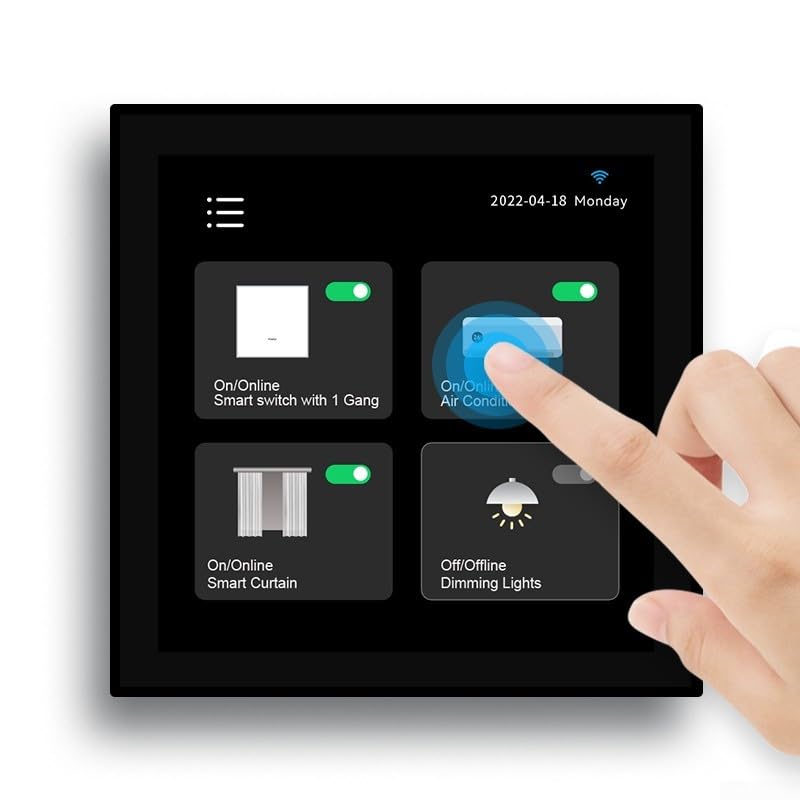
Image 2.1: Front view of the PETSTIBLE Smart Home Touch Screen Control Panel.
Key Features:
- Integrated Zigbee Hub: Connects with over 100 Zigbee sub-devices, providing a cost-effective and convenient solution for expanding your smart home.
- 4-inch LCD Touch Screen: Offers a user-friendly, intuitive interface for easy control by all family members.
- Smart Life/Tuya App Remote Control: Manage your smart home devices and scenes from anywhere, anytime, using the dedicated mobile application.
- Device Synchronization: Automatically synchronizes all smart devices, regardless of their communication protocol, within the Smart Life/Tuya Smart app.
- Scene Automation: Create and activate up to 16 smart automation scenes with a single tap, controlling multiple devices simultaneously.
- Flexible Connectivity: Supports both Wi-Fi and wired R-J45 LAN network connections.
- Family Sharing: Allows sharing control of the smart home center with family members for collaborative smart home management.
3. Package Contents
Please check the package contents upon unboxing. If any items are missing or damaged, contact customer support immediately.

Image 3.1: The PETSTIBLE Smart Home Touch Screen Control Panel in its retail packaging.
- 1 x PETSTIBLE Smart Home Touch Screen Control Panel
- 1 x Set of Mounting Screws
- 1 x User Manual (this document)
4. Specifications
| Feature | Specification |
|---|---|
| Product Name | T8E 4-inch Multifunction Smart Central Control |
| Model Number | 2450020863 |
| Brand | PETSTIBLE |
| Display | 4-inch LCD Touch Screen |
| Input Power | 100-240V AC, 50/60Hz |
| Operating Temperature | 0°C to +40°C (32°F to 104°F) |
| Operating Humidity | 5% to 90% (non-condensing) |
| Wireless Communication Protocols | Wi-Fi, Zigbee |
| Wired Network | R-J45 LAN Port |
| Dimensions (L x W x H) | 86 mm x 86 mm x 38 mm (3.39 x 3.39 x 1.5 inches) |
| Net Weight | 155 g (0.34 lbs) |
| ASIN | B0CLD6H34M |
5. Safety Information
Please read and understand all safety instructions before installing and operating this device. Failure to follow these instructions may result in electric shock, fire, or property damage.
- Electrical Safety: Installation should be performed by a qualified electrician or in accordance with local electrical codes. Ensure power is disconnected at the circuit breaker before installation or maintenance.
- Indoor Use Only: This device is designed for indoor use in dry environments. Do not expose to water, moisture, or extreme temperatures.
- Ventilation: Ensure adequate ventilation around the device to prevent overheating.
- Cleaning: Use a soft, dry cloth for cleaning. Do not use liquid cleaners or aerosols.
- Children: Keep out of reach of children. This device is not a toy.
- Disassembly: Do not attempt to disassemble, repair, or modify the device. This will void the warranty and may cause damage or injury.
6. Setup
6.1 Physical Installation (In-Wall)
- Power Disconnection: Before beginning installation, turn off the main power supply to the installation area at the circuit breaker. Verify that power is off using a voltage tester.
- Prepare Wall Box: Ensure you have a standard electrical wall box (e.g., 86x86mm) suitable for in-wall installation.
- Wiring: Connect the live (L) and neutral (N) wires from your electrical supply to the corresponding terminals on the back of the control panel. If a ground wire is present, connect it appropriately according to local electrical codes.
- Mounting: Carefully place the control panel into the wall box. Secure it using the provided mounting screws. Ensure the panel is flush with the wall surface.
- Power Restoration: Once the panel is securely mounted, restore power at the circuit breaker. The panel should power on.
6.2 Network Connection
The control panel supports both Wi-Fi and wired LAN connections.
Wi-Fi Connection:
- On the control panel's touch screen, navigate to the network settings.
- Select "Wi-Fi" and choose your desired 2.4GHz Wi-Fi network from the list.
- Enter the Wi-Fi password and confirm. The panel will attempt to connect.
Wired LAN Connection:
- Connect an Ethernet cable from your router or network switch to the R-J45 port on the back of the control panel.
- The panel should automatically detect and connect to the wired network.
6.3 App Download and Pairing
- Download App: Download the "Smart Life" or "Tuya Smart" app from your mobile device's app store (iOS App Store or Google Play Store).
- Register/Log In: Open the app and register for a new account or log in with an existing one.
- Add Device: In the app, tap the "+" icon to add a new device. Select "Control Panel" or search for the specific model.
- Pairing Mode: Follow the on-screen instructions in the app and on the control panel to put the panel into pairing mode. This usually involves a specific button press or menu navigation on the panel.
- Confirmation: Once paired, the app will confirm the successful addition of the control panel. You can then rename the device and assign it to a specific room.
7. Operating Instructions
The PETSTIBLE Smart Home Touch Screen Control Panel provides intuitive control over your smart home devices and scenes.
7.1 Navigating the Touch Screen Interface

Image 7.1: The control panel's main interface displaying different operational modes like guest mode, home mode, and lighting controls.
The 4-inch LCD touch screen displays various icons and menus for quick access to functions. Swipe left/right or tap icons to navigate between device controls, scene settings, and system configurations.
7.2 Controlling Smart Devices
From the main screen or device list, you can directly control individual smart devices connected to your system.

Image 7.2: Examples of smart device control, including automatic temperature adjustment for air conditioners and automatic lighting based on presence.
- Lights: Tap the light icon to turn lights on/off or adjust brightness/color temperature (if supported).
- Curtains: Tap the curtain icon to open, close, or pause smart curtains.
- Air Conditioner: Adjust temperature, fan speed, and mode directly from the panel.
- Switches/Plugs: Toggle power for connected smart switches and plugs.

Image 7.3: The control panel allows one-key control for air conditioners, smart curtains, and intelligent projection equipment.

Image 7.4: The panel supports controlling multi-way switches and integrates with the Smart Life/Tuya app for detailed device settings, such as spotlight brightness.
7.3 Creating and Activating Scenes
Scenes allow you to execute multiple actions with a single command. For example, a "Movie Night" scene could dim the lights, close the curtains, and turn on the TV.

Image 7.5: The control panel supports various scene modes, such as "Business meeting mode" (lights/curtains open), "PPT presentation mode" (lights dim, projector on), and "Full-Off Mode" (all devices off).
- Create Scene (via App): Open the Smart Life/Tuya app. Navigate to the "Scenes" section and tap to create a new scene. Add actions (e.g., turn on light, set brightness, close curtain) and conditions (if any). Save the scene.
- Activate Scene (via Panel): On the control panel, navigate to the "Scenes" interface. Tap the icon corresponding to the scene you wish to activate. The panel will execute all programmed actions.
Image 7.6: The panel allows precise control over lighting, including brightness levels (e.g., 100%, 20%) and color temperature (warm light, white light).
7.4 Remote Control via Smart Life/Tuya App
After pairing the control panel with the Smart Life/Tuya app, you can manage all connected devices and scenes remotely from your smartphone or tablet. The app mirrors the functionality of the physical control panel, allowing you to monitor and control your home from anywhere with an internet connection.
7.5 Family Sharing
To allow other family members to control the smart home system, use the family sharing feature in the Smart Life/Tuya app. Invite family members to your home group, granting them access to manage devices and scenes.
8. Maintenance
- Cleaning: Regularly wipe the touch screen and panel surface with a soft, dry, lint-free cloth. Do not use abrasive cleaners, solvents, or sprays directly on the device.
- Software Updates: Periodically check the Smart Life/Tuya app for firmware updates for the control panel. Keeping the firmware updated ensures optimal performance, security, and access to new features.
- Environment: Ensure the operating environment remains within the specified temperature and humidity ranges to prolong the device's lifespan.
9. Troubleshooting
| Problem | Possible Cause | Solution |
|---|---|---|
| Panel does not power on. | No power supply; incorrect wiring. | Check circuit breaker. Verify wiring connections (L and N). Consult a qualified electrician if unsure. |
| Cannot connect to Wi-Fi. | Incorrect password; 5GHz network selected; panel too far from router; Wi-Fi signal interference. | Ensure correct 2.4GHz Wi-Fi password. Move panel closer to router. Check for signal interference. Restart router. |
| Cannot pair with Smart Life/Tuya app. | Panel not in pairing mode; app/panel network issue; incorrect device type selected. | Ensure panel is in pairing mode. Verify both panel and phone are connected to the internet. Select the correct device type in the app. Try resetting the panel. |
| Zigbee devices not connecting. | Device too far from panel; device not in pairing mode; interference. | Move Zigbee device closer to the control panel. Ensure the Zigbee device is in pairing mode. Check for other Zigbee network interference. |
| Touch screen unresponsive. | Temporary software glitch; physical damage. | Restart the panel by cycling power (turn off/on at circuit breaker). If issue persists, contact customer support. |
10. Warranty and Support
This product comes with a standard manufacturer's warranty. Please refer to the warranty card included in your package or contact your retailer for specific warranty terms and conditions.
For technical support, troubleshooting assistance, or warranty claims, please contact PETSTIBLE customer service through the contact information provided on their official website or through your purchase platform.
Please have your product model number (2450020863) and ASIN (B0CLD6H34M) ready when contacting support.