
KuWFi MF903-M1-US
KuWFi 4G LTE Mobile WiFi Hotspot User Manual
Model: MF903-M1-US
1. Introduction
The KuWFi MF903-M1-US is a portable 4G LTE Mobile WiFi Hotspot designed to provide internet connectivity on the go. It allows you to connect multiple devices simultaneously to a 3G/4G network using a compatible SIM card. This device is ideal for outdoor travel, live streaming, online gaming, business trips, and in-car Wi-Fi, offering a convenient and reliable internet solution.

Image: The KuWFi 4G LTE Mobile WiFi Hotspot device shown alongside two prepaid 4G LTE SIM cards, highlighting the product's core components.
2. Package Contents
Please check the package contents upon unboxing to ensure all items are present:
- KuWFi 4G LTE Mobile WiFi Hotspot (MF903-M1-US)
- 2GB Prepaid 4G LTE SIM Card
- User Manual (this document)
- Charging Cable (may vary by package)
3. Product Overview
The KuWFi Mobile WiFi Hotspot is compact and designed for portability. It features a simple interface for ease of use.

Image: Front and back view of the KuWFi Mobile WiFi Hotspot, showing its sleek design and "4G LTE" branding on the front.
Key Features:
- Portable Design: Small and lightweight for easy carrying.
- Multi-Device Support: Connects 8-10 devices simultaneously.
- SIM Card Slot: Supports 3G/4G SIM cards for network access.
- Micro SD Card Slot: Supports up to 32GB for removable memory.
- Built-in Battery: For extended portable use.
4. Getting Started (Setup)
4.1. Inserting the SIM Card and Micro SD Card
To begin using your hotspot, you need to insert a compatible 3G/4G SIM card. The device also supports a Micro SD card for additional storage.
- Carefully open the back cover of the hotspot device.
- Locate the SIM card slot and the Micro SD card slot.
- Insert your 3G/4G SIM card into the designated SIM card slot with the gold contacts facing down and the notched corner aligned correctly.
- (Optional) Insert a Micro SD card (up to 32GB) into its slot.
- Close the back cover securely.

Image: The KuWFi hotspot with its back cover removed, clearly showing the internal battery compartment, SIM card slot, and Micro SD card slot.

Image: A detailed diagram illustrating the location of the SIM card slot and Micro SD card slot within the KuWFi hotspot, along with an example of a Micro SD card.
The included 2GB Prepaid 4G LTE SIM Card is a 3-in-1 kit, meaning it can be adapted to Standard, Micro, or Nano SIM sizes to fit various devices, including your KuWFi hotspot.

Image: An illustration showing Standard, Micro, and Nano SIM card sizes, and various devices like cameras, trackers, routers, watches, and tablets that can use these SIMs, emphasizing the versatility of the included 3-in-1 SIM kit.
4.2. Activating the Prepaid SIM Card
The included 2GB Prepaid 4G LTE SIM Card requires activation to access the data service. Follow these steps:
- Scan the QR code provided on the SIM card packaging or visit the activation portal.
- Enter the ICCID number (SIM card number) when prompted.
- Choose your desired plan (the included SIM offers 2GB data for 30 days at no cost).
- Complete the activation process.

Image: A visual guide detailing the three steps to join 4G service: Scan QR code, Enter ICCID number, and Choose the plan, with a smartphone screen showing the activation interface.
For direct activation, visit: https://shop.gloableconnect.com/sim/#/?channelCode=TGT_SZKWEU
4.3. Powering On/Off
- To Power On: Press and hold the power button (usually located on the front or side) for a few seconds until the indicator lights illuminate.
- To Power Off: Press and hold the power button again until the indicator lights turn off.
5. Operating the Hotspot
5.1. Connecting Devices via Wi-Fi
Once your hotspot is powered on and has established a network connection (indicated by the signal strength icon), you can connect your devices:
- On your smartphone, tablet, laptop, or other Wi-Fi enabled device, go to the Wi-Fi settings.
- Search for available Wi-Fi networks.
- Select the network name (SSID) of your KuWFi hotspot. The SSID and default password are usually found on a sticker inside the battery compartment or on the device packaging.
- Enter the Wi-Fi password when prompted.
- Your device should now be connected to the internet through the hotspot.
The hotspot supports connecting 8-10 devices simultaneously, making it suitable for sharing internet access with family or colleagues.
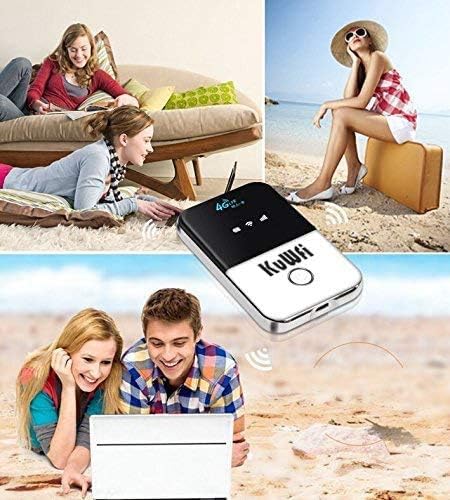
Image: A collage showing individuals and groups using the KuWFi Mobile WiFi Hotspot in different scenarios, such as at home, on the beach, and in a car, illustrating its versatility for various activities.
5.2. Web Management Interface (Optional)
For advanced settings, you can access the hotspot's web management interface. Connect your device to the hotspot's Wi-Fi, then open a web browser and enter the default IP address (e.g., 192.168.1.1 or 192.168.0.1). The default username and password are often 'admin' (check the device sticker for exact details).
From the web interface, you can:
- Change Wi-Fi SSID and password.
- View connected devices.
- Check data usage.
- Configure APN settings (if required by your SIM card provider).
6. Maintenance and Care
- Keep the device dry and away from moisture.
- Avoid extreme temperatures (below 0°C or above 60°C).
- Do not attempt to disassemble or repair the device yourself.
- Use only the recommended charging cable and adapter.
- Clean the device with a soft, dry cloth.
7. Troubleshooting
If you encounter issues with your KuWFi Mobile WiFi Hotspot, please refer to the following common solutions:
| Problem | Possible Solution |
|---|---|
| No network signal / Cannot connect to 4G. |
|
| Devices cannot connect to Wi-Fi. |
|
| Slow internet speed. |
|
8. Specifications
| Feature | Detail |
|---|---|
| Model Name | MF903-M1-US |
| Connectivity Technology | LTE, Wi-Fi |
| Frequency Band Class | Dual-Band |
| Antenna Type | Internal |
| Security Protocol | WPS |
| Compatible Devices | Smartphone, Tablet |
| Recommended Uses | Outdoor travel, Outdoor live broadcast, Online games, Business trips, Car WiFi |
| Included Components | 2GB Prepaid 4G LTE SIM Card |
| Micro SD Card Support | Up to 32GB (removable memory) |
| Max Connected Devices | 8-10 devices |
9. Safety Information
- Do not expose the device to water or excessive humidity.
- Avoid dropping or subjecting the device to severe impact.
- Do not place metal objects near the battery terminals.
- Do not store the device in direct sunlight or in high-temperature environments (e.g., inside a car on a hot day).
- Dispose of the device and battery according to local regulations.
10. Warranty and Support
For warranty information, technical support, or further inquiries, please contact KuWFi customer service or visit their official website.
You can find more information and support resources on the KuWFi brand store:
Ask a question about this manual
Ask about setup, troubleshooting, compatibility, parts, safety, or missing instructions. Manuals+ will review the question and use this page’s manual context to help answer it.