
1. Introduction
Thank you for choosing the SOLUX 16 Inch Cash Drawer. This manual provides essential information for the proper setup, operation, and maintenance of your cash drawer. This durable cash drawer is designed for efficient cash management in various retail environments, offering secure storage and seamless integration with compatible Point of Sale (POS) systems.
Key Features:
- Size: 16 inches (Width) x 16 inches (Depth) x 4.3 inches (Height)
- Compartments: 5 Bill and 8 Coin slots
- Tray: Fully removable cash and coin tray
- Connection: 24V, RJ11/RJ12 interface for printer-driven operation
- Security: Key lock mechanism with multiple keys included
- Construction: Heavy-duty galvanized steel with black matte finish
- Compatibility: Works with major thermal printer brands (e.g., Star Micronics, Epson, Citizen, Bixolon) and POS systems (e.g., Square, Toast, Clover)
- Additional: Includes a fireproof money bag
2. Setup
2.1 Unpacking
Carefully remove the cash drawer from its packaging. Inspect for any signs of damage. Ensure all components are present: cash drawer unit, removable cash/coin tray, and multiple keys.
2.2 Placement
Place the cash drawer on a stable, flat surface, typically under a POS terminal or counter. The unit features rubber stands for stability and to prevent scratching surfaces.
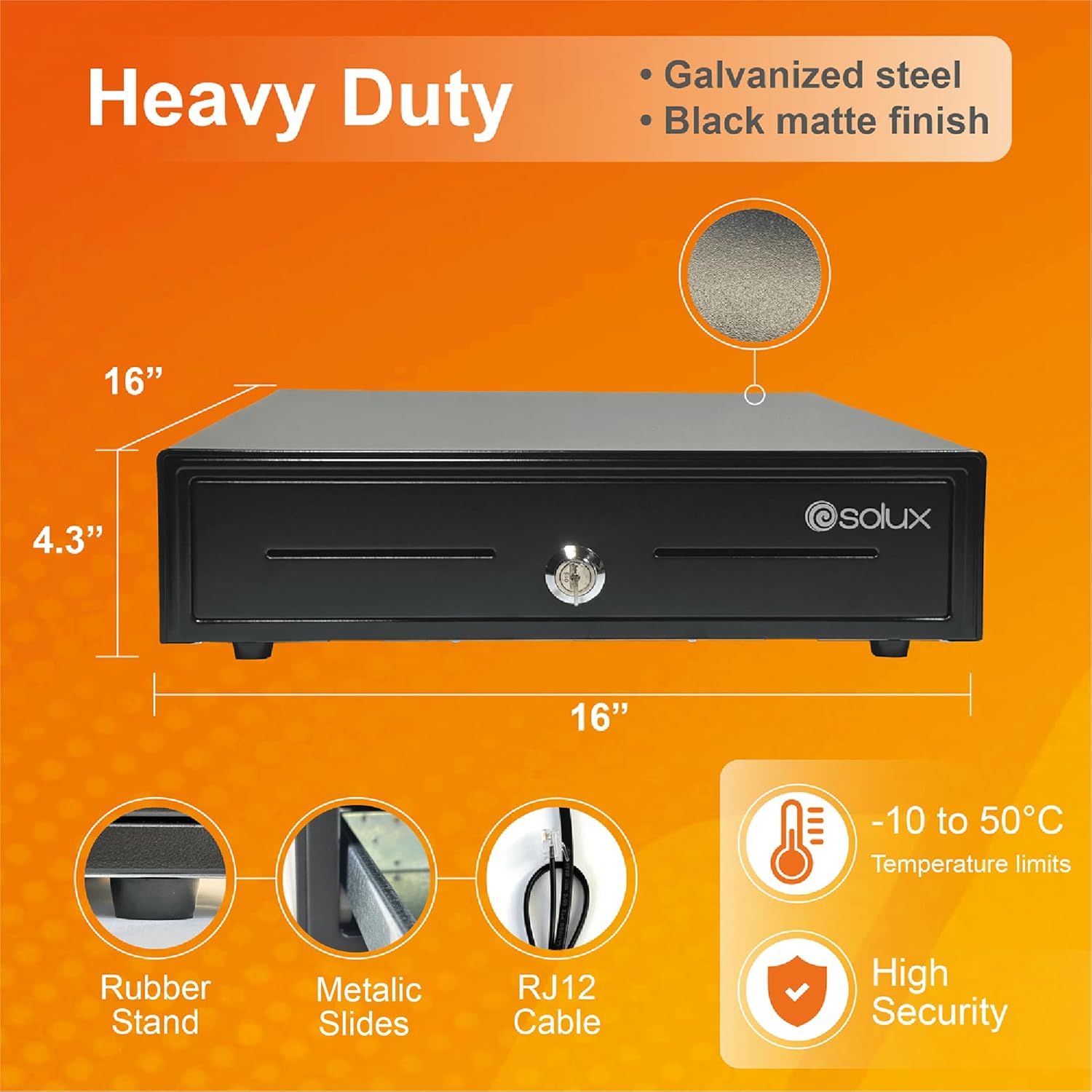
Figure 1: SOLUX 16-inch cash drawer dimensions and construction details.
2.3 Connecting to a Printer
The SOLUX cash drawer is designed for printer-driven operation using an RJ11/RJ12 cable. It is not a USB drawer. Connect the RJ11/RJ12 cable from the cash drawer to the designated port on your compatible thermal receipt printer. The printer will then send a signal to open the cash drawer upon transaction completion.

Figure 2: SOLUX cash drawer connected to a POS printer, illustrating compatibility.
Video 1: This video demonstrates the automatic opening mechanism of the SOLUX cash drawer when connected to a printer, and highlights the removable cash and coin tray for easy handling.
3. Operating Instructions
3.1 Opening the Cash Drawer
- Automatic Open: When connected to a compatible thermal receipt printer, the cash drawer will automatically open after a transaction is completed and the printer receives the command.
- Manual Open (Key): Insert one of the provided keys into the lock cylinder on the front of the drawer. Turn the key to the 'Open' position (usually counter-clockwise) to release the latch and open the drawer.
- Emergency Open: An emergency release button is located on the underside of the cash drawer. This can be used to open the drawer if power is lost or the printer connection fails.
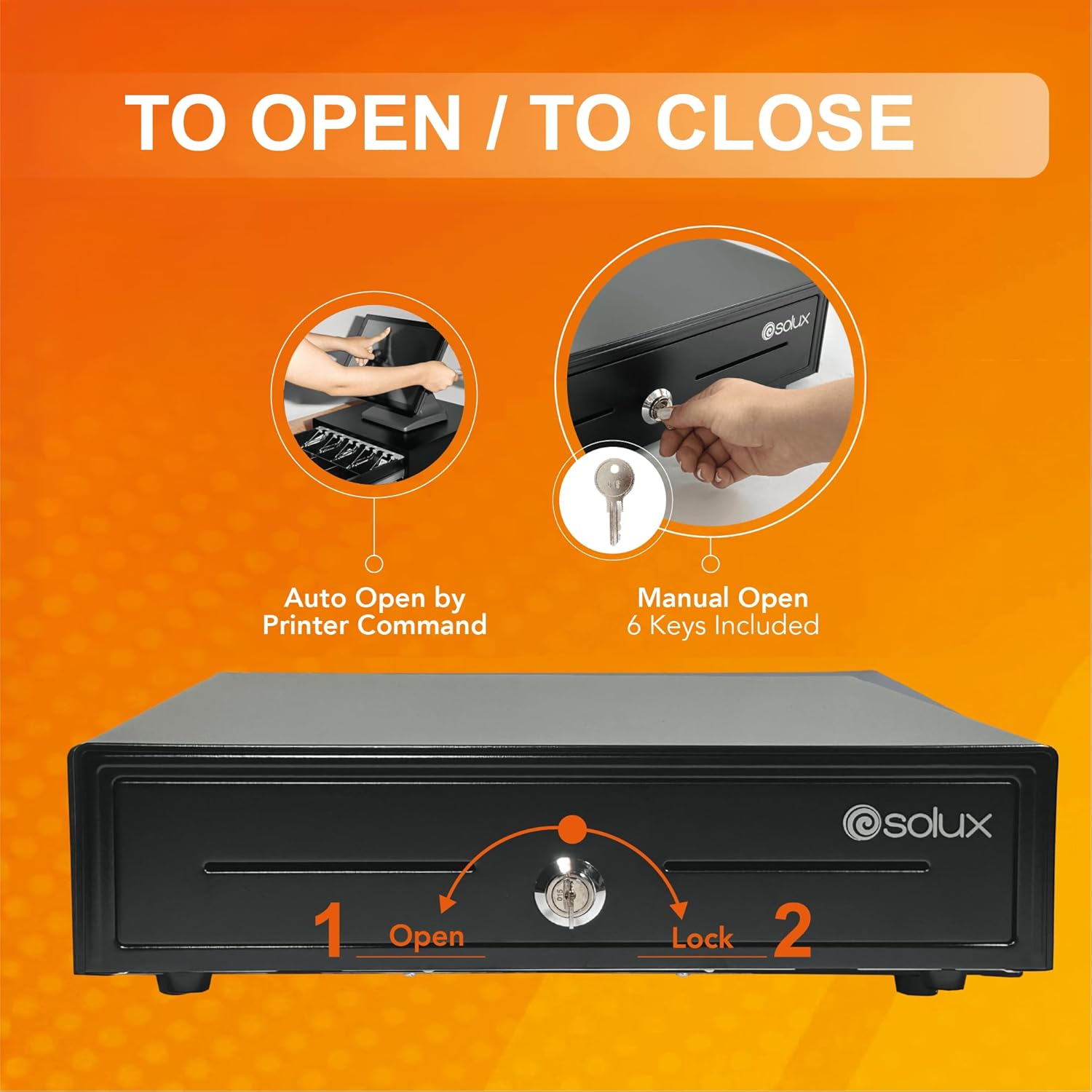
Figure 3: Methods for opening the SOLUX cash drawer.
3.2 Closing the Cash Drawer
Gently push the drawer inward until it clicks securely into place. Ensure it is fully closed to maintain security.
3.3 Using the Cash and Coin Tray
The cash drawer features a removable tray with 5 bill compartments and 8 coin compartments. Organize currency and coins for efficient transactions. The tray can be lifted out for shift changes or to access the storage area beneath.
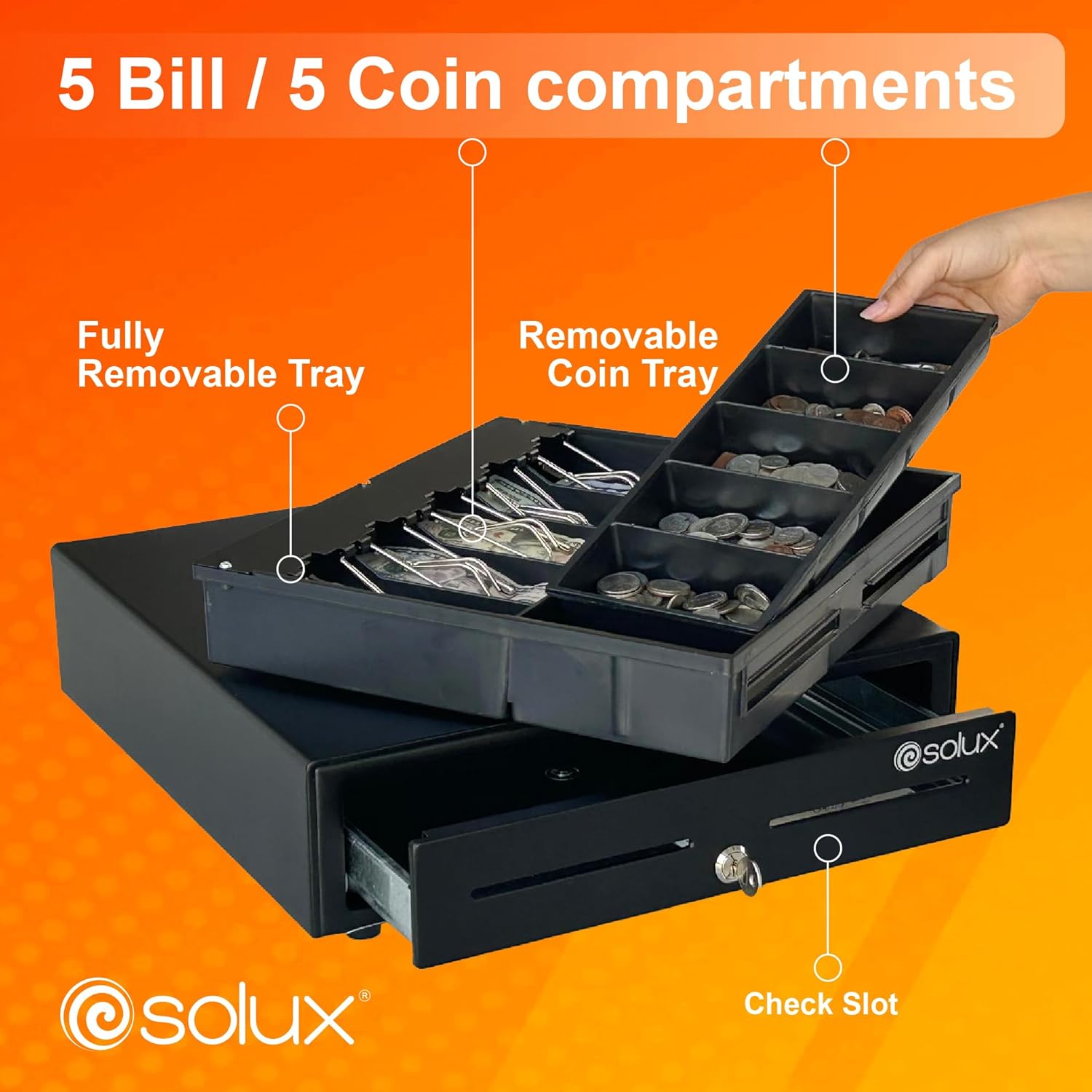
Figure 4: Interior view of the cash drawer, highlighting bill and coin compartments and the check slot.

Figure 5: Cash drawer with currency and coins, demonstrating the removable tray.
Video 2: This video provides a detailed view of the SOLUX 16-inch cash drawer's interior, showcasing the 5 bill and 8 coin compartments and the functionality of the removable coin tray.
3.4 Using the Check Slot
A front-facing slot allows for insertion of checks, large bills, or other documents without opening the main drawer, providing additional security.
4. Maintenance
4.1 Cleaning
Wipe the exterior of the cash drawer with a soft, damp cloth. Avoid abrasive cleaners or solvents that could damage the finish. The interior tray can be removed and cleaned separately.
4.2 General Care
- Avoid placing excessive weight on top of the cash drawer.
- Ensure the drawer slides are free from obstructions to maintain smooth operation.
- Operate within the specified temperature limits of -10 to 50°C.
5. Troubleshooting
5.1 Drawer Not Opening Automatically
- Check Printer Connection: Ensure the RJ11/RJ12 cable is securely connected to both the cash drawer and the thermal receipt printer.
- Printer Settings: Verify that your POS software and printer drivers are configured to send the open command to the cash drawer. Consult your printer's manual for specific settings.
- Power: Confirm that the printer is powered on and functioning correctly.
5.2 Drawer Not Opening Manually
- Key Position: Ensure the key is fully inserted and turned to the 'Open' position.
- Obstructions: Check for any objects blocking the drawer's movement.
- Emergency Release: Use the emergency release button located on the underside of the drawer as a last resort.
5.3 Drawer Not Closing Smoothly
- Obstructions: Remove any items that might be preventing the drawer from closing completely.
- Tray Alignment: Ensure the removable cash/coin tray is correctly seated within the drawer.
6. Specifications
| Feature | Detail |
|---|---|
| Brand | SOLUX |
| Model Number | SX-CDE |
| Dimensions (W x D x H) | 16" x 16" x 4.3" |
| Weight | 17.16 pounds (7.8 kg) |
| Color | Black |
| Material | Metal (Galvanized Steel) |
| Bill Compartments | 5 |
| Coin Compartments | 8 |
| Lock Type | Key Lock |
| Interface | RJ11/RJ12 (24V) |
| Mounting Type | Counter Mount |
| Operating Temperature | -10 to 50°C |
| Batteries Required | No |
| UPC | 860011163909 |
7. Warranty
The SOLUX 16 Inch Cash Drawer comes with a 3-year manufacturer's warranty. This warranty covers defects in materials and workmanship under normal use. Please retain your proof of purchase for warranty claims. For detailed terms and conditions, please contact SOLUX customer support.
8. Support
For any questions, technical assistance, or support regarding your SOLUX cash drawer, please contact our dedicated customer support team. SOLUX offers 24/7 technical support to ensure your business operations run smoothly.

Figure 6: SOLUX technical support team ready to assist.