
1. Introduction
This manual provides detailed instructions for the installation, operation, and maintenance of your ASVEGE 12.3 Inch Android 12 Car Radio. This multimedia head unit is designed to enhance your driving experience with advanced features and seamless integration into your Maserati GT/GC Gran Turismo (2007-2015).
2. Vehicle Compatibility
This car radio is specifically designed for:
- Maserati GT (Gran Turismo) models from 2007 to 2015.
- Maserati GC (GranCabrio) models from 2007 to 2015.
- Important: This unit is compatible only with Left-Hand Drive (LHD) vehicles.
- Supports original steering wheel controls and sound system integration.
3. Product Features
Your ASVEGE car radio comes equipped with a range of features:
- Operating System: Android 12
- Processor: 8-core CPU
- Memory: 4GB RAM, 64GB ROM
- Display: 12.3-inch IPS Screen with 1920*960 resolution
- Audio: Built-in DSP with 4*50W amplification, AM/FM Radio with RDS
- Connectivity: Bluetooth 5.0, Wi-Fi, 3G/4G Network support, USB
- Navigation: Built-in GPS, supports Google Maps and GPS Voice Guidance
- Smartphone Integration: Supports Wireless & Wired USB CarPlay and Wired USB Android Auto
- Additional Features: Microphone, Music playback, Video playback (1080P), Steering Wheel Control support, Hands-free phone calls, Phone book synchronization.
4. Setup and Installation
Professional installation is highly recommended for this product. Ensure all vehicle power is disconnected before beginning installation.
4.1. Package Contents
The package includes the main head unit and necessary cables for installation.
4.2. Wiring Connections
Connect all cables according to the provided wiring diagram. Ensure secure connections for power, speakers, GPS antenna, and USB ports.

Image: The ASVEGE 12.3 Inch Android 12 Car Radio unit, showing its components and a comparison of the car's dashboard before and after the new unit is installed. The new unit integrates seamlessly into the Maserati GT/GC Gran Turismo dashboard.
4.3. Initial Power-On
After installation, reconnect vehicle power and turn on the ignition. The unit should boot up to the Android interface. Follow any on-screen prompts for initial setup.
4.4. Sound Activation (If No Sound)
If you experience no sound after installation, please refer to the following video for a solution. This typically involves connecting the RCA cable to the AMP-C cable and activating the AMP function in the settings.
Video: This video provides a solution for troubleshooting no sound after installing the Maserati Android Screen. It demonstrates how to connect the RCA cable to the AMP-C cable and activate the AMP function in the settings to enable audio output.
5. Operating Instructions
5.1. Navigation
The unit features built-in GPS for navigation. Access the navigation application from the main menu. You can use pre-installed maps or download your preferred navigation apps like Google Maps, Waze, or iGo Maps from the Play Store.

Image: The GPS Navigation interface is displayed, showing a map with a route and icons for Google Maps, Waze Maps, and iGo Maps. This illustrates the unit's navigation capabilities.
5.2. CarPlay and Android Auto
Connect your smartphone via Bluetooth for wireless CarPlay/Android Auto or use a wired USB connection. This feature mirrors your phone's interface to the car radio, allowing access to calls, messages, music, and navigation apps directly from the unit.

Image: This image shows the car radio displaying both Wireless & Wired CarPlay and Android Auto interfaces. Two smartphones are shown, one connected to CarPlay and the other to Android Auto, demonstrating the seamless integration of mobile devices.

Image: A close-up of the CarPlay interface on the car radio screen, showing various iOS applications.
5.3. Bluetooth 5.0
Pair your phone via Bluetooth for hands-free calling and audio streaming. The unit supports automatic synchronization of your phone book for easy access to contacts.
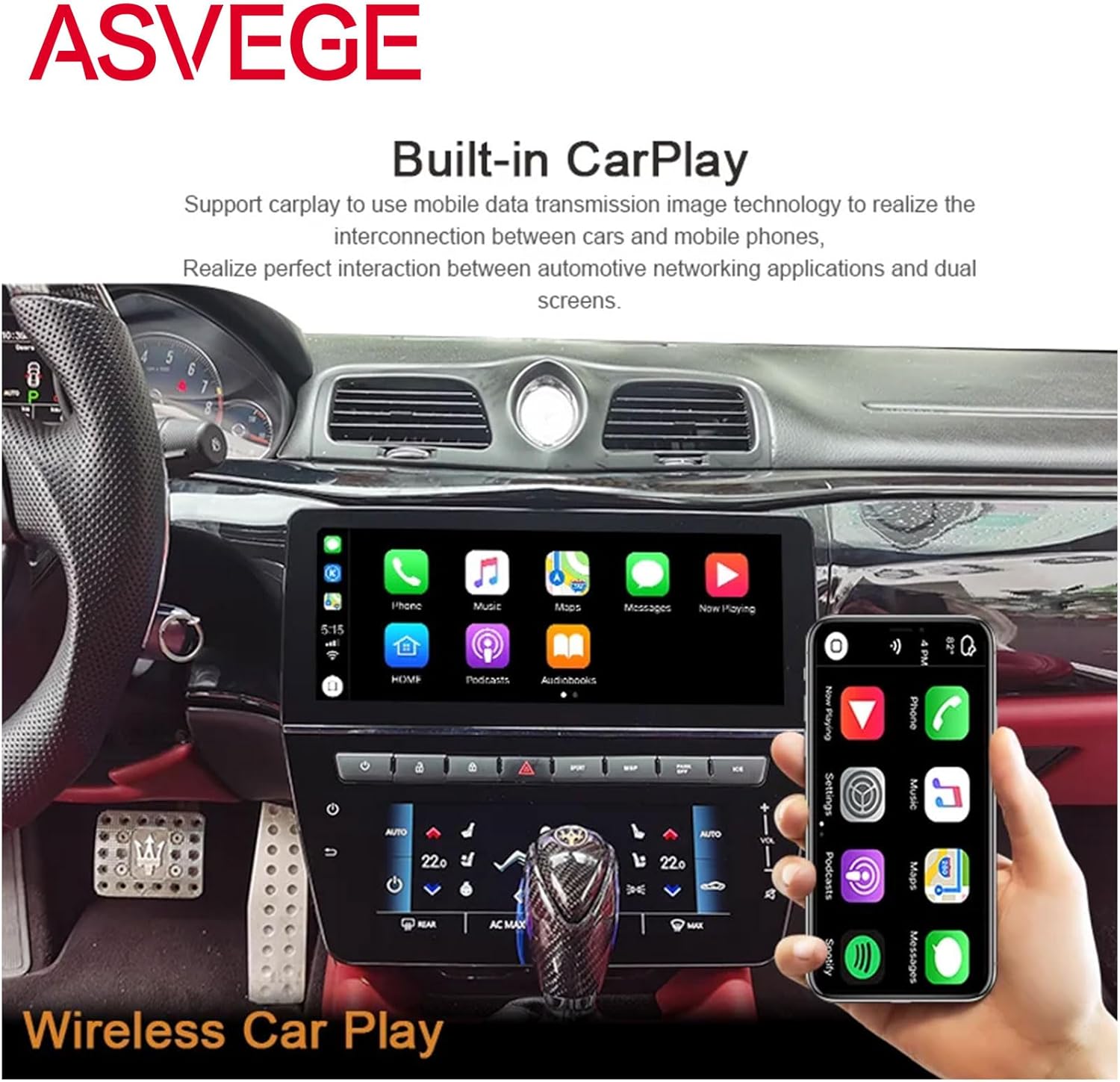
Image: The Bluetooth 5.0 interface is shown on the car radio screen, featuring a dial pad for making calls and indicating active Bluetooth connection.
5.4. Radio and Multimedia
Enjoy AM/FM radio with RDS functionality. The unit supports various multimedia formats for playing 1080P videos and high-definition pictures. Access these features through the respective applications on the main menu.
5.5. Sound Settings (DSP)
Utilize the built-in Digital Sound Processor (DSP) to customize your audio experience. Adjust equalizer settings, bass enhancement, and surround sound to your preference.
5.6. Climate Control
The unit integrates with your vehicle's original climate control system, allowing you to manage heating and air conditioning directly from the touchscreen interface.

Image: This image highlights multiple multimedia features of the car radio, including voice control, integration with steering wheel controls, a 360-degree panoramic view, and AHD 1080P backup camera support.
6. Maintenance
To ensure optimal performance and longevity of your ASVEGE car radio:
- Regularly clean the screen with a soft, lint-free cloth. Avoid harsh chemicals.
- Keep the software updated to the latest version for improved features and security.
- Avoid exposing the unit to extreme temperatures or direct sunlight for prolonged periods.
7. Troubleshooting
If you encounter any issues with your car radio, please refer to the following common troubleshooting tips:
- No Power: Check all power connections and vehicle fuses. Ensure the ignition is on.
- No Sound: Verify that the RCA cable is correctly connected to the AMP-C cable and the AMP function is enabled in the device settings. Refer to the 'Sound Activation' video in Section 4.4.
- Touchscreen Unresponsive: Try restarting the unit. If the issue persists, check for any physical damage or debris on the screen.
- GPS Signal Issues: Ensure the GPS antenna is properly installed and has a clear view of the sky.
- Bluetooth Connectivity Problems: Ensure Bluetooth is enabled on both the car radio and your smartphone. Try unpairing and re-pairing the devices.
For further assistance, please contact ASVEGE customer support.
8. Specifications
| Feature | Specification |
|---|---|
| Brand | ASVEGE |
| Screen Size | 12.3 Inches |
| Operating System | Android |
| Memory Storage Capacity | 64 GB |
| Display Type | LCD |
| Touch Screen Type | Capacitive |
| Connectivity Technology | Powerline, USB |
| Special Feature | Apple CarPlay, Built-In GPS |
| Audio Output Mode | Stereo |
| Mounting Type | Dashboard Mount |
| Item Weight | 10.6 Pounds |
9. Warranty and Support
This ASVEGE product comes with a 12-month warranty. For any questions, technical support, or warranty claims, please contact the seller directly.
Seller: Asvege US Store
Contact Email: asvegeus@gmail.com, asvegeus@outlook.com