
1. Introduction
The Starlane CORSARO-II R is an advanced GPS lap timer and data recorder designed for performance enthusiasts. It features a Triple Constellation GPS+GLONASS+GALILEO system for precise positioning, a responsive touch screen, and a comprehensive integrated library of over 1000 tracks with intermediate points. The device boasts a transflective TFT color display with backlight for clear visibility in various conditions, GPS speed measurement, and convenient data download via Bluetooth and Wi-Fi. It supports a dual power supply, operating either from its integrated Lithium battery or a vehicle's 12-Volt supply. The CORSARO-II R can also be expanded with optional wireless WID (Wireless Input Device) modules to acquire additional signals from the vehicle harness or external sensors.
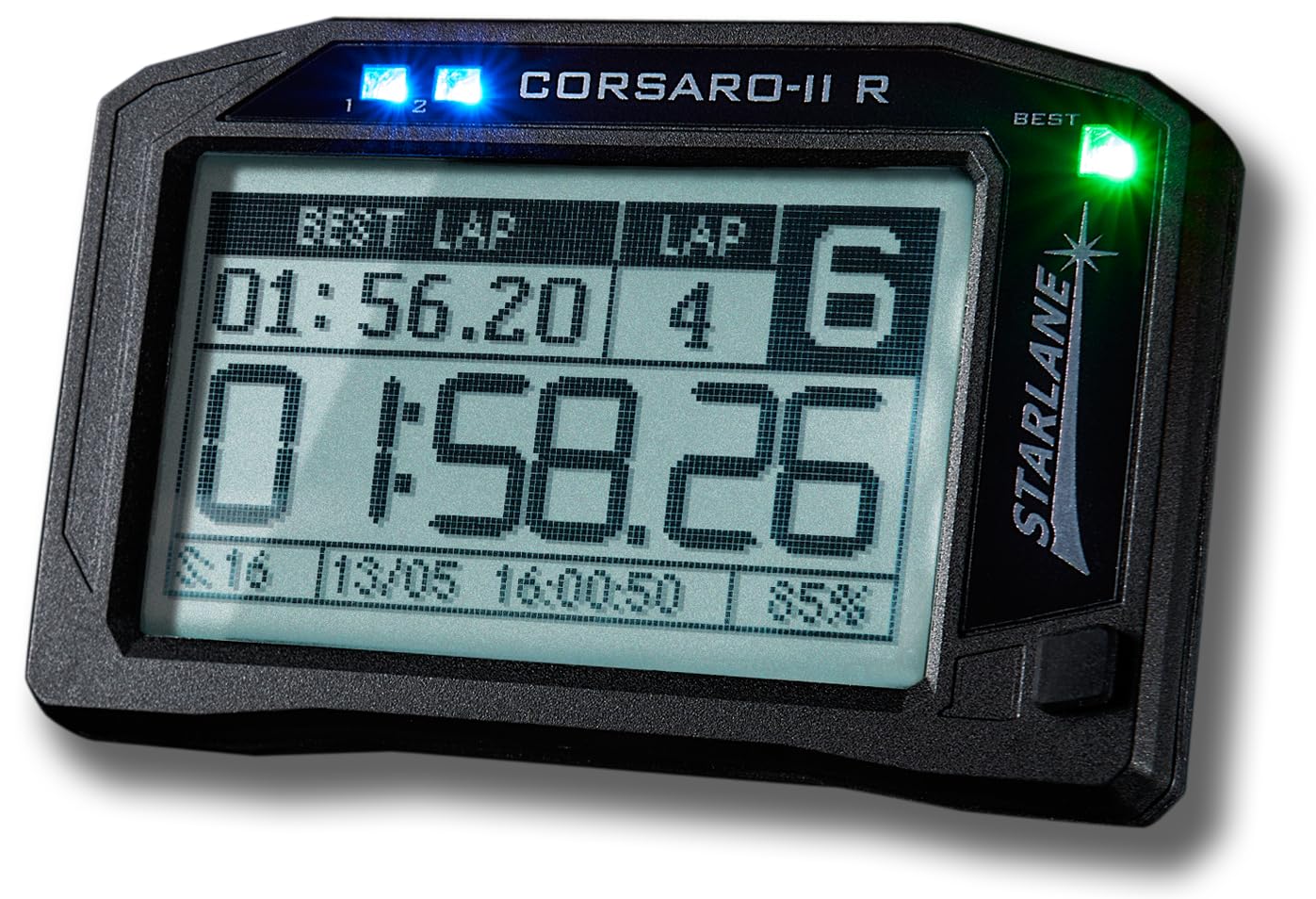
Figure 1: Starlane CORSARO-II R GPS Lap Timer and Data Recorder. This image shows the front view of the compact, black device with its color display.
2. What's in the Box
Carefully unpack the contents and ensure all items are present:
- 1 CORSARO-II R device
- 1 Elastic support kit
- 1 Dual Lock Adhesive strap fastening kit
- 1 Supply cable from 12V vehicle battery
- 1 User Manual (this document)

Figure 2: Mounting kit components for the CORSARO-II R. This image displays the device, an elastic support, and Dual Lock adhesive straps for secure attachment.
3. Setup
3.1 Initial Charging and Power Connection
Before first use, ensure the CORSARO-II R device is adequately charged. Connect the device using the provided 12V vehicle battery supply cable. The device can also operate on its internal Lithium battery.
3.2 Mounting the Device
Choose a secure and visible location on your vehicle. Use either the elastic support kit or the Dual Lock Adhesive strap fastening kit for mounting. Ensure the device is firmly attached to prevent movement during operation.
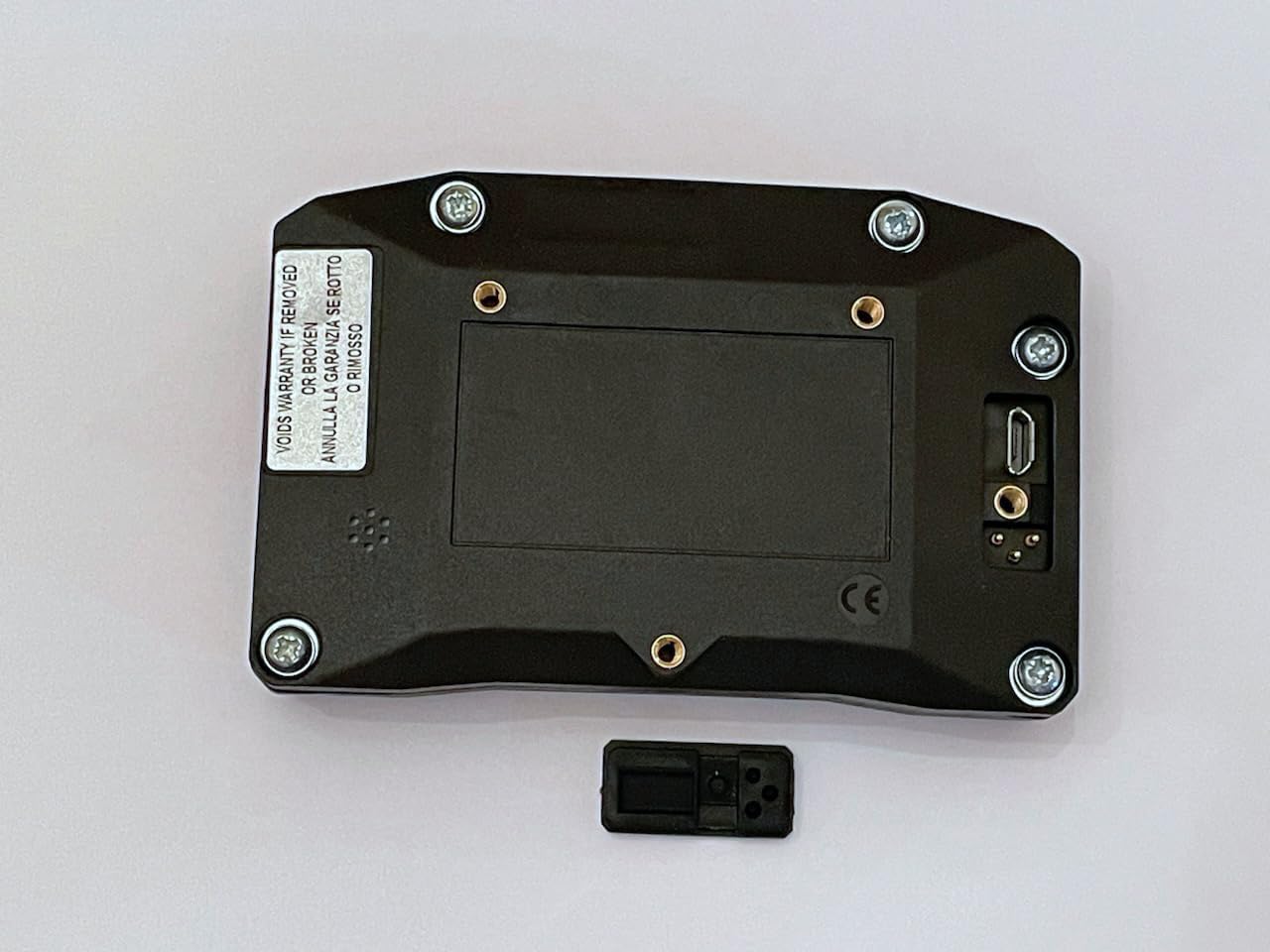
Figure 3: Rear view of the CORSARO-II R device, showing mounting points and connectivity ports.
3.3 Initial Power-On and Configuration
- Press and hold the power button to turn on the device.
- Follow the on-screen prompts to select your preferred language.
- Allow the device to acquire a GPS signal. This may take a few moments, especially during the first use or in a new location. Ensure a clear view of the sky.
- The device will automatically recognize the track from its integrated library of over 1000 tracks. If your track is not in the library, the SAFD-2 function will automatically divide the track after the first two laps.
4. Operating Instructions
4.1 Basic Navigation
The CORSARO-II R features a touch screen and physical buttons for navigation. Use the touch screen for menu selection and data review, and the buttons for quick access to primary functions.
4.2 Lap Timing Function
The device provides predictive lap timing. During each lap, the expected lap time and gain are displayed in advance. You can select a reference lap from the best of the session, best of the day, or a specific session stored in memory.
4.3 Track Recognition (SAFD-2)
The built-in library contains over 1000 tracks. The device automatically recognizes the current track. If a track is not in the library, the SAFD-2 function will automatically divide the track after the first two laps, allowing immediate lap time and split tracking.
4.4 Data Download
Data can be downloaded from the device via Bluetooth or Wi-Fi for analysis on a computer or compatible mobile device. Refer to the Starlane software manual for detailed instructions on data analysis.

Figure 4: Example of the Starlane data analysis software interface, showing track maps and performance graphs.
4.5 WID Module Pairing (Optional)
The CORSARO-II R supports wireless data transmission with optional WID modules. These modules allow the acquisition of additional signals from your vehicle's harness or other sensors without the need for extensive cabling. Refer to the WID module's specific instructions for pairing and configuration.
5. Maintenance
5.1 Cleaning
Clean the device regularly with a soft, damp cloth. Avoid using harsh chemicals or abrasive materials that could damage the screen or casing. Ensure all ports are free from dirt and debris.
5.2 Battery Care
To prolong the life of the integrated Lithium battery, avoid fully discharging it frequently. Store the device in a cool, dry place when not in use for extended periods. Charge the battery periodically if stored for a long time.
5.3 Software Updates
Periodically check the Starlane official website for firmware and software updates. Keeping your device updated ensures optimal performance and access to new features.
6. Troubleshooting
6.1 Device Not Powering On
- Ensure the battery is charged or the device is connected to a 12V power source.
- Check the power cable for any damage or loose connections.
6.2 No GPS Signal
- Ensure the device has a clear, unobstructed view of the sky.
- Move to an open area away from tall buildings or dense foliage.
- Allow sufficient time for initial GPS acquisition.
6.3 Data Transfer Issues
- Verify that Bluetooth or Wi-Fi is enabled on both the CORSARO-II R and the receiving device.
- Ensure the devices are within range.
- Restart both devices and attempt the transfer again.
6.4 Screen Unresponsive
- Perform a soft reset by holding the power button until the device restarts.
- Ensure the screen is clean and free from moisture or debris.
7. Specifications
| Brand | Starlane |
| Model Number | CORS2R |
| Color | Black |
| Product Dimensions (L x W x H) | 3.7" x 1" x 2.5" |
| Screen Size | 3 Inches |
| Display Type | Transflective TFT Color Display with Backlight |
| Connectivity Technology | Bluetooth, Wi-Fi |
| Human Interface Input | Buttons, Touchscreen |
| Power Supply | Integrated Lithium battery or vehicle 12V supply |
| GPS Type | Triple Constellation GPS+GLONASS+GALILEO |
8. Warranty and Support
8.1 Warranty Information
The Starlane CORSARO-II R device comes with a 1-year manufacturer's warranty. This warranty covers defects in materials and workmanship under normal use. Please retain your proof of purchase for warranty claims.
8.2 Technical Support
For technical assistance, troubleshooting beyond this manual, or warranty service, please contact Starlane customer support. Refer to the official Starlane website for the most current contact information and support resources.