1. Introduction
This manual provides essential information for the safe and effective use of your Pioneer DMH-ZF8550TV Multimedia Receiver. This advanced receiver features a 9-inch capacitive floating touchscreen, offering seamless integration with Apple CarPlay and Android Auto. It also includes Wi-Fi, Bluetooth, Digital TV, USB connectivity, and AM/FM radio capabilities, providing a comprehensive in-car entertainment and information system.
2. Safety Information
Always observe the following safety precautions to prevent personal injury or damage to the product and vehicle:
- Do not operate the system in a way that distracts you from driving safely.
- Ensure all wiring is correctly connected and insulated to prevent short circuits.
- Consult a professional for installation if you are unsure about any steps.
- Avoid exposing the unit to extreme temperatures, direct sunlight for prolonged periods, or excessive moisture.
- Do not attempt to disassemble or modify the unit. This may cause damage and void the warranty.
3. Package Contents
Verify that all items listed below are included in your product package:
- Pioneer DMH-ZF8550TV Multimedia Receiver
- Power Cable with ISO Connector
- AV Cable
- USB Extension Cable
- External Microphone
- Digital TV Antenna
- GPS Antenna
- Installation Kit
- Quick Start Guide
4. Setup and Installation
Proper installation is crucial for optimal performance. It is recommended to have the unit installed by a qualified professional.
4.1 Physical Installation
The DMH-ZF8550TV features a floating display design, allowing for flexible positioning in your vehicle's dashboard. Ensure the mounting location provides adequate clearance and does not obstruct vehicle controls or airbags.
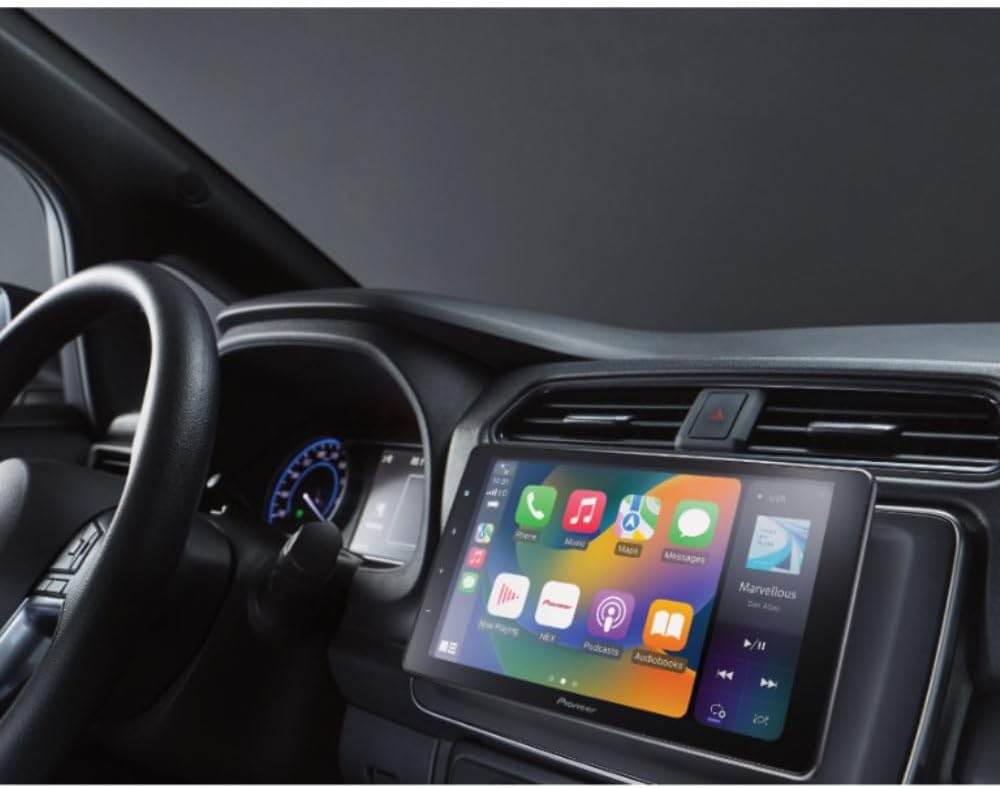
Figure 4.1: The DMH-ZF8550TV multimedia receiver professionally installed in a vehicle's dashboard, showcasing its floating display design and integration with the car's interior.
Use the provided installation kit to secure the main unit and the floating display. Refer to the detailed installation guide included in the package for specific vehicle requirements and mounting procedures.
4.2 Wiring Connections
Connect the power cable, AV cables, USB extension, external microphone, digital TV antenna, and GPS antenna to their respective ports on the main unit. Ensure all connections are secure to prevent signal loss or malfunction.

Figure 4.2: A detailed front view of the Pioneer DMH-ZF8550TV Multimedia Receiver, highlighting its large 9-inch capacitive touchscreen and physical buttons on the left side. This image represents the unit before installation, showing its sleek design.
The unit includes 3 pairs of pre-amplified RCA outputs for external amplifiers and a video output for a rear monitor. It also has inputs for a reverse camera and steering wheel controls. Consult the wiring diagram in the full manual for detailed connection instructions.
4.3 Initial Setup
After installation, turn on your vehicle's ignition. The unit will power on. Follow the on-screen prompts to set the language, time, and perform initial system configurations. Connect to your home Wi-Fi network or a mobile hotspot for software updates and online features.
5. Operating Instructions
This section details the primary functions and features of your DMH-ZF8550TV receiver.
5.1 Touchscreen Operation
The 9-inch capacitive touchscreen responds to touch gestures similar to a smartphone. Tap to select, swipe to navigate menus, and pinch to zoom where applicable. The interface is designed for intuitive control of all functions.
5.2 Apple CarPlay®
Connect your iPhone via USB or wirelessly (if supported by your iPhone model) to access Apple CarPlay. This feature allows you to use compatible iPhone apps, make calls, send messages, and get directions directly from the receiver's display.

Figure 5.2: The display of the Pioneer DMH-ZF8550TV showcasing the Apple CarPlay interface, with various app icons such as Phone, Music, Maps, Messages, and Podcasts, indicating seamless iPhone integration.
5.3 Android Auto™
Connect your Android smartphone via USB or wirelessly (if supported by your phone model) to use Android Auto. This provides access to Google Maps, Google Assistant, music apps, and messaging services optimized for in-car use.

Figure 5.3: The Pioneer DMH-ZF8550TV display showing the Android Auto interface, featuring icons for Google Maps, News, YouTube Music, Phone, and other Android applications, demonstrating its compatibility with Android devices.
5.4 Wi-Fi® Connectivity
The built-in Wi-Fi allows for wireless Apple CarPlay/Android Auto connections, system updates, and WebLink™/WebLink Cast™ functionality for smartphone mirroring. Access Wi-Fi settings through the system menu to connect to available networks.
5.5 Bluetooth® Pairing
Pair your smartphone via Bluetooth for hands-free calling and audio streaming. Navigate to the Bluetooth settings on the receiver, enable pairing mode, and select the DMH-ZF8550TV from your phone's Bluetooth device list.
5.6 Digital TV
Utilize the integrated Digital TV tuner to watch live television broadcasts. Ensure the digital TV antenna is properly installed and positioned for optimal reception. Scan for available channels through the TV application on the receiver.
5.7 USB Playback
Connect a USB device to the USB port to play audio and video files. The receiver supports various formats. Browse your media library directly from the touchscreen interface.
5.8 AM/FM Radio
Access the AM/FM radio tuner to listen to your favorite stations. Use the touchscreen to scan for stations, save presets, and switch between AM and FM bands.
6. Maintenance
To ensure the longevity and optimal performance of your Pioneer DMH-ZF8550TV, follow these maintenance guidelines:
- Cleaning the Screen: Use a soft, lint-free cloth to gently wipe the touchscreen. For stubborn smudges, slightly dampen the cloth with water or a screen-safe cleaner. Avoid abrasive materials or harsh chemicals.
- General Cleaning: Keep the unit free from dust and debris. Use a soft brush or compressed air to clean vents and connections.
- Software Updates: Periodically check for and install available software updates via Wi-Fi to ensure the system has the latest features and bug fixes.
7. Troubleshooting
If you encounter issues with your DMH-ZF8550TV, refer to the following common problems and solutions:
| Problem | Possible Cause | Solution |
|---|---|---|
| No power | Incorrect wiring, blown fuse, vehicle battery issue. | Check power connections, inspect vehicle fuses, ensure battery is charged. |
| No sound | Volume too low, mute activated, speaker wiring issue, incorrect audio source. | Increase volume, check mute status, verify speaker connections, select correct audio source. |
| Touchscreen unresponsive | System freeze, temporary software glitch. | Perform a soft reset (refer to manual for specific steps), power cycle the vehicle. |
| Apple CarPlay/Android Auto not connecting | Incorrect USB cable, phone settings, software incompatibility. | Use a certified USB cable, check phone's CarPlay/Android Auto settings, ensure phone OS and app are updated. |
For more complex issues or if the problem persists, please contact Pioneer customer support.
8. Specifications
Key technical specifications for the Pioneer DMH-ZF8550TV Multimedia Receiver:
- Brand: Pioneer
- Model: DMH-ZF8550TV
- Screen Size: 9 Inches (23 cm diagonal)
- Screen Type: Capacitive Touchscreen
- Connectivity Technology: Bluetooth, Wi-Fi, USB
- Compatible Devices: Smartphone (Apple CarPlay, Android Auto)
- Special Features: Floating Display, Digital TV Tuner, AM/FM Radio
- Audio Output Mode: Speakers
- Pre-amplified RCA Outputs: 3 Pairs
- Video Output: Yes (for rear monitor)
- Camera Input: Yes (for reverse camera)
- Steering Wheel Control Input: Yes
- Product Dimensions: 33 x 31 x 25 cm (approx. 13 x 12.2 x 9.8 inches)
- Product Weight: 2.7 Kilograms (approx. 5.95 lbs)
9. Warranty Information
The Pioneer DMH-ZF8550TV Multimedia Receiver comes with a manufacturer's warranty. Please refer to the warranty card included in your product package for detailed terms and conditions.
- Manufacturer's Warranty: 1 Year
- This warranty covers defects in materials and workmanship under normal use. It does not cover damage caused by improper installation, accident, misuse, abuse, neglect, or unauthorized modification.
10. Customer Support
For technical assistance, troubleshooting beyond this manual, or warranty claims, please contact Pioneer customer support. Have your product model number (DMH-ZF8550TV) and purchase information ready when contacting support.
Visit the official Pioneer website for the most up-to-date support information, FAQs, and contact details.


