
POWMUS Y121
POWMUS Android Tablet User Manual
Model: Y121
Introduction
This manual provides essential information for the operation, maintenance, and troubleshooting of your POWMUS Android Tablet. Please read this manual thoroughly before using your device to ensure proper functionality and longevity.
The POWMUS Android Tablet is a versatile device designed for various uses, from entertainment to productivity. It features a 10.1-inch IPS display, an octa-core processor, and runs on Android 13.
Package Contents
Upon opening the package, please verify that all the following items are included:
- 1 x 10.1 inch Android Tablet
- 1 x Keyboard and Mouse
- 1 x Touch Pen
- 1 x USB-C Charging cable
- 1 x Screen Protector
- 1 x Tablet Cover
- 1 x OTG Cable
- 1 x User Manual (this document)
Setup Guide
1. Initial Charging
Before first use, fully charge your tablet. Connect the provided USB-C charging cable to the tablet's USB port and the other end to a compatible power adapter (DC 5V/2A recommended). The battery indicator will show charging status.

Image: The POWMUS tablet connected to a USB-C charging cable, illustrating the charging process and the 8000mAh battery capacity.
2. Powering On/Off
To power on, press and hold the power button located on the side of the tablet until the screen lights up. To power off, press and hold the power button, then select "Power off" from the options that appear.
3. Initial Setup Wizard
Upon first power-on, the Android 13 setup wizard will guide you through essential configurations:
- Language Selection: Choose your preferred language.
- Wi-Fi Connection: Connect to a Wi-Fi network for internet access. The tablet supports 2.4G/5.0G Wi-Fi.
- Google Account: Sign in with your Google account or create a new one. This is necessary for accessing the Google Play Store and other Google services.
- Date & Time: Set the correct date and time, or allow automatic network synchronization.
- Security: Set up a screen lock (PIN, pattern, or password) for device security.
4. Expanding Storage (Optional)
The tablet comes with 128GB of internal storage. You can expand this up to 1TB using a Micro SD card. Locate the Micro SD card slot on the tablet and insert the card gently until it clicks into place. (Note: SIM card slot is unavailable).

Image: A visual representation of the POWMUS tablet's internal components, highlighting the 128GB ROM and the Micro SD card slot for up to 1TB expansion.
Operating Instructions
1. Navigation and Interface
The tablet runs on Android 13, offering an intuitive user interface. Swipe down from the top for notifications and quick settings. Use gestures or the navigation bar at the bottom for Home, Back, and Recent Apps.

Image: The POWMUS tablet screen showing the Android 13 system with various app icons and widgets, demonstrating the user interface and privacy features.
2. Connecting Peripherals
The tablet supports Bluetooth 5.0 for connecting wireless accessories like the included keyboard and mouse, or headphones. To pair a device:
- Go to Settings > Connected devices > Bluetooth.
- Turn on Bluetooth.
- Put your peripheral device into pairing mode.
- Select the device from the list to pair.

Image: The POWMUS tablet showcasing its connectivity options, including Wi-Fi 6 and Bluetooth 5.0, with examples of connected headphones and a game controller.
3. Using the Cameras
The tablet features a 5MP front camera and an 8MP rear camera. Open the Camera app to take photos or record videos. Tap the screen to focus, and use the on-screen controls to switch between modes or cameras.

Image: A close-up view of the POWMUS tablet, highlighting the 8MP rear camera with LED flash and the 5MP front camera, along with the IPS display.
4. Split Screen Functionality
Android 13 supports split-screen mode, allowing you to use two apps simultaneously. To activate:
- Open the first app.
- Tap the "Recent Apps" button (square icon) or swipe up and hold from the bottom of the screen.
- Tap the app icon at the top of the first app's card, then select "Split screen".
- Choose the second app from your recent apps or app drawer.
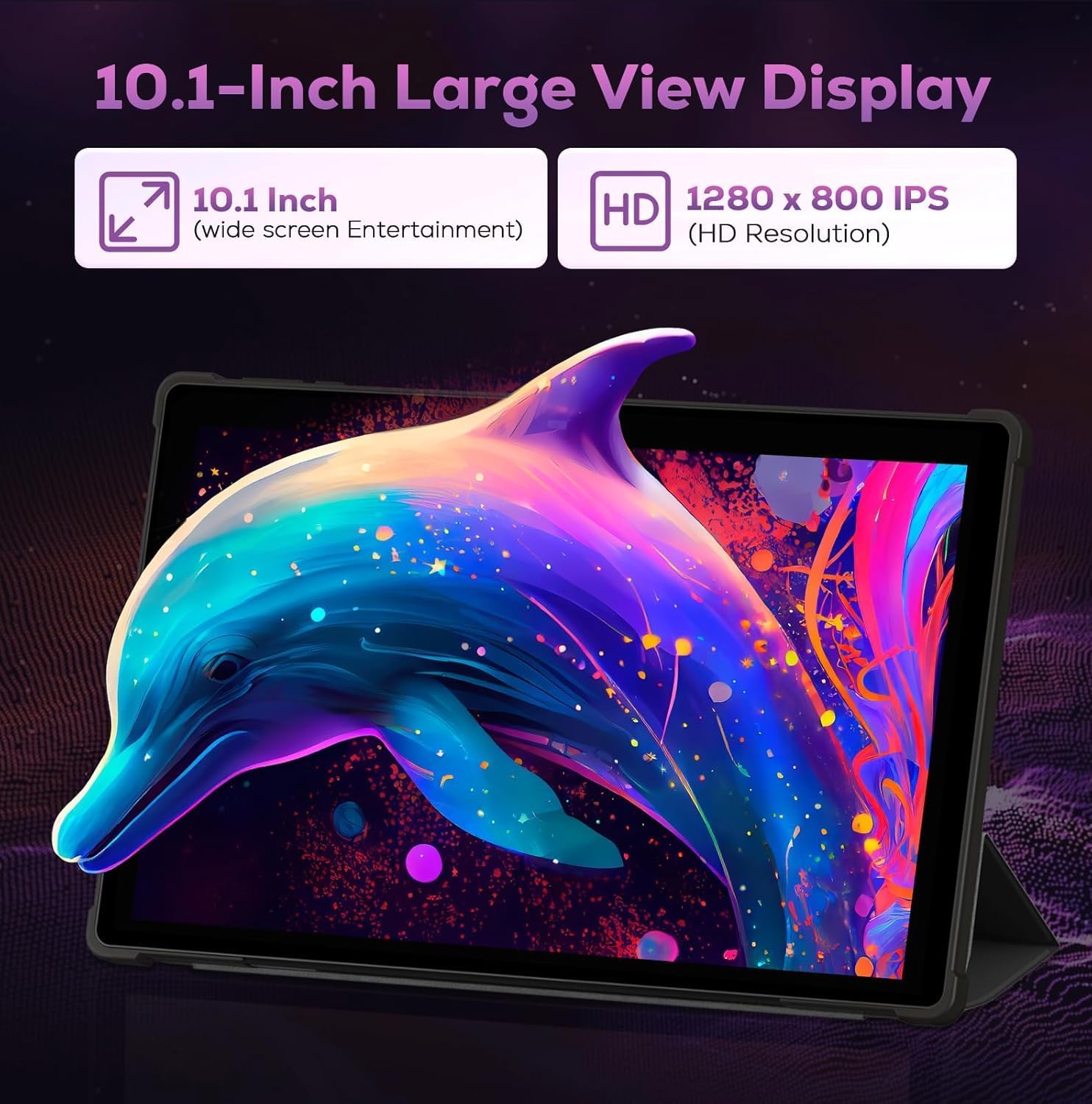
Image: The POWMUS tablet displaying various usage scenarios, including study, entertainment, split screen multitasking, and reading, highlighting its versatility.
Maintenance and Care
1. Cleaning the Tablet
Use a soft, lint-free cloth to clean the screen and body of the tablet. For stubborn smudges, slightly dampen the cloth with water or a screen cleaner. Avoid using harsh chemicals or abrasive materials.
2. Battery Care
To prolong battery life:
- Avoid extreme temperatures.
- Do not let the battery completely drain frequently.
- Use the original charging cable and a compatible power adapter.
- Unplug the charger once the tablet is fully charged.
3. Software Updates
Regularly check for and install system updates to ensure optimal performance, security, and access to new features. Go to Settings > System > System update.
4. Storage Management
Periodically review your installed apps and files. Uninstall unused apps and delete unnecessary files to free up storage space and maintain tablet speed. Utilize the 1TB expandable storage for large media files.
Troubleshooting
Common Issues and Solutions:
- Tablet not turning on: Ensure the battery is charged. Connect the charger and wait a few minutes before attempting to power on again. If unresponsive, press and hold the power button for 10-15 seconds for a forced restart.
- Slow performance: Close unused apps running in the background. Clear app caches (Settings > Apps > [App Name] > Storage > Clear cache). Ensure sufficient free storage space. Restart the tablet.
- Wi-Fi connection issues: Ensure Wi-Fi is enabled in settings. Restart your router and the tablet. Forget the network and reconnect. Check if other devices can connect to the same Wi-Fi network.
- Apps crashing/freezing: Force close the app (Settings > Apps > [App Name] > Force stop). Clear the app's cache and data. Update the app from the Google Play Store. If the issue persists, uninstall and reinstall the app.
- Battery draining quickly: Reduce screen brightness. Disable Wi-Fi, Bluetooth, and GPS when not in use. Close background apps. Check battery usage in Settings to identify power-hungry apps.
If problems persist, consider performing a factory reset (Settings > System > Reset options > Erase all data (factory reset)). Warning: This will erase all data on your tablet. Back up important data before proceeding.
Technical Specifications
| Feature | Specification |
|---|---|
| Model | POWMUS Y121 |
| Operating System | Android 13.0 |
| Screen | 10.1 inch IPS 1280*800 FHD Incell screen |
| Processor | Octa-core (2 GHz) |
| RAM | 13GB (4GB physical + 9GB virtual) |
| Internal Storage (ROM) | 128GB |
| Expandable Storage | Up to 1TB via Micro SD Card |
| Battery | 8000mAh Li-ion Battery |
| Working Time | Up to 18 hours |
| Wi-Fi | 2.4G/5.0G WIFI (802.11ac, b, g, n) |
| Bluetooth | Bluetooth 5.0 |
| Front Camera | 5MP |
| Rear Camera | 8MP |
| GPS | Support (GPS, Glonass) |
| G-Sensor | Support |
| Headphone Jack | 3.5mm |
| Speakers | Built-in stereo speakers |
| Input/Output Ports | 1 x USB-C, 1 x 3.5mm Earphone Jack, 1 x Micro SD Card Slot |
| Product Dimensions | 24.38 x 14.99 x 0.76 cm; 1.03 kg |
Warranty and Support
POWMUS offers a 1-year coverage for this tablet. Additionally, a 30-day return policy is available. For technical support, warranty claims, or further assistance, please contact POWMUS customer service through the retailer where you purchased the product or visit the official POWMUS website.
For more information, you can visit the POWMUS Store on Amazon.
Ask a question about this manual
Ask about setup, troubleshooting, compatibility, parts, safety, or missing instructions. Manuals+ will review the question and use this page’s manual context to help answer it.