
GARMEE JW-924AC
GARMEE WiFi Dongle 1300Mbps User Manual
Model: JW-924AC
Introduction
This manual provides comprehensive instructions for the installation, operation, and maintenance of your GARMEE WiFi Dongle 1300Mbps. This dual-band wireless USB adapter is designed to provide high-speed internet connectivity for your PC, desktop, or laptop, supporting both 2.4GHz and 5GHz bands.
Please read this manual carefully before using the product to ensure proper functionality and to maximize your device's performance.
Product Overview and Features
The GARMEE WiFi Dongle is a high-performance wireless adapter offering superior speed and reliability.
- High-Speed Connectivity: Up to 1300Mbps wireless speed (867Mbps on 5GHz, 400Mbps on 2.4GHz).
- Dual-Band Support: Operates on both 2.4GHz and 5GHz bands for flexible and interference-free connections.
- USB 3.0 Interface: Ensures faster and more stable data transfers compared to USB 2.0.
- External 5dBi Antennas: Enhances signal reception and transmission for improved range and stability.
- Wide Compatibility: Supports Windows 11/10/8/7/Vista/XP and Mac OS.
- Plug & Play: Driver-free installation for many operating systems.

Image: The GARMEE WiFi Dongle, a black USB adapter with two adjustable antennas, designed for enhanced wireless connectivity.
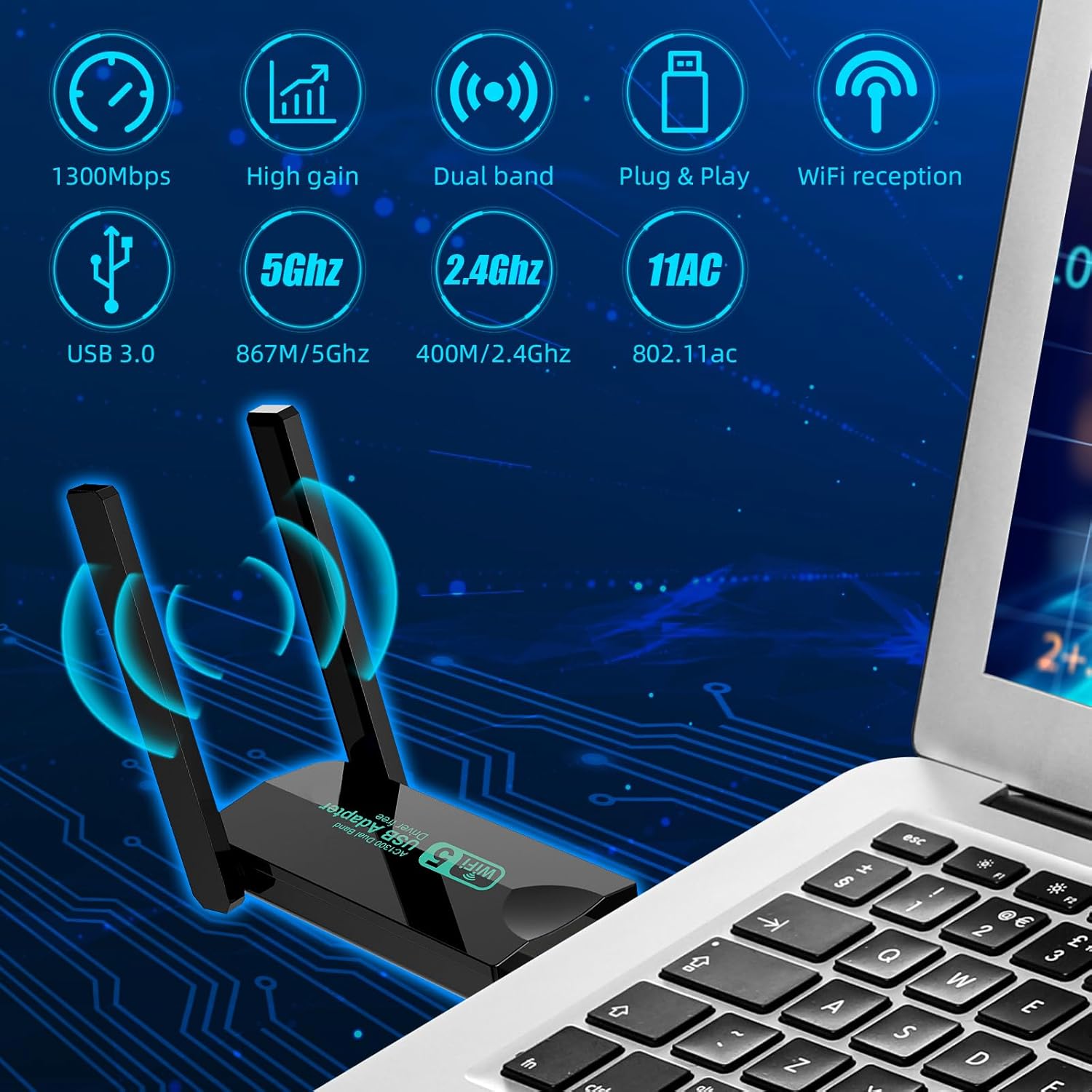
Image: Diagram illustrating key features of the dongle including 1300Mbps speed, high gain, dual band, plug & play, WiFi reception, USB 3.0, 5GHz, 2.4GHz, and 802.11ac standard.
Package Contents
Please verify that all items are present in your package:
- 1 x GARMEE WiFi Dongle 1300Mbps (Model: JW-924AC)
- 1 x User Manual (this document)
Setup Guide
1. Driver Installation (Windows/Mac OS)
For most modern operating systems (Windows 10/11, newer Mac OS versions), the dongle is designed to be plug-and-play, meaning drivers will install automatically upon connection. If automatic installation does not occur, or for older operating systems, follow these steps:
- Connect the Dongle: Insert the GARMEE WiFi Dongle into an available USB 3.0 port on your computer. While compatible with USB 2.0, USB 3.0 ports offer optimal performance.
- Automatic Driver Installation: Wait for your operating system to detect the new hardware and attempt to install drivers automatically. This may take a few moments.
- Manual Driver Installation (if needed): If the driver does not install automatically, you may need to download it from the official GARMEE support website. Refer to the product packaging or manufacturer's website for specific driver download instructions.

Image: A visual representation of the dongle's compatibility with various operating systems, including Windows 7, 8.1, XP, 10/11, Vista, and Mac OS 10.9-10.15.

Image: Close-up of the USB 3.0 connector on the GARMEE WiFi Dongle, highlighting its faster data transfer capabilities compared to USB 2.0.
Operating Instructions
1. Connecting to a Wi-Fi Network
Once the drivers are successfully installed, your computer will recognize the GARMEE WiFi Dongle as a wireless adapter.
- Access Network Settings:
- Windows: Click the Wi-Fi icon in the system tray (bottom right corner of the screen).
- Mac OS: Click the Wi-Fi icon in the menu bar (top right corner of the screen).
- Select Network: A list of available Wi-Fi networks will appear. Select your desired network.
- Enter Password: If prompted, enter the Wi-Fi password (security key) for the selected network.
- Connect: Click "Connect" to establish the connection.
2. Utilizing Dual-Band Capabilities (2.4GHz vs. 5GHz)
Your GARMEE WiFi Dongle supports both 2.4GHz and 5GHz Wi-Fi bands.
- 2.4GHz Band: Offers wider coverage and better penetration through walls, suitable for general browsing and longer distances. Speeds up to 400Mbps.
- 5GHz Band: Provides faster speeds and less interference, ideal for online gaming, 4K video streaming, and large file transfers. Speeds up to 867Mbps. Requires closer proximity to the router.
If your router broadcasts both bands with different SSIDs (e.g., "MyWiFi_2.4G" and "MyWiFi_5G"), you can manually select which band to connect to from the available network list. For optimal performance, connect to the 5GHz band when possible.

Image: Illustration showing the dongle's ability to both receive Wi-Fi for a desktop computer and launch Wi-Fi (hotspot) for a mobile phone from a laptop.

Image: Visual comparison of 2.4GHz and 5GHz band performance, indicating 1300Mbps total speed and suggesting 5GHz offers faster performance for demanding tasks.
Maintenance
To ensure the longevity and optimal performance of your GARMEE WiFi Dongle, consider the following maintenance tips:
- Keep it Clean: Periodically wipe the dongle with a soft, dry cloth to remove dust. Avoid using liquid cleaners.
- Proper Storage: When not in use, store the dongle in a cool, dry place away from direct sunlight and extreme temperatures.
- Handle with Care: Avoid dropping the dongle or subjecting it to physical shock. Do not force it into USB ports.
- Antenna Care: Handle the antennas gently. While adjustable, excessive force can damage them.
Troubleshooting
| Problem | Possible Cause | Solution |
|---|---|---|
| Dongle not detected / No Wi-Fi networks found. |
|
|
| Slow Wi-Fi speed. |
|
|
| Frequent disconnections. |
|
|
Specifications
| Feature | Detail |
|---|---|
| Model Number | JW-924AC |
| Brand | GARMEE |
| Wireless Standard | 802.11ac (Wi-Fi 5) |
| Data Transfer Rate | Up to 1300 Mbps (867 Mbps on 5GHz, 400 Mbps on 2.4GHz) |
| Frequency Bands | 2.4 GHz and 5 GHz |
| Antenna Type | 5dBi Dual External Antennas |
| Interface | USB 3.0 (backward compatible with USB 2.0) |
| Compatible Devices | Laptop, Desktop PC |
| Operating System Support | Windows 11/10/8/7/Vista/XP, Mac OS |
| Color | Black |
| Package Dimensions | 13.5 x 8 x 2.1 cm |
| Item Weight | 30 g |
Warranty and Support
GARMEE products are designed for reliability and performance. For warranty information and technical support, please refer to the contact details provided on the product packaging or visit the official GARMEE website.
Please retain your proof of purchase for warranty claims.
Ask a question about this manual
Ask about setup, troubleshooting, compatibility, parts, safety, or missing instructions. Manuals+ will review the question and use this page’s manual context to help answer it.