
VANSPACE HOGC-GP102
VANSPACE RGB Gaming Chair User Manual
Model: HOGC-GP102
Introduction
This manual provides detailed instructions for the assembly, operation, and maintenance of your VANSPACE RGB Gaming Chair (Model: HOGC-GP102). Please read this manual thoroughly before use to ensure proper function and safety. Keep this manual for future reference.
Safety Information
Adherence to the following safety guidelines is crucial for preventing injury and damage to the product.
- The chair is designed for users up to 180 kg (approximately 397 lbs). Exceeding this weight limit could result in personal injury or damage to the chair.
- This chair is recommended for gaming use only. Misuse, such as climbing or standing on the chair, could result in severe injury.
- Ensure all screws and bolts are securely tightened before and during use. Periodically check for loose connections.
- Keep hands and feet clear of moving parts during adjustment.
- Do not expose the chair to direct sunlight or extreme temperatures, as this may damage the materials.
Package Contents
Verify that all components are present before beginning assembly. If any parts are missing or damaged, please contact customer support.
- Gaming Chair components
- Caster wheels
- Assembly Tool (Hex key)
- Headrest cushion
- Lumbar massage cushion
- Power cable for LED lights and massage function
- Wireless Remote Control for LED lights
Setup and Assembly
Assembly typically requires two people. A power drill may expedite the process. Follow the included graphical instructions for detailed steps.
- Attach Casters to Base: Insert the five caster wheels into the holes on the star base.
- Install Gas Lift: Place the gas lift cylinder into the center hole of the star base.
- Assemble Seat Mechanism: Secure the seat mechanism to the underside of the seat cushion using the provided screws. Ensure the front of the mechanism faces the front of the seat.
- Connect Seat to Gas Lift: Carefully place the assembled seat onto the gas lift cylinder.
- Attach Backrest: Align the backrest with the seat and secure it using the appropriate screws.
- Install Armrests: Attach the armrests to the seat and backrest as indicated in the diagrams.
- Attach Cushions: Secure the headrest and lumbar massage cushions to the chair using their straps.
- Connect Power: Connect the USB power cable for the LED lights and massage function to a suitable USB power source (e.g., computer, USB wall adapter).

Operating Instructions
Chair Adjustments
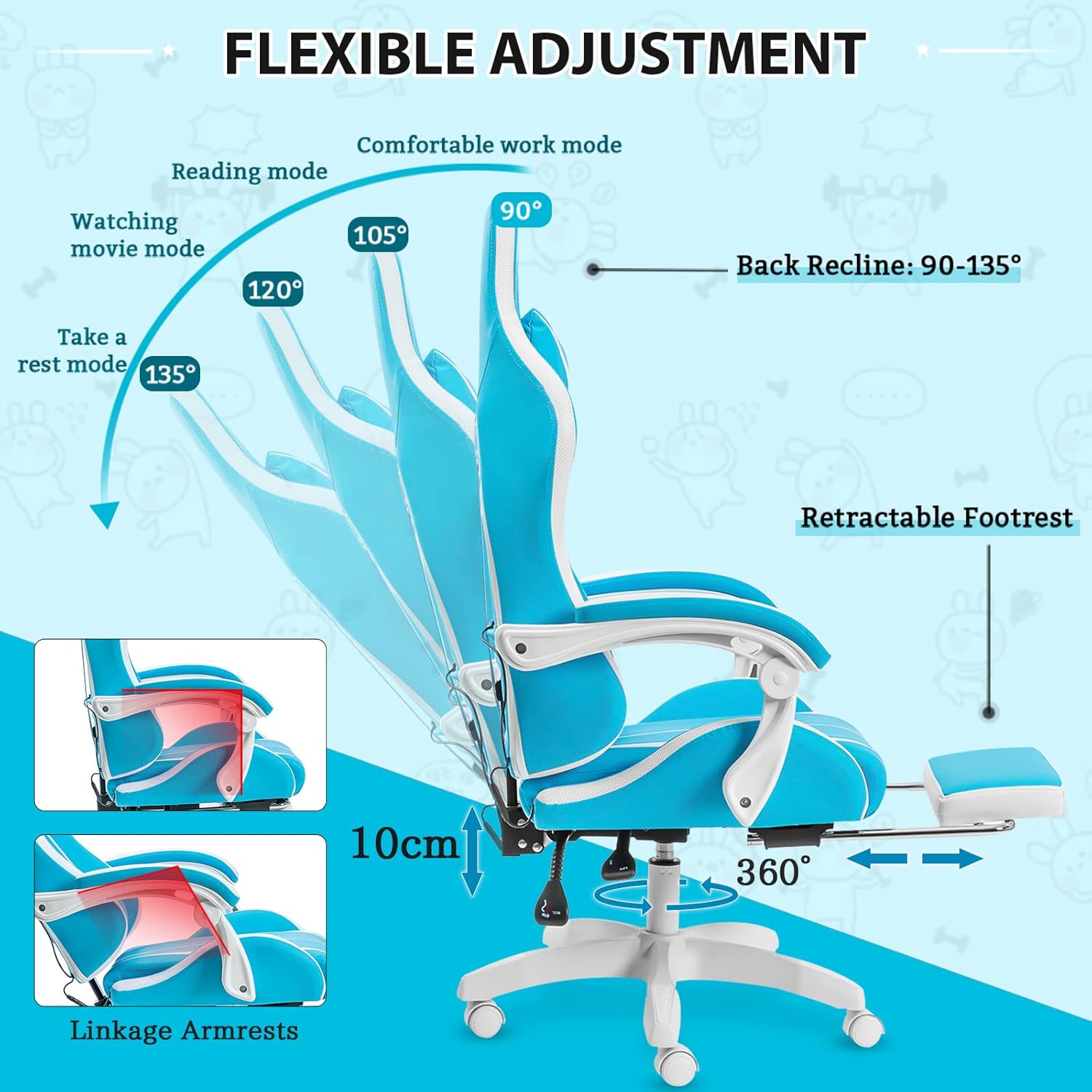
- Height Adjustment: Pull the lever located under the seat upwards to adjust the chair height. Release the lever at the desired height.
- Backrest Recline: Pull the recline lever on the side of the chair to adjust the backrest angle (90-135 degrees). Release the lever to lock the position.
- Footrest: Pull the footrest out from under the seat when desired, and push it back in for storage.
- Armrests: The 2D linkage armrests adjust with the recline of the backrest.
- Swivel Function: The chair features 360-degree swivel capability for easy movement.
RGB LED Lights
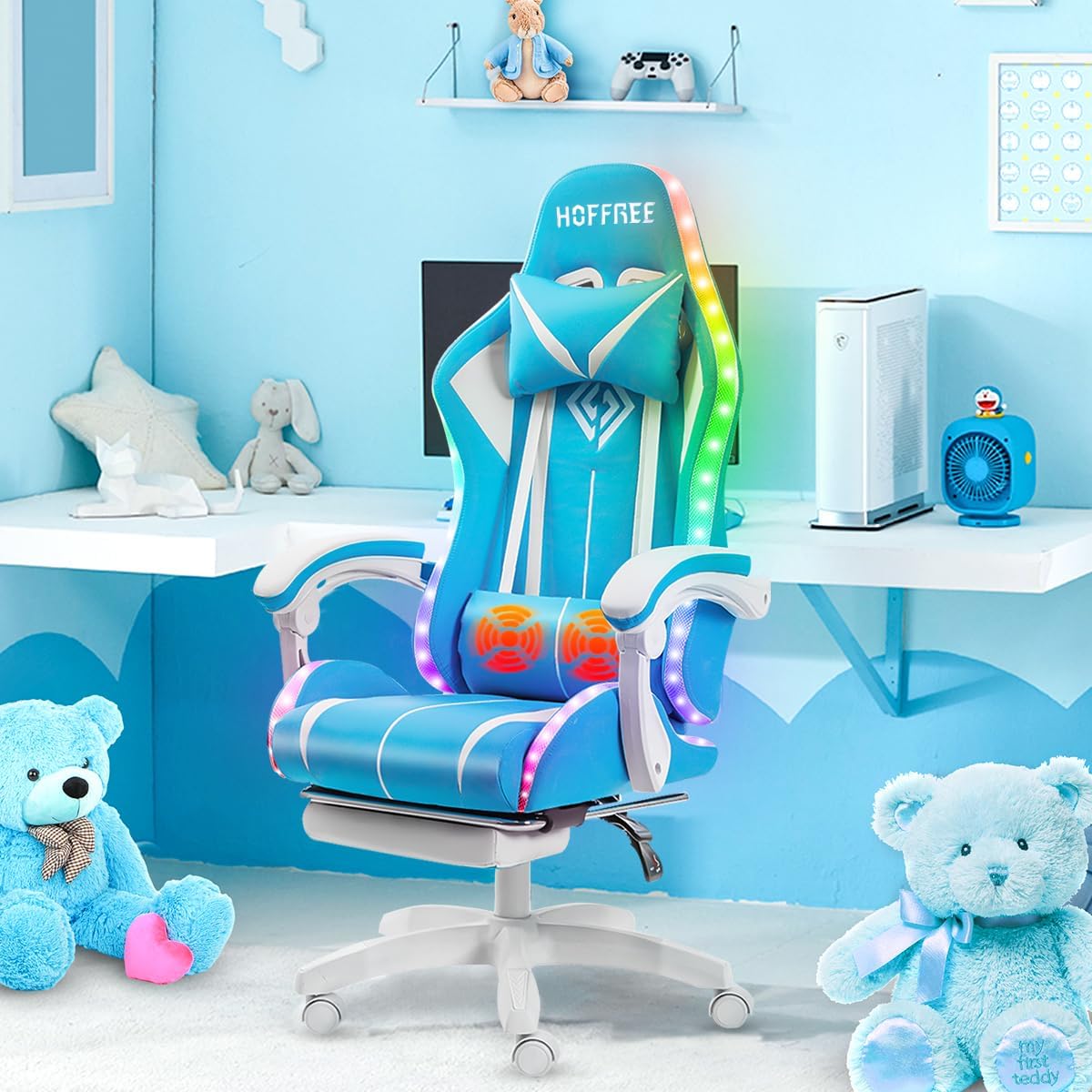
The chair features LED flashing lights on the back and seat edge. These are controlled via the included wireless remote control.
- Power On/Off: Press the power button on the remote to turn the lights on or off.
- Color Control: Use the R, G, B, Y, C, P buttons to select specific colors.
- Mode Control: Cycle through various lighting modes (e.g., static, flashing, fading) using the 'MODE' buttons.
- Speed Control: Adjust the speed of dynamic lighting modes using the 'SPEED' buttons.
- Brightness Control: Adjust the brightness of the lights using the 'BRILLIANCE' buttons.


Lumbar Massage Function
The lumbar cushion features two motors for a massage function.
- Ensure the USB power cable is connected.
- The massage function is typically activated by a separate switch or button on the cushion itself, or through the main power connection. Refer to the specific label on the cushion for activation.

Maintenance
Proper care will extend the life of your gaming chair.
- Cleaning: Wipe clean with a damp cloth. Avoid harsh chemicals or abrasive cleaners.
- Inspection: Periodically check all bolts and screws to ensure they are tight. Re-tighten as necessary.
- Casters: Keep caster wheels free of debris to ensure smooth movement.
Troubleshooting
- Chair feels unstable: Check all assembly bolts and screws to ensure they are securely tightened.
- LED lights not working: Ensure the USB power cable is properly connected to a functioning power source. Check the remote control battery. Ensure the connecting wires for the LED strip are correctly aligned.
- Massage function not working: Verify the USB power cable is connected. Check for any specific power switch on the lumbar cushion.
- Chair not adjusting height: Ensure the gas lift lever is fully engaged when attempting to adjust. If the gas lift is faulty, it may need replacement.
- Casters not rolling smoothly: Inspect wheels for hair or debris and clean as necessary.
Specifications
| Feature | Detail |
|---|---|
| Brand | VANSPACE |
| Model Name | HOGC-GP102 |
| Color | Light Blue+white |
| Product Dimensions (D x W x H) | 17.72" x 23.62" x 51.57" |
| Item Weight | 40.3 pounds |
| Material | Cotton, Sponge (Fill Material), Leather (Furniture Finish) |
| Back Style | Solid Back |
| Special Features | Adjustable Backrest, Adjustable Headrest, Adjustable Height, Adjustable Lumbar, Foot Rest, RGB LED Lights, 2-Point Lumbar Massage |
| Reclining Position Count | 3 Position (90-135 degrees) |
| Arm Style | 2D Linkage Armrests |
| Recommended Uses | Gaming |
| Max Weight Capacity | Approximately 397 lbs (180 kg) |
Warranty and Support
VANSPACE provides an 18-month warranty for this product. If you encounter any issues during assembly or use, please contact our service team via email. Our team aims to reply within 24 hours to assist you.
For customer support, please refer to the contact information provided with your purchase or visit the official VANSPACE website.
Ask a question about this manual
Ask about setup, troubleshooting, compatibility, parts, safety, or missing instructions. Manuals+ will review the question and use this page’s manual context to help answer it.