

1. Product Overview
The MIUCDA Smart WiFi Electric Floor Heating Thermostat is an advanced device designed to intelligently control electric floor heating systems. It provides precise temperature regulation, energy efficiency, and convenient remote control through a mobile application and voice commands, enhancing your home comfort.
Key Features:
- Easy to Clean: Features an intelligent temperature algorithm that self-calibrates for accurate readings after initial power-on.
- Smart WiFi Electric Floor Heating Thermostat: Controls heating cables, heating films, electric radiators, etc., with a maximum current of 16A and support for 100-220V.
- App Remote Control: Connects to 2.4G WiFi, allowing remote control via the "Smart Life" or "Tuya" app for temperature adjustment, scheduling, and advanced settings.
- Voice Control: Compatible with Alexa and Google Home for convenient voice commands to turn the thermostat on or off.
- Programmable Thermostat: Offers manual, programming (5+2, 6+1, 7-day), and holiday modes with 6 periods per day for flexible scheduling and energy saving.
- Adjustable Backlight Brightness: 4 levels of backlight brightness, including an option to turn it off completely to avoid disturbing sleep.
- Precise and Safe Temperature: Built-in sensor and support for external sensors, with a temperature range of 5-70 ℃. Features temperature calibration (-9.9 ℃ to 9.9 ℃) for accuracy.
- Multifunction: Includes child lock to prevent accidental operation, group control for managing multiple thermostats, and family sharing for smart home integration.
2. Important Safety Instructions
Please read all safety instructions carefully before installation and operation. Failure to follow these instructions may result in electric shock, fire, or other hazards.
- Electrical Safety: Installation must be performed by a qualified electrician or trained personnel in accordance with local electrical codes and regulations.
- Power Disconnection: Always disconnect power at the circuit breaker before installing, removing, or servicing the thermostat.
- Voltage Compatibility: Ensure the thermostat's voltage (100-220V) matches your electrical system.
- Avoid Water: Do not install the thermostat in areas where it may come into contact with water or excessive humidity.
- Proper Wiring: Ensure all wiring connections are secure and correctly matched to the terminals as per the wiring diagram.
- Child Safety: Utilize the child lock feature to prevent unauthorized access or accidental changes by children.
3. Package Contents
Verify that all items are present in your package:
- MIUCDA Smart WiFi Electric Floor Heating Thermostat
- Mounting Screws
- External Floor Sensor Cable
- User Manual
4. Setup and Installation
4.1 Wiring Diagram (16A Electric Floor Heating)
Refer to the diagram below for correct wiring. Ensure power is off before connecting any wires. This model is designed for 16A electric floor heating systems.

Image: Wiring diagram for the 16A Electric Floor Heating Thermostat. It illustrates connections for Neutral wire (N), Live wire (L), Load (N1, L1), and an external sensor (PC). The diagram shows the thermostat connected to a heating cable or heating film.
Wiring Steps:
- Disconnect power to the heating circuit at the main breaker.
- Connect the Live (L) wire to terminal 1.
- Connect the Neutral (N) wire to terminal 2.
- Connect the Load Neutral (N1) wire from your heating system to terminal 3.
- Connect the Load Live (L1) wire from your heating system to terminal 4.
- If using an external floor sensor, connect its wires to terminals 6 and 7.
- Secure the thermostat to the wall box.
4.2 Connecting to the App (Smart Life/Tuya)
To enable smart features, connect your thermostat to the Smart Life or Tuya app.

Image: Step-by-step guide for connecting the thermostat to the Smart Life or Tuya app. It shows enabling 2.4G WiFi, adding a device in the app, entering WiFi credentials, and successful connection.
App Connection Steps:
- Ensure your mobile phone is connected to a 2.4GHz WiFi network. (5GHz networks are not supported).
- Download the "Smart Life" or "Tuya Smart" app from your mobile app store.
- Open the app and register/log in.
- On the app's home page, tap "Add Device" or the "+" icon in the top right corner.
- Follow the on-screen instructions to put the thermostat into pairing mode (usually by pressing and holding a button on the thermostat until a WiFi indicator blinks rapidly).
- Select your 2.4GHz WiFi network and enter its password in the app.
- Wait for the app to discover and connect to the thermostat. Once connected, you can control it via the app.
5. Operating Instructions
5.1 Basic Operation
The thermostat features a touch-sensitive display for direct control. Use the power button to turn the unit on or off, and the up/down arrows to adjust the temperature.

Image: The MIUCDA Smart Thermostat with its digital display showing temperature and various icons, alongside a smartphone displaying the thermostat's control interface in the app.
5.2 App Remote Control
Control your thermostat from anywhere using the Smart Life or Tuya app.

Image: A hand holding a smartphone displaying the thermostat's app interface, with the thermostat mounted on a wall in the background, illustrating remote control capabilities.
- Temperature Adjustment: Easily set your desired temperature.
- Mode Switching: Change between manual, programmable, or holiday modes.
- Scheduling: Create and modify heating schedules.
- Advanced Settings: Access calibration, backlight, and other settings.
5.3 Voice Control (Alexa & Google Home)
Integrate your thermostat with Amazon Alexa or Google Home for hands-free control.
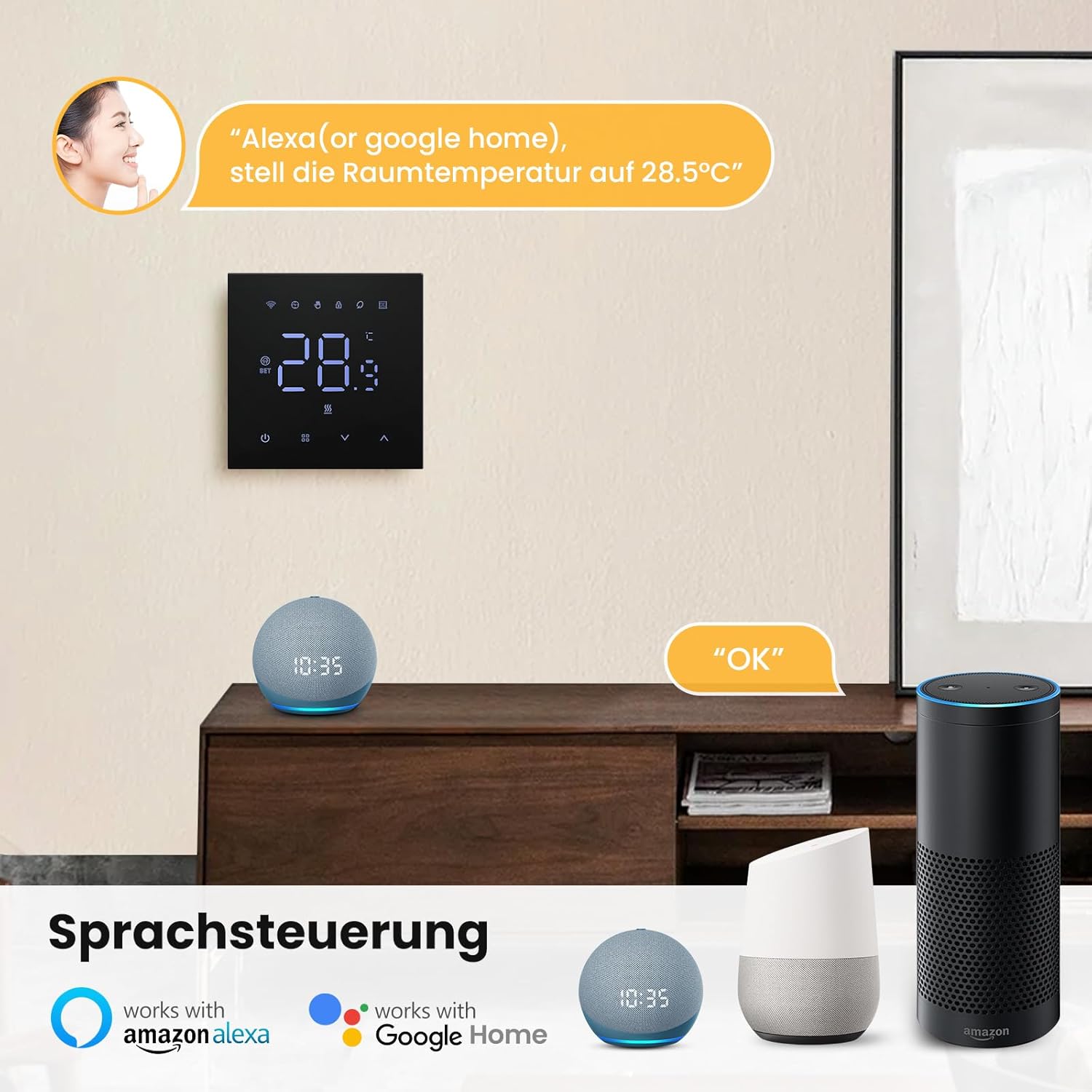
Image: The thermostat on a wall, with various Amazon Echo and Google Home devices, demonstrating voice control functionality. A speech bubble shows a command like "Alexa, set the room temperature to 28.5℃" and an "OK" response.
- Linking Accounts: Enable the Smart Life or Tuya skill/action in your Alexa or Google Home app and link your accounts.
- Voice Commands: Use commands such as:
- "Alexa, turn on/off [Thermostat Name]."
- "Hey Google, set [Thermostat Name] to 22 degrees."
- "Alexa, what is the temperature of [Thermostat Name]?"
5.4 Programmable Modes
Optimize energy consumption with flexible programming options.

Image: The thermostat display and a smartphone app showing programmable settings, with options for 5+2, 6+1, and 7-day scheduling, and multiple time periods per day.
- Manual Mode: Set a constant temperature that remains until manually changed.
- Programmable Mode: Choose from 5+2 (weekdays + weekend), 6+1 (weekdays + one weekend day), or 7-day (individual days) scheduling. Each day supports up to 6 time periods with different temperature settings.
- Holiday Mode: Set a specific temperature for an extended period, ideal for vacations.
5.5 Adjustable Backlight
Customize the display brightness for comfort, especially at night.

Image: The thermostat display shown in both bright and dim settings, with a smartphone app interface demonstrating the backlight adjustment options (low, medium, high, off).
- Access backlight settings through the app or directly on the thermostat (if available).
- Choose from 4 levels of brightness or turn the backlight off completely.
5.6 Temperature Calibration
If you notice a discrepancy between the thermostat's displayed temperature and the actual room temperature, you can calibrate it.
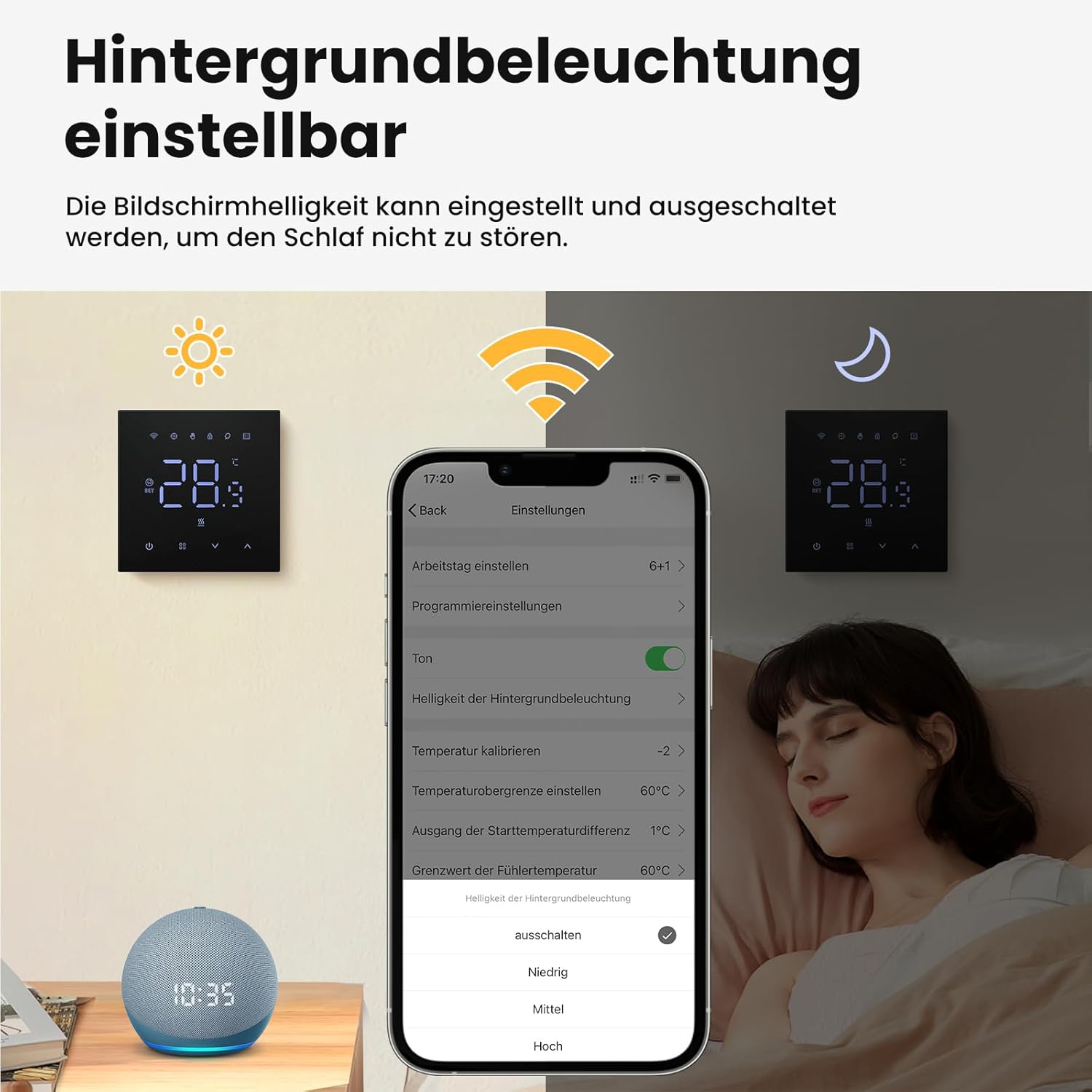
Image: The thermostat display and a smartphone app showing the temperature correction settings, allowing adjustment within a range of -9.9 ℃ to 9.9 ℃.
- Navigate to the temperature calibration setting in the app or thermostat menu.
- Adjust the offset value (from -9.9 ℃ to 9.9 ℃) until the displayed temperature matches a reliable external thermometer.
5.7 Child Lock Function
Prevent accidental changes to settings by activating the child lock.

Image: The thermostat display with a lock icon indicating the child lock is active, and a smartphone app showing the child lock setting being enabled, with a child in the background.
- Enable or disable the child lock through the app settings.
- When active, the thermostat's physical buttons will be locked, preventing unauthorized adjustments.
5.8 Anti-Frost Function
The anti-frost function protects your heating system from freezing during periods of low temperature.

Image: The thermostat display and a smartphone app showing the anti-frost function setting, with a winter scene in the background, indicating its purpose in cold conditions.
If the floor heating system is kept at a low temperature for an extended period, the thermostat will automatically initiate a short heating cycle to prevent the system from freezing when the room temperature drops too low.
5.9 Group Control & Family Sharing
- Group Control: Manage multiple thermostats in different rooms simultaneously through the app, ideal for multi-zone heating systems.
- Family Sharing: Share control of the thermostat with other family members via the app, allowing everyone to manage the smart home environment.
6. Maintenance
6.1 Cleaning and Care
- Wipe the thermostat's display and casing with a soft, dry cloth.
- Do not use abrasive cleaners, solvents, or chemical sprays, as these can damage the surface and internal components.
- Ensure the thermostat is powered off before cleaning.
7. Troubleshooting
7.1 Common Issues and Solutions
| Issue | Possible Cause | Solution |
|---|---|---|
| Thermostat display is blank. | No power; incorrect wiring. | Check circuit breaker. Verify wiring connections are secure and correct. |
| Temperature reading seems inaccurate. | Internal sensor heat influence; need for calibration. | Allow 30 minutes after power-on for self-calibration. Use the temperature calibration feature in the app to adjust the offset. |
| Cannot connect to WiFi. | Incorrect WiFi password; 5GHz network; thermostat not in pairing mode. | Ensure you are connected to a 2.4GHz WiFi network. Double-check WiFi password. Put thermostat into pairing mode (refer to app connection steps). |
| Thermostat not responding to app/voice commands. | No internet connection; app/voice assistant not linked; child lock active. | Check home internet connection. Verify app and voice assistant accounts are correctly linked. Disable child lock if active. |
| Heating system not turning on/off as expected. | Incorrect mode; scheduling conflict; wiring issue. | Check current operating mode (manual, programmable, holiday). Review programmed schedules. Verify wiring connections. |
8. Technical Specifications
| Specification | Value |
|---|---|
| Brand | MIUCDA |
| Model | 16A Elektroheizung Thermostat Noir |
| Color | Black |
| Voltage | 100-220 Volts |
| Max Current | 16A |
| Connectivity Technology | Wi-Fi (2.4GHz) |
| Temperature Control Type | Heating |
| Temperature Range | 5-70 ℃ |
| Special Features | Temperature Display, Dimmable, Programmable, Automatic Programming, Anti-freeze Protection |
| Controller Type | Amazon Alexa, Google Home |
| Item Weight | 230 g |
| Package Dimensions | 10.7 x 9.7 x 6.9 cm |
9. Warranty and Customer Support
For warranty information, technical support, or any inquiries regarding your MIUCDA Smart WiFi Electric Floor Heating Thermostat, please refer to the contact details provided with your product packaging or visit the official MIUCDA website. Keep your purchase receipt as proof of purchase for warranty claims.