
MIUCDA WT410-WH-3A-W
MIUCDA Smart Thermostat User Manual
Model: WT410-WH-3A-W | Brand: MIUCDA
1. Introduction
The MIUCDA Smart Thermostat is designed for efficient control of water underfloor heating systems. It integrates seamlessly with smart home platforms, offering remote control, voice command capabilities, and programmable scheduling to optimize your home's heating and energy consumption.
Key Features:
- Water Heating System Compatibility: Designed for water underfloor heating systems, supporting a maximum current of 3A and voltage of 100-240V.
- APP Remote Control: Connects via 2.4G WiFi, allowing control from anywhere using the Smart Life/Tuya App on your smartphone.
- Voice Control: Compatible with Alexa and Google Home for convenient voice commands.
- Programmable Modes: Offers manual and programmable modes with flexible 5+2, 6+1, or 7-day settings, including 6 time slots per day for customized heating schedules.
- Adjustable Backlight: Screen brightness can be adjusted to 4 levels or turned off completely to avoid disturbing sleep.
- Advanced Functions: Includes Child Lock, Frost Protection, Temperature Compensation, Temperature Difference Function, Family Sharing, and Group Control.
- Intelligent Temperature Calibration: Features an intelligent algorithm that automatically adjusts the temperature display by approximately 2-3°C after heating activation to counteract the thermostat's self-heating effect, stabilizing within about half an hour for accurate readings.
2. What's in the Box
Upon opening the package, please ensure all the following items are present:
- MIUCDA Smart Thermostat Unit
- Temperature Sensor
- User Manual (this document)
3. Specifications
| Feature | Detail |
|---|---|
| Brand | MIUCDA |
| Model Number | WT410-WH-3A-W |
| Color | White |
| Package Dimensions | 10.2 x 9.9 x 6.6 cm |
| Item Weight | 140 grams |
| Voltage | 240 Volts |
| Controller Type | Hand control, Google Assistant, Mobile APP (Tuya / Smart Life), Tablet APP (Tuya/ Smart Life), Amazon Alexa |
| Special Features | Temperature display, Frost protection, Dimmable, Programmable, Automatic scheduling |
| Specific Product Uses | Actuator for water underfloor heating |
4. Setup
4.1. Installation
It is recommended that installation be performed by a qualified electrician. Ensure power is disconnected before beginning installation.

Image: Thermostat dimensions (86mm x 86mm x 26mm depth, 14mm visible depth). This image illustrates the physical size and mounting depth of the thermostat.

Image: Diagram showing the MIUCDA 3A Water Underfloor Heating Thermostat connected to a water manifold system. This visual aids in understanding the typical installation environment for the thermostat.

Image: Detailed wiring instructions for connecting the thermostat to both Normally Closed (NC) and Normally Open (NO) actuators. The diagram shows connections for Live (L1) and Neutral (N) wires, and how to switch between NC and NO modes via the mobile app. NC (Normally Closed) means current is off, while NO (Normally Open) means current is on.
4.2. App Connection
To enable remote control and smart features, connect your thermostat to the Smart Life or Tuya App.

Image: A smartphone screen showing the Tuya Smart app interface, demonstrating remote control capabilities of the thermostat. The app displays the current temperature and allows adjustments.

Image: Step 1 of the app connection process. It shows the thermostat and a smartphone, indicating that the phone must be connected to a 2.4G WiFi network (5G is not supported). Users should download the Tuya or Smart Life app and open it.

Image: Steps 2-4 for connecting the thermostat to the app. Step 2: Click "Add Device" or the "+" icon in the top right corner of the app homepage. Step 3: Enter your 2.4G WiFi account and password, then click "Next". Step 4: Wait for the connection to be successful. Once connected, the app control interface will be accessible.
5. Operating Instructions
5.1. Basic Operation and Programming
The thermostat supports both manual and programmable modes to suit your heating needs.

Image: Illustration of the programmable thermostat feature, showing options for 5+2 days, 6+1 days, and 7-day programming. The smartphone screen displays a schedule with 6 time slots for daily temperature settings, allowing users to plan their weekly heating.
5.2. Adjustable Backlight
The screen brightness can be adjusted to ensure comfort, especially during nighttime.

Image: Demonstrates the adjustable backlight feature of the thermostat. The image shows options to turn off the backlight, or set it to low, medium, or high brightness, ensuring it does not disturb sleep.
5.3. Child Lock Function
Activate the child lock to prevent unintended operation by children.

Image: Illustrates the child lock function, designed to prevent accidental changes to settings by children. A lock icon is shown, indicating the feature is active.
5.4. Frost Protection
This function helps prevent pipes from freezing when the room temperature drops too low.

Image: Depicts the anti-frost function. If the underfloor heating is kept at a low temperature for an extended period, the thermostat will activate a short heating cycle to prevent the heating system from freezing when the room temperature is too low.
5.5. Temperature Compensation
Adjust the temperature reading for optimal accuracy.

Image: Shows the temperature calibration setting within the app, allowing users to adjust the temperature reading within a range of -9.9°C to +9.9°C to ensure accuracy.
5.6. Voice Control
Control your thermostat hands-free using voice commands with Alexa or Google Home.
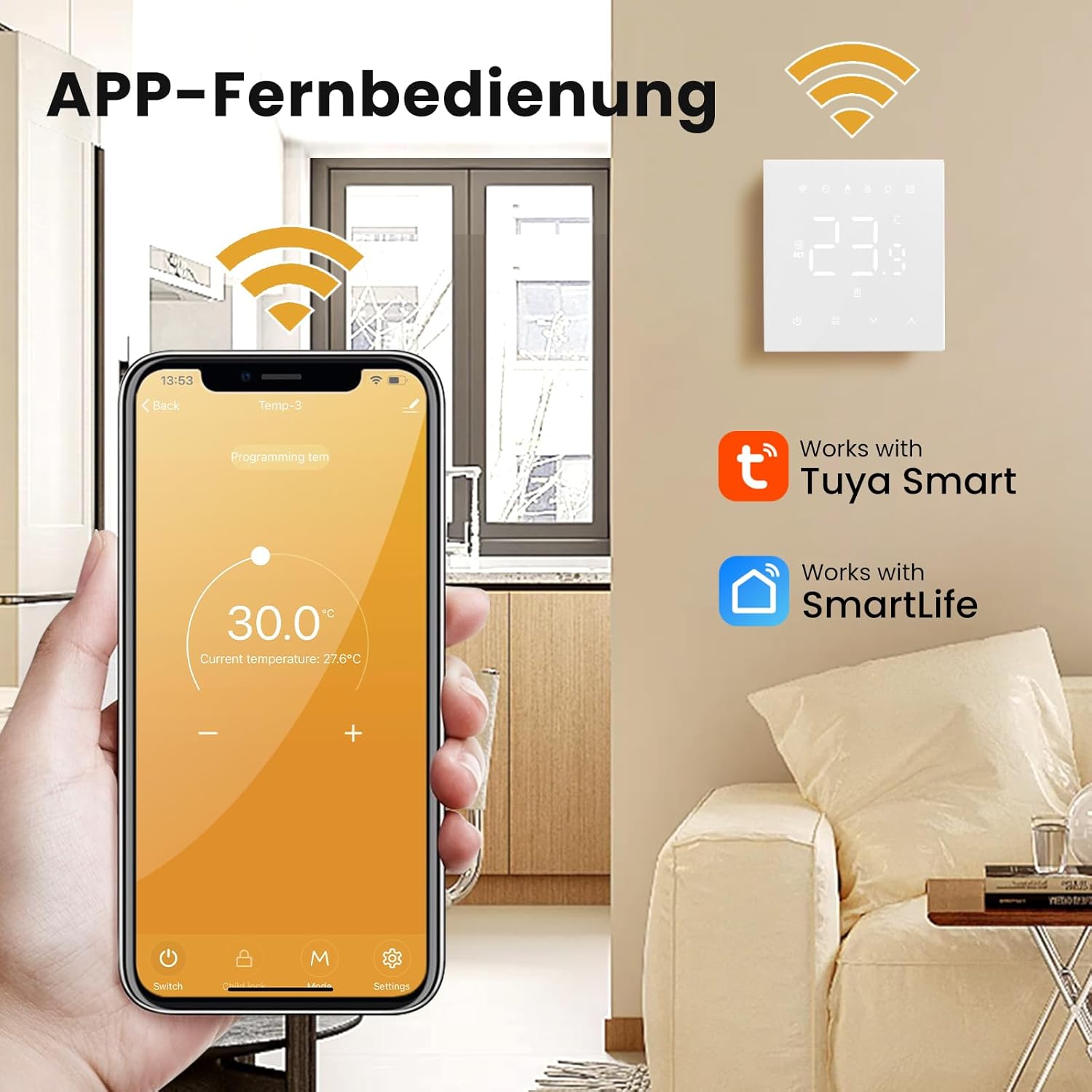
Image: Demonstrates the voice control functionality, showing the thermostat interacting with Amazon Alexa and Google Home devices. A speech bubble indicates a command like "Alexa (or Google Home), set the room temperature to 28.5°C," followed by an "OK" response, highlighting seamless integration.
6. Maintenance
To ensure optimal performance and longevity of your MIUCDA Smart Thermostat, follow these simple maintenance guidelines:
- Cleaning: Gently wipe the thermostat's surface with a soft, dry cloth. Do not use abrasive cleaners, solvents, or chemical sprays, as these can damage the device.
- Avoid Obstructions: Ensure that the thermostat's sensors are not covered or obstructed by furniture, curtains, or other objects, as this can affect temperature readings.
- Regular Checks: Periodically check the wiring connections to ensure they are secure. If you notice any loose connections or damage, consult a qualified electrician.
7. Troubleshooting
This section addresses common issues you might encounter with your MIUCDA Smart Thermostat.
7.1. Dynamic Temperature Display Fluctuation
Issue: The temperature display on the thermostat changes dynamically or seems inaccurate, especially after the heating system turns on.
Explanation: The thermostat has a built-in sensor. When the device is powered on and heating, its own internal heat can slightly influence the temperature reading. To counteract this, an intelligent temperature algorithm is implemented.
Solution: After the heating is activated, the system automatically adjusts the display by approximately 2-3°C to compensate for the thermostat's self-heating. This adjustment typically stabilizes after about half an hour. Please allow the system time to self-calibrate for a more accurate temperature reading.

Image: Explains why the temperature display changes dynamically. It shows a graph illustrating the thermostat's temperature change versus the actual room temperature, with phases for standby, heating, and stabilization. It advises waiting 30 minutes for precision calibration.
7.2. Connectivity Issues
Issue: The thermostat cannot connect to the app or loses its WiFi connection.
Solution:
- Ensure your WiFi network is 2.4GHz. The thermostat does not support 5GHz networks.
- Check your WiFi password for accuracy.
- Make sure the thermostat is within range of your WiFi router.
- Restart your router and the thermostat, then attempt to reconnect.
- If issues persist, try resetting the thermostat to factory settings (refer to the app or device instructions for reset procedure) and re-pairing with the app.
8. Warranty and Support
For any questions, technical assistance, or warranty claims, please contact MIUCDA customer support. We offer 24-hour online service to assist you with your product.
Please refer to the product packaging or the official MIUCDA website for the most current contact information.