
RAZEAK RK-X44
RAZEAK Compact 60% Mechanical Keyboard
Instruction Manual - Model: RK-X44
1. Introduction
Thank you for purchasing the RAZEAK Compact 60% Mechanical Keyboard. This 61-key gaming keyboard is designed for efficiency and portability, featuring durable mechanical blue switches, vibrant colorful backlighting, and a wired USB-C connection. This manual provides detailed instructions for setup, operation, maintenance, and troubleshooting to ensure optimal performance and longevity of your device.

Image: The RAZEAK Compact 60% Mechanical Keyboard, highlighting its compact design, vibrant backlighting, and the included blue mechanical switch.
2. Safety Information
- Do not expose the keyboard to liquids, humidity, or extreme temperatures.
- Avoid disassembling the keyboard. Unauthorized repairs may void the warranty and cause damage.
- Keep the keyboard away from strong magnetic fields.
- Use only the provided USB cable or a compatible replacement.
- Handle the keyboard with care to prevent physical damage.
3. Package Contents
Please check the package for the following items:
- RAZEAK Compact 60% Mechanical Keyboard (RK-X44)
- USB-C to USB-A Cable
4. Setup
Follow these steps to set up your RAZEAK Compact 60% Mechanical Keyboard:
- Unpack the keyboard and the USB-C cable from the packaging.
- Connect the USB-C end of the cable to the port on the keyboard.
- Connect the USB-A end of the cable to an available USB port on your computer (PC, Laptop, Mac) or compatible gaming console (PS4, XBOX).
- The keyboard is plug-and-play and should be automatically recognized by your operating system (Windows 10, macOS, etc.) without requiring additional drivers.
- The backlight will illuminate upon successful connection.

Image: The RAZEAK keyboard connected via its USB-C cable to a computer, demonstrating a typical setup.
5. Operating Instructions
5.1 Basic Operation
The RAZEAK RK-X44 keyboard features a standard QWERTY layout with 61 keys. Simply type as you would on any standard keyboard. The blue mechanical switches provide a tactile and audible click feedback for each keystroke.
5.2 Key Combinations and Functions
Due to its compact 60% layout, many functions are accessed via key combinations using the Fn (Function) key or Shift key.
- Fn + [Key]: Press the Fn key simultaneously with another key to activate the function indicated on the lower side of that keycap. This includes F1-F12 functions, multimedia controls, and other special commands.
- Shift + [Key]: Press the Shift key simultaneously with another key to activate the sub-function indicated on the right side of that keycap.
- Fn + ↓: This combination is used to lock or unlock the arrow key functionality.
5.3 Backlight Modes
The keyboard features 19 colorful backlight modes. Specific key combinations (often involving the Fn key and other designated keys) are used to cycle through these modes, adjust brightness, or change lighting speed. Refer to the keycap legends for specific backlight control functions.
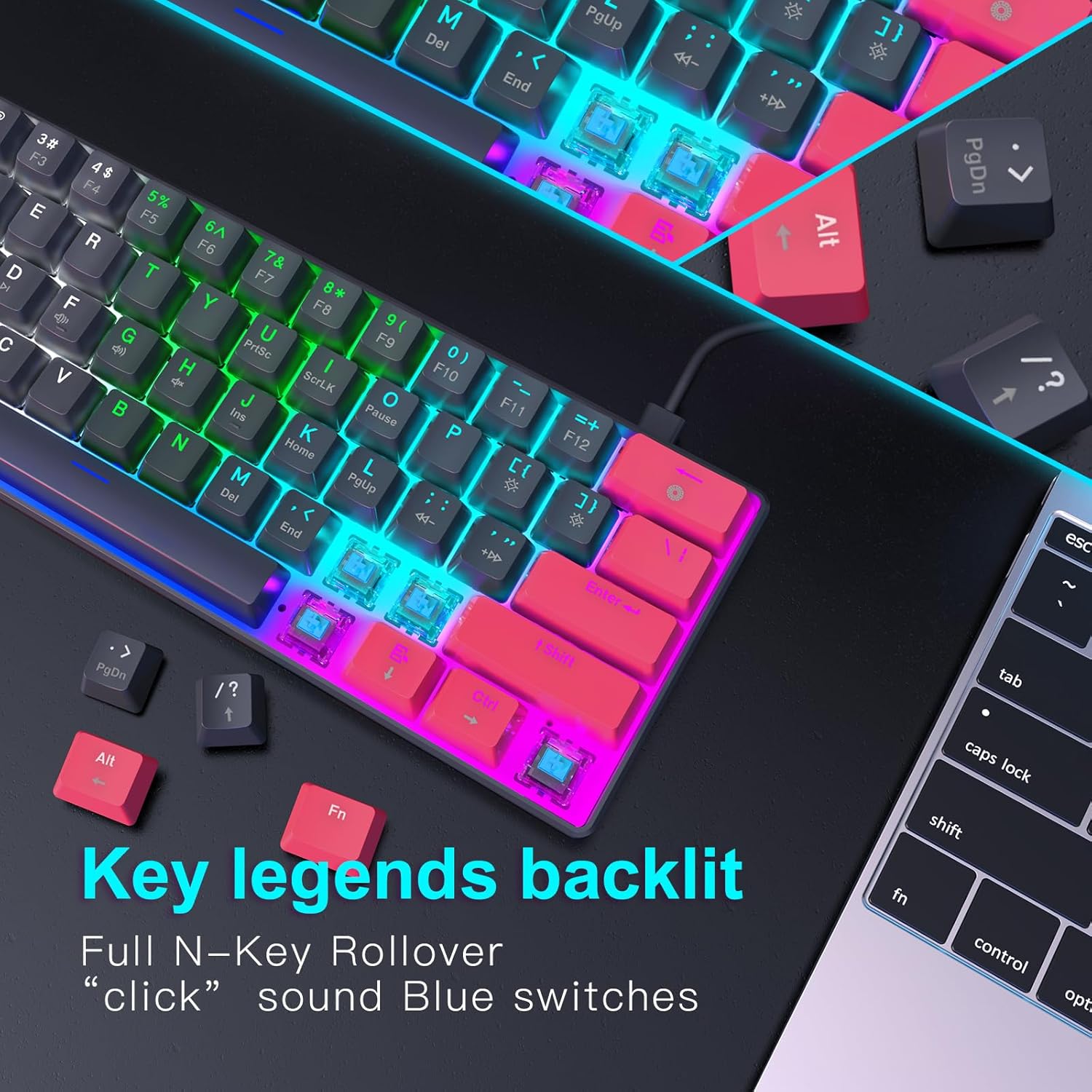
Image: A detailed view of the keyboard's backlit key legends and the visible blue mechanical switches, illustrating the illumination.
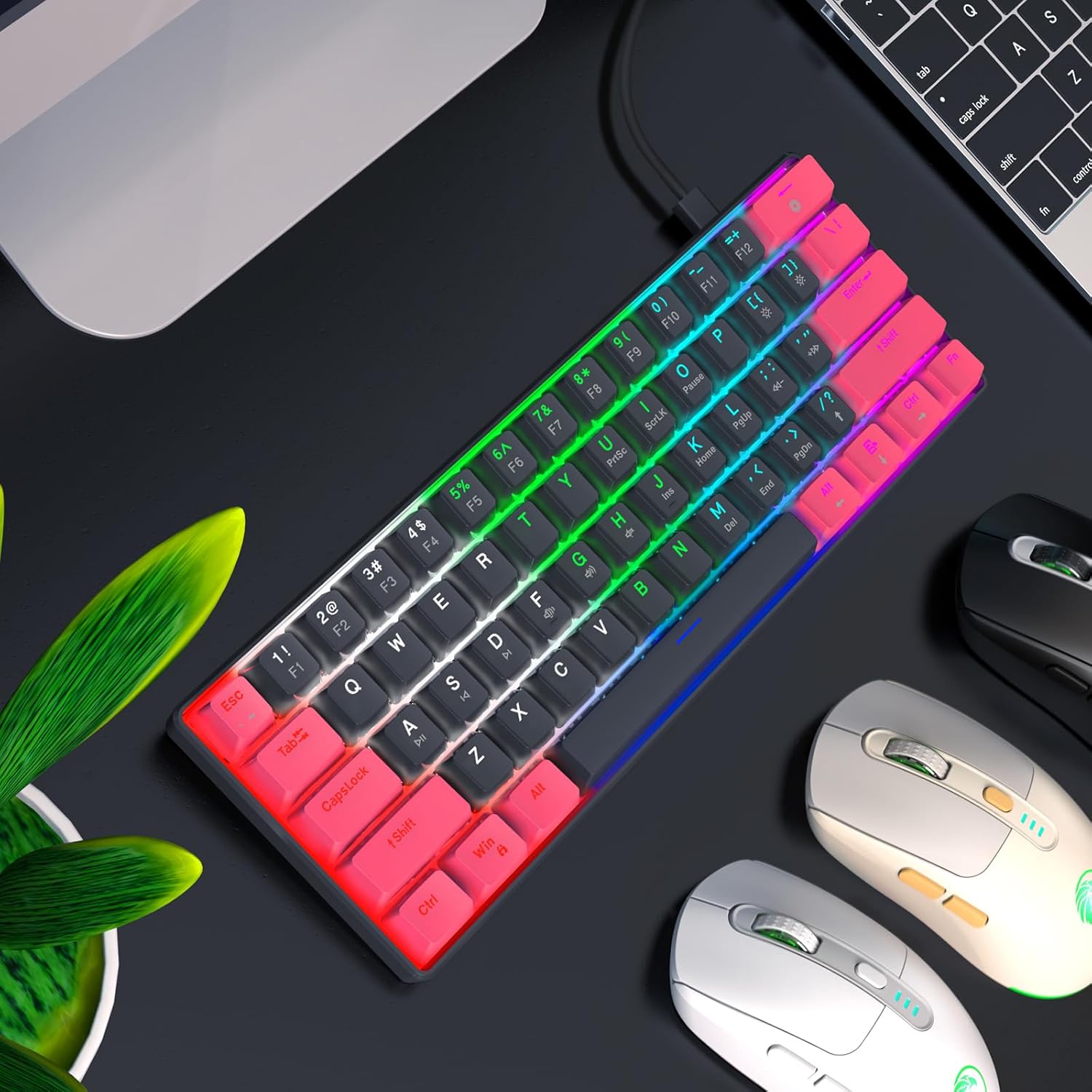
Image: The RAZEAK keyboard displaying its colorful backlight modes in a typical desktop environment.
5.4 Ergonomic Design
The keyboard is designed with ergonomic high and low keys, featuring curved keycaps and smooth lines for a comfortable typing experience. This design aims to reduce strain during extended use.
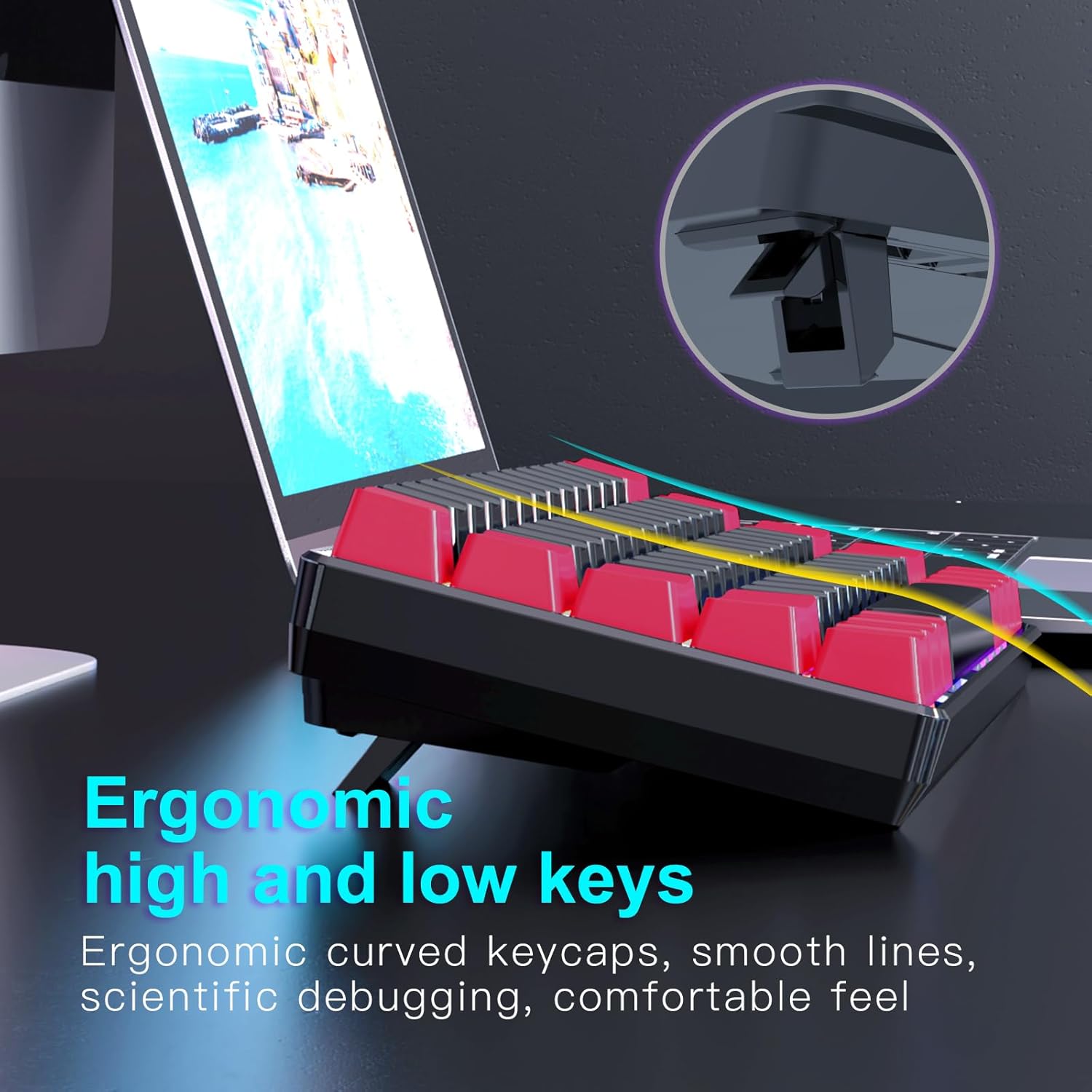
Image: A side view of the keyboard illustrating its ergonomic keycap profile and the adjustable feet for varied typing angles.
6. Maintenance
Proper maintenance ensures the longevity of your keyboard:
- Cleaning: Use a soft, dry cloth to wipe the surface of the keyboard. For deeper cleaning, use compressed air to remove dust and debris from between the keycaps. Do not use harsh chemicals or abrasive materials.
- Storage: When not in use, store the keyboard in a clean, dry environment away from direct sunlight and extreme temperatures. The detachable USB-C cable allows for easy storage and portability.
7. Troubleshooting
If you encounter issues with your RAZEAK keyboard, try the following solutions:
- Keyboard Not Responding:
- Ensure the USB-C cable is securely connected to both the keyboard and the computer.
- Try connecting the keyboard to a different USB port on your computer.
- Restart your computer.
- Test the keyboard on another computer to rule out system-specific issues.
- Backlight Not Working/Incorrect:
- Check if the backlight is turned off using the designated key combination (refer to keycap legends).
- Cycle through different backlight modes to see if any mode works.
- Ensure the keyboard is receiving sufficient power from the USB port.
- Keys Not Registering:
- Ensure the keyboard is clean and free of debris that might obstruct key presses.
- For specific keys, check if any software remapping or gaming profiles are interfering.
8. Specifications
Below are the technical specifications for the RAZEAK Compact 60% Mechanical Keyboard (RK-X44):
| Feature | Specification |
|---|---|
| Brand | RAZEAK |
| Model Name | RK-X44 |
| Model Number | X44-RDBK-B_B1 |
| Keyboard Layout | 60% Compact (61 Keys) |
| Switch Type | Mechanical Blue Switches (20 million clicks) |
| Connectivity | Wired USB-C |
| Backlight | Colorful Backlit (19 modes) |
| Keycaps | Dual color legend translucent keycaps |
| Anti-Ghosting | Full N-Key Rollover |
| Compatible Devices | Windows PC, Laptop, Mac, PS4, XBOX |
| Product Dimensions | 29.2 x 10.2 x 4 cm |
| Item Weight | 616.89 g |

Image: A diagram illustrating the compact dimensions of the RAZEAK keyboard.
9. Warranty and Support
For warranty information or technical support, please contact the seller or manufacturer directly through your purchase platform. Keep your proof of purchase for any warranty claims.
Ask a question about this manual
Ask about setup, troubleshooting, compatibility, parts, safety, or missing instructions. Manuals+ will review the question and use this page’s manual context to help answer it.