
1. Introduction
This manual provides comprehensive instructions for setting up, operating, and maintaining your DUX DUCIS iPad Keyboard Case. Please read this manual thoroughly before use to ensure proper functionality and longevity of your product.
1.1. Compatibility
This keyboard case is compatible with the following Apple iPad models:
- iPad 10.2 inch (9th Generation, 2021)
- iPad 10.2 inch (8th Generation, 2020)
- iPad 10.2 inch (7th Generation, 2019)
- iPad Pro 10.5 inch (2017)
- iPad Air 3 (2019)
Please verify your iPad model before attempting installation.
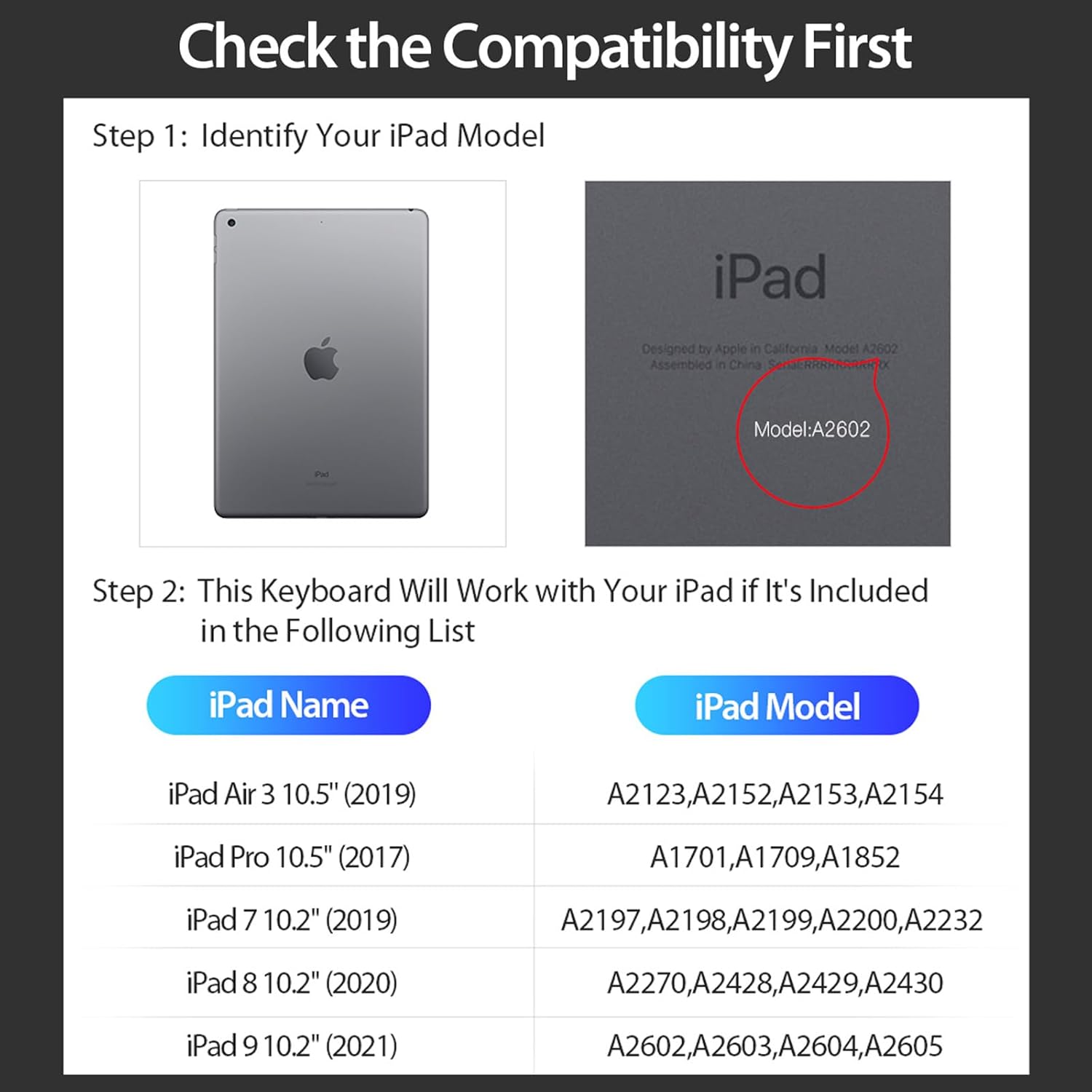
Image: Compatibility chart for DUX DUCIS iPad Keyboard Case.
1.2. Key Features
- Detachable Wireless Keyboard: Easily attach or detach the keyboard for flexible use.
- Multi-Touch Trackpad: Supports various gestures for enhanced navigation and productivity.
- 7-Color Backlit Keys: Adjustable backlighting with multiple color options for typing in low-light conditions.
- Magnetic Split Design: Offers four versatile stand positions, including landscape, portrait, and painting modes.
- Integrated Pencil Holder: Securely stores your Apple Pencil.
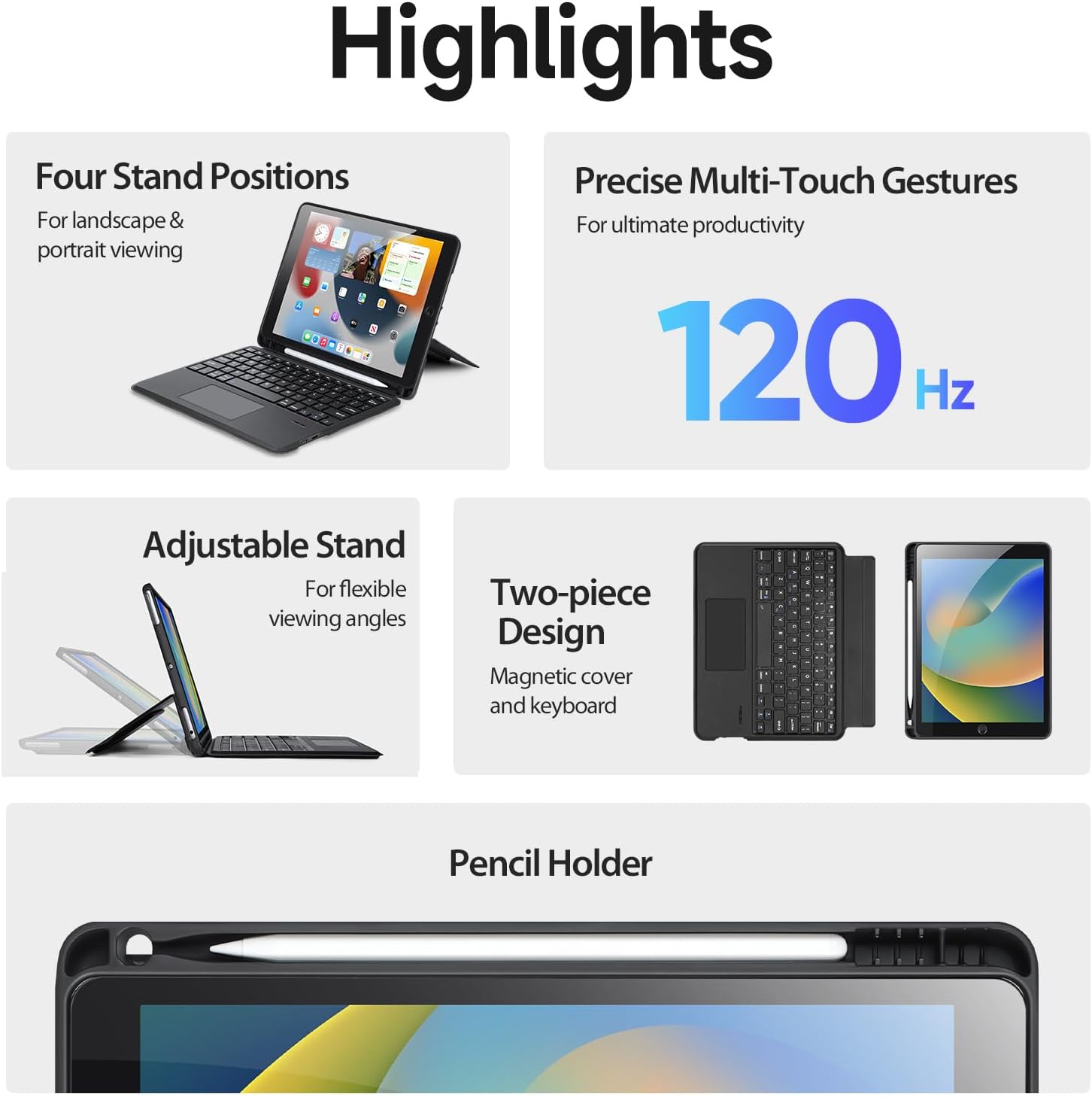
Image: Overview of key features including stand positions, trackpad, and pencil holder.
2. What's in the Box
Please check the package contents upon receipt. The box should contain:
- 1 x Detachable Wireless Keyboard with Leather Case
- 1 x Charging Cable (USB-C)
- 1 x Instruction Manual
Note: iPad and Apple Pencil are not included.
3. Setup
3.1. Installing Your iPad
- Gently align your iPad with the protective frame of the case.
- Press firmly around the edges of the iPad until it is securely seated within the case. Ensure all corners are protected.
- The magnetic back of the iPad case will attach to the keyboard base.

Image: iPad securely placed in the keyboard case.
3.2. Charging the Keyboard
Before first use, fully charge the keyboard using the provided USB-C charging cable. Connect the cable to the charging port on the keyboard and a suitable USB power adapter (not included).
3.3. Bluetooth Pairing
- Ensure the keyboard is charged and powered on. The power switch is typically located on the side of the keyboard.
- On your iPad, go to Settings > Bluetooth and turn Bluetooth On.
- On the keyboard, press the Fn key and the C key simultaneously. The Bluetooth indicator light on the keyboard will flash, indicating it is in pairing mode.
- On your iPad, look for "Wireless Keyboard" or a similar name in the "Other Devices" list and tap to connect.
- Follow any on-screen prompts to complete the pairing process. The Bluetooth indicator light on the keyboard will turn off or remain solid once successfully paired.
4. Operating Instructions
4.1. Keyboard Backlight Control
To adjust the keyboard backlight:
- Press the Fn key and the light bulb icon key (usually next to the spacebar) to cycle through 7 different backlight colors.
- Press the Fn key and the brightness up/down keys (often on the arrow keys or F-row) to adjust the brightness levels (3 levels available).

Image: Backlit keyboard with multiple color and brightness options.
4.2. Multi-Touch Trackpad Gestures
The integrated trackpad supports various multi-touch gestures for intuitive navigation:
- Click: Single finger tap.
- Scroll: Two fingers drag up or down.
- Zoom: Pinch with two fingers.
- Go Home: Swipe up with three fingers.

Image: Multi-touch trackpad gestures for efficient iPad control.
4.3. Adjustable Stand Positions
The magnetic split design allows for multiple viewing angles and modes:
- Landscape Mode: Ideal for typing, browsing, and media consumption.
- Portrait Mode: Suitable for reading documents or vertical screen applications.
- Painting/Drawing Mode: Provides a low, stable angle for creative tasks with an Apple Pencil.

Image: Various stand configurations for the iPad case.
4.4. Detachable Keyboard
The keyboard is magnetically attached to the case and can be easily removed. This allows you to use the iPad case independently or position the keyboard more comfortably.
4.5. Pencil Holder
A dedicated slot is provided to securely store your Apple Pencil when not in use, preventing loss and ensuring it's always accessible.
5. Maintenance
To maintain your DUX DUCIS Keyboard Case in optimal condition:
- Clean the case and keyboard with a soft, damp cloth. Avoid harsh chemicals or abrasive materials.
- Keep the product away from extreme temperatures, direct sunlight, and liquids.
- Ensure the charging port is free from dust and debris.
- For long-term storage, charge the keyboard to approximately 50% and store it in a cool, dry place.
6. Troubleshooting
6.1. Keyboard Not Pairing
- Ensure the keyboard is fully charged.
- Verify that Bluetooth is enabled on your iPad.
- Restart both your iPad and the keyboard.
- Forget the device in your iPad's Bluetooth settings and attempt to re-pair.
6.2. Trackpad Not Responding
- Ensure the keyboard is properly connected via Bluetooth.
- Restart your iPad and the keyboard.
- Check for any software updates for your iPad's operating system.
6.3. Backlight Not Working
- Ensure the keyboard has sufficient battery charge.
- Press Fn + light bulb icon key to activate or change the backlight.
- Press Fn + brightness keys to adjust brightness.
7. Specifications
| Feature | Detail |
|---|---|
| Product Dimensions | 10 x 7.79 x 0.78 inches |
| Item Weight | 1.43 pounds |
| Manufacturer | DUX DUCIS |
| ASIN | B0CL9CW9ZL |
| Item Model Number | KDK-keyboard case |
| Batteries | 1 Lithium Polymer battery required (included) |
| Compatible Devices | Apple iPad 10.2 (2019/7th Gen, 2020/8th Gen, 2021/9th Gen), Apple iPad Pro 10.5 (2017), iPad Air 2019 (Air 3/3rd Gen) |
| Connectivity Technology | Bluetooth |
| Keyboard Description | Wireless |
| Recommended Uses | Office |
| Special Feature | Trackpad |
| Keyboard Backlighting Color Support | RGB (7 Colors) |
| Style | Classic, modern and simple |
| Material | Leather |
8. Warranty & Support
DUX DUCIS products are designed for quality and reliability. For warranty information, technical support, or any inquiries regarding your product, please refer to the contact information provided on the product packaging or visit the official DUX DUCIS website.