
Introduction
This manual provides detailed instructions for the safe and efficient operation of your RD RD6024 60V 24A 1140W AC to DC Step Down Power Supply. This unit is provided as a fully assembled set, ready for use. Please read this manual thoroughly before operating the device to ensure proper functionality and to prevent damage.
Setup Instructions
1. Unpacking and Inspection
Carefully remove all components from the packaging. Inspect the power supply and accessories for any signs of damage during transit. If any damage is found, do not proceed with setup and contact customer support.
2. Included Accessories
The RD6024 full set includes the following components:
- RD Power Supply unit
- X25A Output Cable
- Input AC Power Cord (AC cord type may vary by region)
- Micro Communication Cable (located inside the X25A bag)
- External Temperature Sensor
- Backup Fuse

Figure 1: RD6024 Power Supply and Included Accessories.
3. Power Connection
- Connect the Input AC Power Cord to the power supply unit.
- Plug the AC Power Cord into a standard 100-120V AC outlet. The unit is designed for 100-120V AC input for the US region.
- Connect the X25A Output Cable to the output terminals of the power supply.
- Ensure all connections are secure before powering on the device.
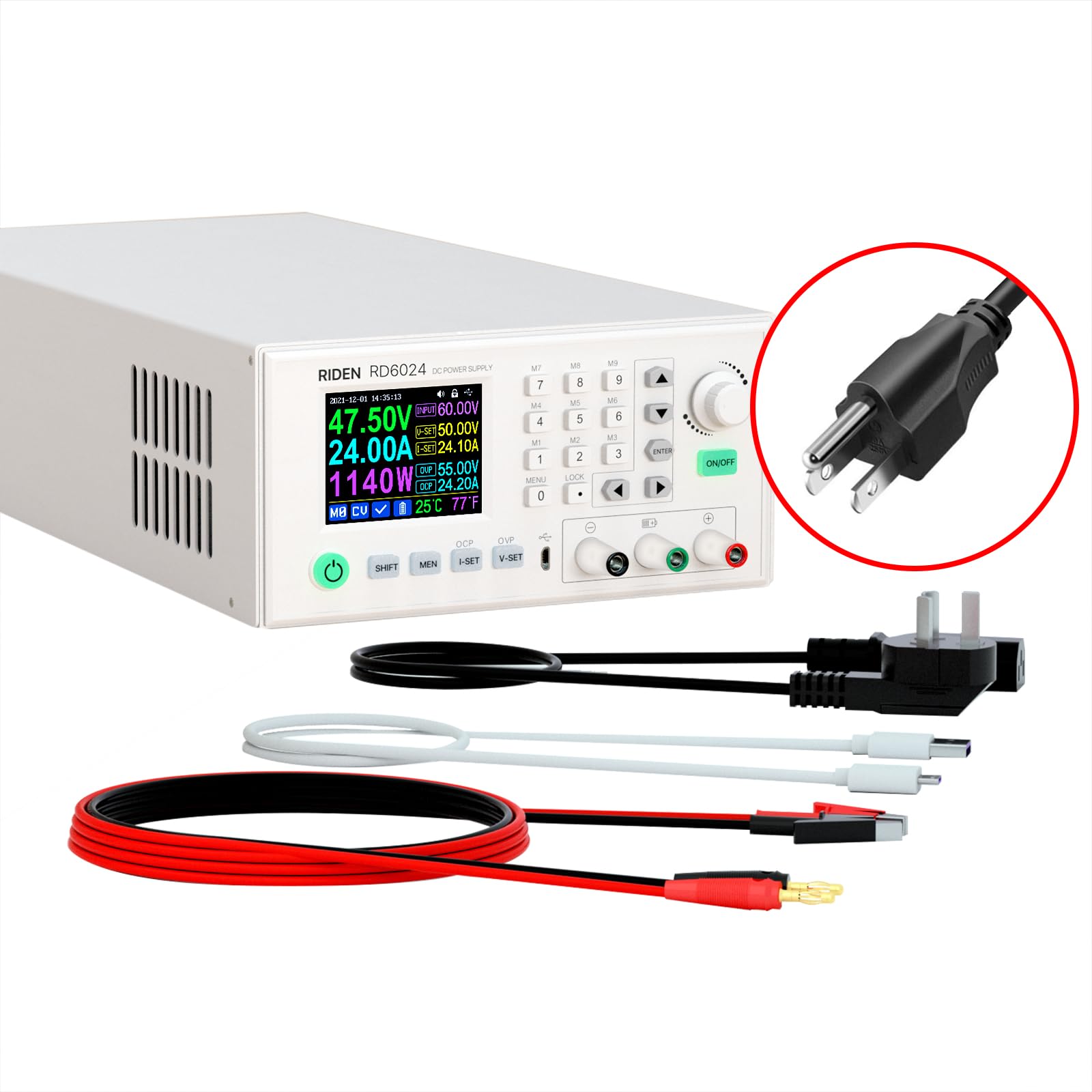
Figure 2: Assembled RD6024 Power Supply with Connections.
Operating Instructions
1. Display Style Selection
The RD6024 offers multiple display styles: Classic, Detailed, and Curve. You can switch between these styles by pressing the appropriate button on the front panel. Alternatively, you can access the settings menu to select a specific digit style, such as "7-Seg V1" or "7-Seg V2" for a Nixie tube display effect.

Figure 3: Various Display Styles and Nixie Tube Display Option.
Watch the video below for a demonstration on how to set the display style and customize colors.
Video 1: Setting Display Style and Customizing Colors on RD Series Power Supply. This video demonstrates navigating the menu to change the display layout and selecting custom colors for various parameters.
2. Customizing Display Colors
The display colors for various parameters can be customized. Navigate to the settings interface, select the "Custom Colors" option, and choose your preferred colors for output voltage, current, power, etc. Remember to enable the "Custom Colors" switch for the changes to take effect.

Figure 4: Custom Color Display Settings.
3. Battery Charging Function
The RD6024 is equipped with green charging terminals specifically designed for charging multiple types of batteries.
WARNING: Non-professionals should not use the battery charging function due to potential risks of fire or explosion. Ensure you have the latest firmware version for optimal battery charging performance.
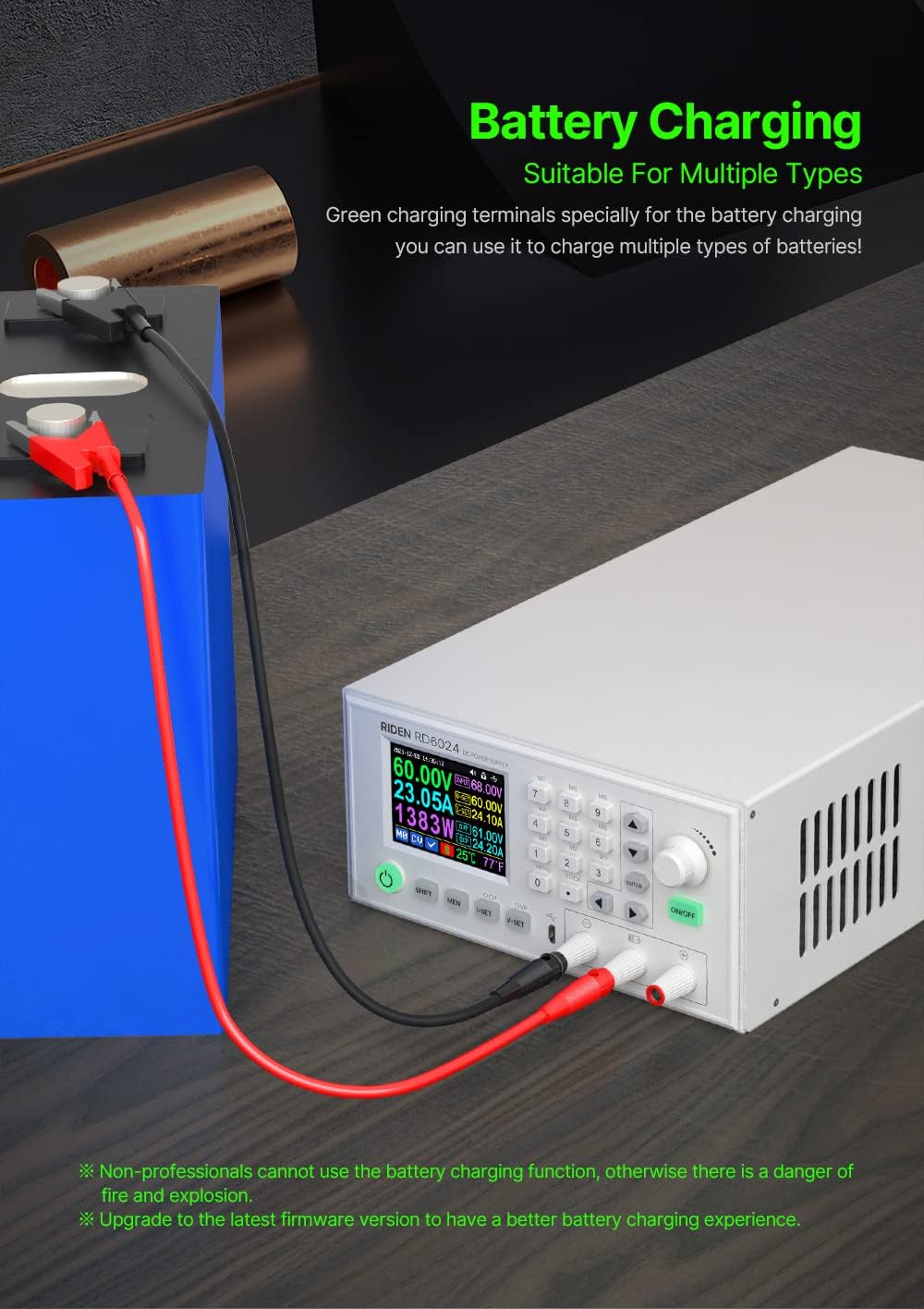
Figure 5: Battery Charging Setup.
4. PC Software Control
The power supply can be monitored and controlled via PC software. This software provides a user-friendly interface and comprehensive functions.
- Compatibility: The PC software supports Windows 7, Windows 8, and Windows 10 operating systems.
- Connection: The unit supports USB connection to a PC using the provided Micro Communication Cable.
- Download: It is recommended to download and test the software on your PC before purchasing the product to ensure compatibility.

Figure 6: PC Software Control Interface.
5. Data Storage and Recall
The RD6024 allows for convenient storage and recall of settings data. You can save current settings to memory locations (e.g., M1-M9) and recall them as needed.

Figure 7: Data Storage and Recall Interface.
6. Multiple Protection Features
The power supply incorporates multiple protection mechanisms to safeguard the device and connected equipment. These include:
- OVP (Over Voltage Protection): Prevents output voltage from exceeding a set limit.
- OCP (Over Current Protection): Prevents output current from exceeding a set limit.
- OTP (Over Temperature Protection): Shuts down the unit if the internal temperature exceeds a safe threshold (System temperature > 80°C).
An "Abnormal Status Indication" will be displayed on the screen if any of these protections are triggered.

Figure 8: Multiple Protection Indicators.
Maintenance
1. Fuse Replacement
A backup fuse is included with your unit. If the original fuse burns out, replace it with the provided backup fuse to restore functionality. Ensure the power supply is disconnected from the AC outlet before attempting fuse replacement.
2. Firmware Upgrade
To ensure continuous optimization and access to the latest features, it is recommended to upgrade the firmware periodically. Firmware upgrades can enhance performance, especially for functions like battery charging. Refer to the official RD website for the latest firmware and upgrade instructions.

Figure 9: Firmware Upgrade Process.
Troubleshooting
- Unit Not Powering On: Check the AC power cord connection. If the unit still does not power on, the fuse may be blown. Replace the fuse with the provided backup.
- PC Software Issues: If you experience incompatibilities with the PC software, ensure your operating system is Windows 7, 8, or 10. It is strongly advised to download and test the software before purchase to confirm compatibility with your specific PC setup.
- Battery Charging Concerns: Ensure you are a qualified professional before using the battery charging function. Always verify the latest firmware is installed for optimal and safe operation.
- Over Temperature Protection (OTP): If the unit shuts down due to OTP, allow it to cool down. Ensure adequate ventilation around the power supply to prevent overheating.
Specifications
| Parameter | Value |
|---|---|
| Model | RD6024 full set assembled |
| Input Voltage Range | 100-120V AC |
| Output Voltage Range | 0-60.00V |
| Output Current Range | 0-24.00A |
| Output Power Range (AC 110V) | 0-1140W (max) |
| Input Voltage Measurement Resolution | 0.01V |
| Output Voltage Setting Measurement Resolution | 0.01V |
| Output Current Setting Measurement Resolution | 0.01A |
| Battery Voltage Measurement Resolution | 0.01V |
| Input Voltage Measurement Accuracy | ±(1%+5 digits) |
| Output Voltage Accuracy (setting vs. measurement) | ±(0.3%+3 digits) |
| Output Current Accuracy (setting vs. measurement) | ±(0.5%+5 digits) |
| Battery Voltage Measurement Accuracy | ±(0.5%+3 digits) |
| Automatic Cut-off Current (charging) | User-set (higher than 100mA) |
| Output Ripple Typical | 100mV@12A, 150mV@24A VPP |
| Working Temperature Range | -10℃~40℃ |
| External Sensor Temperature Detection Range | -10℃~100℃ / 0℉~200℉ |
| External Sensor Temperature Detection Accuracy | ±3℃ / ±6℉ |
| Constant Voltage Mode Response Time | 2ms (0.1A-5A Load) |
| Constant Voltage Mode Load Regulation | ±(0.1%+2 digits) |
| Constant Current Mode Load Regulation | ±(0.1%+3 digits) |
| Capacity Measurement Range | 0-9999.99Ah |
| Energy Measurement Range | 0-9999.99Wh |
| Capacity and Energy Statistical Error | ±2% |
| Buck Working Mode | (input voltage ÷ 1.1) - 1 |
| Over Temperature Protection | System temperature > 80℃ |
| Screen Brightness Setting | 0-5 (6 levels total) |
| Screen | 2.4 inch color HD display |
| Product Dimensions | 13.2 x 6.8 x 3.6 inches |
| Item Weight | 8.68 pounds |
| Compatible Devices | Personal Computer |
| Connector Type | USB |
| Cooling Method | Air |
Warranty and Support
For warranty information and technical support, please refer to the official RD website or contact your retailer. Extended protection plans may be available for purchase separately.
Manufacturer: RD


