1. Introduction
This user manual provides comprehensive instructions for the Thermalright 5V 3PIN A-RGB Fan Controller. This device is designed to manage the lighting effects of 5V A-RGB fans, particularly useful for motherboards with insufficient or absent 5V lighting interfaces. It operates via SATA power, eliminating the need for a direct motherboard connection for lighting control.

2. Safety Information
- Ensure your power supply unit (PSU) is turned off and unplugged before installation to prevent electrical shock or damage to components.
- Handle all components with care to avoid physical damage.
- Do not exceed the current limit of 6 A-RGB fans in series when using SATA power. The maximum output current is 2A.
- Connect only 5V 3PIN A-RGB devices to the controller. Connecting incompatible devices may cause damage.
- Keep the controller away from moisture and extreme temperatures.
3. Package Contents
Verify that all items are present in your package:
- Thermalright 5V 3PIN A-RGB Fan Controller (1x)

4. Specifications
| Product Dimensions | 0.3 x 0.25 x 0.2 inches |
| Item Model Number | 5V 3PIN controller |
| Manufacturer | Thermalright |
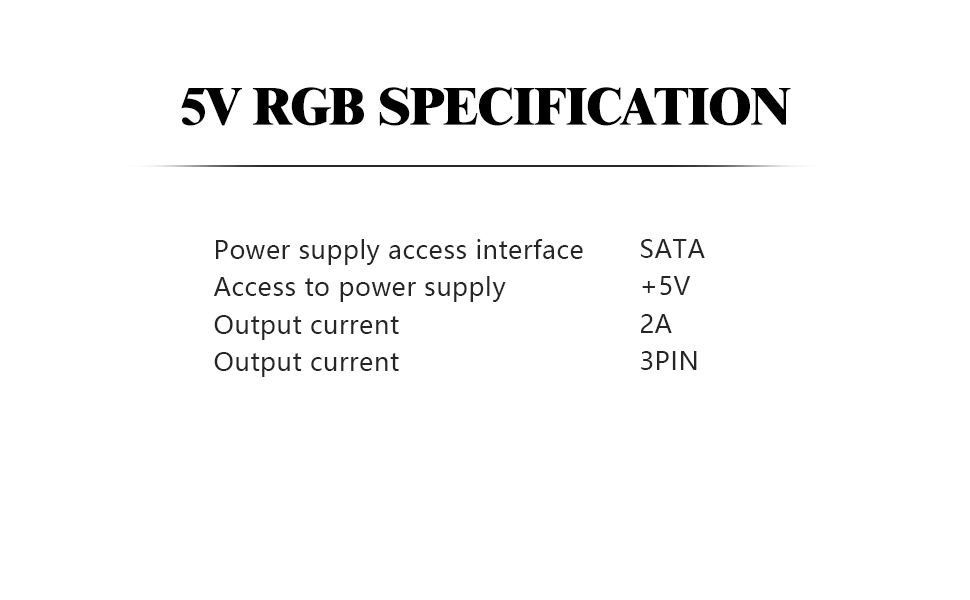
| Power Connector Type | SATA (Input), 3-Pin (Output for ARGB) |
| Voltage | 5V (for ARGB lighting) |
| Output Current (Max) | 2A |
| Compatible Devices | Desktop PCs with 5V 3PIN A-RGB devices |
| Material | Plastic |
5. Setup & Installation
Follow these steps to install your Thermalright 5V 3PIN A-RGB Fan Controller:
- Connect to SATA Power: Connect the controller's SATA power connector to an available SATA power cable from your power supply unit (PSU). Ensure a secure connection. This provides power to the controller and connected A-RGB devices.

Figure 4: The controller's SATA power input, ready for connection to your PSU. - Connect A-RGB Devices: Connect your 5V 3PIN A-RGB fans or other compatible lighting devices to the 3-pin ARGB output on the controller. The controller can support up to 6 A-RGB fans in series.

Figure 5: The A-RGB controller with its input and output cables. - Power On: Once all connections are secure, you can power on your PC. The A-RGB devices connected to the controller will illuminate.
Installation Video Guide:
6. Operating Instructions
The controller features three buttons for managing your A-RGB lighting effects:
- "S" Button (Light Effect Frequency): Press the "S" button to cycle through 5 different light effect frequencies. This button is active only when the lighting mode is dynamic.
- "M" Button (Lighting Modes): Use the "M" button to switch between various lighting modes. Options include static colors, dynamic rainbow effects, and color unidirectional modes, offering over a dozen different color cycles.
- "B" Button (Brightness): The "B" button allows you to adjust the brightness of the A-RGB lighting. There are 5 brightness levels to cycle through.

7. Maintenance
To ensure the longevity and optimal performance of your controller:
- Keep the device clean and free from dust. Use a soft, dry cloth for cleaning.
- Avoid exposing the controller to direct sunlight or high humidity.
- Do not attempt to disassemble or modify the controller, as this will void the warranty and may cause damage.
8. Troubleshooting
If you encounter issues with your controller, refer to the following common problems and solutions:
- No lighting/power:
- Ensure the SATA power cable is securely connected to both the controller and the PSU.
- Verify that the PSU is powered on.
- Check if the A-RGB devices are correctly connected to the controller's 3-pin interface.
- Lights not changing modes/brightness:
- Press the "M" button to cycle through different modes. Some modes may be static.
- Press the "S" button to adjust effect frequency for dynamic modes.
- Press the "B" button to adjust brightness.
- Inconsistent lighting:
- Ensure that the total number of connected A-RGB fans does not exceed the recommended limit of 6 in series to avoid power issues.
- Check for loose connections on any of the A-RGB devices.
9. Warranty & Support
Thermalright products are manufactured to the highest quality standards. For specific warranty details and technical support, please refer to the official Thermalright website or contact their customer service directly. Keep your proof of purchase for warranty claims.


