1. Introduction
The kazazoo Mini Thermal Printer C19 is a compact, portable, and inkless printer designed for a variety of uses, including printing notes, lists, labels, memos, scrapbooking elements, and photos. It connects wirelessly via Bluetooth to your iOS or Android smartphone or tablet, offering a convenient solution for on-the-go printing. The accompanying 'Fun Print' application provides numerous templates and features to enhance your printing experience.
What's in the Box
- Mini Thermal Printer (C19)
- No-Adhesive Paper Roll (2 rolls)
- Type-C Power Cord
- User Manual
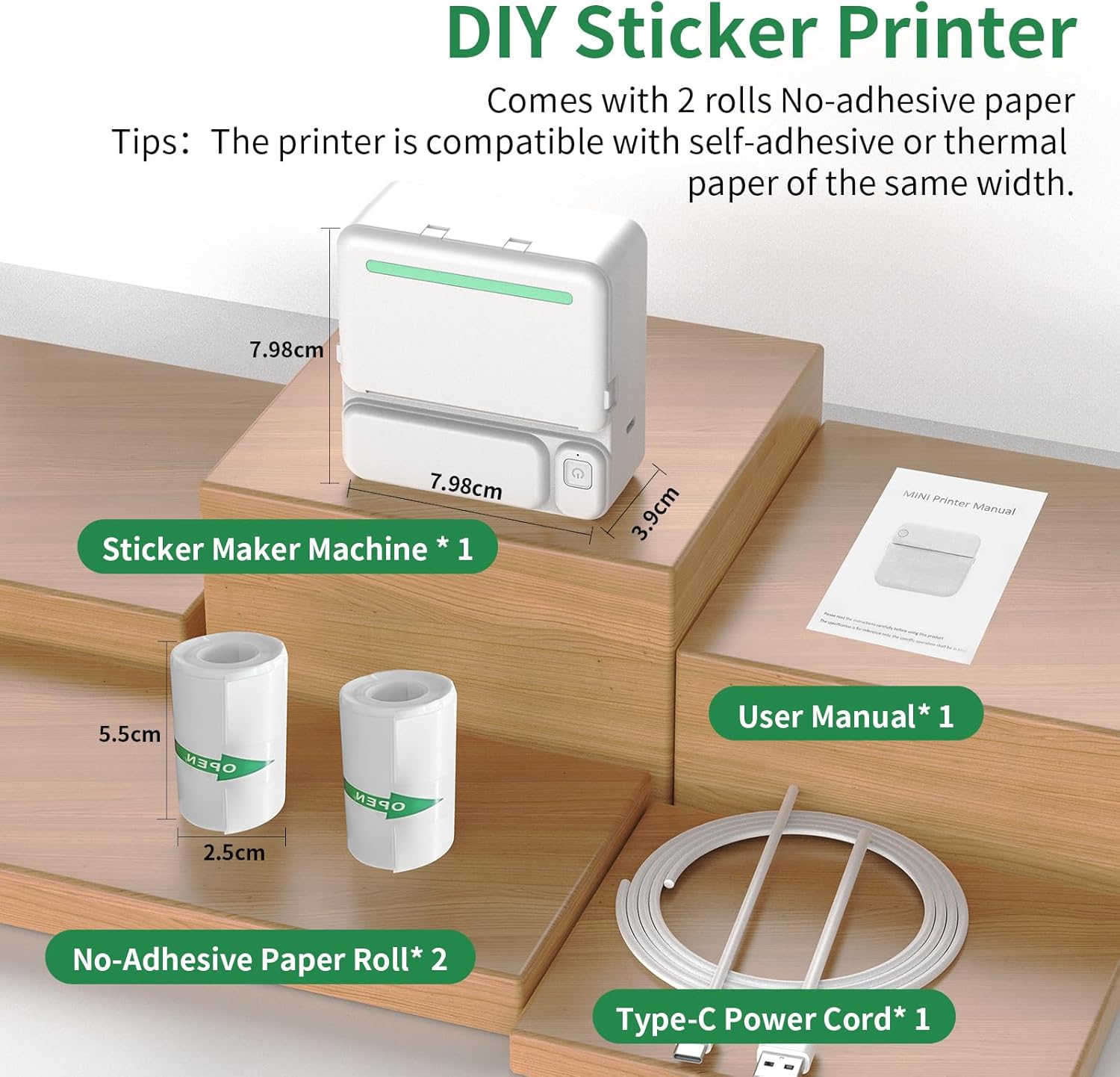
Figure 1.1: Package Contents. The image displays the compact printer, two rolls of thermal paper, a Type-C charging cable, and the user manual.
2. Setup Guide
2.1 Charging the Printer
Before first use, ensure the printer is fully charged. Connect the provided Type-C power cord to the printer's charging port and the other end to a USB power adapter (not included). The printer has a 1200mAh Lithium Polymer battery. A full charge typically takes a few hours.
2.2 App Installation ('Fun Print')
The kazazoo Mini Thermal Printer operates via the 'Fun Print' mobile application. Download the app from your device's respective app store:

Figure 2.1: 'Fun Print' App Download. The image illustrates the app's availability on both Apple App Store and Google Play Store.
2.3 Bluetooth Connection
Follow these steps to connect your printer to your smartphone or tablet via Bluetooth:
- Step 1: Power On - Long press the power button on the printer for 3 seconds to switch it on.
- Step 2: Download App - Download the 'Fun Print' app via the Apple App Store or Google Play.
- Step 3: Open App - Open the app and click directly to log in (no registration required).
- Step 4: Connect Bluetooth - Turn on Bluetooth on your phone and connect to the printer within the 'Fun Print' app. The connection should be fast, typically within 3 seconds.
- Step 5: Edit Labels - Once connected, you can begin editing and printing your labels or content.

Figure 2.2: Bluetooth Connection Steps. This image visually guides users through the process of powering on, downloading the app, opening it, connecting via Bluetooth, and starting to edit.
2.4 Loading Paper
The printer uses thermal paper rolls. To load paper:
- Open the paper compartment cover.
- Insert a new thermal paper roll, ensuring the paper feeds out from the top of the roll.
- Pull a small length of paper out of the printer and close the cover firmly.
- The printer is ready to print.
3. Operating Instructions
3.1 Basic Printing
Once connected via Bluetooth, open the 'Fun Print' app. You can select from various functions and templates to create your desired print. After designing your content, tap the print button within the app to send the job to the printer.

Figure 3.1: 'Fun Print' App Interface. The image highlights the app's features for easy editing and printing.
3.2 App Features and Functions
The 'Fun Print' app offers a wide range of features to maximize your printer's utility:
- Text Printing: Print plain text, notes, or memos.
- Label Styles: Access multiple label styles for organization, including To-Do Lists, Icons, Barcodes, Forms, and Time stamps.
- Image Printing: Print photos directly from your device's gallery.
- Templates: Utilize a variety of free templates for different occasions and purposes (e.g., scrapbooks, diaries, study notes).
- Web Page Printing: Print content directly from web pages.
- QR Code Generation: Create and print QR codes.
Figure 3.2: Multiple Label Styles. This image demonstrates the diverse range of label and content styles available within the 'Fun Print' application.
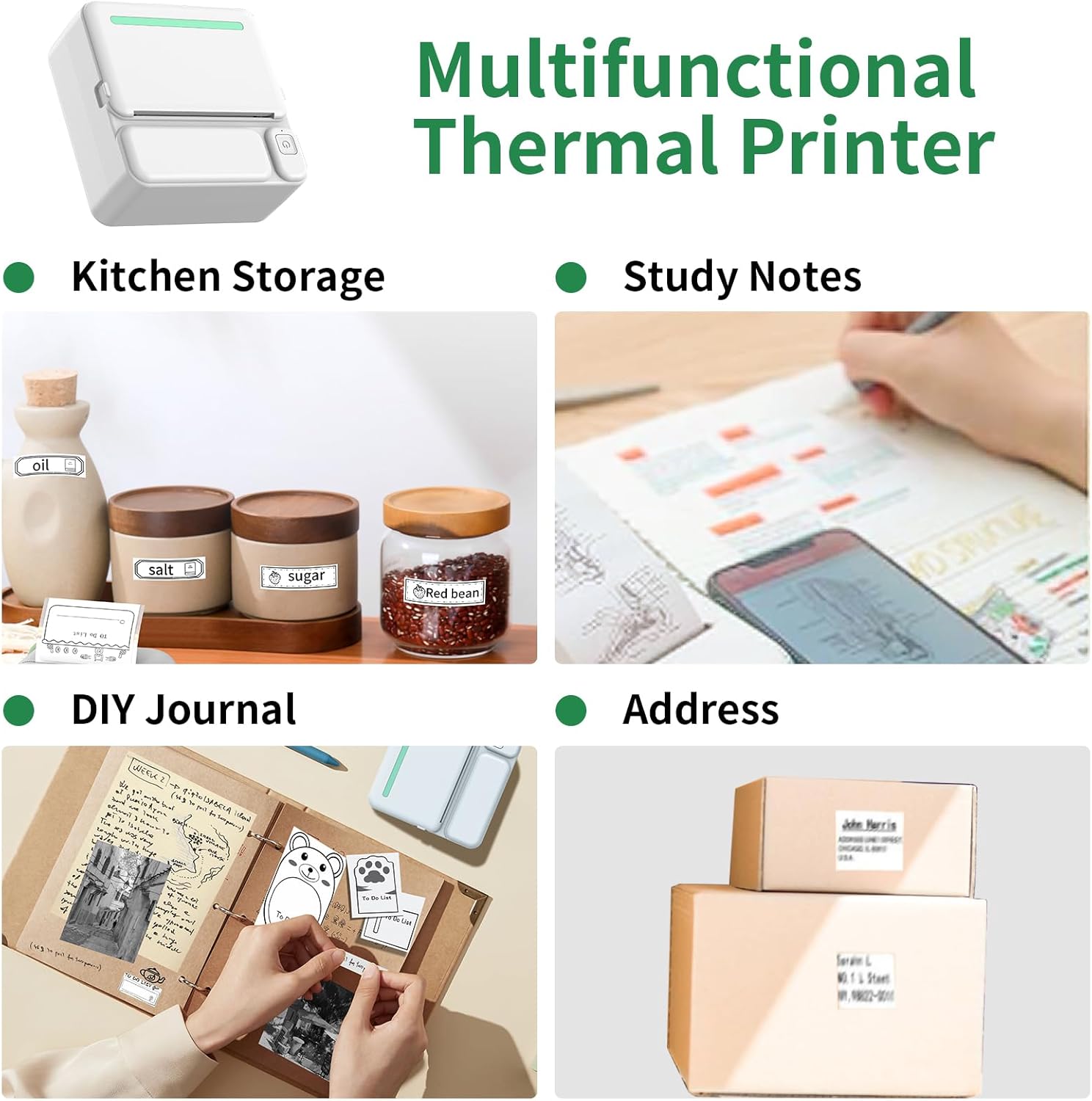
Figure 3.3: Multifunctional Uses. The image showcases practical applications of the printer for various daily tasks.
4. Maintenance
4.1 Paper Replacement
When the paper roll is depleted, replace it with a new 53*25mm thermal paper roll. Refer to Section 2.4 for detailed instructions on loading paper.
4.2 Cleaning the Printer
To ensure optimal print quality and prolong the printer's lifespan:
- Turn off the printer before cleaning.
- Use a soft, dry cloth to wipe the exterior of the printer.
- If necessary, gently clean the thermal print head with an alcohol swab, ensuring it is completely dry before turning the printer back on. Avoid touching the print head directly with your fingers.
5. Troubleshooting
If you encounter issues with your kazazoo Mini Thermal Printer, refer to the following common problems and solutions:
5.1 Printer Not Connecting via Bluetooth
- Ensure the printer is powered on and fully charged.
- Make sure Bluetooth is enabled on your smartphone/tablet.
- Close and reopen the 'Fun Print' app.
- Restart both your printer and your mobile device.
- Ensure no other devices are currently connected to the printer.
5.2 Poor Print Quality or Blank Prints
- Check if the thermal paper is loaded correctly, with the printable side facing the print head. Thermal paper typically has one side that is more sensitive to heat.
- Ensure the paper roll is not exhausted.
- Clean the thermal print head as described in Section 4.2.
- Verify that the paper type is suitable for thermal printing.
5.3 Printer Not Responding
- Check the battery level and charge the printer if needed.
- Perform a hard reset by pressing and holding the power button until the printer turns off, then restart it.
- Ensure the app is up-to-date.
6. Specifications
| Feature | Specification |
|---|---|
| Model Name | C19 |
| Brand | kazazoo |
| Printing Technology | Thermal (Inkless) |
| Connectivity Technology | Bluetooth |
| Compatible Devices | Smartphones, Tablets (Android, iOS) |
| Control Method | App ('Fun Print') |
| Maximum Black and White Print Resolution | 300 dpi |
| Maximum Color Print Resolution | 100 dpi |
| Printer Output | Monochrome |
| Max Printspeed Monochrome | 20 ppm |
| Maximum Media Size | 53*25mm |
| Sheet Size | 5.68CM |
| Print Media | Labels |
| Battery | 1200 mAh Lithium Polymer (included) |
| Product Dimensions | 1.57 x 3.15 x 3.15 inches (3"D x 1.5"W x 1.5"H) |
| Item Weight | 7.4 ounces |
| Color | Green (as per model name C19) |
7. Warranty and Support
The kazazoo Mini Thermal Printer C19 comes with a Limited Warranty. For specific warranty terms and conditions, please refer to the documentation included with your purchase or contact kazazoo customer support.
For technical support, troubleshooting assistance, or inquiries regarding your product, please contact the manufacturer or seller through the platform where the product was purchased. Provide your model number (C19) and a detailed description of the issue for efficient assistance.


