
Introduction
This manual provides detailed instructions for the installation, setup, operation, and maintenance of your Generic Video Doorbell Model Generic35h1xiy8z4-13. Please read this manual thoroughly before using the product to ensure proper function and safety.
Product Overview
The Generic Video Doorbell is a smart home security device featuring 1080P HD video, a 155-degree wide-angle lens, two-way audio intercom, night vision, and intelligent cloud storage capabilities. It is designed to enhance your home security by allowing you to monitor your doorstep remotely.

Figure 1: Front view of the video doorbell with labeled components including Light Sensor, Lens, Microphone, PIR Sensor, Indicator Light, and Button.
Key Components:
- Light Sensor: Detects ambient light levels to automatically switch between day and night modes.
- Lens: 155-degree wide-angle 1080P HD camera for clear video capture.
- Microphone: Captures audio for two-way communication.
- PIR Sensor: Passive Infrared sensor for motion detection.
- Indicator Light: Provides status feedback (e.g., pairing mode, recording).
- Button: The main doorbell button for visitors to press.
- USB Port: For charging the internal battery.
Package Contents
Verify that all items listed below are included in your package. If any items are missing or damaged, please contact customer support.
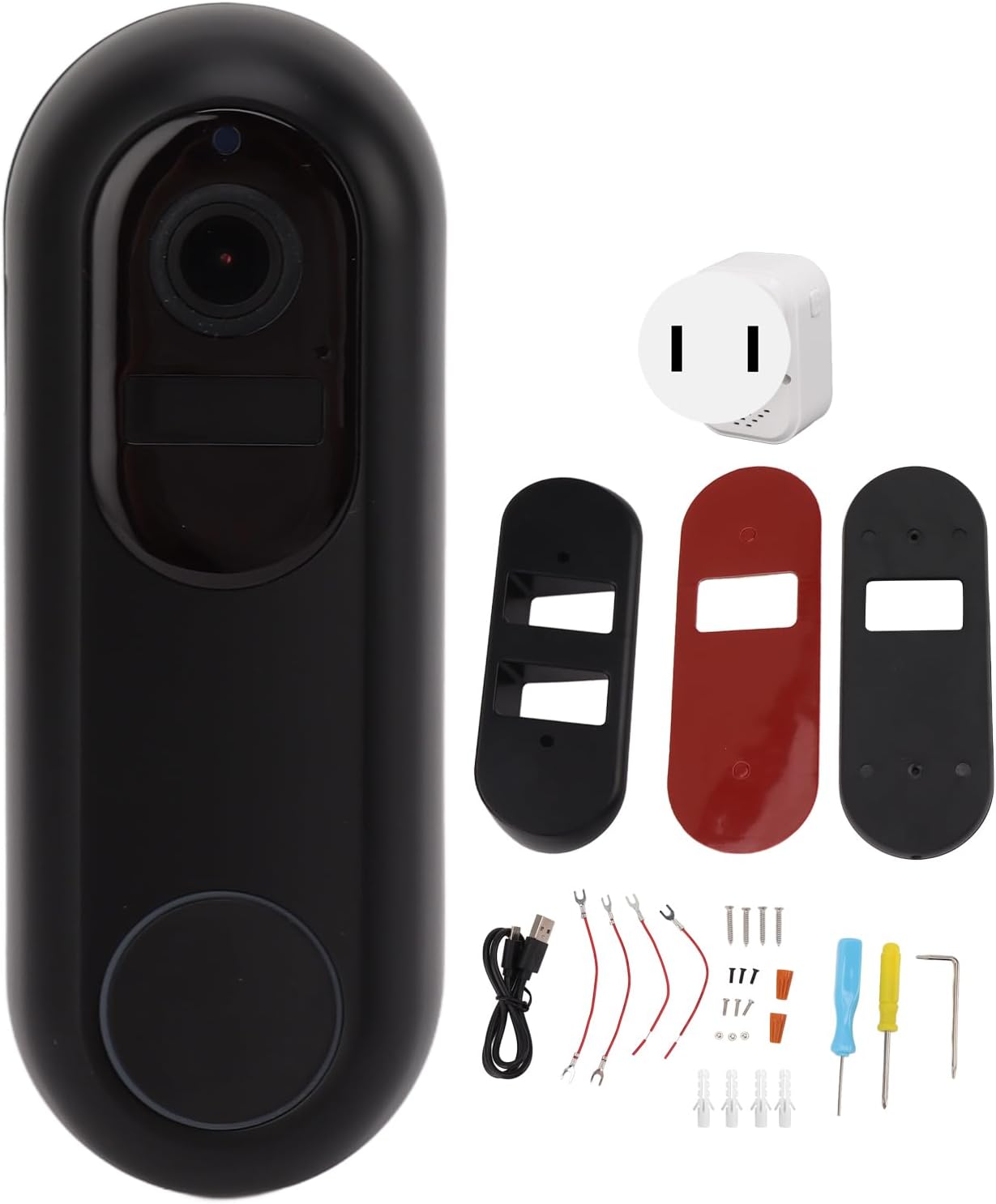
Figure 2: All components included in the Generic Video Doorbell package, including the doorbell unit, mounting plates, charging cable, screws, and tools.
- 1 x Video Doorbell Unit
- 1 x Oblique Cover Plate (Pre-installed)
- 1 x Flat Cover Plate (Pre-installed)
- 1 x Patch
- 1 x Micro USB Charging Cable
- 2 x User Manuals
- 4 x Expansion Tubes
- 4 x Screws (for mounting)
- 3 x Small Screws
- 2 x (Unspecified component, likely additional screws or connectors)
- 4 x Power Supply Wiring
- 1 x L-Shaped Screw Wrench
- 1 x Large Cross Screwdriver
- 1 x Small Cross Screwdriver
- 3 x Nuts
- 3 x Black Small Screws
- 1 x Dingdong Machine (Chime Unit)
Setup and Installation
Follow these steps to set up and install your video doorbell.
1. Initial Preparation
- Charge the Doorbell: Ensure the doorbell's internal 9000mAh battery is fully charged using the provided Micro USB cable.
- Insert Micro Memory Card (Optional): If you plan to use local storage, open the back panel of the doorbell and insert a Micro Memory Card (8-128GB, not included).
- Power On: Locate the power switch on the doorbell and slide it from "OFF" to "ON".
2. App Installation and Pairing
- Download the App: Scan the QR code provided in the manual with your smartphone to download the "Tuya" app.
- Create Account: Open the Tuya app and follow the on-screen instructions to create a new user account or log in to an existing one.
- Add Device: In the app, tap the "+" sign in the upper right corner to add a new device. Select "Video Doorbell" or similar from the device list.
- Connect to Wi-Fi: Follow the app's instructions to connect the doorbell to your 2.4GHz Wi-Fi network. The doorbell supports both 5.0GHz and 2.4GHz, but ensure your phone is connected to a 2.4GHz network during the initial pairing process if prompted.
- Confirm Connection: Once the device is successfully added, confirm normal operation within the app.

Figure 3: The video doorbell establishing a connection with a 2.4GHz Wi-Fi network, shown alongside a Wi-Fi router.
3. Mounting the Doorbell
- Choose Location: Select a suitable location near your door, ensuring a clear view and good Wi-Fi signal.
- Secure Cover Plate: Use the provided screws and expansion tubes to fix the chosen cover plate (oblique or flat) to the wall.
- Optional AC Power Connection: If you prefer continuous AC power instead of battery, connect the doorbell to your existing 12-24V AC doorbell wiring using the attached connectors. If not needed, the battery power will suffice.
- Attach Doorbell: Slide the doorbell unit onto the secured cover plate until it clicks into place. Use the small screw at the bottom to secure it to the plate for anti-theft.

Figure 4: The video doorbell mounted on a wall beside a residential door, demonstrating a typical installation scenario.
Operating Instructions
Receiving Notifications and Calls
- When a visitor presses the doorbell button, your smartphone will receive a push notification via the Tuya app.
- Tap the notification to enter the mobile video call interface, allowing you to view the live feed and communicate with the visitor in real-time.

Figure 5: A user interacting with the video doorbell via their smartphone, showing a live view of a delivery person at the door and a two-way conversation.
Two-Way Audio and Voice Change
- The doorbell supports clear two-way audio communication. Speak into your phone's microphone, and your voice will be transmitted through the doorbell's speaker.
- Utilize the intelligent voice change feature within the app to modify your voice during intercom calls for added privacy or security.
Motion Detection
- The built-in PIR sensor detects motion in front of your door. When motion is detected, the doorbell can automatically record video and send a notification to your phone.
- Adjust motion detection sensitivity and notification settings within the Tuya app.

Figure 6: A smartphone displaying a motion detection alert from the video doorbell, showing a person near the door, highlighting the security feature.
Night Vision
- The doorbell is equipped with high-power infrared night vision lights and an ICR infrared filter. It automatically switches to night mode in low-light conditions.
- This ensures clear video monitoring even in complete darkness, with a night vision distance of approximately 5-10 meters (16.4-32.8 feet).
Cloud Storage and Local Storage
- The doorbell supports intelligent cloud storage for recorded videos. Refer to the Tuya app for subscription details and options.
- Alternatively, you can use a Micro Memory Card (8-128GB, not included) for local video storage.
Maintenance
- Cleaning: Gently wipe the doorbell lens and body with a soft, dry cloth to remove dust and smudges. Avoid using harsh chemicals or abrasive materials.
- Battery Charging: If using battery power, monitor the battery level via the app and recharge the doorbell using the Micro USB cable when indicated.
- Firmware Updates: Periodically check the Tuya app for available firmware updates to ensure optimal performance and access to new features.
- Micro Memory Card: If using a Micro Memory Card, regularly back up important recordings and format the card periodically to maintain performance.
Troubleshooting
| Problem | Possible Cause | Solution |
|---|---|---|
| Doorbell not connecting to Wi-Fi | Incorrect Wi-Fi password; Doorbell too far from router; Only 5GHz network available. | Verify Wi-Fi password. Move doorbell closer to router. Ensure your router broadcasts a 2.4GHz network and connect to it during setup. |
| No notifications on phone | App notifications disabled; Doorbell offline; App not running in background. | Check app notification settings on your phone. Verify doorbell is connected to Wi-Fi. Ensure the Tuya app has necessary background permissions. |
| Poor video quality | Dirty lens; Low Wi-Fi signal strength; Insufficient lighting. | Clean the camera lens. Improve Wi-Fi signal. Night vision should activate automatically in low light. |
| Two-way audio issues | Microphone/speaker blocked; App permissions; Network latency. | Ensure nothing is obstructing the microphone or speaker. Grant microphone permissions to the Tuya app. Check network connection. |
| Doorbell not charging | Faulty cable/adapter; USB port damage; AC wiring issue. | Try a different Micro USB cable and power adapter. Inspect the USB port for damage. If using AC power, check wiring connections. |
Specifications
| Feature | Detail |
|---|---|
| Model Number | Generic35h1xiy8z4-13 |
| Resolution | 1920 x 1080 (1080P HD) |
| Lens Angle | 155 Degrees (Wide Angle) |
| Infrared Lights | 6 |
| Night Vision Distance | Approx. 5-10m (16.4-32.8ft) |
| Connection Method | Phone APP (Tuya), 5.0GHz & 2.4GHz Wi-Fi |
| Storage Options | Cloud Storage or Micro Memory Card (8-128GB, not included) |
| Battery Type | Lithium Ion Battery (Built-in) |
| Battery Capacity | 9000mAh |
| Charging Interface | Micro USB, AV 12-24V Interface |
| Dingdong Machine Voltage | 100-240V (US Plug) |
| Product Material | ABS |
| Dimensions | Approx. 7.09 x 5.91 x 3.15 inches (Package) |
Warranty Information
Please refer to the warranty card included in your product packaging or contact the seller for specific warranty terms and conditions. Typically, products come with a limited manufacturer's warranty covering defects in materials and workmanship for a specified period from the date of purchase.
This warranty does not cover damage caused by misuse, accident, unauthorized modification, or improper installation.
Customer Support
If you encounter any issues or have questions regarding your Generic Video Doorbell, please contact your retailer or the manufacturer's customer support. For technical assistance, please have your model number (Generic35h1xiy8z4-13) and purchase information ready.
For app-related support, please refer to the help section within the Tuya app.