
1. Introduction
Thank you for purchasing the iTOMA AM/FM Alarm Clock Radio. This manual provides detailed instructions for setting up, operating, and maintaining your new device. Please read this manual thoroughly before use to ensure proper functionality and to maximize your user experience.
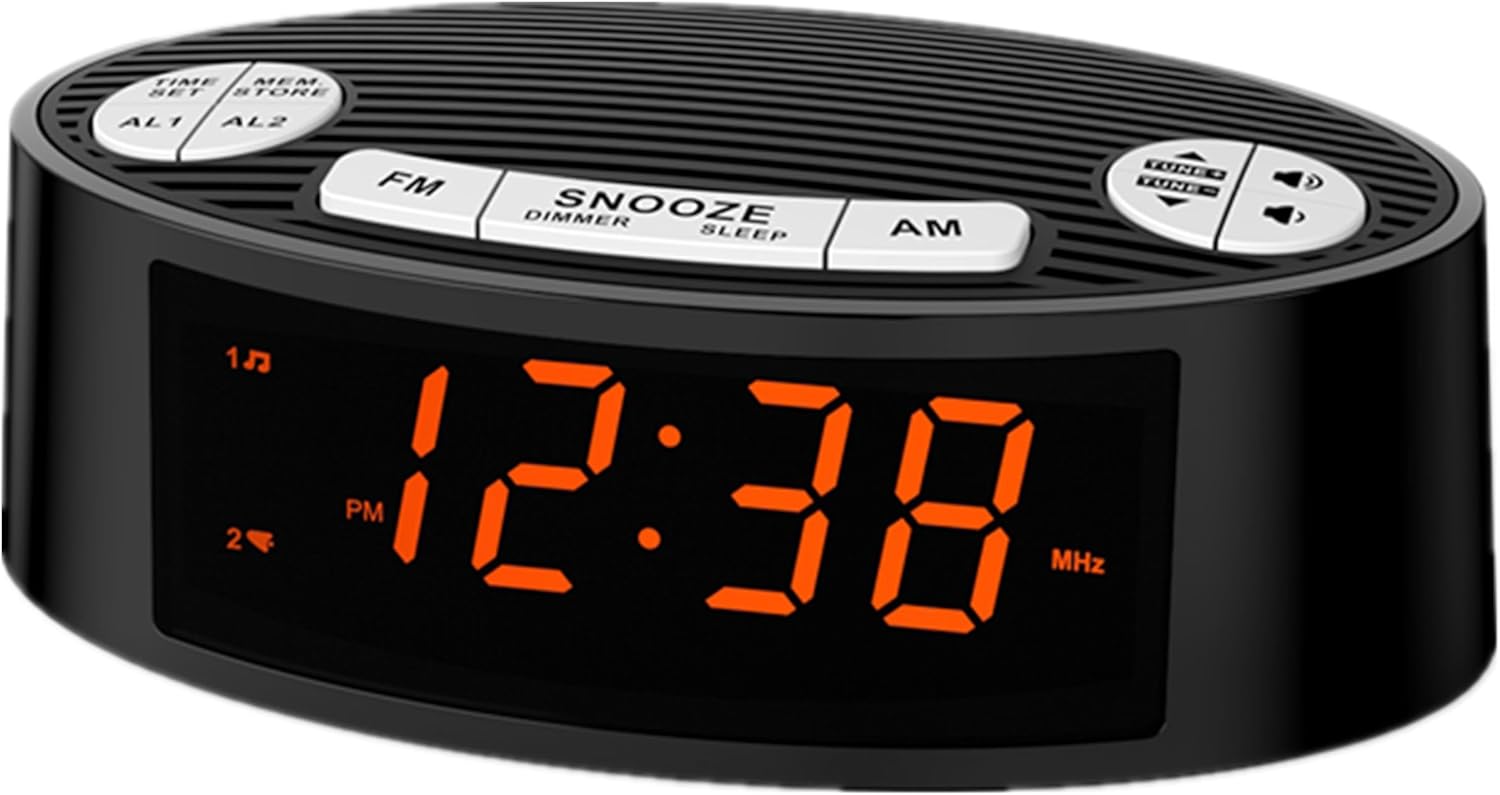
Image 1.1: Front view of the iTOMA AM/FM Alarm Clock Radio CKS3301U with orange LED display.
2. Product Overview
2.1 Components and Controls
The iTOMA CKS3301U features an intuitive design with clearly labeled buttons for easy operation. Key components include:
- 0.9" Orange LED Display: For clear time and radio frequency display.
- Top Panel Buttons: Including TIME SET, MEM/STORE, AL1, AL2, FM, SNOOZE/DIMMER/SLEEP, AM, and TUNE/VOLUME controls.
- Rear Panel: Power input and antenna wire.

Image 2.1: Overview of the clock radio with icons indicating Volume, Snooze, Dual Alarm, 12H/24H Time Format, Dimmer, and AM/FM Radio functions.
2.2 Key Features
- Easy-to-Read Display: 0.9-inch orange LED display provides clear visibility.
- 4-Level Dimmer: Adjust display brightness (L3/L2/L1/OFF) to suit your preference.
- Dual Alarms: Set two independent alarms with options to wake to radio or buzzer.
- AM/FM Radio: Easy tuning with storage for up to 40 preset stations.
- Snooze Function: Provides extra minutes of sleep.
- Sleep Timer: Allows the radio to play for a set duration before automatically turning off.
- 12/24 Hour Time Format: Select your preferred time display.
- USB Powered: Operates via USB (AC adapter not included).
3. Setup
- Power Connection: Connect the USB power cable to the clock radio. Plug the USB end into a compatible USB power adapter (not included) and then into a wall outlet. The unit requires a stable 5V USB power source.
- Antenna Setup: Extend the FM antenna wire fully for optimal radio reception. Position it away from other electronic devices to minimize interference.
- Initial Time Setting: Upon first power-up, the display may flash. Refer to the "Setting Time" section in Operating Instructions to set the current time.
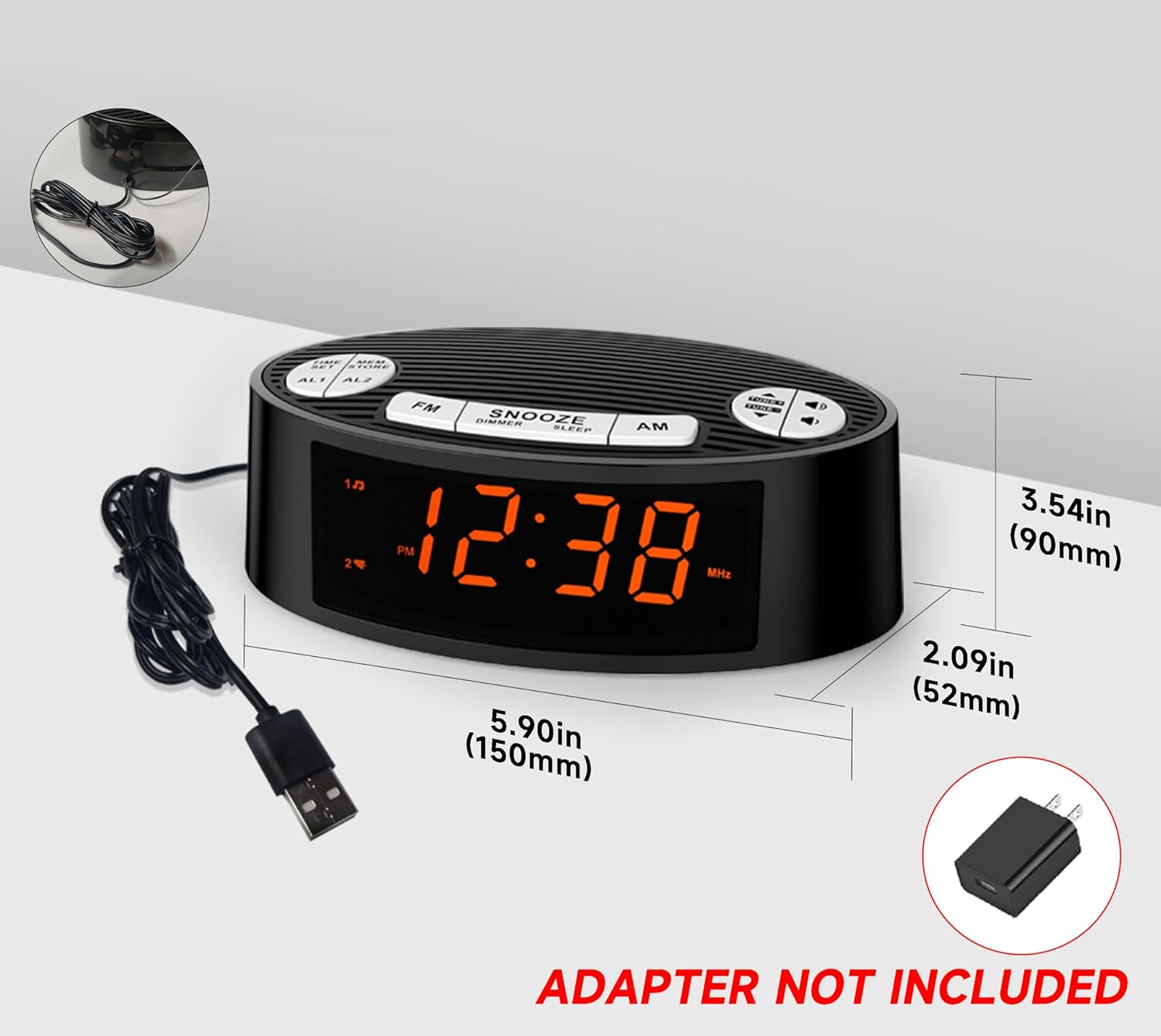
Image 3.1: Product dimensions and illustration of the USB power connection. Note that the AC adapter is not included.
4. Operating Instructions
4.1 Setting Time
- Press and hold the TIME SET button. The hour digits will begin to flash.
- Use the TUNE/VOLUME UP or DOWN buttons to adjust the hour.
- Press TIME SET again to confirm the hour and move to minute setting. The minute digits will flash.
- Use the TUNE/VOLUME UP or DOWN buttons to adjust the minutes.
- Press TIME SET once more to save the time.
- To switch between 12-hour and 24-hour format, press the AM button while the time is displayed. The PM indicator will show for 12-hour format.

Image 4.1: Illustration of switching between 24-hour and 12-hour time display formats.
4.2 Setting Alarms (AL1 / AL2)
The clock radio features two independent alarms (AL1 and AL2).
- Press and hold the AL1 or AL2 button. The alarm hour digits will flash.
- Use the TUNE/VOLUME UP or DOWN buttons to adjust the alarm hour.
- Press AL1 or AL2 again to confirm the hour and move to minute setting. The alarm minute digits will flash.
- Use the TUNE/VOLUME UP or DOWN buttons to adjust the alarm minutes.
- Press AL1 or AL2 once more to select the alarm source: Radio or Buzzer. The corresponding icon will appear on the display.
- Press AL1 or AL2 again to save the alarm setting.
- To activate/deactivate an alarm, briefly press the AL1 or AL2 button. The alarm icon will appear/disappear on the display.

Image 4.2: The display indicating dual alarm functionality with options for AM/FM radio or buzzer.
4.3 AM/FM Radio Operation
- Press the FM or AM button to turn on the radio and select the band.
- Press the TUNE/VOLUME UP or DOWN buttons briefly to fine-tune the frequency. Press and hold to auto-scan for the next available station.
- To store a preset station: While listening to a station, press and hold the MEM/STORE button. The preset number will flash. Use TUNE/VOLUME UP or DOWN to select a preset number (up to 40). Press MEM/STORE again to save.
- To recall a preset station: Briefly press the MEM/STORE button repeatedly to cycle through stored stations.
- Adjust volume using the TUNE/VOLUME UP or DOWN buttons when not in tuning mode.
- To turn off the radio, press the FM or AM button again.

Image 4.3: Visual representation of the AM/FM radio function with a signal icon and musical notes.
4.4 Dimmer Control
The display brightness can be adjusted to four levels:
- L3: Highest brightness
- L2: Medium brightness
- L1: Low brightness
- OFF: Display completely off
To adjust, briefly press the SNOOZE/DIMMER/SLEEP button repeatedly to cycle through the brightness levels.
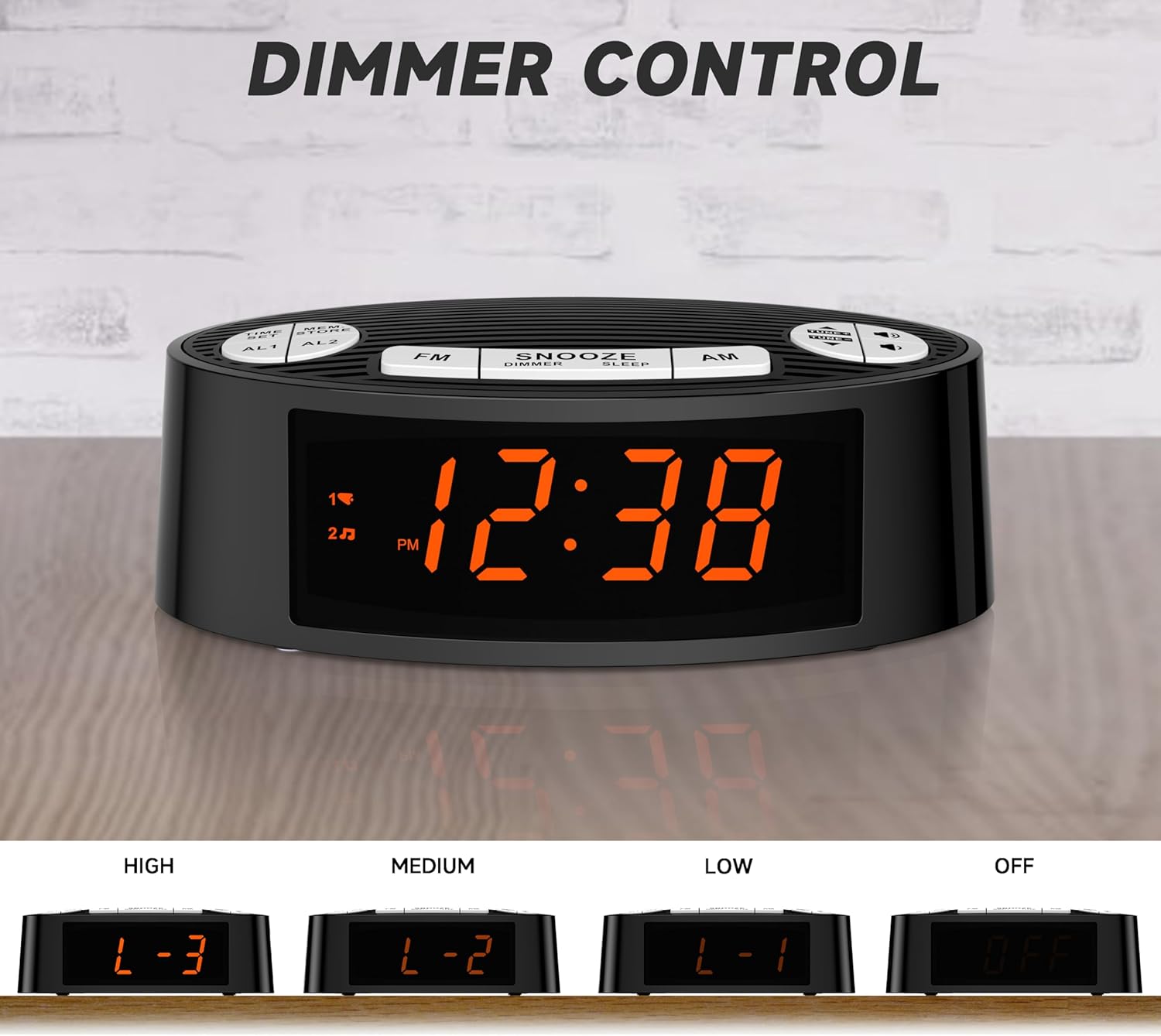
Image 4.4: The four available dimmer settings for the LED display: High (L-3), Medium (L-2), Low (L-1), and Off.
4.5 Snooze and Sleep Functions
- Snooze: When an alarm sounds, press the large SNOOZE/DIMMER/SLEEP button to temporarily silence the alarm for approximately 9 minutes. The alarm will sound again after the snooze period.
- Sleep Timer: While the radio is playing, press and hold the SNOOZE/DIMMER/SLEEP button to activate the sleep timer. Repeatedly press the button to cycle through preset sleep times (e.g., 90, 60, 30, 15 minutes, or OFF). The radio will automatically turn off after the selected duration.

Image 4.5: A hand pressing the large snooze button on top of the clock radio, indicating the easy access for an extra 9 minutes of sleep.
5. Maintenance
- Cleaning: Use a soft, dry cloth to clean the surface of the unit. Do not use abrasive cleaners or solvents.
- Placement: Place the unit on a stable, flat surface. Avoid placing it in direct sunlight, near heat sources, or in excessively humid or dusty environments.
- Power Disconnection: Disconnect the power cable from the wall outlet if the unit will not be used for an extended period.
6. Troubleshooting
| Problem | Possible Cause | Solution |
|---|---|---|
| No power/Display off | Power cable not connected or power outlet not active. | Ensure the USB power cable is securely connected to the unit and a working USB power adapter (5V) plugged into a live wall outlet. |
| Poor radio reception | FM antenna not fully extended or interference from other electronics. | Fully extend the FM antenna wire. Reposition the unit or antenna away from other electronic devices that may cause interference. |
| Alarm does not sound | Alarm not activated or set incorrectly. Volume too low for radio alarm. | Verify that the alarm is activated (alarm icon visible on display). Check alarm time and source (radio/buzzer). If radio alarm, ensure radio volume is audible. |
| Time/settings reset after power loss | No battery backup or backup battery depleted (if applicable). | This model does not contain button batteries for backup. Settings will need to be re-entered after a power interruption. |
7. Specifications
| Feature | Detail |
|---|---|
| Brand | iTOMA |
| Model Number | CKS3301U (also referred to as CKS2100 in some specifications) |
| Display Type | 0.9" Orange LED |
| Dimmer Levels | 4 (L3/L2/L1/OFF) |
| Alarm Type | Dual Alarm (Radio or Buzzer) |
| Radio Bands | AM/FM |
| Preset Stations | Up to 40 |
| Time Format | 12/24 Hour Selectable |
| Power Source | USB port (AC Adapter not included) |
| Product Dimensions | 5.9"W x 3.54"H (approx. 150mm W x 90mm H) |
| Item Weight | 8.8 ounces |
| Material | Plastic |
8. Warranty and Support
For detailed warranty information, please refer to the documentation included with your purchase or contact iTOMA customer support directly. You can also find additional resources, including a PDF user guide, on the product's Amazon listing page or the iTOMA official website.
Online Resources:
For further assistance, please contact iTOMA customer service.