
1. Introduction
Welcome to the instruction manual for your new ASVEGE 12.1-inch Car Radio. This multimedia player is designed to upgrade your Maserati GT GranTurismo (models 2007-2017) with advanced features including Android 12.0, GPS navigation, wireless CarPlay, and Android Auto. Please read this manual thoroughly before installation and operation to ensure proper use and maximize your driving experience.
2. Product Overview
The ASVEGE 12.1" Car Radio is a state-of-the-art multimedia system featuring a large vertical touchscreen display and a carbon fiber finish, seamlessly integrating into your Maserati GT GranTurismo dashboard. Key features include:
- Operating System: Android 12.0
- Processor: 8-core CPU
- Memory: 4GB RAM, 64GB ROM
- Display: 12.1-inch IPS HD screen with 1028*768 resolution
- Audio: Built-in DSP with 4*50W amplification, FM Radio
- Connectivity: Bluetooth 5.0, WIFI, 3G/4G Network support
- Navigation: Integrated GPS with support for Google Maps and offline maps
- Smartphone Integration: Wireless & Wired USB CarPlay/Android Auto
- Additional Features: Microphone, Music Player, Video Player, Steering Wheel Control, AUX-IN, Reversing Camera support, Voice Control.
Vehicle Compatibility: This head unit is compatible with Maserati GT GranTurismo models from 2007 to 2017. Please verify your vehicle's model year before installation.
3. Package Contents
Ensure all items listed below are present in your package:
- 12.1" Car Radio Head Unit (Carbon Fiber)
- Power Cable
- Charging Cable
- GPS Antenna
- WiFi Antenna
- USB Cables
- AV Cable Ports
- Camera Input Cable
- Radio Adapter Cable
- Canbus Decoder
- External Microphone

Image: All components included with the ASVEGE 12.1-inch Car Radio.
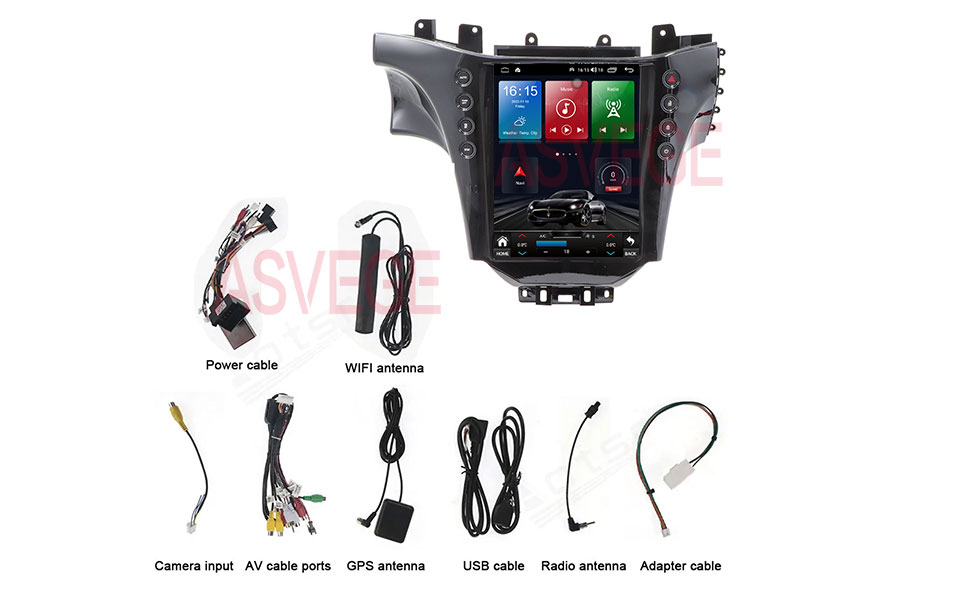
Image: The main unit and various cables and accessories.
4. Installation Guide
Professional installation is highly recommended due to the complexity of automotive electronics. Incorrect installation can damage the unit or your vehicle. Always disconnect the vehicle's battery before starting installation.
4.1. Pre-Installation Check
- Verify vehicle compatibility (Maserati GT GranTurismo 2007-2017).
- Ensure all package contents are present.
- Gather necessary tools (trim removal tools, screwdrivers, wire strippers, electrical tape).
4.2. Dashboard Disassembly
Carefully remove the original radio and dashboard trim. Refer to your vehicle's service manual for specific instructions on removing dashboard components.

Image: Comparison of the dashboard before and after installing the new head unit.
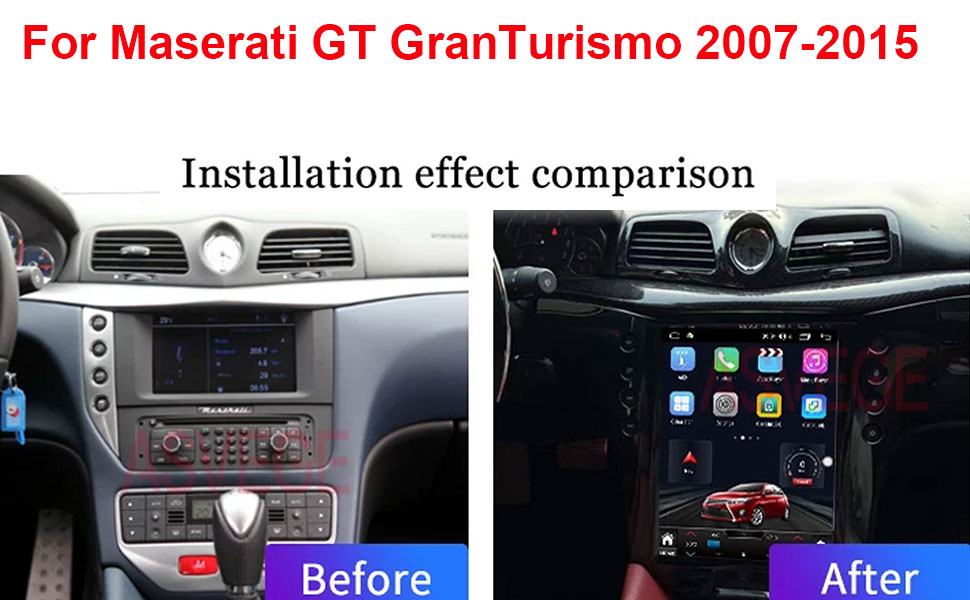
Image: Visual representation of the improved aesthetic and functionality post-installation.
4.3. Wiring Connections
Connect the provided wiring harness to the vehicle's existing wiring. Ensure all connections are secure and correctly matched. The wiring diagram below provides a general overview:

Image: Detailed wiring diagram showing connections for air conditioning, AUX, power, Canbus, audio outputs, video output, camera input, 4G card slot, USB, and antennas.
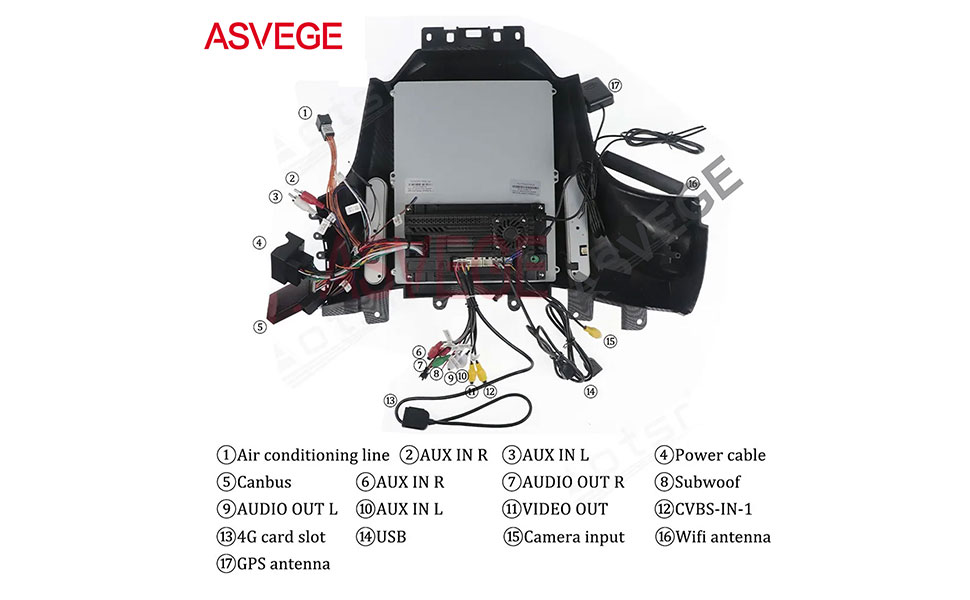
Image: Another view of the wiring connections for the head unit.
4.4. Mounting the Head Unit
Once all connections are made, carefully mount the new head unit into the dashboard opening. Secure it using the original mounting points or provided brackets. Reassemble the dashboard trim.
5. Operating Instructions
This section provides an overview of the main functions and how to operate your ASVEGE Car Radio.
5.1. Basic Navigation and User Interface
The unit features an intuitive touchscreen interface. Swipe left or right to access different application screens. The bottom bar provides quick access to Home, Back, and recent applications, along with climate controls.
Video: A demonstration of the user interface and basic navigation on the ASVEGE car radio.
5.2. Radio Function
Access the Radio application from the home screen. You can manually tune to FM/AM frequencies or use the scan function to find available stations. Save your favorite stations for quick access.

Image: The FM Radio interface showing frequency tuning and station presets.
5.3. Multimedia Playback
Play music and videos from various sources, including USB drives, internal storage, or streaming services via internet connection. The unit supports a wide range of audio and video formats.

Image: Overview of multimedia features including Android system, 8-core processor, voice control, steering wheel controls, Bluetooth 5.0, 360-degree panorama, and AHD backup camera support.
5.4. CarPlay / Android Auto
Connect your smartphone wirelessly or via USB to access CarPlay or Android Auto. This allows you to project your phone's interface onto the large screen for navigation, music, calls, and other apps using Siri or Google Assistant.
- Wireless/Wired CarPlay: Connect compatible iPhones for seamless integration.
- Wired Android Auto: Connect compatible Android phones for a similar experience.
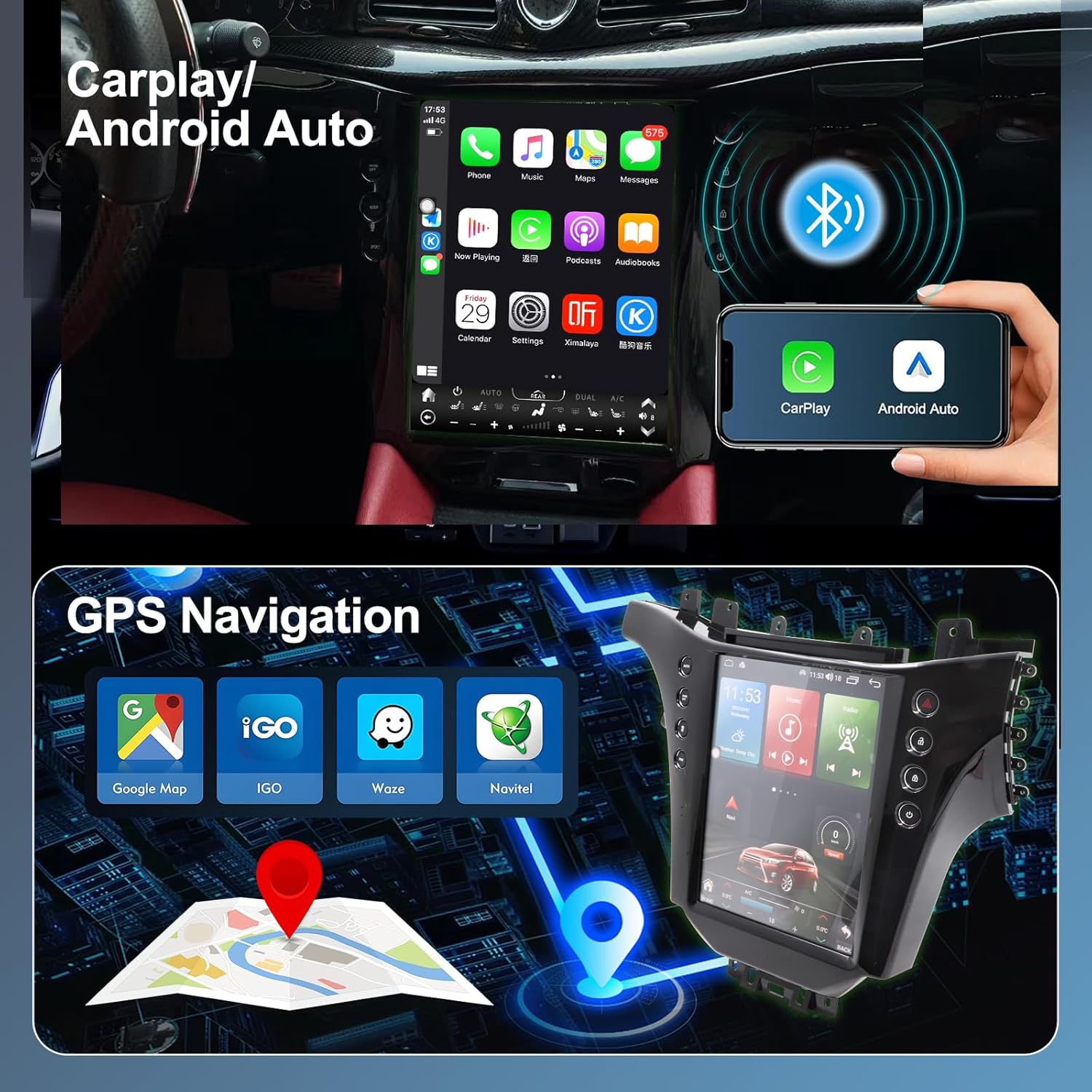
Image: Demonstrates CarPlay, Android Auto, and GPS navigation capabilities.

Image: Shows the various smartphone integration options including CarPlay, Android Auto, and Mirror Link.

Image: A close-up of the CarPlay interface.

Image: A close-up of the Android Auto interface.
5.5. GPS Navigation
The unit comes with pre-installed maps for North America and supports online navigation via Google Maps when connected to WiFi. Enjoy turn-by-turn voice guidance for a smooth journey.
5.6. Bluetooth 5.0
Connect your phone via Bluetooth for hands-free calling, phone book synchronization, and wireless audio streaming. The Bluetooth 5.0 standard ensures stable and high-quality connections.

Image: The Bluetooth phone call interface, showing dial pad and contact options.
5.7. Voice Control
Utilize the intelligent voice control feature to operate various functions without taking your hands off the steering wheel, enhancing driving safety. Compatible with Siri and Google Assistant.

Image: Illustrates the voice control functionality for hands-free operation.
5.8. Steering Wheel Control
The unit supports integration with your vehicle's existing steering wheel controls, allowing you to manage audio, calls, and other functions conveniently.
5.9. Digital Sound Processor (DSP)
The built-in DSP allows for advanced audio customization, including equalization, sound field delay, and bass enhancement, to optimize your listening experience.
Video: A demonstration of various settings and features, including audio equalizer and sound field adjustments.
5.10. AHD 1080P Backup Camera & 360° Panorama
The head unit supports AHD 1080P backup cameras for clear rear visibility and 360-degree panorama camera systems for a comprehensive view around your vehicle, enhancing parking and maneuvering safety.
5.11. 4G/5G WiFi Network
Connect to WiFi or insert a 4G data card (for Netcom models) to access online maps, real-time traffic conditions, and download Android applications from the Play Store.

Image: Illustrates the 4G and 5G WiFi network capabilities for internet connectivity.
5.12. Ambient Lighting
Some models may feature ambient lighting with various color modes and effects, which can be controlled via the unit's settings. These lights can often synchronize with music or change automatically.
Video: Demonstrates the ambient lighting feature, showing various color changes and modes.
6. Settings
Access the 'Settings' application to customize your device. Key settings categories include:
- General: Homepage style (Classic/Modern), Day/Night mode, Time, Dimmer, Antenna Power, Language, Units (Metric/Imperial), Radio Region.
- Audio: Equalizer, MIC Gain, Sound Gain, Sound Field Delay, Balance (Front/Rear, Left/Right), Bass Enhancement, Bass Filter.
- Video: Video in Motion (enable/disable).
- User: Default New App, Boot Logo, Boot Animation, App Customize, Start application automatically, Voice.
- System: Setting Guide, Network (WiFi, data usage), GPS (satellite status), Wheel settings (steering wheel control learning), Software Version, Upgrade, Android Settings, Factory Settings.
Video: A brief overview of the settings menu and customization options.
7. Specifications
| Feature | Specification |
|---|---|
| Item Weight | 5.69 pounds |
| Package Dimensions | 14.25 x 12.75 x 9.25 inches |
| Display Size | 12.1 Inches |
| Warranty | 12 months |
| Voice Command | Microphone, Touchscreen |
| Model Name | 12.1" Car Radio for Maserati GT GranTurismo |
| Vehicle Service Type | Car |
| Special Feature | Built-In GPS |
| Connectivity Technology | Powerline |
| Map Type | Street, Satellite |
| Audio Output Mode | Stereo, Bluetooth |
| Mounting Type | Dashboard Mount |
8. Maintenance
To ensure the longevity and optimal performance of your ASVEGE Car Radio, follow these maintenance guidelines:
- Screen Cleaning: Use a soft, lint-free cloth specifically designed for electronic screens. Avoid abrasive cleaners or harsh chemicals. Gently wipe the screen to remove dust and fingerprints.
- Software Updates: Periodically check for software updates through the system settings. Updates can improve performance, add new features, and fix bugs. Ensure a stable internet connection during updates.
- General Care: Avoid exposing the unit to extreme temperatures, direct sunlight for prolonged periods, or excessive moisture. Do not attempt to disassemble the unit yourself, as this will void the warranty.
9. Troubleshooting
If you encounter any issues with your car radio, refer to the following common troubleshooting steps:
- No Power: Check all power connections and the vehicle's fuse box. Ensure the ignition is on.
- No Sound: Verify speaker connections, check volume levels, and ensure the audio source is correctly selected. Check DSP settings for any muted channels or extreme equalization.
- GPS Signal Issues: Ensure the GPS antenna is properly installed and has a clear view of the sky. Check GPS settings in the system menu.
- Bluetooth Connection Problems: Ensure Bluetooth is enabled on both the head unit and your phone. Delete previous pairings and attempt to reconnect.
- Touchscreen Unresponsive: Restart the unit. If the issue persists, a factory reset might be necessary (note: this will erase all user data).
- CarPlay/Android Auto Not Connecting: Ensure your phone is compatible and the USB cable is functioning correctly. Check the CarLink application settings.
For persistent issues, please contact customer support.
10. Warranty Information
This ASVEGE Car Radio comes with a 12-month warranty from the date of purchase. The warranty covers manufacturing defects and malfunctions under normal use. It does not cover damage caused by improper installation, misuse, accidents, or unauthorized modifications. Please retain your proof of purchase for warranty claims.
11. Support
For any questions, technical assistance, or support inquiries, please contact ASVEGE customer service:
- Email: asvegeus@gmail.com
- Email: asvegeus@outlook.com

Image: Customer support contact details for ASVEGE.