
Introduction
The Lamy Safari All Black ncode Smartpen is an innovative digital writing tool designed to bridge the gap between traditional handwriting and digital convenience. This smartpen captures your handwritten notes and drawings in real-time, allowing for seamless digitization, editing, and sharing across various devices. It utilizes specialized ncode paper to accurately record your input, providing a natural writing experience while offering the benefits of digital data management.
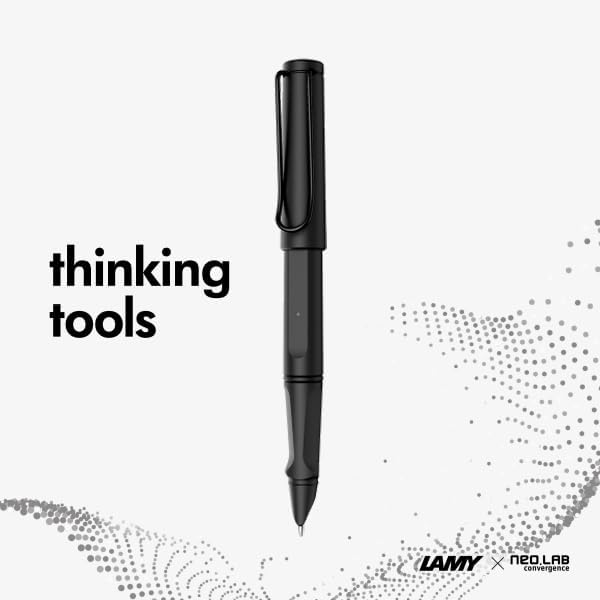
Image: The Lamy Safari All Black ncode Smartpen, highlighting its role as a modern writing instrument.
Setup Guide
1. Unboxing and Initial Inspection
Upon opening the package, verify that all components are present:
- Lamy Safari All Black ncode Smartpen
- Ncode Notebook
- USB Charging Cable

Image: The Lamy Safari All Black ncode bundle, showing the smartpen, ncode notebook, and USB charging cable neatly arranged in their packaging.
2. Charging the Smartpen
Before first use, fully charge the smartpen. Connect the provided USB cable to the charging port on the pen and to a standard USB power source (e.g., computer USB port, wall adapter). The LED indicator on the pen will show charging status and turn off when fully charged. A full charge typically provides several weeks of battery life, depending on usage volume.
3. Installing the Neo Studio App
The Lamy Safari ncode Smartpen requires the Neo Studio application for full functionality. Download the app from your device's respective app store:
- For Android devices: Search for "Neo Studio" on the Google Play Store.
- For iOS devices: Search for "Neo Studio" on the Apple App Store.
- For PC/Mac: Visit the official Neo Smartpen website for desktop application downloads.
Follow the on-screen instructions to install the application and create an account if prompted. An account is required to transfer and manage data.
4. Pairing the Smartpen via Bluetooth
- Ensure Bluetooth is enabled on your smartphone, tablet, or laptop.
- Open the Neo Studio application.
- Turn on the Lamy Safari ncode Smartpen. The pen will automatically enter pairing mode.
- Within the Neo Studio app, follow the prompts to connect to your smartpen. The app should automatically detect and connect to the pen.
- Once connected, the pen's LED indicator will confirm a successful pairing.

Image: The Neo Studio application displaying synchronized notes across a laptop and a smartphone, illustrating the seamless digital integration.
Operating Instructions
Writing and Digitizing Notes
The Lamy Safari ncode Smartpen captures your handwriting using a small camera embedded in its tip. To digitize your notes:
- Use only official ncode paper or compatible ncode-enabled printouts. The ncode technology relies on invisible microdots on the paper to track the pen's movement and position.
- Ensure the Neo Studio app is open on your paired device for real-time synchronization. You can also write offline, and the pen will store up to 1,000 A4 pages of notes, which can be synced later when the app is opened.
- Write naturally on the ncode notebook. Your strokes will appear digitally on your device's screen in real-time.
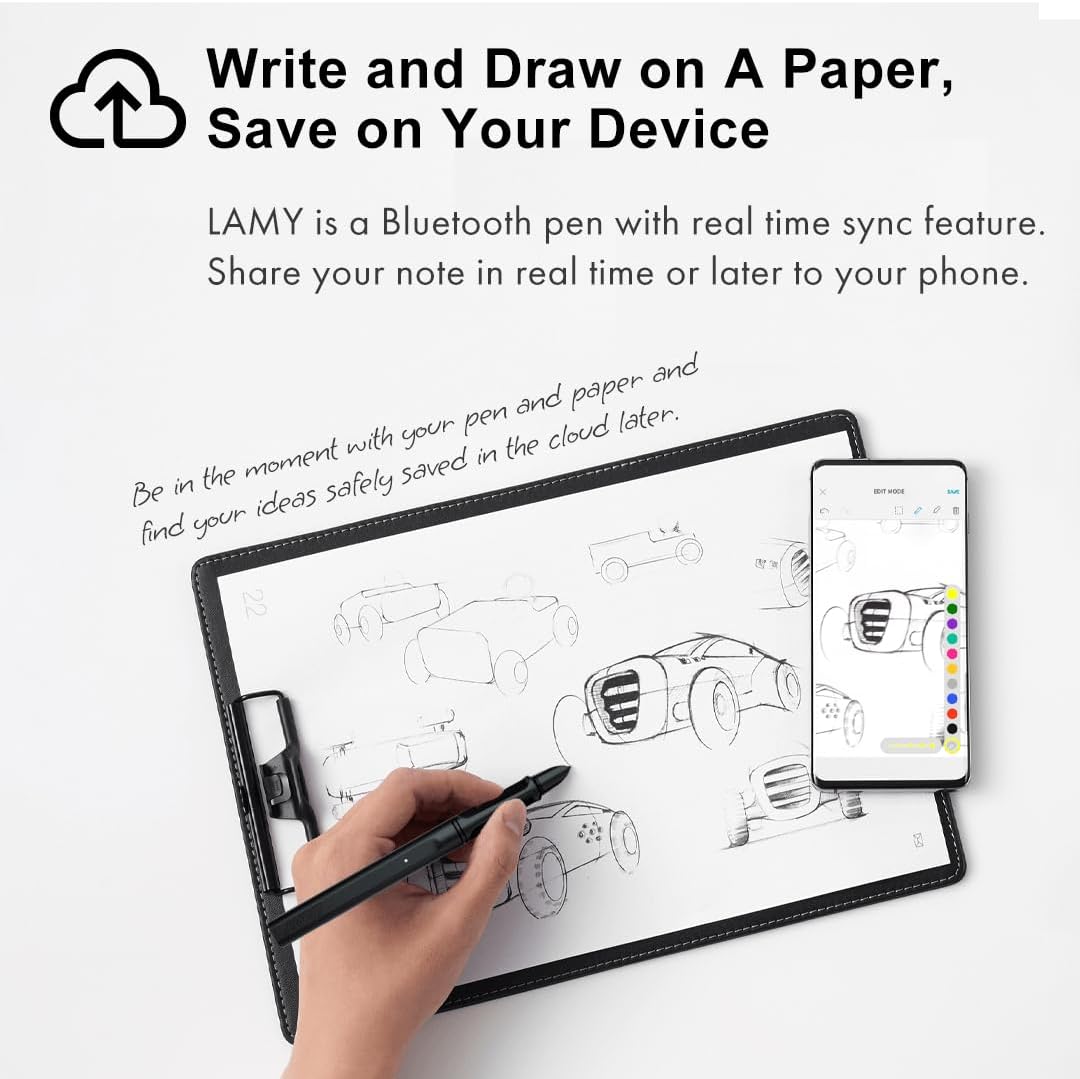
Image: A user writing on an ncode notebook with the Lamy Safari smartpen, demonstrating the real-time digitization of notes onto a connected smartphone.
Using the Neo Studio App Features
The Neo Studio app provides extensive features for managing your digitized notes:
- Handwriting to Text Conversion: Convert your handwritten notes into editable text. The smartpen supports transcription in 35 languages, including English, French, Chinese, German, and Spanish.
- Editing and Customization: Utilize the app's editing tools to change font color, thickness, highlight sections, erase content, or rearrange elements within your digital notes. The ncode notebook includes a "Paper Controller" area where you can tap the pen to select different colors and line thicknesses.
- Export and Sharing: Export your notes into various file formats, including text, PDF, JPEG, SVG (compatible with Adobe Illustrator), PNG, GIF, and PPTX. You can then easily share these files via email, messaging apps, or cloud services.
- Search and Organization: Organize your notes by title, tags, or keywords. The app allows you to search through your handwritten notes by typing keywords into the search bar, making it easy to find specific information quickly.
- Easy Use Icons: The ncode notebooks feature special icons for quick actions. For instance, you can share or bookmark a page by simply ticking over the corresponding icon on the paper with your smartpen.

Image: The Neo Studio app interface on a smartphone, illustrating the conversion of handwritten notes into editable digital text.

Image: The Neo Studio app demonstrating editing capabilities, including changing colors and line thickness by interacting with a paper controller.

Image: The Neo Studio app's export and share functionality, showing multiple file format options for digital notes.

Image: The Neo Studio app's search interface, demonstrating how users can easily locate specific notes using keywords.

Image: Detail of an ncode notebook page, illustrating the share and bookmark icons for quick digital actions.
Maintenance
Battery Care
The Lamy Safari ncode Smartpen uses a Lithium Polymer battery. To maximize battery life:
- Avoid fully discharging the battery frequently.
- Store the pen in a cool, dry place when not in use for extended periods.
- Charge the pen regularly, even if not used daily, to maintain battery health.
Ink Cartridge Replacement
The Lamy Safari ncode Smartpen uses D1 replacement ink cartridges. To replace the cartridge:
- Gently pull the existing ink cartridge straight out from the front tip of the pen.
- Insert a new D1 cartridge firmly into the pen until it clicks into place.
Ensure you use genuine Lamy D1 cartridges for optimal writing performance.
Cleaning the Smartpen
To clean the exterior of your smartpen, use a soft, dry, lint-free cloth. Avoid using abrasive cleaners or solvents, as these can damage the pen's finish or internal components. Keep the camera lens at the tip of the pen clean and free from debris to ensure accurate tracking.
Ncode Notebook Care
Handle ncode notebooks with care to preserve the integrity of the ncode patterns. Avoid creasing, tearing, or excessively wetting the pages, as this can interfere with the smartpen's ability to accurately capture your writing.
Troubleshooting
If you encounter issues with your Lamy Safari ncode Smartpen, refer to the following common problems and solutions:
| Problem | Possible Cause / Solution |
|---|---|
| Pen not connecting to app / No real-time sync |
|
| Handwriting not converting accurately |
|
| Pen not charging |
|
| Pen feels light or rattles | This is generally a characteristic of the pen's design and internal components and does not indicate a defect unless functionality is impaired. |
For further assistance or issues not listed here, please contact NEO SMARTPEN A/S customer support. They are committed to your satisfaction and can provide detailed troubleshooting or repair guidance.
Specifications
| Feature | Detail |
|---|---|
| Model Number | NWP-F80-NC-PK-BK |
| Product Dimensions | 5.68 x 0.62 x 0.62 inches |
| Item Weight | 1.48 pounds |
| Batteries | 1 Lithium Polymer battery (included) |
| Compatible Devices | Smartphones, Tablets, Laptops |
| Color | Black |
| Manufacturer | NeoLab Convergence |
Warranty and Support
For warranty information and customer support, please refer to the official Neo Smartpen website or contact NeoLAB Convergence directly. The manufacturer is committed to customer satisfaction and provides assistance for any issues related to charging, power, app functionality, or other concerns.
Manufacturer: NeoLAB Convergence
For support inquiries, please visit the Neo Smartpen Support Page.