
Volkano VX Gaming VX-133-BK-CF
Volkano VX Gaming Precision Series Wireless Controller
Model: VX-133-BK-CF
Introduction
This manual provides detailed instructions for the Volkano VX Gaming Precision Series Wireless Controller, Model VX-133-BK-CF. This 2.4GHz wireless game controller is designed for comfortable use across various hand sizes and offers broad compatibility with Xbox One, PlayStation 3 (PS3), PC, X-input devices, and Android platforms. Please read this manual thoroughly to ensure proper setup, operation, and maintenance of your device.

Image: The Volkano VX Gaming Precision Series Wireless Controller shown in its retail box, highlighting its features and compatibility.
Product Features
- 2.4GHz Wireless Connectivity: Ensures a stable and responsive connection.
- Broad Compatibility: Works with Xbox One, PS3, PC, X-input, and Android devices.
- Ergonomic Design: Shaped to comfortably fit a wide range of hand sizes for extended gaming sessions.
- Integrated USB Receiver: For easy plug-and-play setup.
- Long Playback Time: Up to 5 hours of continuous gameplay on a single charge.
- 12 Buttons with Turbo Function: Provides enhanced control and customizable rapid-fire options.
- Dual Precision Analog Joysticks: Offers 360-degree control for precise movements.
- Built-in 600mAh Polymer Battery: Rechargeable for convenience.

Image: A detailed diagram of the controller highlighting its key features, including buttons, joysticks, wireless connection, and battery.
Package Contents
- Volkano VX Gaming Precision Series Wireless Controller
- USB Receiver
- Charging Cable (Micro USB)
- User Manual (this document)
Setup Instructions
1. Charging the Controller
Before first use, fully charge the controller.
- Connect the small end of the charging cable to the Micro USB port on the front of the controller.
- Connect the larger end of the charging cable to a USB power source (e.g., computer USB port, USB wall adapter).
- The charging indicator light on the controller will illuminate during charging and turn off or change color when fully charged.
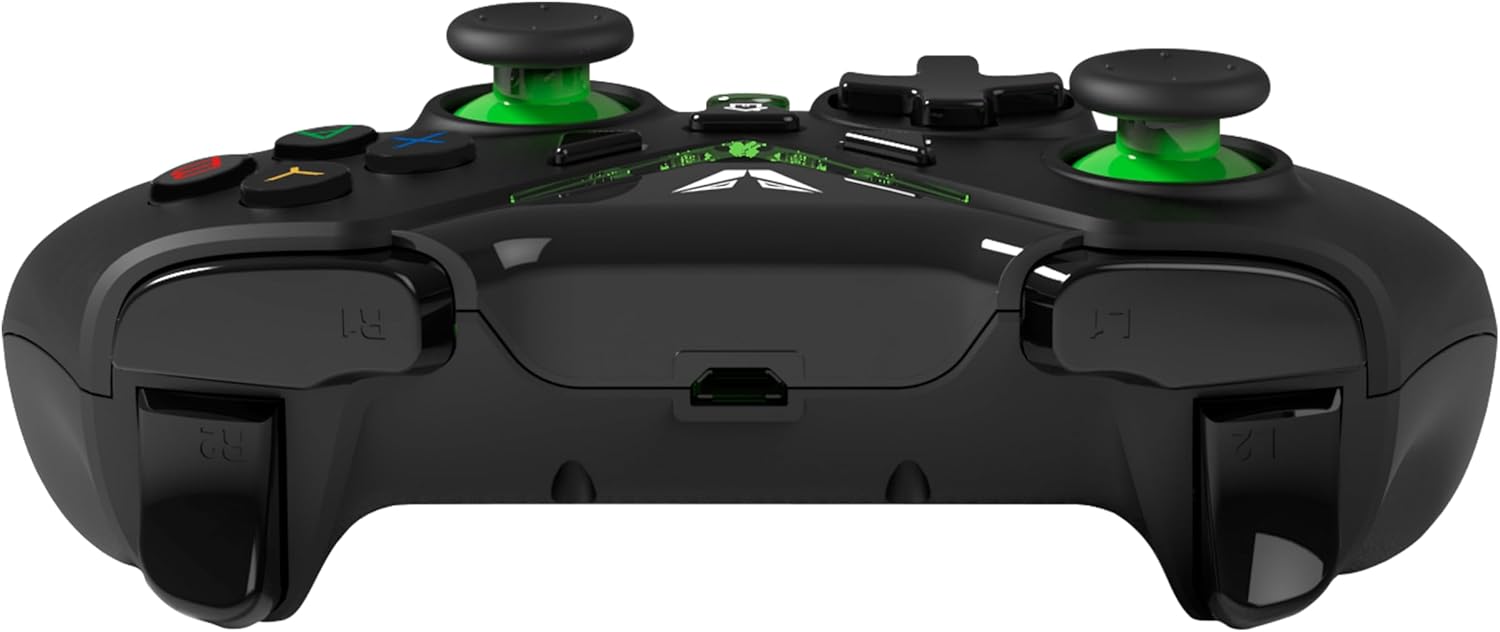
Image: Top view of the controller, highlighting the Micro USB charging port located between the shoulder buttons.
2. Connecting the USB Receiver
The controller connects wirelessly via the included USB receiver.
- Insert the USB receiver into an available USB port on your Xbox One console, PS3 console, PC, or Android device (via an OTG adapter, if required for Android).
- Turn on the controller by pressing the central "Home" button (usually the VX Gaming logo button).
- The controller will automatically attempt to pair with the USB receiver. The indicator lights on the controller will flash during pairing and become solid once connected.
- If the controller does not connect automatically, press and hold the "Home" button and a small pairing button (if present, refer to controller diagram) simultaneously for a few seconds until the lights flash rapidly, then release. Ensure the USB receiver is properly inserted.
Operating Instructions
Basic Controls
The controller features standard gaming buttons and joysticks.
- Analog Joysticks: Use for movement and camera control.
- D-Pad: For directional input, typically in menus or for specific game actions.
- Action Buttons (A, B, X, Y): Perform in-game actions as defined by the game.
- Shoulder Buttons (L1/R1) and Triggers (L2/R2): Used for various actions like shooting, aiming, or menu navigation.
- START/SELECT Buttons: Typically used for pausing games, accessing menus, or specific game functions.
- Home Button (VX Gaming Logo): Powers the controller on/off, accesses system menus on compatible platforms.
Turbo Function
The Turbo function allows a button to register multiple presses rapidly when held down.
- To activate Turbo: Press and hold the TURBO button, then press the desired action button (e.g., A, B, X, Y, L1, R1, L2, R2). The button will now have Turbo enabled.
- To deactivate Turbo: Press and hold the TURBO button again, then press the same action button. The Turbo function for that button will be disabled.
Maintenance
- Cleaning: Use a soft, dry cloth to clean the controller. Do not use abrasive cleaners or solvents.
- Storage: Store the controller in a cool, dry place away from direct sunlight and extreme temperatures.
- Battery Care: To prolong battery life, avoid fully discharging the controller frequently. Charge it regularly, even if not in use for extended periods.
- USB Receiver: Keep the USB receiver protected when not in use to prevent damage.
Troubleshooting
Controller Not Connecting
- Ensure the USB receiver is securely plugged into an active USB port.
- Make sure the controller is powered on.
- Try re-pairing the controller by pressing and holding the "Home" button and any dedicated pairing button (if available) until the lights flash rapidly.
- Test the USB receiver in a different USB port or on another compatible device (e.g., another PC) to rule out port issues.
- Ensure the controller is sufficiently charged.
Input Lag or Disconnections
- Move closer to the USB receiver to reduce interference.
- Ensure there are no large metallic objects or other 2.4GHz wireless devices (like Wi-Fi routers, cordless phones) directly between the controller and the receiver that could cause interference.
- Check the controller's battery level and recharge if low.
Controller Not Responding
- Perform a hard reset by turning the controller off and then on again.
- If unresponsive, connect it to a charger to see if it powers on.
- For PC, ensure necessary drivers are installed (usually automatic for X-input devices).
Specifications
| Feature | Specification |
|---|---|
| Model Number | VX-133-BK-CF |
| Connectivity | 2.4GHz Wireless |
| Compatibility | Xbox One, PS3, PC, X-input, Android |
| Battery Type | Built-in 600mAh Polymer Battery |
| Playtime | Up to 5 hours |
| Package Dimensions | 19.8 x 16.6 x 6.2 cm |
| Weight | 340 g |
Warranty and Support
For warranty information and technical support, please refer to the warranty card included with your product or visit the official Volkano VX Gaming website. Keep your proof of purchase for any warranty claims.
Online Support: For further assistance, frequently asked questions, or to download updated drivers (if applicable for PC), please visit the Volkano VX Gaming support portal.
Ask a question about this manual
Ask about setup, troubleshooting, compatibility, parts, safety, or missing instructions. Manuals+ will review the question and use this page’s manual context to help answer it.