
1. Introduction
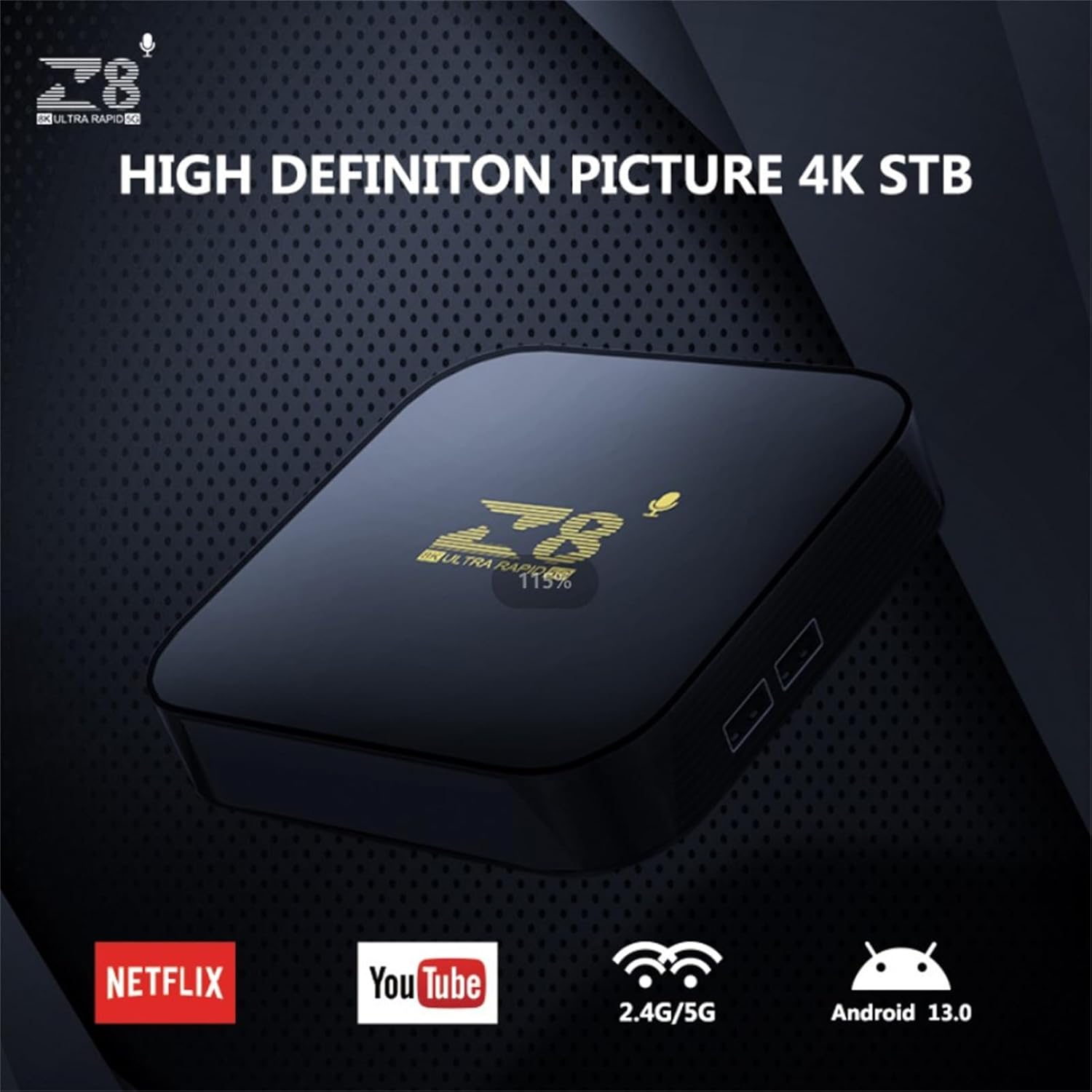
This manual provides essential instructions for setting up, operating, and maintaining your WUYJTIF z8 S905L Smart TV Box. This device transforms your television into a smart entertainment hub, offering access to a wide range of applications and media content. Featuring Android 13, 4K HDR support, and dual-band Wi-Fi, it delivers a high-quality viewing experience.
2. Package Contents
Please verify that all items listed below are included in your package:
- WUYJTIF z8 S905L Smart TV Box
- Remote Control
- Power Adapter
- HDMI Cable
- Instruction Manual

3. Setup Guide
3.1. Connecting the TV Box
- Connect HDMI Cable: Insert one end of the HDMI cable into the HDMI port on the Smart TV Box and the other end into an available HDMI input on your television.
- Connect Power Adapter: Plug the power adapter into the DC IN port on the Smart TV Box, then plug the adapter into a wall outlet. The device will power on automatically.


3.2. Remote Control Setup
The remote control allows you to navigate the Smart TV Box interface. Ensure batteries are inserted correctly. The remote features dedicated buttons for common streaming services and a voice assistant button for convenient control.
3.3. Network Connection
After initial power-on, follow the on-screen instructions to connect your Smart TV Box to your Wi-Fi network. Navigate to the Network settings, select your Wi-Fi network, and enter the password.
4. Operating Instructions
4.1. Navigation and Interface
Use the directional pad on your remote control to navigate through the Android 13 interface. The home screen provides quick access to installed applications, recommended content, and system settings.
4.2. Application Management
The Smart TV Box comes with a pre-installed open-source App Store. You can download and install additional applications for streaming, gaming, and other purposes. To manage applications, navigate to the 'Applications' section in the settings menu.
4.3. Voice Control
Press the dedicated voice assistant button on your remote control to activate voice commands. You can use your voice to search for content, open applications, or control certain device functions.
5. Key Features
- 4K HDR Resolution: Supports 4K/1080P/720P/480P resolutions, providing ultra-high definition picture quality and breathtaking viewing effects. Utilizes H.265 decoding technology for efficient bandwidth usage and vivid image details.
- 2GB RAM and 16GB ROM: Offers ample storage capacity for downloading numerous applications and games, enhancing your entertainment options.
- Android 13 with Dual-Band Wi-Fi: Runs on the latest Android 13 operating system, providing a stable and flexible user experience. Features 2.4G/5G Wi-Fi connectivity for reliable high-definition media streaming and gaming.
- Quad-Core Amlogic S905L Processor: Equipped with a powerful Amlogic S905L quad-core processor for smooth and responsive performance, minimizing lag during operation.
- Versatile Applications: Suitable for various scenarios including home entertainment, office presentations, school education, and digital advertising.


6. Specifications
| Feature | Detail |
|---|---|
| Brand | WUYJTIF |
| Model Name | z8 S905L (iATV TV Box) |
| Operating System | Android 13 |
| Processor | Amlogic S905L Quad-Core |
| RAM | 2GB |
| ROM | 16GB |
| Resolution | 4K (Supports 4K/1080P/720P/480P) |
| Connectivity Technology | USB, 2.4G/5G WiFi, BT5.2 |
| Connector Type | Micro USB, HDMI |
| Controller Type | Remote Control |
| Color | Black |
| Product Dimensions | 3.8"L x 1.35"W x 0.62"H |
7. Maintenance
- Cleaning: Use a soft, dry cloth to clean the device. Avoid liquid cleaners or abrasive materials.
- Ventilation: Ensure the device is placed in a well-ventilated area to prevent overheating. Do not block ventilation openings.
- Storage: When not in use for extended periods, store the device in a cool, dry place away from direct sunlight and extreme temperatures.
8. Troubleshooting
- No Power: Check if the power adapter is securely connected to the device and the wall outlet. Ensure the outlet is functional.
- No Signal on TV: Verify that the HDMI cable is correctly connected to both the TV Box and the TV. Ensure your TV input is set to the correct HDMI port.
- Remote Not Responding: Check the remote control batteries and replace them if necessary. Ensure there are no obstructions between the remote and the TV Box.
- Wi-Fi Connection Issues: Go to Network settings on the TV Box and ensure the correct Wi-Fi network is selected and the password is entered accurately. Restart your router if problems persist.
- Slow Performance: Close unused applications running in the background. Clear cache for frequently used apps. Consider a factory reset if performance issues continue (note: this will erase all data).
9. Warranty and Support
For warranty information and technical support, please refer to the contact details provided on the product packaging or the official WUYJTIF website. Keep your purchase receipt for warranty claims.