
1. Introduction
The DETONGER P2 is a portable Bluetooth thermal label printer designed for various labeling needs in small businesses, retail, offices, and homes. This device utilizes inkless thermal technology, providing clear and cost-effective label printing. It supports connection via Bluetooth for smartphones and tablets, and USB for PC, offering versatile editing and printing capabilities through dedicated applications.

Figure 1: Front view of the DETONGER P2 Portable Bluetooth Thermal Machine.
2. Getting Started
2.1 Package Contents
Verify that all items are present in your package:
- DETONGER P2 Machine
- 1 Roll of 1.57'' x 1.18'' Labels (200 pcs)
- Type-C USB Cable
- Instruction Manual (this document)
2.2 Charging the Device
Before first use, ensure the P2 machine is fully charged. Connect the provided Type-C USB cable to the printer and a suitable power source (e.g., USB wall adapter, computer USB port). The charging indicator light will show the charging status.
2.3 App Installation (Mobile Devices)
For smartphone and tablet connectivity, install the "WePrint" application:
- Open the App Store (for iOS devices) or Google Play Store (for Android devices).
- Search for "WePrint".
- Download and install the application.

Figure 2: WePrint App download instructions for mobile devices.
2.4 Software Installation (PC)
For PC connectivity (Windows 10/11 and above), download the "WeiDa" software and P2 Series Label Printer Windows Driver:
- Visit the official DETONGER website.
- Locate and download the "WeiDa" software.
- Download the P2 Series Label Printer Windows Driver.
- Install both the software and the driver on your PC.
2.5 Loading Labels
The P2 printer uses thermal labels. To load a new roll:
- Open the label compartment cover on the printer.
- Insert the label roll, ensuring the labels feed correctly through the printing mechanism.
- Close the cover securely.
The included labels are waterproof, oil-proof, tear-proof, and wear-resistant. For optimal longevity, avoid exposing thermal paper to bright light, as this can cause fading.
3. Operation
3.1 Connecting to Mobile Devices (Bluetooth)
- Ensure your P2 printer is powered on.
- Enable Bluetooth on your smartphone or tablet.
- Open the "WePrint" application.
- Within the app, search for and select your P2 printer to establish a Bluetooth connection.
3.2 Connecting to PC (USB)
- Ensure your P2 printer is powered on.
- Connect the P2 printer to your PC using the provided Type-C USB cable.
- Launch the "WeiDa" software on your PC. The software should detect the connected printer.
3.3 Designing and Printing Labels
The WePrint app and WeiDa software offer extensive tools for label design:
- Text and Numbers: Create custom text, numbers, and symbols.
- Graphics and Logos: Import or design graphics and logos.
- Barcodes and QR Codes: Generate various types of barcodes and QR codes.
- Intelligent Recognition: Utilize voice and picture recognition features for quick label creation.
After designing your label, select the correct label size within the application to prevent printing errors, then initiate the print command.
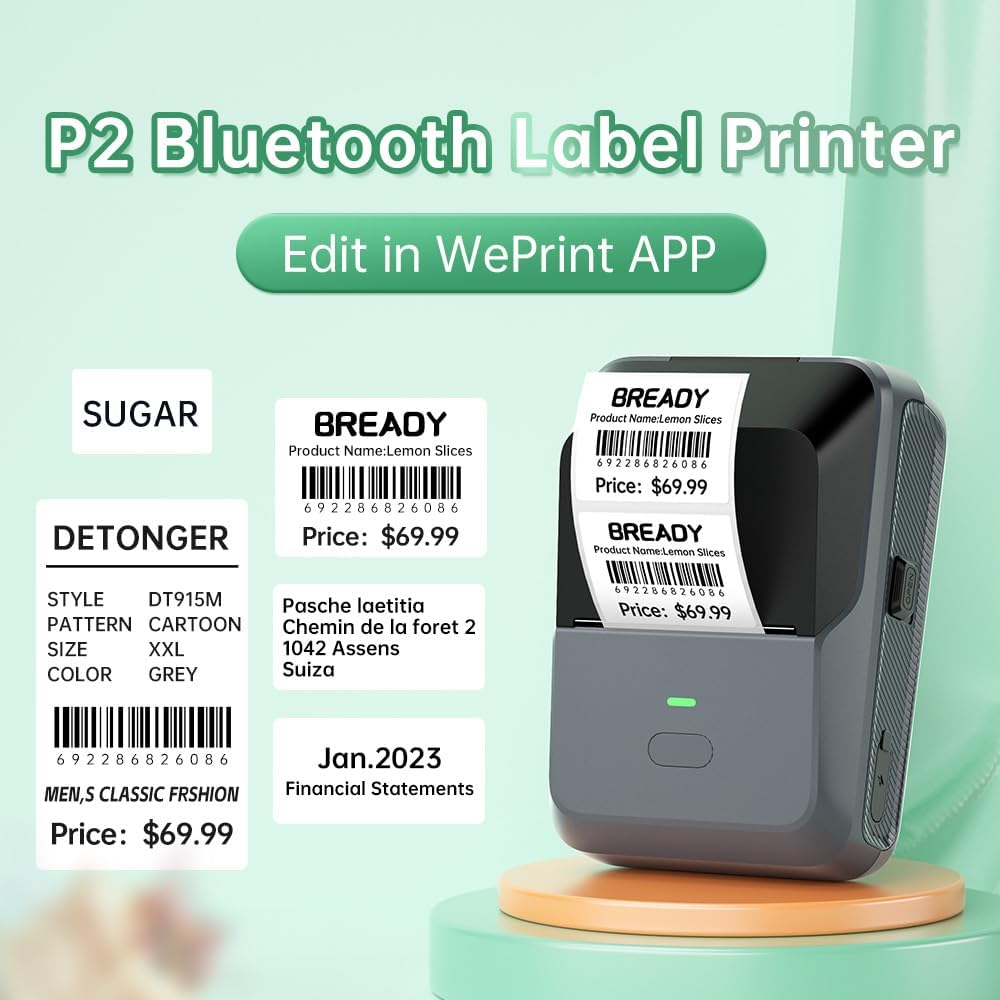
Figure 3: Example labels created and printed using the WePrint App.
3.4 Label Applications
The DETONGER P2 is suitable for creating a wide range of labels, including:
- Price labels for retail and supermarkets.
- Expiration date labels for food products.
- Cable labels for organization.
- Name labels for personal or office use.
- Brand logos and stickers for small businesses.
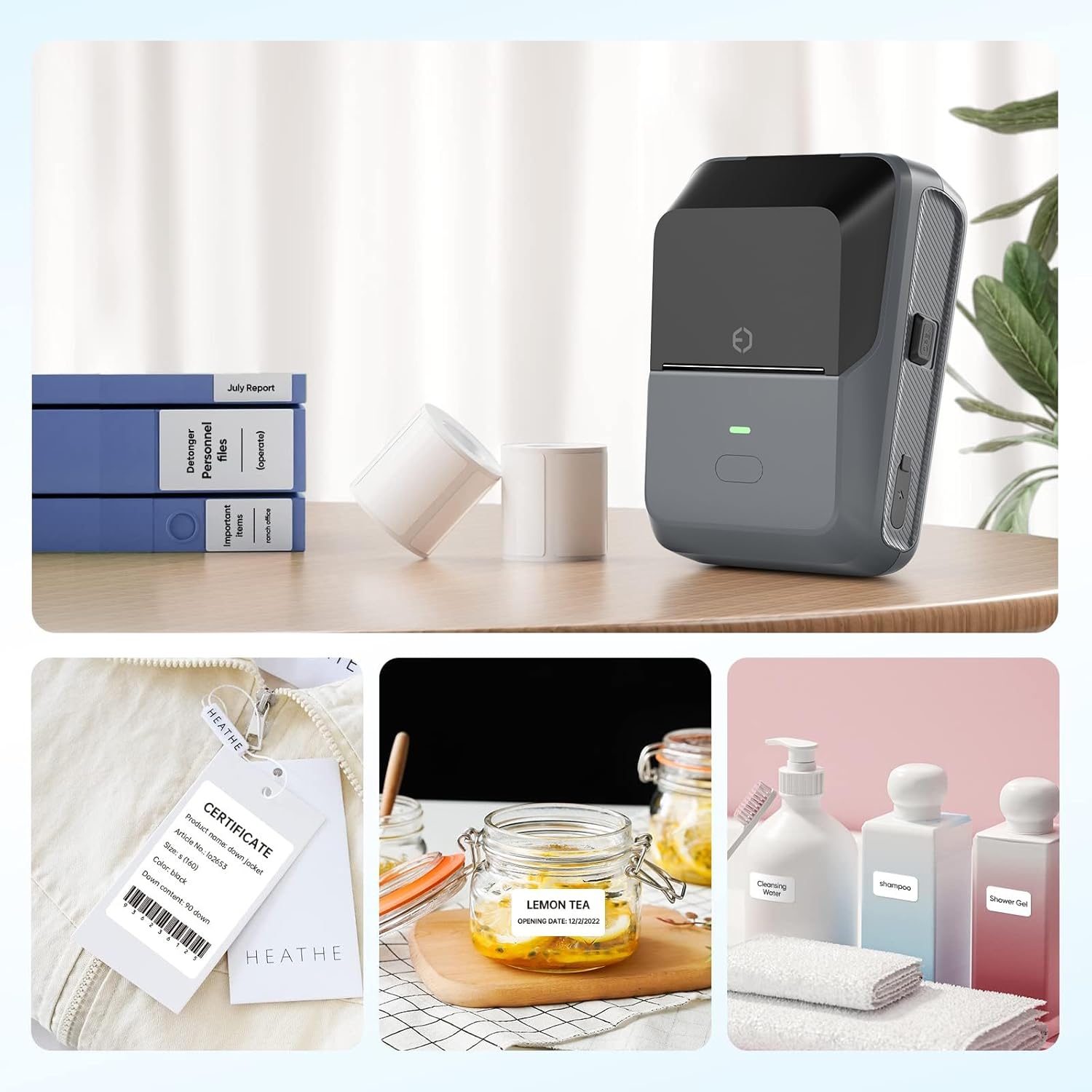
Figure 4: The P2 printer in use, demonstrating various label applications.

Figure 5: Commercial price tag examples for various products.

Figure 6: Examples of transparent label options.

Figure 7: Examples of colored label options.
4. Maintenance
4.1 General Care
To ensure the longevity and optimal performance of your DETONGER P2 printer:
- Keep the device clean and free from dust. Use a soft, dry cloth for cleaning the exterior.
- Avoid exposing the printer to extreme temperatures or direct sunlight.
- Do not use abrasive cleaners or solvents.
4.2 Label Storage
Thermal labels are sensitive to light and heat. Store unused label rolls in a cool, dry place away from direct sunlight to prevent premature fading.
5. Troubleshooting
5.1 Common Issues and Solutions
- Printer not connecting via Bluetooth:
Ensure Bluetooth is enabled on your mobile device and the P2 printer is powered on. Connect through the "WePrint" app, not directly through your device's Bluetooth settings, to avoid incompatibility issues. - Poor print quality or blank labels:
Check if the label roll is loaded correctly and that the thermal paper is facing the print head. Ensure the printer has sufficient battery charge. - Labels not printing correctly (e.g., cut off, misaligned):
Verify that you have selected the correct label size within the "WePrint" or "WeiDa" application before printing. - PC not detecting printer:
Ensure the USB cable is securely connected and that the "WeiDa" software and P2 Series Label Printer Windows Driver are correctly installed on your PC.
6. Specifications
| Feature | Detail |
|---|---|
| Brand | DETONGER |
| Model | P2 |
| Connectivity Technology | Bluetooth, USB |
| Printing Technology | Thermal |
| Printer Output | Monochrome |
| Max Monochrome Printing Speed | 70 ppm |
| Maximum Media Size | 1.77 x 2.16 inch (45mm x 55mm) |
| Print Media | Labels |
| Scanner Resolution | 203 DPI |
| Compatible Devices | Laptop Computer, PC, Smartphones |
| Operating Systems | Android, Windows, iOS |
| Battery Capacity | 1800 mAh (Lithium Ion) |
| Item Weight | 310.5 Grams |
| Product Dimensions | 6.2 x 8.59 x 12.78 cm |
| Display Type | OLED |
7. Warranty and Support
7.1 Free Replacement Service
DETONGER offers a free replacement service for your P2 Label Printer for up to 12 months if the machine fails to start or is too faulty to fix. This service covers manufacturing defects and significant operational failures.
7.2 Customer Service
You can enjoy lifetime prime customer service and technical support. For any inquiries, technical assistance, or to create a cloud account for managing and sharing labels, please contact DETONGER customer service through their official website or the contact information provided in your product packaging.