
1. Introduction
The PDDAXLQUE CP26 RS232 to Bluetooth Serial Adapter is designed to enable wireless communication for traditional wired RS232 devices. This module allows seamless connection to Android/iOS smartphones, computers, and other compatible devices, facilitating debugging and data exchange without physical cables.
This manual provides detailed instructions for setting up, operating, and maintaining your CP26 adapter, ensuring optimal performance and reliable wireless serial communication.
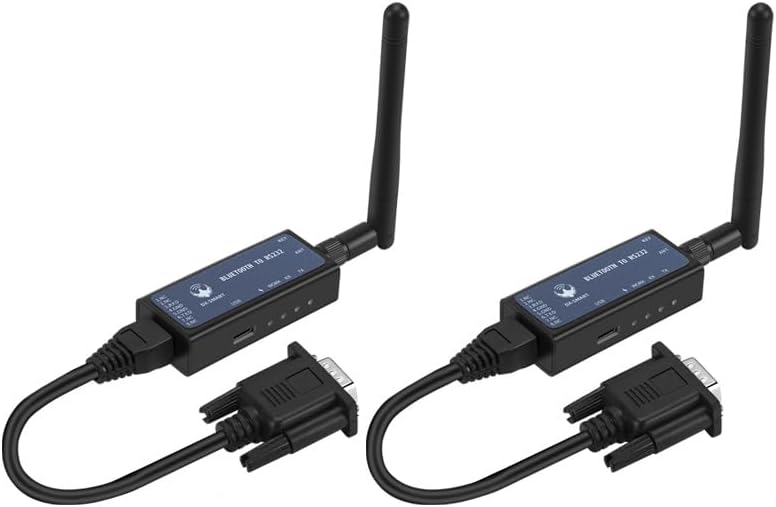
Image 1: The PDDAXLQUE CP26 RS232 to Bluetooth Serial Adapter with its antenna and RS232 cable.
2. Product Components
The standard package for the CP26 adapter includes the following items:
- CP26 Adapter (x1 or x2 depending on variant)
- USB Charging Cable (x1 or x2)
- Rubber Stick Antenna (x1 or x2)
- RJ45 Adaptor Cable (x1 or x2)
- RS232 Adaptor Cable (x1 or x2)
- CP26 Instruction Manual (x1)

Image 2: An overview of the components included in the DX-CP26 package for device-to-device communication, showing two CP26 adapters, antennas, USB cables, RS232 cables, and RJ45 adapter cables.
3. Key Features
The CP26 adapter offers a robust set of features for reliable wireless serial communication:
- Advanced Chipset: Utilizes Renesas DA14531 chip with PA Amplifiers for enhanced performance.
- Bluetooth Standard: Built-in Bluetooth 5.1 BLE module for long-range communication.
- Interface Support: Compatible with RS232 and RJ45 interfaces.
- UART Default Parameters: Default setting is 9600bps/8/n/1 (baud rate/data bit/no parity/stop bit).
- Broad Compatibility: Supports communication with Android phones, iOS devices, and PC (with additional CP11 module for PC).
- Power Options: Powered by USB (default) or built-in rechargeable lithium battery, with Type-C charging.
- Extended Battery Life: Provides up to 24 hours of continuous operation on battery power.
- Adjustable Baud Rates: Supports 2400, 4800, 9600, 19200, 38400, 57600, 115200 bps.
- External Antenna: Includes a rubber stick antenna for improved signal range.
- Compact Design: Device dimensions are 60 x 27.8 x 16.4 mm.
- Wide Operating Temperature: Functions reliably from -40°C to +85°C.

Image 3: Diagram illustrating the key features of the CP26 adapter, including its chip, Bluetooth version, supported interfaces, UART parameters, power options, and physical specifications.
4. Setup and Installation
4.1 Device Overview and Indicators
Familiarize yourself with the adapter's indicators and controls:
- TX Data Indicator (Red): Blinks when the adapter is transmitting data via Bluetooth.
- RX Data Indicator (Green): Blinks when the adapter is receiving data via Bluetooth.
- WORK Status Light (Blue): Indicates the current baud rate by blinking a specific number of times.
- POWER Charging Indicator (Red): Stays on when the product is charging and turns off when fully charged.
- KEY Button: A multi-function button for power control and baud rate adjustment.

Image 4: Detailed diagram showing the hardware components and indicators of the CP26 adapter, including TX, RX, WORK, and POWER lights, and the KEY button.
4.2 Power Supply
The CP26 adapter can be powered via USB or its internal battery. By default, it is set to USB power. To switch to battery power, move the switch to the 'BAT' end. The device has a built-in battery for portable use.
4.3 Connecting to Mobile Devices (Smartphones)
- App Download:
- For iOS devices, download the 'DX-SMART' application from the App Store.
- For Android devices, download the application package from szdx-smart.com and install it on your mobile phone.
- Power On: Press and hold the KEY button on the CP26 for approximately one second to turn on the device.
- Pairing: Enable Bluetooth on your mobile phone. Open the DX-SMART application and search for Bluetooth devices. Select and connect to the CP26 adapter.
- Communication: Once connected, you can control and communicate with your RS232 device wirelessly through the application.

Image 5: Visual guide demonstrating the steps to connect the CP26 adapter to a mobile phone using the DX-SMART application, showing screenshots of the app interface.
4.4 Connecting to a Computer (PC)
To connect the CP26 adapter to a computer, an additional CP11 Bluetooth adapter (sold separately) is required. The CP26 adapter cannot be directly connected to a computer.
- Driver Installation: Download and install the 'CH341' driver on your computer.
- CP11 Setup: Plug the CP11 adapter into a computer USB port and power it on.
- CP26 Power On: Press and hold the KEY button on the CP26 for approximately one second to turn it on.
- Serial Port Configuration: Open your serial port software (e.g., Putty, RealTerm) and select the COM port corresponding to the CP11 adapter. Configure the default parameters to 9600bps/8/n/1.
- Connection: The CP11 adapter will automatically search for and connect to the CP26 Bluetooth converter. The blue light on the CP26 will remain on once connected.
- Data Exchange: After successful connection, data can be exchanged between the computer and the RS232 device connected to the CP26.
4.5 Device-to-Device Communication
Wireless data communication between two devices using CP26 adapters is achieved as follows:
- Connect the first CP26 adapter (configured as 'Master') to Device 1 via its RS232/RJ45 interface.
- Connect the second CP26 adapter (configured as 'Slave') to Device 2 via its RS232/RJ45 interface.
- The CP26 Master Bluetooth module will automatically pair with the CP26 Slave Bluetooth module.
- Once paired, data can be exchanged wirelessly between Device 1 and Device 2.
5. Operating Instructions
5.1 Power On/Off
- Power On: Long press the KEY button for approximately one second.
- Power Off: Long press the KEY button for approximately three seconds.
5.2 Baud Rate Adjustment
The baud rate can be adjusted by double-clicking the KEY button. The blue WORK status light will blink a specific number of times to indicate the selected baud rate:
| Blinks | Baud Rate (bps) |
|---|---|
| 1 time | 2400 |
| 2 times | 4800 |
| 3 times | 9600 (Default) |
| 4 times | 19200 |
| 5 times | 38400 |
| 6 times | 57600 |
| 7 times | 115200 |
The factory default baud rate is 9600 bps, indicated by three blue blinks.
5.3 Disconnecting Bluetooth
When the adapter is in a Bluetooth connected state, a short press of the KEY button will disconnect the Bluetooth connection.
6. Applications and Usage Scenarios
The CP26 adapter can be utilized in various industrial and personal applications to convert wired RS232/RJ45 communication to wireless Bluetooth:
- Total Stations: View total station data on a mobile phone via a mobile application.
- Network Switches: Monitor and view data from network switches using a mobile application.
- PLCs (Programmable Logic Controllers): Update PLC programs from a computer via a USB interface.
- Sensors: Set inverter parameters on a computer for various sensors.
- Lift Controllers: Adjust elevator parameters using a PC.
- Electronic Scales and Printers: Establish wireless communication between electronic scales and thermal printers.

Image 6: Illustrative examples of the CP26 adapter's applications, showing its use with total stations, network switches, PLCs, sensors, lift controllers, electronic scales, and printers.
7. Specifications
Detailed technical specifications for the PDDAXLQUE CP26 adapter:
| Feature | Specification |
|---|---|
| Model | CP26 |
| Bluetooth Version | 5.1 BLE |
| Hardware Interface | RS232, RJ45, USB (for power/charging) |
| Supported Baud Rates | 2400, 4800, 9600, 19200, 38400, 57600, 115200 bps |
| Default Baud Rate | 9600bps/8/n/1 |
| Power Supply | USB Type-C, Built-in rechargeable battery |
| VCC Power Supply Voltage Range | 4.5V-6V |
| Battery Life | Up to 24 hours (continuous operation) |
| Dimensions (L x W x H) | 60 x 27.8 x 16.4 mm |
| Operating Temperature | -40°C to +85°C |
| Communication Distance (Visual) | Mobile phone: 90m, PC: 70m, Device-to-device: 400m (unobstructed) |
| Compatible Devices | Android devices, iOS devices |

Image 7: A detailed view of the CP26 adapter, highlighting its Type-C charging port, internal battery, and the various communication ports (RJ45 and RS232).

Image 8: Diagram illustrating the RS232 and RJ45 interfaces of the CP26 adapter, showing how it connects to various devices for wireless Bluetooth communication.
8. Troubleshooting
If you encounter issues with your CP26 adapter, consider the following common troubleshooting steps:
- No Power: Ensure the adapter is properly connected to a USB power source or that the internal battery is charged and the power switch is set to 'BAT'.
- Connection Issues: Verify that Bluetooth is enabled on your host device (smartphone or CP11 adapter for PC) and that the CP26 is powered on and discoverable. Ensure you are within the effective communication range.
- Data Transmission Errors: Check that the baud rate settings on both the CP26 adapter and the connected device (or software) match. The default baud rate is 9600bps. Refer to Section 5.2 for baud rate adjustment.
- Software Compatibility: For PC connections, ensure the correct CH341 driver is installed. For mobile devices, confirm you are using the official 'DX-SMART' application.
- Interference: Minimize potential interference from other wireless devices or strong electromagnetic fields.
For further assistance, please refer to the official website for testing software, user manuals, and development documents. If problems persist, contact customer support via Amazon email for resolution within 24 hours.
9. Official Product Video
Video 1: An official product video from Daxia Longque demonstrating the unboxing and basic setup of the CP26 RS232 to Bluetooth Serial Adapter, including how to connect it to a computer and adjust baud rates.
10. Warranty and Support
The PDDAXLQUE CP26 adapter is designed for reliable performance. The manufacturer provides comprehensive technical support. Resources such as testing software, user manuals, and development documents are available on the official website.
If you encounter any issues or require assistance, please contact the manufacturer directly via Amazon email. Support inquiries are typically addressed within 24 hours.


