
Powtree Wireless Controller for PS4
Powtree Wireless Controller User Manual
Model: Wireless Controller for PS4/PC/Android/iOS
Brand: Powtree
1. Introduction
Welcome to your new Powtree Wireless Controller. This manual provides detailed instructions for setting up, operating, and maintaining your controller. Please read this manual carefully before use to ensure optimal performance and longevity of your device.
2. Package Contents
- 2 x Powtree Wireless Controllers
- 2 x USB Type-C Charging Cables
- 2 x User Manuals (this document)
3. Product Overview
Familiarize yourself with the various components and controls of your Powtree Wireless Controller.

Image: Top and bottom view of the Powtree Wireless Controller, highlighting key components such as the D-Pad, Action Buttons, Joysticks, Touch Pad, Share button, Options button, Home button, Speaker, 3.5mm stereo port, EXT charging port, Light Bar, and USB Charging Jack.
- D-Pad: Directional Pad for navigation.
- Action Buttons: Triangle, Circle, Cross, Square buttons for in-game actions.
- Left/Right Joysticks: Analog sticks for precise movement and camera control.
- Touch Pad: Multi-touch pad for interactive gameplay.
- Share Button: For sharing gameplay content.
- Options Button: For accessing in-game menus and options.
- Home Button: For returning to the system menu.
- Speaker: Built-in speaker for enhanced audio feedback.
- 3.5mm Stereo Port: For connecting headphones or headsets.
- EXT Charging Port: For charging the controller.
- Light Bar: Indicates player number and provides in-game visual cues.
- USB Charging Jack: For connecting the Type-C charging cable.
- L1/L2/R1/R2 Buttons: Shoulder and trigger buttons for various in-game functions.
4. Setup
4.1 Initial Connection
- For the first connection, you must activate the device using the provided USB Type-C cable. Connect one end of the cable to the controller and the other end to your console (PS4/PS5) or PC.
- Once connected, press the Home button on the controller to pair it with your device.
- After successful pairing, you can disconnect the USB cable for wireless use.
Note: If the controller fails to connect, it is recommended to try a high-power USB Type-C data cable.
4.2 Charging the Controller
The controller has a built-in 800mAh lithium battery. To charge:
- Connect the provided USB Type-C charging cable to the controller's USB Charging Jack.
- Connect the other end of the cable to a USB power source (e.g., console, PC, USB wall adapter).
- The controller will fully charge in approximately 2.5 hours. The light bar will indicate charging status.
5. Operating Instructions
5.1 Bluetooth Connection
The controller uses Bluetooth 4.2 technology, providing a stable connection with a receiving distance of up to 10 meters (390 inches). After initial wired activation, the controller should automatically connect wirelessly to your paired device when powered on.
5.2 Turbo Function
The Turbo function allows for rapid, repeated input of a button press, useful in certain games.
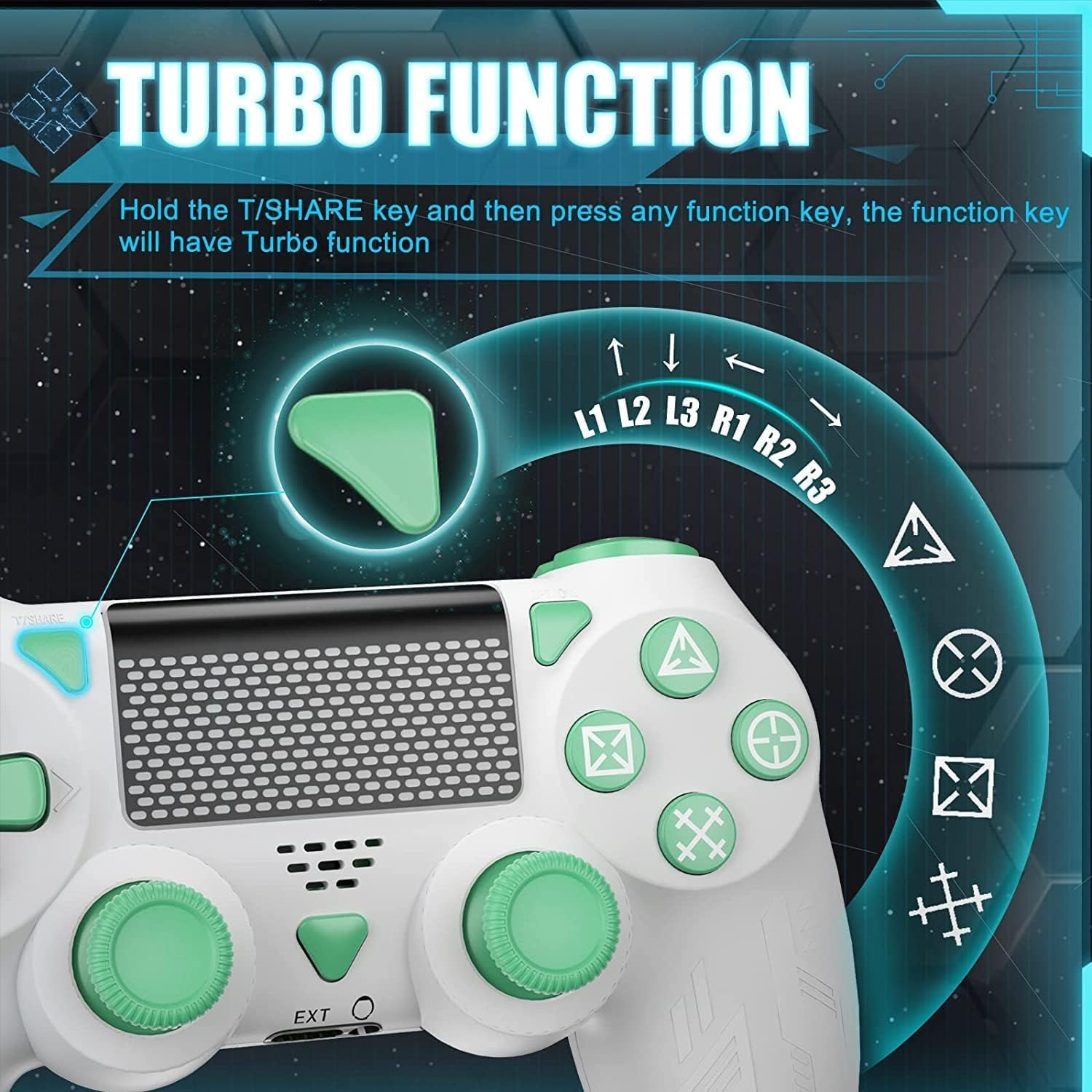
Image: A close-up of the controller showing the 'T/SHARE' button and an arrow pointing to a function button, illustrating the activation of the Turbo function.
To activate the Turbo function: Hold the T/SHARE key, then press any desired function key (e.g., X, O, Triangle, Square, L1, R1, L2, R2). The selected function key will now have Turbo functionality.
5.3 6-Axis Gyro Sensor
The built-in 6-axis motion control system enhances gameplay by allowing for intuitive control through movement and rotation.

Image: A controller with arrows indicating motion, alongside icons representing in-game actions like 'Throw Off', 'Rotation of Direction', and 'Shift of Vision', demonstrating how the 6-axis gyro sensor improves accuracy and speed.
This sensor improves accuracy and speed in games that support motion control, allowing for actions like shifting vision, rotating objects, or throwing items by physically moving the controller.
5.4 Dual Vibration
The controller is equipped with dual vibration motors to provide immersive haptic feedback during gameplay.

Image: A transparent view of the controller's grips, showing the internal dual vibration motors emitting blue light, indicating their function in providing haptic feedback.
Experience realistic feedback for in-game events such as collisions, explosions, or weapon recoil, enhancing your gaming immersion.
5.5 Audio Features
The controller includes a 3.5mm stereo audio jack for connecting your headset and a built-in speaker for direct audio output from the controller.
5.6 Light Bar
The front light bar changes color according to game content, providing visual cues and indicating player status.
6. Compatibility
The Powtree Wireless Controller offers broad compatibility across multiple gaming platforms.

Image: A controller displayed alongside icons for various compatible platforms including PS4/PS4 Pro/PS4 Slim, Steam, iPad/Phone/Android/iOS, and PC.
It is compatible with:
- PS4 (P4, P4 Pro, P4 Slim)
- PC (Windows)
- Android devices
- iOS devices
- Some PS4 games on PS5
7. Maintenance
7.1 Battery Life Management
The 800mAh battery provides approximately 12-15 hours of continuous use on a full charge. To prolong battery life:
- Always shut down the controller when not in use for extended periods.
- Avoid fully draining the battery frequently.
- Charge the controller using the provided Type-C cable and a suitable power source.
7.2 Cleaning and Storage
- Clean the controller with a soft, dry cloth. Do not use harsh chemicals or abrasive materials.
- Store the controller in a cool, dry place away from direct sunlight and extreme temperatures.
- Avoid dropping the controller or exposing it to excessive force.
8. Troubleshooting
- Controller not connecting: Ensure the controller is charged. For the first connection, use the USB cable to activate it. If issues persist, try a different high-power USB Type-C data cable.
- Input lag or disconnection: Ensure the controller is within the 10-meter Bluetooth range. Check for potential interference from other wireless devices.
- Buttons unresponsive: Try resetting the controller (refer to the device's specific reset procedure, usually a small pinhole button on the back). Ensure the controller is fully charged.
- Charging issues: Verify the USB Type-C cable and power source are working correctly.
9. Specifications
| Battery Capacity | 800mAh Lithium Battery |
| Charging Time | Approx. 2.5 hours |
| Usage Time | Approx. 12-15 hours |
| Connectivity | Bluetooth 4.2 |
| Wireless Range | Up to 10 meters (390 inches) |
| Dimensions | 17.2 x 14.2 x 12.3 cm |
| Weight | 560 grams (for the package) |
| Features | Dual Motor Shock, 6-Axis Sensor, Turbo Function, Touchpad, 3.5mm Audio Jack, Built-in Speaker, Light Bar |
10. Warranty and Support
For information regarding product returns within 30 days of receipt due to a change of mind, please consult the relevant help page on the retailer's website. If you have received a defective or damaged product, please refer to the retailer's help page on product defects and damages. For specific information on purchases made through a marketplace, consult the marketplace's help page.
If you have any questions or require further assistance with your Powtree Wireless Controller, please contact our customer support team through the retailer's platform or the contact information provided with your purchase.
Ask a question about this manual
Ask about setup, troubleshooting, compatibility, parts, safety, or missing instructions. Manuals+ will review the question and use this page’s manual context to help answer it.