
HiBy M300
HiBy Digital M300 Android MP3 Player Instruction Manual
Model: M300
1. Product Overview
The HiBy Digital M300 is a versatile Android MP3 player designed for high-fidelity audio playback. It features Bluetooth and Wi-Fi connectivity, allowing for streaming and app downloads. Equipped with a Snapdragon 665 processor and Android 13, it offers smooth performance for various multimedia functions.
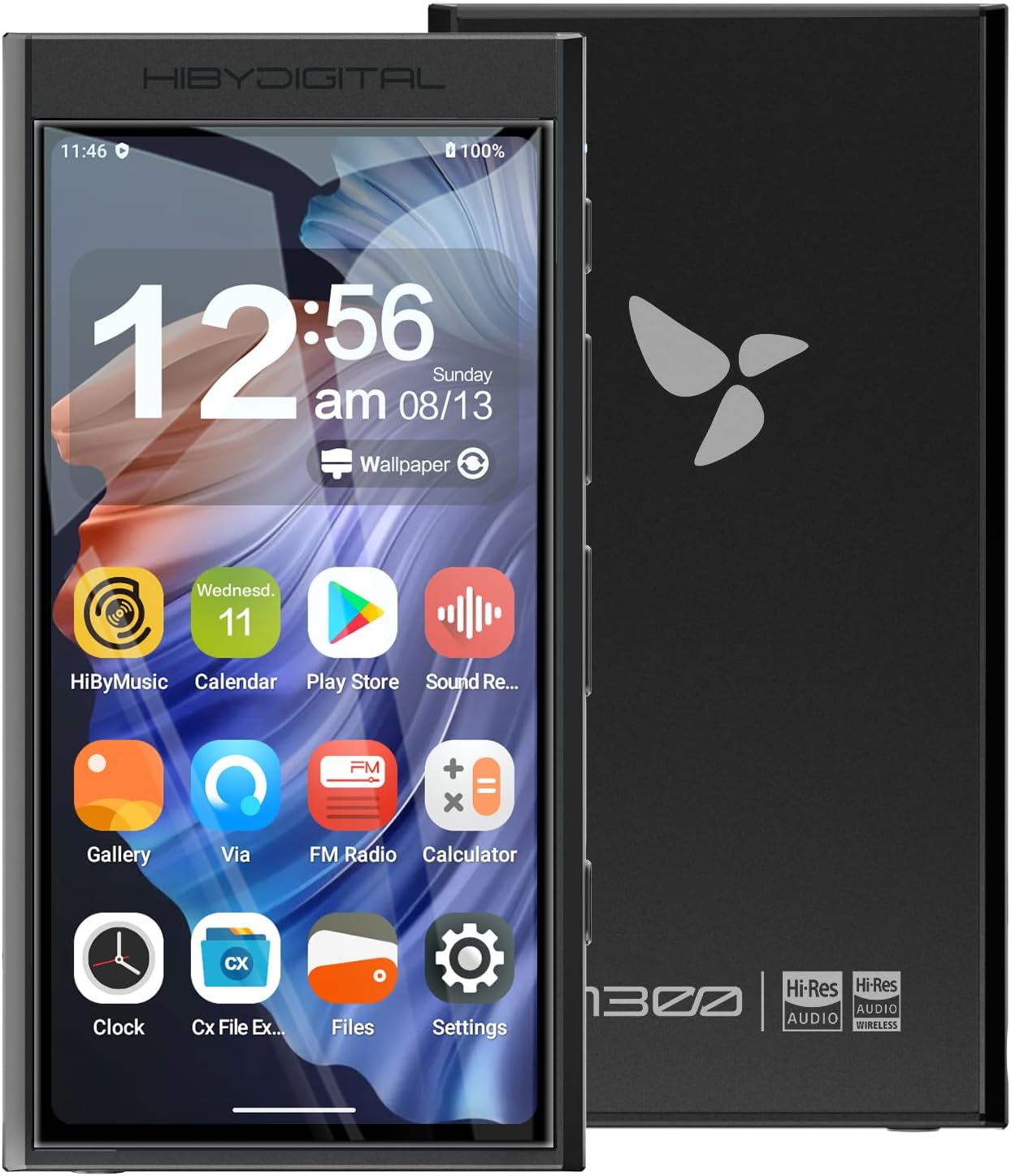
Image: Front and back view of the HiBy Digital M300 Android MP3 Player.
2. What's in the Box
Upon unboxing your HiBy Digital M300, you will find the following components:
- Player *1
- USB2.0 (A to C) cable *1
- Manual *1
- Protective film *1 (factory attached)
Video: A detailed overview of the HiBy Digital M300, including its features and some unboxing elements.
3. Product Features and Components
3.1. High-Fidelity Audio
The M300 is equipped with a CS43131 independent DAC chip, supporting high-resolution lossless audio formats including native DSD256 and PCM 384kHz. It is compatible with MP3, WAV, APE, FLAC, DSF, DFF, ISO, CUE, WMA, OGG, AAC, OPUS, and AIFF file formats.

Image: The HiBy Digital M300 showcasing its HiFi DAC CS43131 and DSD256 support.
3.2. Android 13 Operating System
Powered by the Qualcomm Snapdragon 665 chip and running Android 13, the M300 provides robust performance for downloading apps, streaming music, and browsing. Popular streaming platforms like Spotify, Apple Music, and YouTube Music are supported.

Image: Multiple views of the HiBy Digital M300's Android 13-based user interface.
3.3. Connectivity
The device features Bluetooth 5.0 and dual-band Wi-Fi (2.4G + 5G) for seamless wireless connections to headphones, speakers, and online services.

Image: Visual representation of Bluetooth 5.0 and 2.4G/5G Dual-Band WiFi connectivity.
3.4. Ports and Controls
The M300 includes a 3.5mm headphone jack and a USB-C port for various connection options, including USB OTG and USB DAC output. It also supports microphone input for recording. Physical buttons for power, volume, and track control are located on the side.

Image: Close-up view of the HiBy Digital M300's side buttons and bottom ports, including 3.5mm jack and USB-C.
3.5. Storage
With 3GB RAM and 32GB internal storage, the M300 offers ample space. Storage is expandable up to 2TB via a micro SD card.

Image: Diagram illustrating the Snapdragon 665 SOC, 3GB RAM, and 32GB storage.
3.6. Additional Features
- Built-in Speaker: For convenient audio playback without external devices.
- FM Radio: Enjoy your favorite FM stations.
- Dual Microphones: For clear audio recording.
- Parental Mode: Features for app installation restriction, usage time limitation, app disable function, and setting data protection.

Image: Illustration highlighting the built-in loudspeaker and dual microphones for clear recording.

Image: Screenshots demonstrating the Parental Mode settings and features.
4. Setup
4.1. Initial Power On
- Press and hold the power button on the side of the device until the screen illuminates.
- Follow the on-screen prompts to select your preferred language and time zone.
- The factory-attached protective film can be peeled off after initial setup is complete.
4.2. Connecting to Wi-Fi
- From the home screen, swipe down from the top to access the quick settings panel.
- Tap the Wi-Fi icon to enable Wi-Fi.
- Select your desired network from the list and enter the password if prompted.
4.3. Connecting to Bluetooth Devices
- From the quick settings panel, tap and hold the Bluetooth icon to open Bluetooth settings.
- Ensure Bluetooth is enabled.
- Select "Pair new device" and choose your Bluetooth headphones or speakers from the list of available devices.
5. Operating Instructions
5.1. Music Playback
Use the pre-installed HiBy Music app for optimal audio experience.
- Importing Music: Transfer music files to the device's internal storage or an inserted micro SD card via USB-C connection to a computer.
- Playback Controls: Use the physical buttons on the side for play/pause, next track, and previous track. On-screen controls are also available within the HiBy Music app.
- Equalizer: Access the equalizer settings within the HiBy Music app to customize sound profiles.
Video: Demonstrates the HiBy Digital M300's music playback features, including app interface and physical controls.
5.2. Using Apps
The Android 13 OS allows you to download and install various applications from the Google Play Store.
- Connect to Wi-Fi.
- Open the "Play Store" app.
- Search for and install desired applications.
5.3. FM Radio
To use the FM radio, connect wired earphones to the 3.5mm jack, as they act as an antenna.
- Plug in wired earphones.
- Open the "FM Radio" app.
- Scan for available stations.
5.4. Voice Recorder
The dual microphones enable high-quality voice recording.
- Open the "Sound Recorder" app.
- Press the record button to start recording.
- Recordings are saved to the device's storage.
6. Maintenance
- Keep the device clean by wiping it with a soft, dry cloth.
- Avoid exposing the device to extreme temperatures, moisture, or direct sunlight.
- Regularly back up important data to prevent loss.
- Ensure the device's software is up to date for optimal performance and security.
7. Troubleshooting
7.1. Low Volume Output
If the volume output is too low, check the following:
- Ensure both the media volume and master volume settings are at appropriate levels. These can be adjusted in the device's sound settings.
- For high-impedance headphones, the built-in amplifier might not provide sufficient power. Consider using more sensitive headphones or an external amplifier.
- Some users have reported that disabling a maximum volume control in developer settings can increase volume, but this is an advanced setting and should be approached with caution.
7.2. File Transfer Issues
If you encounter issues transferring music files to the micro SD card:
- Ensure the micro SD card is properly formatted (e.g., exFAT or FAT32).
- Check file permissions on the device. The device may require permissions to accept external device transfers.
- Try transferring files in smaller batches or using a different file manager app.
7.3. Screen Responsiveness
If the touchscreen is not responding consistently, especially in corners:
- Ensure the screen is clean and free of debris.
- The factory-applied screen protector might affect sensitivity. If issues persist, consider carefully removing it.
8. Specifications
| Feature | Detail |
|---|---|
| Product Dimensions | 4.45 x 2.28 x 0.51 inches |
| Item Weight | 9.1 ounces |
| Manufacturer | HiBy |
| ASIN | B0CL3Z7D4S |
| Country of Origin | China |
| Batteries | 1 Lithium Ion batteries required. (included) |
| Model Name | M300 |
| Special Feature | Built-In Speaker, Hi-Res Audio, FM Radio, Android 13 OS |
| Connectivity Technology | Wi-Fi/Bluetooth/Type C Cable |
| Memory Storage Capacity | 32 GB |
| Color | Black |
| Screen Size | 4 Inches |
| Compatible Devices | Laptop, Personal Computer, Headphone, Earphone |
| Media Type | SD Card |
9. Warranty and Support
For warranty information and product support, please refer to the official HiBy website or contact their customer service.
You can also visit the official HiBy store on Amazon for additional resources and contact options:
Ask a question about this manual
Ask about setup, troubleshooting, compatibility, parts, safety, or missing instructions. Manuals+ will review the question and use this page’s manual context to help answer it.