
1. Introduction
Thank you for choosing the Akai K2 BUDS Ultra Slim Wireless Bluetooth Earbuds. This manual provides essential information for setting up, operating, and maintaining your new earbuds. Please read it carefully before use to ensure optimal performance and longevity of your device.
The Akai K2 BUDS are designed for convenience and high-quality audio, featuring Bluetooth 5.3 connectivity and a compact, in-ear design suitable for various activities, including sports and commuting.
2. What's in the Box
Carefully unpack the box and ensure all items are present and in good condition. If any items are missing or damaged, please contact your retailer.
- Akai K2 BUDS Wireless Earbuds (Left and Right)
- Charging Case
- Ear Tips (various sizes)
- USB Charging Cable (Type-C)
- User Manual (this document)
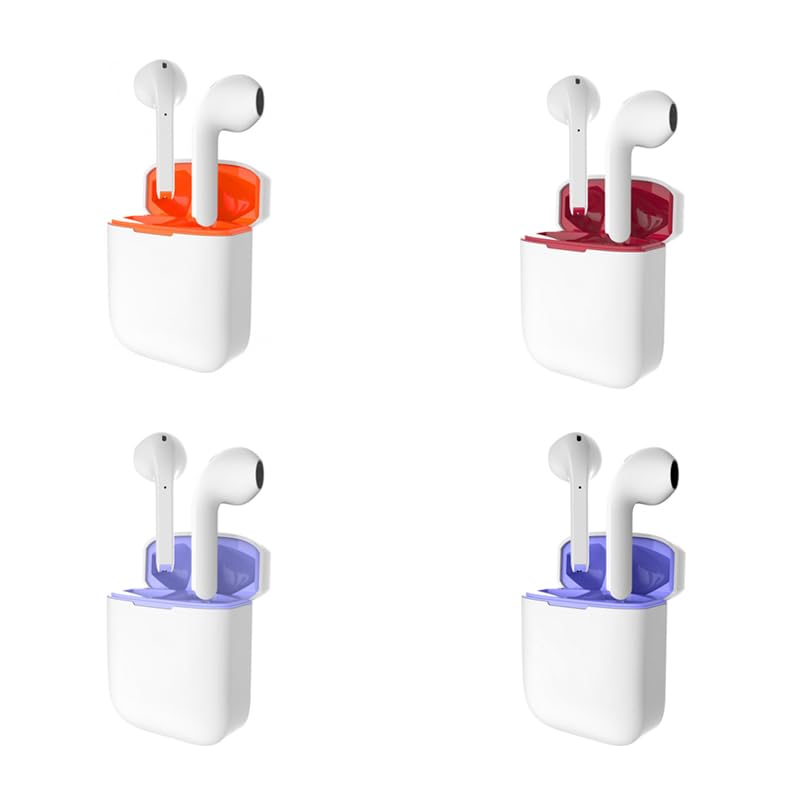
Image 1: Akai K2 BUDS Earbuds and Charging Case. This image displays the compact design of the earbuds nestled within their charging case, ready for use.
3. Product Overview
Familiarize yourself with the components of your Akai K2 BUDS.
3.1 Earbuds
- Touch Control Area: For managing music, calls, and voice assistant.
- LED Indicator: Shows pairing status, battery level, and charging status.
- Microphone: For calls and voice commands.
- Ear Tip: Ensures a comfortable and secure fit.

Image 2: Close-up of a single Akai K2 BUDS earbud, highlighting the touch control surface and microphone.
3.2 Charging Case
- Charging Port: USB-C port for charging the case.
- Case LED Indicator: Displays the charging status of the case and earbuds.
- Earbud Charging Slots: Magnetic slots to hold and charge the earbuds.

Image 3: The Akai K2 BUDS charging case, showing the external charging port and internal earbud slots.
4. Setup
4.1 Charging the Earbuds and Case
- Initial Charge: Before first use, fully charge both the earbuds and the charging case. Place the earbuds into the charging case.
- Charge the Case: Connect the USB charging cable to the charging port on the case and the other end to a USB power adapter (not included) or a computer's USB port.
- Charging Indicators:
- Case LED: Will indicate charging status (e.g., blinking while charging, solid when full).
- Earbud LED: Will indicate charging status when inside the case.
- Full Charge: Charging typically takes approximately 1-2 hours for the earbuds and 2-3 hours for the case.
4.2 Pairing with a Bluetooth Device
- Power On: Open the charging case. The earbuds will automatically power on and enter pairing mode. The LED indicator on one earbud will flash rapidly (e.g., blue and red) to indicate it's ready to pair.
- Activate Bluetooth: On your device (smartphone, tablet, laptop), go to the Bluetooth settings and enable Bluetooth.
- Select Device: Look for "Akai K2 BUDS" in the list of available devices and select it.
- Confirmation: Once paired, the earbud LED indicator will stop flashing and may turn solid blue or off. You will hear an audible confirmation tone.
- Reconnect: After initial pairing, the earbuds will automatically connect to the last paired device when removed from the case and Bluetooth is enabled on your device.
Note: If pairing fails, ensure the earbuds are charged and within range of your device. Try turning Bluetooth off and on again on your device, or reset the earbuds (refer to Troubleshooting section).
5. Operating the Earbuds
The Akai K2 BUDS feature intuitive touch controls. The control functions may vary slightly between the left and right earbuds.
5.1 Power On/Off
- Power On: Open the charging case, or long-press the touch control area on both earbuds for 3 seconds.
- Power Off: Place the earbuds back into the charging case and close the lid, or long-press the touch control area on both earbuds for 5 seconds.
5.2 Music Playback
- Play/Pause: Single tap on either earbud.
- Next Track: Double tap on the right earbud.
- Previous Track: Double tap on the left earbud.
- Volume Up: Triple tap on the right earbud.
- Volume Down: Triple tap on the left earbud.
5.3 Call Management
- Answer/End Call: Single tap on either earbud.
- Reject Call: Long-press on either earbud for 2 seconds.
5.4 Voice Assistant
- Activate Voice Assistant: Long-press on either earbud for 2 seconds (when not on a call). This will activate your device's default voice assistant (e.g., Siri, Google Assistant).
6. Maintenance
Proper care ensures the longevity and performance of your Akai K2 BUDS.
6.1 Cleaning
- Regularly clean the earbuds, especially the ear tips and charging contacts, with a soft, dry, lint-free cloth.
- Do not use abrasive cleaners, alcohol, or chemical solvents.
- Ensure no moisture enters the earbud openings.
6.2 Storage
- When not in use, always store the earbuds in their charging case to protect them and keep them charged.
- Store in a cool, dry place, away from extreme temperatures and direct sunlight.
6.3 Water Resistance
The Akai K2 BUDS are water-resistant. This means they can withstand splashes, sweat, and light rain. They are not designed for submersion in water or for use during swimming. Ensure earbuds are dry before placing them back in the charging case.
7. Troubleshooting
If you encounter issues with your Akai K2 BUDS, refer to the following common problems and solutions.
| Problem | Possible Cause | Solution |
|---|---|---|
| Earbuds won't turn on. | Low battery. | Charge the earbuds and charging case fully. |
| Cannot pair with device. | Bluetooth off, out of range, or previously paired. |
|
| Only one earbud works. | Earbuds not properly synced or one is out of battery. |
|
| Poor sound quality or disconnections. | Interference, low battery, or distance. |
|
8. Specifications
| Feature | Detail |
|---|---|
| Model Name | Akai K2 BUDS (AK2BUDS) |
| Brand | AKAI |
| Connectivity Technology | Wireless (Bluetooth) |
| Bluetooth Version | 5.3 |
| Form Factor | In-ear |
| Control Method | Touch |
| Noise Control | None |
| Water Resistance Level | Water Resistant |
| Material | Plastic |
| Compatible Devices | Phones, Tablets, Laptops |
| Included Components | Ear tips, Protective case |
| Item Dimensions | 3.94 inches |
9. Safety Information
- Do not disassemble, repair, or modify the product. This may cause fire, electric shock, or complete damage to the product.
- Keep the product away from extreme temperatures, direct sunlight, and high humidity.
- Avoid exposing the product to water or other liquids, except for its intended water resistance.
- Do not use the product at high volume for extended periods to prevent hearing damage.
- Keep out of reach of children and pets. Small parts may pose a choking hazard.
- Dispose of the product and its battery responsibly according to local regulations.
10. Warranty and Support
AKAI products are designed and manufactured to the highest quality standards. For detailed warranty information, please refer to the warranty card included with your purchase or visit the official AKAI website.
For technical support, troubleshooting assistance, or service inquiries, please contact AKAI customer support through their official website or the contact information provided in your product packaging.
Please have your model number (AK2BUDS) and proof of purchase ready when contacting support.

