
1. Introduction
The Micfuns MT2 is a compact and versatile 2-channel audio mixer designed for a variety of audio applications, including studio recording, live performances, and party recording. This mixer provides essential features such as 48V phantom power for condenser microphones, multiple input options, and a USB audio interface for seamless connection to computers. Its robust metal construction ensures durability and portability.

The Micfuns MT2 2-Channel Mini Mixer shown connected to a computer, highlighting its ease of use and plug-and-play functionality for beginners.
2. Key Features
- 2-Channel Audio Mixer: Equipped with two input channels supporting XLR balanced and 6.35mm unbalanced connections.
- 48V Phantom Power: Provides +48V phantom power for condenser microphones on Channel 1.
- Versatile Inputs: Features combo jacks (XLR+6.35mm) for microphones, line-level devices, or guitars (HI-Z input on Channel 2).
- Stereo Input: Includes an independent 3.5mm stereo input jack for connecting external audio sources like smartphones or media players.
- Headphone Monitoring: A 3.5mm headphone jack allows for direct audio monitoring.
- USB Audio Interface: Functions as a USB soundcard for recording and playback with Mac or PC, offering universal digital audio file compatibility.
- Compact and Durable: Constructed from metal, ensuring a robust and portable design suitable for various environments.
- Optimized Audio Processing: Features noise filtering and optimized vocal processing for clear and high-quality sound output.

An overview of the Micfuns MT2 Audio Mixer, illustrating its main functionalities including plug-and-play operation, audio input capabilities, headphone monitoring, microphone interface, and high-fidelity audio processing.

Image emphasizing the HD audio quality of the Micfuns MT2 mixer, suitable for music recording, family karaoke, and live webcasts, with 16bit/48KHz audio resolution.

Visual representation of the Micfuns MT2's optimized audio processing capabilities, including noise filtering and vocal optimization for clear sound.
3. Package Contents
Please check the package for the following items:
- Micfuns MT2 Audio Mixer
- USB-C to USB-A Power/Data Cable
- User Manual (this document)
4. Controls and Connections
Familiarize yourself with the various controls and connection points on your Micfuns MT2 mixer.
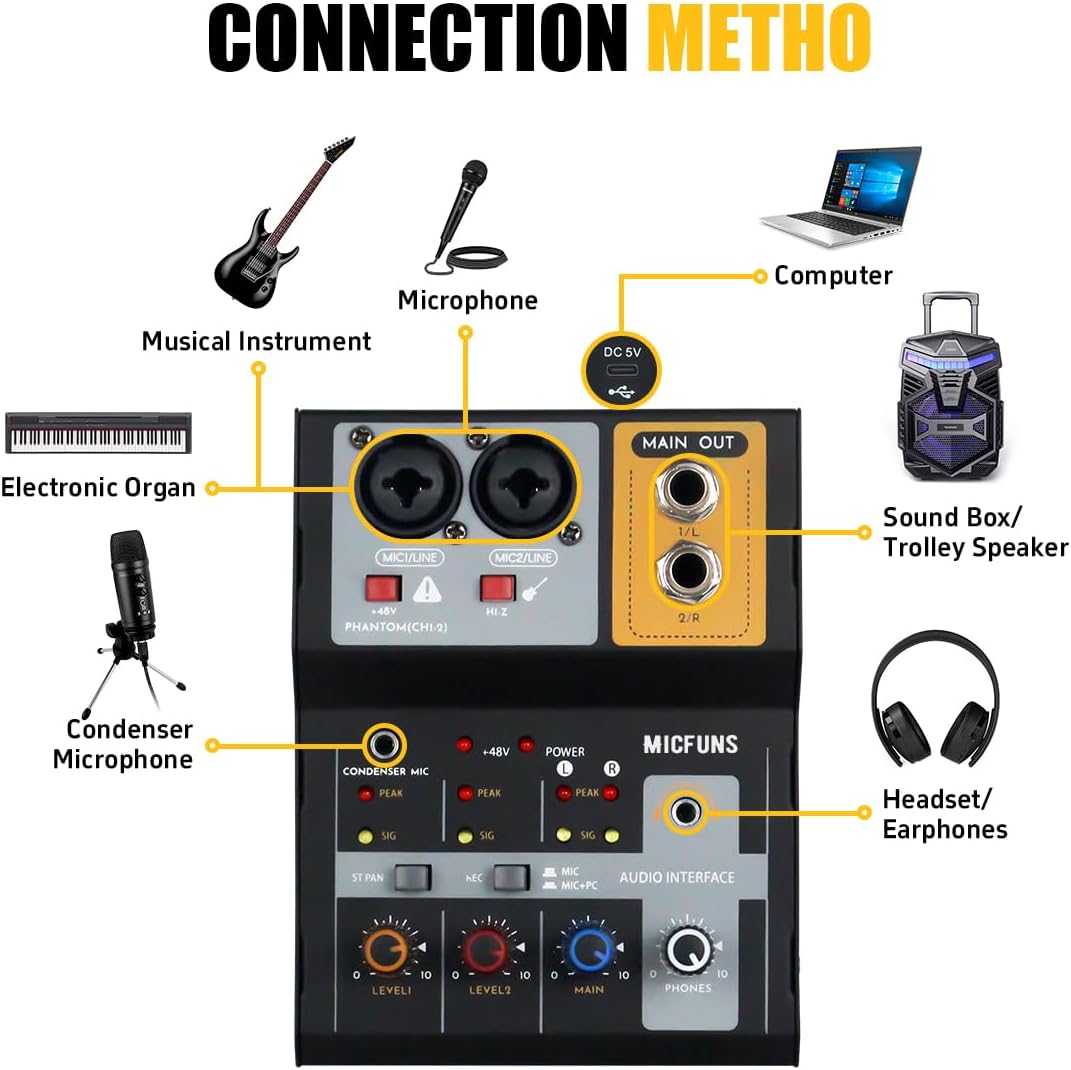
A detailed diagram illustrating the various connection options for the Micfuns MT2 mixer, such as musical instruments, condenser microphones, computers, sound systems, and headphones.
4.1 Front Panel Controls
- MIC1/LINE & MIC2/LINE Combo Jacks: Connect XLR microphones or 6.35mm (1/4-inch) line-level instruments/microphones.
- +48V Phantom Power Button (for CH1): Activates 48V phantom power for condenser microphones connected to MIC1/LINE.
- HI-Z Button (for CH2): Engages high impedance input for direct connection of guitars or other instruments to MIC2/LINE.
- CONDENSER MIC Indicator: Lights up when a condenser microphone is detected.
- +48V Indicator: Lights up when 48V phantom power is active.
- POWER Indicator: Indicates the device is powered on.
- PEAK Indicators: Lights up when the input signal is too high, indicating potential clipping.
- SIG Indicators: Lights up when an input signal is present.
- ST PAN Button: (Functionality not explicitly detailed, typically for stereo panning)
- REC Button: (Functionality not explicitly detailed, likely for recording activation)
- MIC+PC Button: Selects input source between microphone and PC audio.
- LEVEL1, LEVEL2 Knobs: Adjust the input gain for Channel 1 and Channel 2 respectively.
- MAIN Knob: Controls the overall output level of the main mix.
- PHONES Knob: Adjusts the volume for the headphone output.
- 3.5mm Stereo Input: Connects stereo audio sources via a 3.5mm cable.
- 3.5mm Headphone Jack: Connects headphones for monitoring.
4.2 Rear Panel Connections
- DC 5V Type-C Port: Connects to a computer or a 5V USB power adapter for power and data transfer.
- MAIN OUT (1/L, 2/R) Jacks: 6.35mm (1/4-inch) TRS/TS outputs for connecting to studio monitors, PA systems, or other audio devices.
5. Setup Guide
Follow these steps to set up your Micfuns MT2 audio mixer:
- Power Connection: Connect the supplied USB-C to USB-A cable to the DC 5V Type-C port on the mixer and the other end to a USB-A port on your computer or a 5V USB power adapter. The POWER indicator will light up.
- Input Connections:
- Microphones: For condenser microphones, connect via the XLR input on MIC1/LINE and press the +48V button. For dynamic microphones, connect via XLR or 6.35mm.
- Instruments: Connect guitars or other high-impedance instruments to MIC2/LINE using a 6.35mm cable and press the HI-Z button.
- Stereo Devices: Connect smartphones, tablets, or other stereo audio sources to the 3.5mm Stereo Input jack.
- Output Connections:
- Main Output: Connect your studio monitors or PA system to the MAIN OUT (1/L, 2/R) jacks using 6.35mm TRS/TS cables.
- Headphones: Plug your headphones into the 3.5mm Headphone Jack.
- Computer Connection (for USB Audio Interface): Once connected via USB, your computer should automatically detect the Micfuns MT2 as an audio device. No specific drivers are usually required for basic operation on Windows or macOS. Select the Micfuns MT2 as your input/output device in your operating system's sound settings and your preferred audio software.

The Micfuns MT2 Audio Mixer connected to a laptop via its USB Type-C port, demonstrating its PC connectivity for recording and playback.
Official product video demonstrating the Micfuns MT2 audio mixer's features and connectivity, including power-on and phantom power activation.
6. Operating Instructions
Once your mixer is set up, follow these guidelines for operation:
- Adjusting Input Levels: Turn the LEVEL1 and LEVEL2 knobs to adjust the gain for each input channel. Monitor the SIG and PEAK indicators. The SIG indicator should light up with audio input, and the PEAK indicator should only flash occasionally on the loudest parts of your signal to avoid clipping.
- Activating Phantom Power: If using a condenser microphone on Channel 1, press the +48V button. The +48V indicator will light up. Ensure dynamic microphones or line-level devices are not connected to Channel 1 when phantom power is active, unless they are designed to handle it.
- Monitoring Audio: Adjust the PHONES knob to control the volume of your headphones.
- Main Output Level: Use the MAIN knob to set the overall output volume sent to your speakers or PA system.
- USB Audio Interface Usage: When connected to a computer, the mixer acts as an audio interface. Use the MIC+PC button to switch between monitoring your microphone input directly or monitoring the audio coming from your PC. This is useful for recording vocals over a backing track from your computer.
7. Maintenance
Proper care will ensure the longevity of your Micfuns MT2 mixer:
- Cleaning: Use a soft, dry cloth to clean the exterior of the mixer. Do not use liquid cleaners or solvents, as they may damage the finish or internal components.
- Storage: Store the mixer in a cool, dry place away from direct sunlight and extreme temperatures.
- Handling: Avoid dropping the mixer or subjecting it to strong impacts.
- Ventilation: Ensure proper ventilation around the unit to prevent overheating.
8. Troubleshooting
If you encounter issues with your Micfuns MT2 mixer, refer to the following common problems and solutions:
- No Power:
- Ensure the USB-C cable is securely connected to both the mixer and a working USB power source (computer or 5V adapter).
- Check if the power source is active.
- No Sound Output:
- Verify that all input and output cables are correctly connected.
- Check the LEVEL1, LEVEL2, MAIN, and PHONES knobs are turned up.
- Ensure the correct input source is selected (e.g., MIC+PC button setting).
- If connected to a computer, confirm the Micfuns MT2 is selected as the default output device in your operating system's sound settings and your audio software.
- Distorted Sound:
- Reduce the input gain (LEVEL1, LEVEL2 knobs) if the PEAK indicators are constantly lit.
- Check for faulty cables or connections.
- Ensure the output level (MAIN knob) is not too high, causing clipping in your speakers/headphones.
- Condenser Microphone Not Working:
- Confirm the +48V phantom power button is pressed and the +48V indicator is lit.
- Ensure the microphone is connected via an XLR cable, as phantom power is typically supplied through XLR.
- Computer Not Recognizing Mixer:
- Try connecting the mixer to a different USB port on your computer.
- Restart your computer.
- Ensure the USB cable is not damaged.
9. Specifications
| Feature | Specification |
|---|---|
| Brand | micfuns |
| Model | MT2 |
| Number of Channels | 2 |
| Item Weight | 2 Pounds (approx. 0.91 kg) |
| Connectivity Technology | USB |
| Power Source | Corded Electric (5V USB) |
| Output Connector Type | TRS, XLR (Main Out is 6.35mm TRS/TS) |
| Audio Input | XLR, 6.35mm (1/4-inch), 3.5mm Stereo |
10. Warranty and Support
10.1 Warranty Information
This Micfuns MT2 audio mixer comes with a 3-month warranty from the date of purchase. This warranty covers manufacturing defects and malfunctions under normal use. It does not cover damage caused by misuse, accidents, unauthorized modifications, or improper installation.
10.2 Customer Support
For technical assistance, troubleshooting, or warranty claims, please contact Micfuns customer support through the retailer where you purchased the product or visit the official Micfuns website for contact information. Please have your product model (MT2) and proof of purchase ready when contacting support.