1. Introduction
This manual provides essential information for the safe and efficient operation of your Generic HY300 Mini Projector. Please read this manual thoroughly before using the product and retain it for future reference.
2. Safety Information
- Do not look directly into the projector lens when the lamp is on.
- Ensure proper ventilation around the projector to prevent overheating.
- Use only the power adapter supplied with the projector.
- Keep the projector away from water or other liquids.
- Avoid placing the projector on unstable surfaces.
- Do not attempt to disassemble or repair the projector yourself. Contact qualified service personnel.
3. Package Contents
Verify that all items are present in the package:
- Generic HY300 Mini Projector × 1
- Power Cable × 1
- User Manual × 1
4. Product Features
The HY300 Mini Projector is a versatile smart projector designed for various entertainment and presentation needs.
- Operating System: Android TV 11.0 with Allwinner H713 smart chip.
- Memory: 1GB RAM + 8GB ROM for app storage and smooth operation.
- Connectivity: Dual-band Wi-Fi (2.4G & 5G) and Bluetooth 4.1.
- Resolution: Native 1280x720P, supporting up to 4K video decoding via HD signal.
- Projection Size: Adjustable from 40 to 130 inches.
- Image Correction: Manual focus and automatic keystone correction.
- Audio: Integrated 3W HiFi speaker.
- Design: Portable with a 180-degree rotating stand for flexible projection angles.
- Noise Level: Operates at less than 25dB for a quiet viewing experience.
5. Setup
5.1 Placement
Position the projector on a stable, flat surface. The integrated 180-degree rotating stand allows you to adjust the projection angle from the floor to the ceiling. Ensure there are no obstructions blocking the lens or ventilation ports.

Image: The HY300 Mini Projector is shown being used outdoors, projecting content onto a screen at night, demonstrating its portability and flexible placement options.
5.2 Power Connection
- Connect the power cable to the projector's power input port.
- Plug the other end of the power cable into a suitable electrical outlet.
5.3 Initial Focus and Keystone Correction
- After powering on, use the manual focus ring on the projector to achieve a clear image.
- The projector features automatic vertical keystone correction. If further adjustment is needed for side projection, use the remote control.
6. Operating Instructions
6.1 Power On/Off
Press the power button on the projector or the remote control to turn the device on or off.
6.2 Android TV 11.0 Interface
Upon startup, the projector will display the Android TV 11.0 home screen. Use the remote control to navigate through applications, settings, and content.

Image: The HY300 Mini Projector is shown projecting the Android 11.0 interface, featuring icons for popular streaming applications like Netflix, YouTube, and Amazon Prime Video.
6.3 App Usage
The projector comes with pre-installed applications and allows access to the Google Play Store to download additional apps like Netflix, YouTube, and more. Ensure an internet connection for streaming services.
6.4 Audio Output
The projector has a built-in 3W HiFi speaker. For external audio, connect Bluetooth speakers or headphones via the Bluetooth settings.

Image: The HY300 Mini Projector is depicted operating quietly (less than 25dB), positioned near a sleeping baby, highlighting its low noise level.
7. Connectivity
7.1 Wi-Fi Connection
The projector supports both 2.4G and 5G Wi-Fi networks for stable and fast internet access. Navigate to Settings > Network > Wi-Fi to connect to your preferred network.

Image: The HY300 Mini Projector projects a vibrant car race scene, illustrating its capability for ultra-fast wireless connection via 2.4G and 5G Wi-Fi.
7.2 Bluetooth Connection
To connect Bluetooth devices like speakers or headphones, go to Settings > Connected Devices > Pair new device. Ensure your Bluetooth device is in pairing mode.
7.3 HDMI Connection
Connect external devices such as laptops, gaming consoles, or media players using an HDMI cable. Select the HDMI input source from the projector's input menu.
7.4 Screen Mirroring
The projector supports Airplay and Miracast for screen mirroring from compatible smartphones, tablets, and laptops. Access the screen mirroring function from the projector's main menu and follow the on-screen instructions.
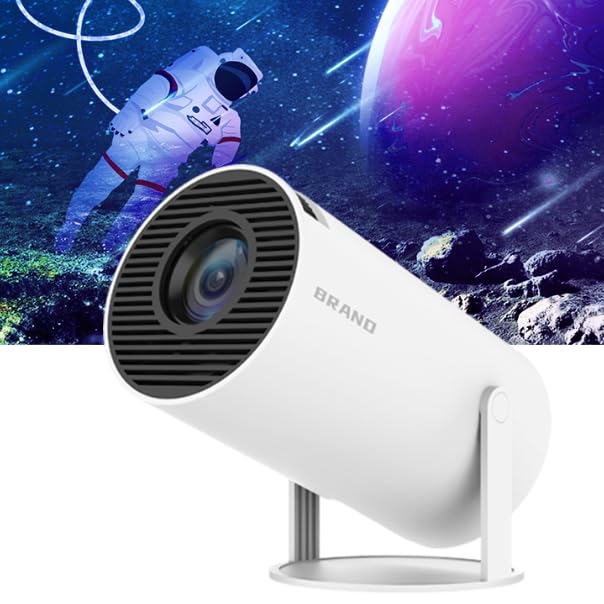
Image: The HY300 Mini Projector is shown mirroring content from a smartphone to a large projection screen, demonstrating its convenient screen mirror feature.
8. Maintenance
8.1 Cleaning the Lens
Gently wipe the projector lens with a soft, lint-free cloth specifically designed for optical surfaces. Do not use abrasive cleaners or harsh chemicals.
8.2 General Care
- Keep the projector in a clean, dry environment.
- Protect the projector from dust and extreme temperatures.
- When not in use, store the projector in a protective case or cover.
9. Troubleshooting
If you encounter issues with your HY300 Mini Projector, refer to the following common problems and solutions:
| Problem | Possible Cause | Solution |
|---|---|---|
| Blurry image | Incorrect focus; Projector too close/far; Slightly blurry edges (inherent to some projectors) | Adjust the manual focus ring. Ensure optimal projection distance (1.2m for 40", 2m for 80", 4m for 130"). |
| No image/signal | Incorrect input source; Loose HDMI cable; Device not powered on | Select the correct input source (e.g., HDMI). Check cable connections. Ensure connected device is on. |
| No sound | Volume too low; Muted; External audio device not connected/selected | Increase volume. Check mute settings. Verify Bluetooth audio connection or select internal speaker. |
| Wi-Fi connection issues | Incorrect password; Out of range; Router issues | Re-enter Wi-Fi password. Move projector closer to router. Restart router. |
| USB drive not recognized | Incorrect format (e.g., not FAT32); Incompatible file system | Ensure USB drive is formatted to FAT32. Check if the file system is supported by Android 11.0. |
| No horizontal keystone correction | Feature not available | The HY300 features automatic vertical keystone correction. Horizontal adjustment is not supported. Adjust projector placement for optimal image. |
10. Specifications
Detailed technical specifications for the Generic HY300 Mini Projector:
| Feature | Specification |
|---|---|
| Brand | Generic |
| Model Series | HY300 |
| Color | White |
| Native Resolution | 1280 x 720P |
| Max Display Resolution | 3840 x 2160 (4K support) |
| Operating System | Android TV 11.0 |
| Processor | Quad-core ARM Cortex-A53 (Allwinner H713) |
| GPU | Mali-G31 (supports OpenGL ES3.2, Vulkan 1.1, OpenCL2.0) |
| RAM | 1 GB |
| ROM | 8 GB |
| Wi-Fi | 2.4G & 5G |
| Bluetooth | BT 4.1 |
| Contrast Ratio | 1500:1 (Dynamic 10000:1) |
| Projection Screen Size | 40-130 inches |
| Keystone Correction | Automatic (Vertical) |
| Audio | Built-in 3W HiFi speaker |
| Noise Level | < 25dB |
| Connectivity Technology | HDMI |
| Compatible Devices | Laptop, Smartphone, Game Console, Media Player |
| Mounting Type | Tripod Mount |
| Display Type | LCD |
| Form Factor | Portable |

Image: A diagram illustrating the optimal projection distances for achieving 40-inch, 80-inch, and 130-inch screen sizes with the HY300 Mini Projector.

Image: A detailed view of the Allwinner H713 quad-core ARM Cortex-A53 processor chip, highlighting the projector's internal hardware.
11. Warranty and Support
For warranty information and technical support, please refer to the documentation provided at the time of purchase or contact your retailer. Keep your proof of purchase for warranty claims.


