
1. Introduction
This manual provides detailed instructions for the setup, operation, and maintenance of your Rettru HD1080P Wireless WiFi IP Camera. Please read this manual thoroughly before using the device to ensure proper functionality and safety.
The Rettru camera is a compact, wireless surveillance device designed for various monitoring needs, including pet monitoring, baby monitoring, and general security. It features HD1080P video recording, night vision, motion detection, and cloud storage capabilities.
2. Package Contents
Verify that all items listed below are present in your package:
- Rettru HD1080P Wireless WiFi IP Camera
- USB Power Cable
- Rotating Bracket
- 32GB Security Memory Card (pre-installed or included separately)
- User Manual

Image: Diagram showing the camera, USB power cable, rotating bracket, 32GB memory card, and user manual included in the package.
3. Product Overview
The Rettru camera is designed for discreet and versatile surveillance. Its compact size allows for placement in various environments.
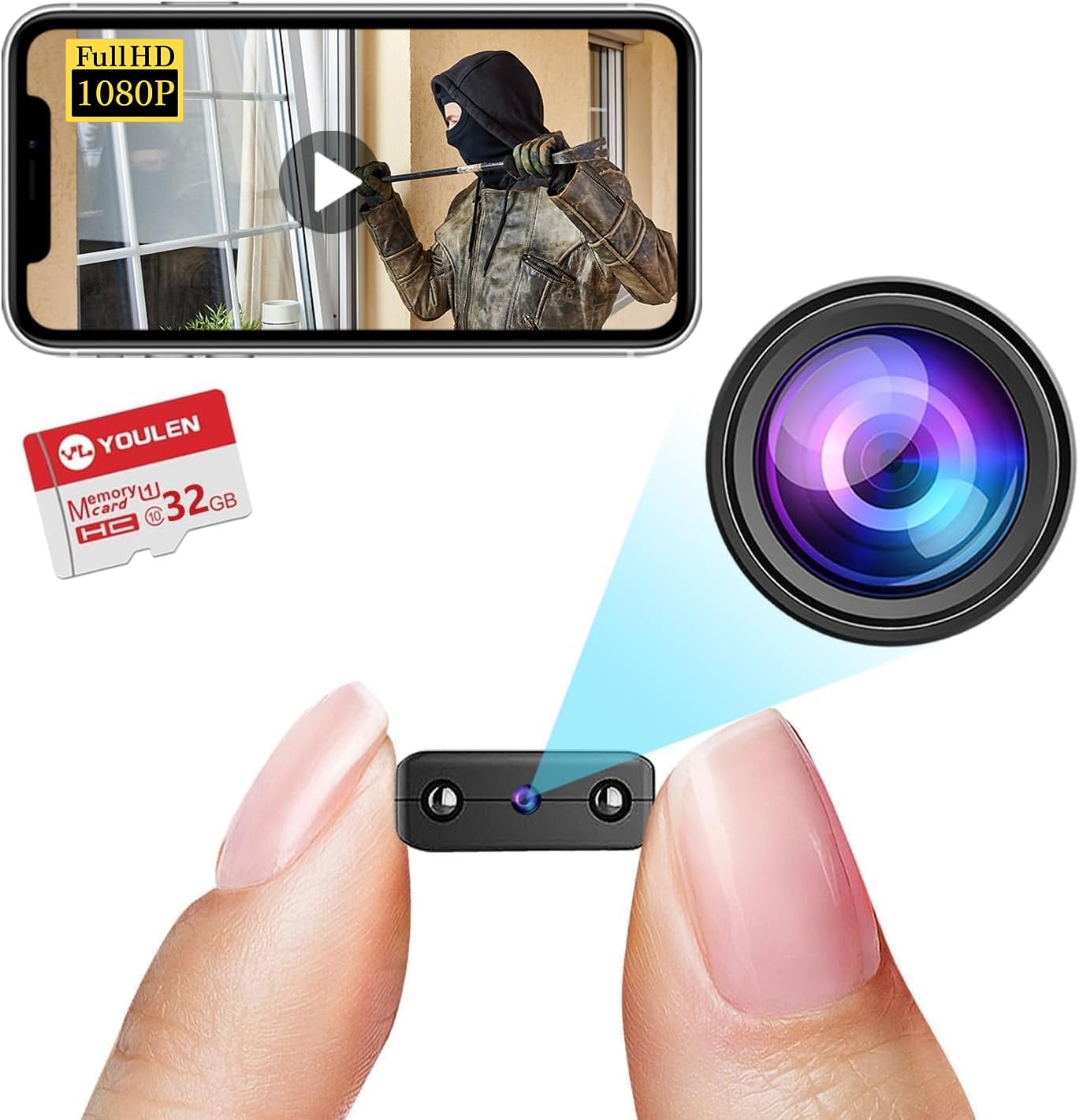
Image: The Rettru camera's compact design, highlighting its small form factor and included 32GB memory card.
Key Features:
- HD1080P Video: Records high-definition video for clear monitoring.
- Wireless Connectivity: Connects via WiFi for remote access.
- Night Vision: Equipped with IR-CUT for clear video in low-light conditions, up to 26 feet.
- Motion Detection: Automatically detects movement and sends alerts.
- Cloud Storage & Local Storage: Supports both cloud storage and local storage via Micro SD card (up to 128GB).
- Portable Design: Small and lightweight for easy placement.
4. Setup Instructions
4.1 Charging the Camera
Before initial use, fully charge the camera. Connect the provided USB cable to the camera's charging port and to a USB power source (e.g., wall charger, power bank, computer USB port). The charging indicator light will illuminate during charging and turn off when fully charged.

Image: Examples of compatible power sources for charging the camera.
4.2 Inserting the Micro SD Card
If you plan to use local storage, insert the Micro SD card (32GB card included) into the designated slot on the camera. Ensure the camera is powered off before inserting or removing the card. The camera supports Micro SD cards up to 128GB.

Image: Illustration of inserting a Micro SD card into the camera and various storage durations based on card size.
4.3 App Installation and WiFi Connection
- Download the App: Search for the recommended surveillance app (refer to the user manual included in the package for the specific app name) on your iOS or Android device's app store.
- Create Account: Open the app and follow the on-screen instructions to create a new user account.
- Add Device: Power on the camera. In the app, select "Add Device" or a similar option.
- Connect to WiFi: Follow the app's instructions to connect the camera to your home or office WiFi network. This typically involves scanning a QR code generated by the app or connecting to the camera's temporary WiFi hotspot.
- Placement: Use the rotating bracket to position the camera in your desired monitoring area. The camera's small size allows for discreet placement on desks, bookshelves, or walls.


Image: Visual representation of the camera's small size, battery power, and Micro SD card support.
5. Operating Instructions
5.1 Live View
Once connected, open the app and select your camera from the device list to view the live feed. You can monitor your space in real-time from anywhere with an internet connection.

Image: Example of live monitoring via a smartphone, showing the camera's use for pet or home surveillance.
5.2 Recording and Playback
- Manual Recording: Tap the record button in the app to start or stop manual video recording.
- Scheduled Recording: Configure recording schedules through the app settings.
- Event Recording: Recordings triggered by motion detection are automatically saved.
- Playback: Access recorded footage from the app's "Playback" or "History" section. You can filter by date and event type.
5.3 Night Vision
The camera automatically switches to night vision mode in low-light conditions. This feature provides clear black and white video up to 26 feet.

Image: Comparison of day and night vision, demonstrating the camera's IR-CUT capability for clear night monitoring.
5.4 Motion Detection and Alerts
Enable motion detection in the app settings. When motion is detected, the camera will record an event and send a notification to your connected device.

Image: Illustration of AI human detection, showing an alert on a smartphone when motion is detected.
6. Maintenance
- Cleaning: Use a soft, dry cloth to clean the camera lens and body. Avoid using liquid cleaners or abrasive materials.
- Firmware Updates: Periodically check the app for available firmware updates to ensure optimal performance and security.
- Battery Care: To prolong battery life, avoid extreme temperatures and fully charge the camera before long periods of inactivity.
- Storage Management: Regularly review and delete old footage from your Micro SD card or cloud storage to free up space.
7. Troubleshooting
| Problem | Possible Solution |
|---|---|
| Camera not connecting to WiFi |
|
| No video feed in the app |
|
| Motion detection not working |
|
| Poor night vision quality |
|
8. Specifications
| Feature | Detail |
|---|---|
| Model Number | USA-Heima-Free32GPRO New-JIAN-00015 |
| Video Resolution | HD1080P |
| Connectivity | Wireless (WiFi) |
| Night Vision Range | Up to 26 feet |
| Motion Detection | Supported |
| Storage Options | Micro SD Card (up to 128GB), Cloud Storage |
| Battery | 1 Lithium Ion battery (included) |
| Product Dimensions | 1.6 x 1.2 x 0.5 inches |
| Item Weight | 3.13 ounces |
| Indoor/Outdoor Usage | Indoor, Outdoor |
| International Protection Rating | IP65 |
9. Warranty Information
Rettru products are covered by a limited warranty against defects in materials and workmanship. Please refer to the warranty card included in your package or contact customer support for specific warranty terms and conditions. Keep your purchase receipt as proof of purchase.
10. Customer Support
If you encounter any issues or have questions regarding your Rettru HD1080P Wireless WiFi IP Camera, please contact our customer support team. Contact information can typically be found on the product packaging, the included user manual, or the official Rettru website.
For the most up-to-date support resources, visit the Rettru brand page on Amazon.