1. Introduction
This manual provides essential instructions for setting up, operating, and maintaining your Goshyda 1080P Robot Camera. Please read this manual thoroughly before use to ensure proper functionality and safety. This camera is designed for indoor surveillance, offering features such as 1080P video, motion detection, two-way audio, and night vision capabilities.

Figure 1: Front view of the Goshyda 1080P Robot Camera. The camera features a unique robot-like design with a central lens, infrared lights, and a call button on its body.
2. Package Contents
Verify that all items listed below are present in your package:
- Goshyda 1080P Robot Camera
- Power Adapter
- USB Power Cable
- Mounting Screw Kit (screws and wall anchors)
- User Manual

Figure 2: Illustration of the package contents, including the camera, manual, power adapter, and screw kit.
3. Setup
3.1 Physical Installation
The camera can be placed on a flat surface or wall-mounted. For wall mounting, use the provided screw kit. Ensure the camera is placed in a location with a stable Wi-Fi signal and a clear view of the area you wish to monitor.
3.2 Power Connection
- Connect the USB power cable to the camera's power input port.
- Plug the power adapter into a standard electrical outlet.
- The camera will power on and initiate its startup sequence.
3.3 App Installation and Pairing
To utilize the camera's features, you must download and install the companion mobile application on your Android or iOS device.
- Search for the designated app (refer to the quick start guide or packaging for the app name) in your device's app store (Google Play Store for Android, Apple App Store for iOS).
- Download and install the app.
- Open the app and follow the on-screen instructions to create an account and add your camera. This typically involves scanning a QR code on the camera or entering a device ID.
- Ensure your mobile device is connected to a 2.4GHz Wi-Fi network during the pairing process, as the camera supports 2.4GHz Wi-Fi.
4. Operating Instructions
4.1 Remote Monitoring
Once paired, you can view live video feeds from your camera remotely via the mobile application. This allows for real-time monitoring from any location with internet access.
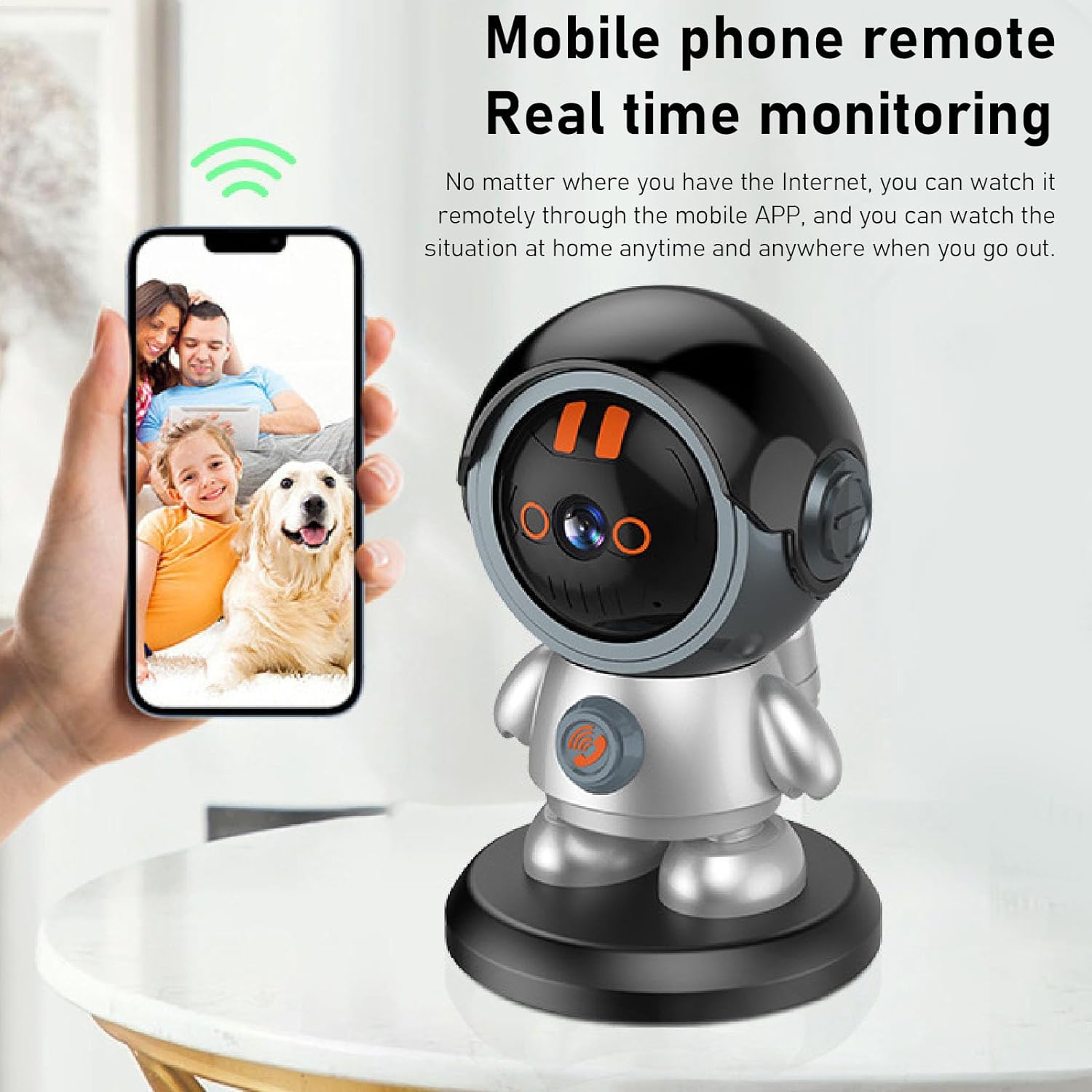
Figure 3: A mobile phone displaying a live feed from the camera, demonstrating remote monitoring capabilities.
4.2 Two-Way Talk
The camera supports two-way audio communication. You can speak through the app and have your voice transmitted through the camera's speaker, and hear audio from the camera's microphone.
- Initiating a Call: Press the call button located on the camera's body to initiate a call to the paired mobile device.
- Speaking via App: Within the live view interface of the app, locate and tap the microphone icon to speak.

Figure 4: A child interacting with the camera's one-key call button, enabling easy communication.
4.3 Motion Detection and Alerts
The camera is equipped with intelligent motion detection. When movement is detected, the camera can send push notifications to your mobile device and initiate recording.
- Enabling Detection: Access the camera settings in the app to enable or disable motion detection and adjust sensitivity levels.
- Alert Notifications: Ensure app notifications are enabled on your mobile device to receive timely alerts.

Figure 5: A mobile phone displaying an alert notification for detected humanoid movement, indicating the camera's AI tracking capabilities.
4.4 Night Vision
The camera automatically switches to infrared night vision mode in low-light conditions, providing clear surveillance footage even in complete darkness.
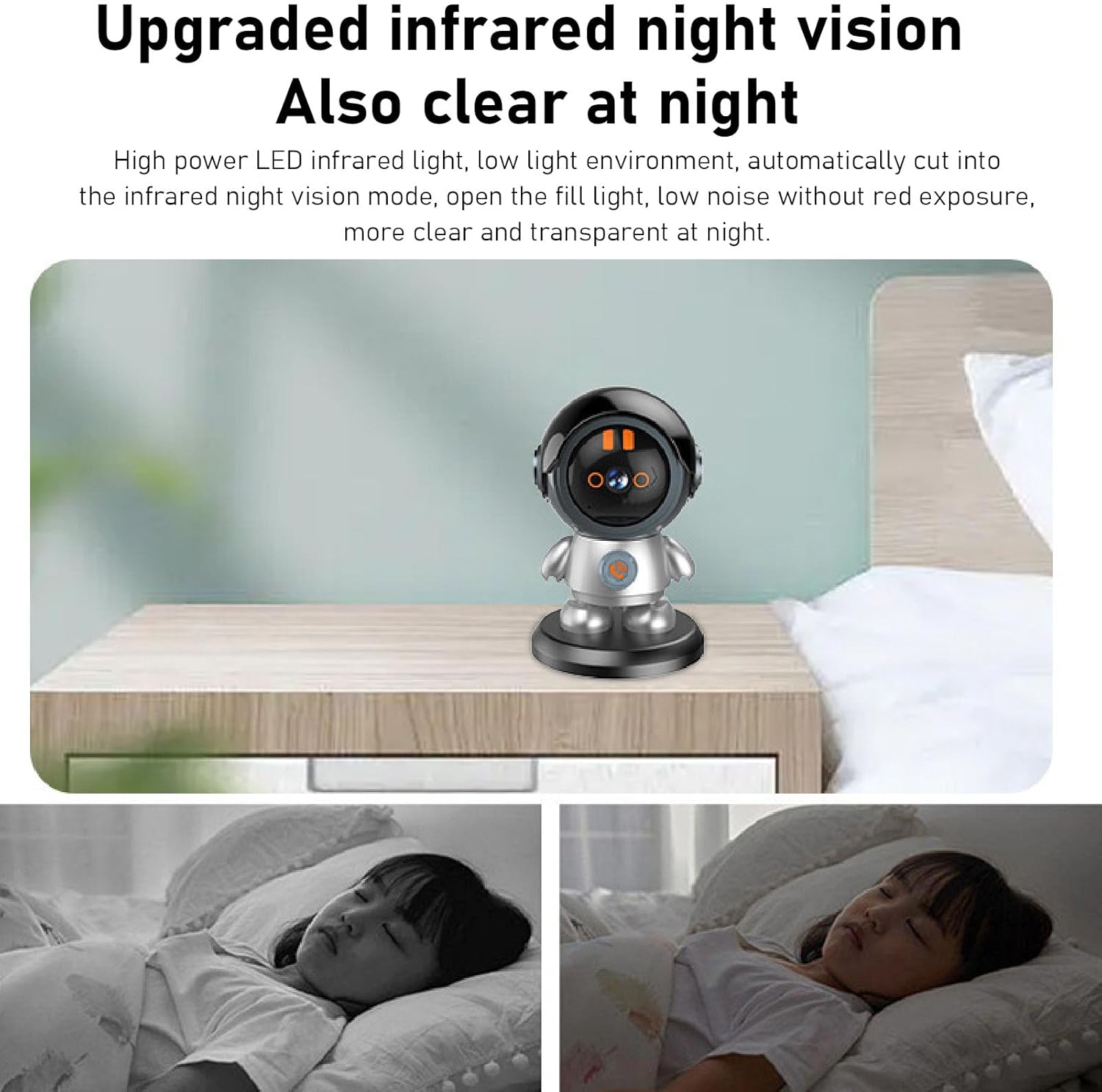
Figure 6: Comparison of a room in daylight and the clear image provided by the camera's infrared night vision in darkness.
4.5 Camera Rotation (Pan/Tilt)
The camera offers a 355-degree horizontal rotation and 90-degree vertical tilting movement, allowing you to adjust the viewing angle remotely through the app.
- Within the app's live view, use the directional controls to pan (rotate horizontally) and tilt (rotate vertically) the camera lens.

Figure 7: Diagram illustrating the camera's 360-degree horizontal and 60-degree vertical rotation capabilities.
4.6 Sharing Access
You can share camera access with family members or other trusted individuals through the mobile application, allowing multiple users to view the live feed simultaneously.
- Navigate to the sharing options within the app and follow the instructions to invite others to view your camera feed.

Figure 8: Multiple devices (laptop, tablet, smartphone) simultaneously displaying the camera's live feed, illustrating the sharing feature.
5. Maintenance
5.1 Cleaning
To maintain optimal performance, periodically clean the camera lens and body. Use a soft, dry cloth. Avoid abrasive cleaners or solvents that could damage the camera's surface or lens.
5.2 Software Updates
Regularly check the mobile application for firmware updates for your camera. Updates often include performance improvements, new features, and security enhancements. Follow the in-app instructions for any available updates.
6. Troubleshooting
- Camera not connecting to Wi-Fi: Ensure your Wi-Fi network is 2.4GHz. Check Wi-Fi signal strength at the camera's location. Restart the camera and your router. Re-attempt the pairing process.
- No video feed: Verify the camera is powered on and connected to Wi-Fi. Check your internet connection. Restart the app.
- Motion detection not working: Ensure motion detection is enabled in the app settings. Adjust sensitivity. Check the detection zone settings.
- Two-way audio issues: Check microphone and speaker permissions for the app on your phone. Ensure camera's microphone and speaker are not obstructed.
- Poor image quality: Ensure the camera lens is clean. Check your internet speed, as low bandwidth can affect streaming quality.
7. Specifications
| Feature | Specification |
|---|---|
| Brand | Goshyda |
| Model Name | GOSHYDAdgw1gem2tx |
| Video Capture Resolution | 1080p |
| Wireless Communication Technology | Wi-Fi (2.4GHz) |
| Connectivity Protocol | Wi-Fi |
| Special Feature | Motion Sensor, Night Vision, Two-Way Audio |
| Mounting Type | Wall Mount |
| Controller Type | Android, iOS (Smartphone App) |
| Material | Plastic |
| Item Weight | 12.8 ounces |
| International Protection Rating | IP65 |
| Focus Type | Auto Focus |
| Video Capture Format | MP4 |
8. Warranty and Support
Your Goshyda 1080P Robot Camera is covered by a standard manufacturer's warranty. For specific warranty details, please refer to the warranty card included in your package or contact Goshyda customer support. For technical assistance or further inquiries, please visit the official Goshyda website or contact their customer service department.