
1. Introduction
The Pyle PFA540BT.6 is a compact 5-channel audio amplifier designed for home theater systems. It delivers 100 watts of peak power, offering a robust audio experience. This amplifier features wireless Bluetooth streaming, multiple input options including HDMI and AUX, an FM radio tuner, and a dedicated subwoofer output. Its user-friendly controls and versatile connectivity make it suitable for enhancing various audio setups.

The Pyle PFA540BT.6 amplifier enhances your home entertainment system, providing powerful audio for movies, music, and more.
2. Safety Instructions
- Power Source: Ensure the amplifier is connected to a 110/220V power outlet using the provided 12V power adapter. Do not use other adapters.
- Ventilation: Place the unit in a well-ventilated area. Do not block ventilation openings.
- Water and Moisture: Keep the unit away from water, moisture, and high humidity environments.
- Heat Sources: Avoid placing the unit near heat sources such as radiators, heat registers, stoves, or other heat-producing appliances.
- Cleaning: Disconnect power before cleaning. Use a dry cloth. Do not use liquid cleaners.
- Servicing: Do not attempt to service this product yourself. Refer all servicing to qualified service personnel.
3. What's in the Box
Verify that all items are present in the packaging:
- Compact Amplifier (PFA540BT.6)
- Remote Control
- 12V Power Adapter
- FM Antenna

Illustration of the items included in the PFA540BT.6 package.
4. Product Overview
4.1 Front Panel Controls
The front panel provides access to essential controls and the digital LED display.
- Standby Button: Powers the unit on or off.
- Tuner +/- Buttons: Adjusts FM radio frequency.
- Surround Button: Activates or deactivates surround sound mode.
- Mute Button: Mutes or unmutes the audio output.
- Input Button: Cycles through available audio input sources (Bluetooth, AUX, HDMI).
- Volume Control Knob: Adjusts the master volume level.
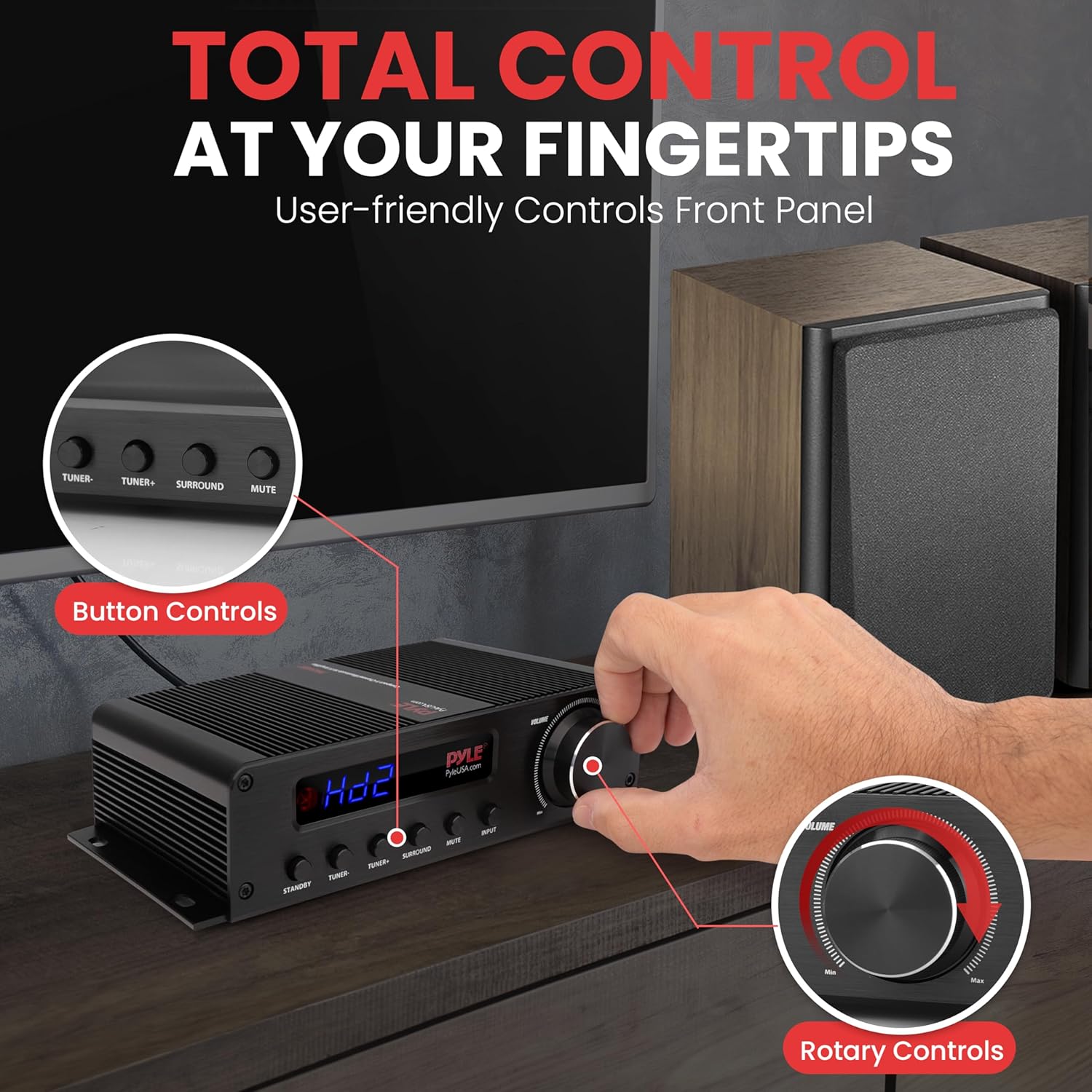
Front panel controls for easy operation of the amplifier.
4.2 Rear Panel Connections
The rear panel houses all input and output ports for connecting your audio and video devices.
- DC Input (12V): Connect the provided power adapter.
- Speaker Terminals: Spring-loaded connectors for Front (FL/FR), Center (CEN), Surround (SL/SR) speakers.
- SW OUT (Subwoofer Output): RCA output for connecting an active subwoofer.
- AUDIO INPUT (AUX RCA L/R): RCA inputs for external audio sources.
- FM ANT: Connection for the FM antenna.
- HDMI Inputs (1, 2): Connect HDMI source devices.
- HDMI Output: Connect to a display device (TV, projector).

Rear panel connections for various audio and video devices.
5. Setup Instructions
- Speaker Connection: Connect your passive speakers to the spring-loaded speaker terminals on the rear panel. Ensure correct polarity (+ to + and - to -) for each speaker (Front Left, Front Right, Center, Surround Left, Surround Right).
- Subwoofer Connection: If using an active subwoofer, connect its RCA input to the 'SW OUT' RCA port on the amplifier.
- Audio Source Connection:
- HDMI Devices: Connect your HDMI source devices (e.g., Blu-ray player, game console) to the HDMI Inputs (1 or 2).
- Analog Devices: Connect devices with RCA outputs (e.g., CD player, audio mixer) to the 'AUDIO INPUT' (AUX RCA L/R) ports.
- Display Connection: Connect your TV or projector to the HDMI Output port on the amplifier.
- FM Antenna Connection: Connect the included FM antenna to the 'FM ANT' port for radio reception. Extend the antenna for better signal.
- Power Connection: Connect the 12V power adapter to the 'DC INPUT' port on the amplifier, then plug the adapter into a wall outlet.
6. Operating Instructions
6.1 Power On/Off
Press the Standby button on the front panel or remote control to turn the amplifier on or off.
6.2 Input Selection
Press the Input button on the front panel or remote control to cycle through the available audio sources: Bluetooth, AUX, HDMI 1, HDMI 2, and FM.
6.3 Volume Adjustment
Rotate the large Volume knob on the front panel or use the volume +/- buttons on the remote control to adjust the master volume level.
6.4 Bluetooth Streaming
- Press the Input button until 'Bluetooth' mode is selected. The display will show 'BLUE'.
- On your Bluetooth-enabled device (smartphone, tablet, computer), search for available Bluetooth devices.
- Select 'PyleUSA' from the list of devices to pair.
- Once connected, you can stream audio wirelessly from your device to the amplifier.

Connect your favorite devices wirelessly via Bluetooth 4.0 for hassle-free music streaming.
6.5 FM Radio Operation
- Press the Input button until 'FM' mode is selected.
- Use the Tuner +/- buttons on the front panel or remote to manually scan for radio stations.
- For best reception, adjust the position of the FM antenna.
6.6 Surround Sound
Press the Surround button to toggle the surround sound effect on or off, optimizing the audio for your listening preference.
This video demonstrates the features and functionality of the Pyle PFA540BT.6 amplifier, including its various inputs and controls.
7. Maintenance
- Cleaning: Use a soft, dry cloth to clean the exterior of the amplifier. Do not use abrasive cleaners, waxes, or solvents.
- Ventilation: Periodically check that the ventilation openings are clear of dust and debris to prevent overheating.
- Power Cord: Inspect the power cord regularly for any damage. If damaged, discontinue use and replace with an authorized Pyle adapter.
8. Troubleshooting
| Problem | Possible Cause | Solution |
|---|---|---|
| No power | Power adapter not connected; Power outlet not active; Unit is in standby. | Ensure power adapter is securely connected and plugged into a working outlet. Press the Standby button. |
| No sound output | Incorrect input selected; Volume too low; Speakers not connected properly; Mute function active. | Select the correct input source. Increase volume. Check speaker connections and polarity. Deactivate Mute. |
| Bluetooth not connecting | Amplifier not in Bluetooth mode; Device not discoverable; Already connected to another device. | Ensure amplifier is in Bluetooth mode ('BLUE' on display). Make sure your device's Bluetooth is on and discoverable. Disconnect from other devices. |
| Poor FM reception | Antenna not connected or poorly positioned. | Connect the FM antenna securely. Adjust its position for optimal signal reception. |
| Remote control not working | Batteries are dead or inserted incorrectly; Obstruction between remote and unit. | Replace batteries (2 x 'AAA'). Ensure line of sight to the amplifier's IR receiver. |
9. Specifications
| Power Output: | 100 Watt MAX (5x20W) |
| Channels: | 5.1 Channel |
| Bluetooth Version: | 4.0 |
| Bluetooth Network Name: | 'PyleUSA' |
| HDMI Support: | 2160p |
| Construction Material: | Metal, Aluminum Alloy |
| Power: | 110/220V (12V Power Adapter) |
| Dimensions (L x W x H): | 8.0'' x 5.8'' x 2.0'' inches |
| Item Weight: | 1.54 pounds |
10. Warranty and Support
Pyle products are designed for reliability and performance. For specific warranty information, please refer to the warranty card included with your purchase or visit the official PyleUSA website. For technical support or service inquiries, please contact Pyle customer service through their official channels.


