1. Introduction
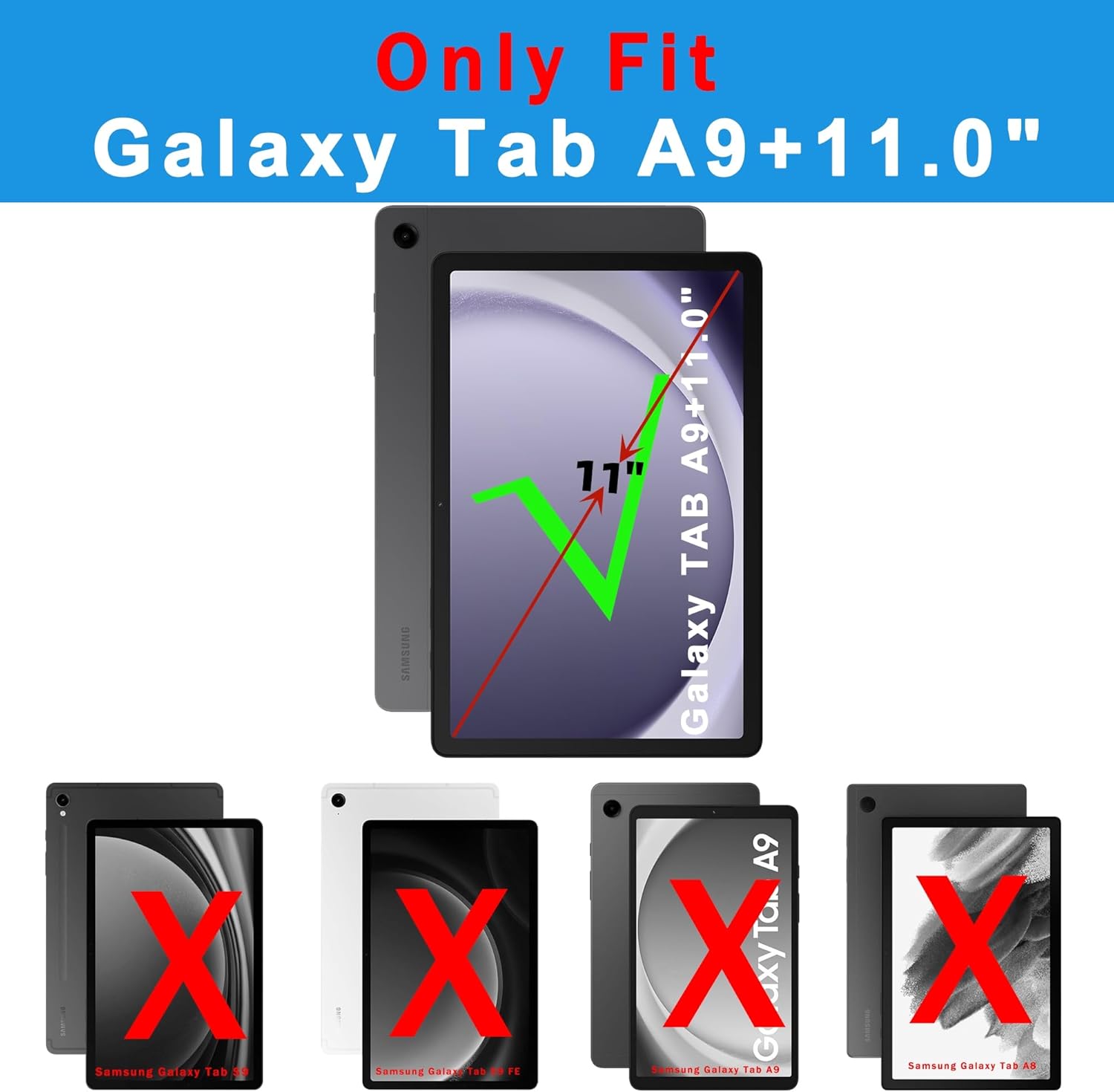
This manual provides detailed instructions for the SNOODU Keyboard Case designed for the Samsung Galaxy Tab A9+ Plus 11-inch (Models: SM-X210/X216/X218). This accessory integrates a wireless keyboard with a multi-touch trackpad, 7-color backlit keys, and a protective folio cover with a pen holder and kickstand, enhancing your tablet's functionality.
2. Package Contents
Please verify that all items are present in your package:
- Wireless Keyboard Case for Samsung Tab A9+ 11-inch
- USB-C Charging Cable
- User Manual (this document)
3. Product Specifications
| Feature | Specification |
|---|---|
| Compatible Devices | Samsung Galaxy Tab A9+ A9 Plus 11.0" (SM-X210/X216/X218) |
| Connectivity Technology | Bluetooth |
| Keyboard Type | Wireless, Flexible, US Layout |
| Special Features | Backlit (7 colors, 3 brightness levels), Hotkeys, Media Keys, Portable, Rechargeable, Multi-touch Trackpad, S Pen Holder, Adjustable Kickstand, Auto Sleep/Wake |
| Keyboard Backlighting | RGB (7 colors) |
| Battery | 1 Lithium Polymer battery (included) |
| Material | Acrylonitrile Butadiene Styrene (ABS) |
| Item Weight | 1.63 pounds |
| Manufacturer | SNOODU |
4. Setup Instructions
4.1 Installing Your Tablet
- Gently align your Samsung Galaxy Tab A9+ 11-inch with the case.
- Press the tablet firmly into the protective frame of the case until it is securely seated. Ensure all ports and buttons are accessible through the precise cutouts.
4.2 Charging the Keyboard
Before initial use, fully charge the keyboard.
- Locate the USB-C charging port on the keyboard.
- Connect the provided USB-C cable to the keyboard's charging port and the other end to a USB power adapter (not included).
- The charging indicator light will illuminate. Once fully charged, the light will change or turn off.
4.3 Bluetooth Pairing
To connect the keyboard to your Samsung Galaxy Tab A9+:
- Ensure the keyboard is charged and powered on. The power switch is typically located on the side of the keyboard.
- On your Samsung Galaxy Tab A9+, go to Settings > Connected devices > Bluetooth.
- Turn on Bluetooth on your tablet.
- Press the Connect button on the keyboard (often a dedicated Bluetooth pairing button or a combination like Fn + C). The Bluetooth indicator light on the keyboard will start blinking.
- On your tablet, select the detected keyboard (e.g., "Bluetooth Keyboard") from the list of available devices.
- Follow any on-screen prompts to complete the pairing process. Once paired, the Bluetooth indicator light on the keyboard will stop blinking.

5. Operating Instructions
5.1 Keyboard Functions
- Typing: Use the keyboard for comfortable and accurate text input.
- Shortcut Keys: The keyboard includes a full row of Android OS shortcut keys for quick access to common functions.
- Backlight Control: Press Fn + Enter to cycle through 7 backlight colors. Press Fn + Alt (or a similar key combination, refer to keyboard markings) to adjust the 3 brightness levels.

Video 1: Demonstrates how to change the 7 backlight colors and 3 brightness levels on the keyboard.
5.2 Trackpad Usage
The multi-touch trackpad allows for precise navigation and gesture control, similar to a laptop.
- Single Finger Tap: Left-click.
- Two Finger Tap: Right-click (context menu).
- Two Finger Scroll: Scroll up or down.
- Pinch to Zoom: Use two fingers to zoom in or out.
- Multi-gesture Control: Refer to your tablet's settings for additional trackpad gestures.
Video 2: Shows the multi-function trackpad in use, demonstrating navigation and interaction with the tablet interface.
5.3 Adjustable Stand
The integrated kickstand allows for multiple viewing angles (105° to 180°).
- Gently unfold the back panel of the case to create a stable stand.
- Adjust the angle to your preference for typing, viewing, or drawing.

5.4 S Pen Holder
The case includes a dedicated slot for your S Pen, ensuring it is securely stored and accessible. The design accommodates both magnetic attachment and charging on the tablet's side or back.

5.5 Auto Sleep/Wake Function
The case supports the tablet's auto sleep/wake feature. Closing the case will put the tablet to sleep, and opening it will wake the tablet, conserving battery life.

6. Maintenance
- Cleaning: Wipe the case and keyboard with a soft, damp cloth. Avoid harsh chemicals or abrasive materials.
- Storage: When not in use for extended periods, ensure the keyboard is turned off and stored in a cool, dry place.
- Battery Care: To prolong battery life, avoid fully discharging the keyboard frequently. Charge it regularly.
7. Troubleshooting
- Keyboard not connecting:
- Ensure the keyboard is charged and powered on.
- Verify Bluetooth is enabled on your tablet.
- Re-attempt the Bluetooth pairing process (Section 4.3).
- Restart both the tablet and the keyboard.
- Keys not responding:
- Check if the keyboard is properly connected via Bluetooth.
- Ensure the keyboard battery is not depleted.
- Clean any debris from around the keys.
- Trackpad not working:
- Ensure the keyboard is connected.
- Check tablet settings for trackpad functionality.
- Clean the trackpad surface.
- Backlight not changing colors/brightness:
- Ensure the keyboard is powered on.
- Confirm correct key combinations are being used (Fn + Enter for color, Fn + Alt for brightness).
8. Warranty and Support
For warranty information or technical support, please refer to the product packaging or contact SNOODU customer service through the retailer where the product was purchased. Keep your purchase receipt for warranty claims.


