
Introduction
This user manual provides comprehensive instructions for the ROOFEI Keyboard Case designed for the Samsung Galaxy Tab A9+ 11-inch (SM-X210/X216/X218). This product transforms your tablet into a versatile laptop-like device, enhancing productivity and portability. Please read this manual thoroughly before use to ensure proper operation and maintenance.
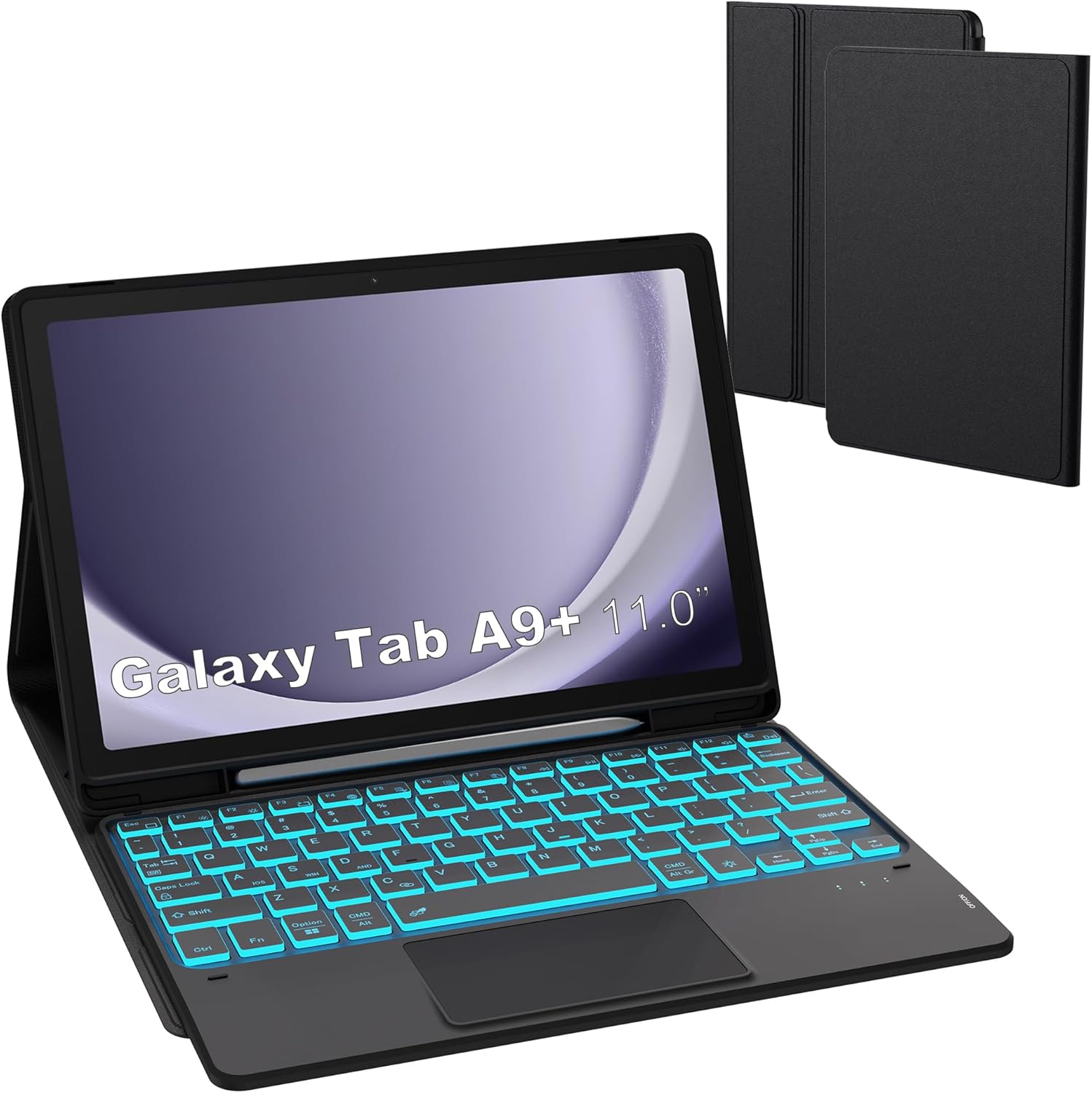
Image: The ROOFEI Keyboard Case with a Samsung Galaxy Tab A9+ inserted, showcasing the backlit keyboard and integrated touchpad.
Package Contents
Verify that all items are present in the package:
- 1 x Backlit Keyboard Case for Samsung Galaxy Tab A9+ / A9 Plus 5G 11 inch
- 1 x Type-C Charger Cable
- 1 x User Manual
Setup Guide
1. Tablet Installation
Carefully insert your Samsung Galaxy Tab A9+ 11-inch tablet into the protective case. Ensure the tablet is securely seated within the TPU protective shell, aligning with all cutouts for ports, buttons, and the camera.

Image: Compatibility diagram, confirming the case is exclusively designed for the Galaxy Tab A9+ 11-inch (SM-X210/X216/X218).
2. Keyboard Charging
Before initial use, fully charge the keyboard using the provided Type-C charger cable. Connect the cable to the keyboard's charging port and a compatible USB power source. The charging indicator light will provide status.

Image: Detail showing the Type-C charging port on the keyboard and the integrated S Pen holder.
3. Bluetooth Pairing
Follow these steps to pair the keyboard with your tablet:
- Ensure the keyboard is charged and powered on by toggling the switch to "ON".
- On the keyboard, press and hold the Fn + C keys simultaneously for 3 seconds to enter Bluetooth pairing mode. The Bluetooth indicator light will flash.
- On your Samsung Galaxy Tab A9+, go to Settings > Connected devices > Bluetooth and turn Bluetooth on.
- Select "Wireless Keyboard" from the list of available devices to connect. The indicator light on the keyboard will stop flashing once successfully paired.

Image: Visual guide for Bluetooth pairing, showing the keyboard's power switch, Fn+C key combination, and tablet Bluetooth settings.
Operating Instructions
1. Detachable Keyboard Functionality
The keyboard is magnetically attached to the case, allowing for flexible use. You can easily detach it for handheld tablet use or reattach it for a laptop-like experience. The strong magnetic connection ensures stability during typing.

Image: Illustration of the keyboard's magnetic detachment feature, highlighting its versatility.
2. Multi-Touch Trackpad
The integrated multi-touch trackpad supports various gestures for precise control and navigation, eliminating the need for an external mouse. Utilize multi-finger functions for enhanced efficiency, similar to a laptop trackpad.

Image: A user demonstrating the use of the multi-touch trackpad for navigation.
3. 7-Color Backlit Keyboard
The keyboard features 7 vibrant backlight colors and 3 adjustable brightness levels. This allows for comfortable typing in various lighting conditions, including low-light environments.
- To change backlight colors: Press Fn +
 (light bulb icon) to cycle through colors.
 - To adjust brightness: Press Fn + (sun icon) to cycle through brightness levels.
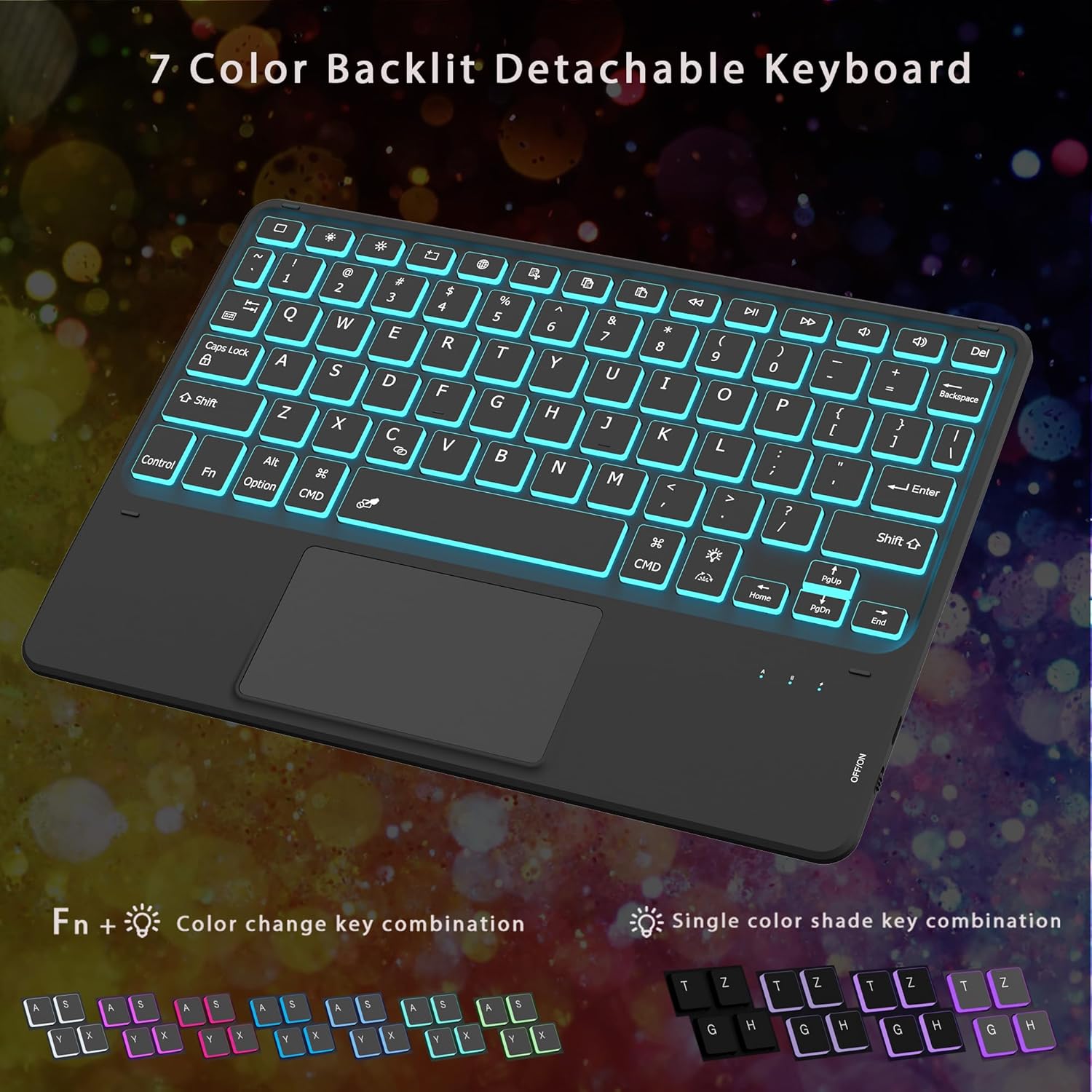
Image: The keyboard illuminated with different backlight colors, demonstrating the customizable lighting options.
4. Multi-Viewing Stand
The case features a built-in stand with three adjustable angles (120°, 125°, 135°), allowing you to set your tablet at the most comfortable viewing or typing position. This design supports both laptop mode and media viewing.
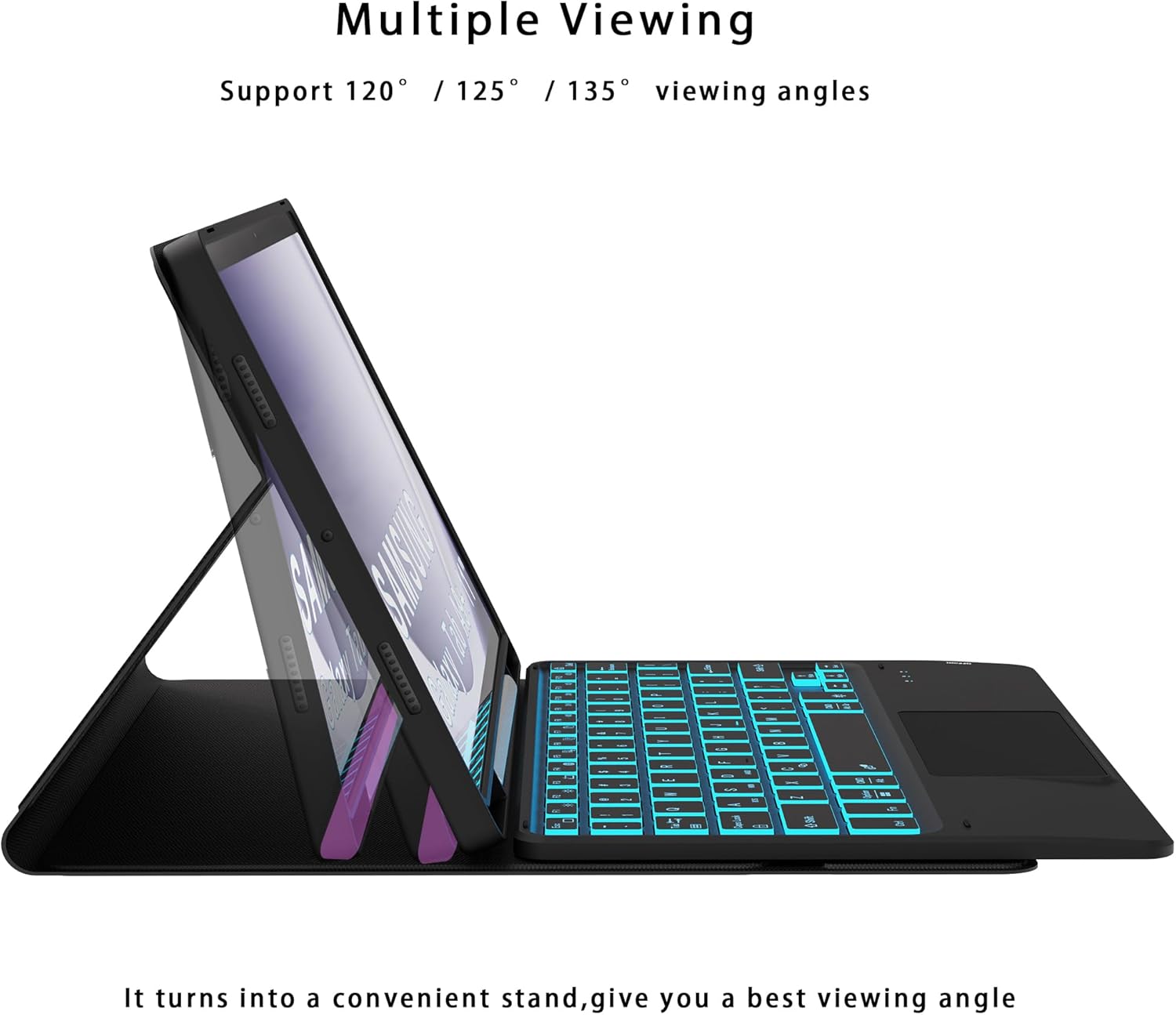
Image: The tablet case configured as a stand, illustrating the multiple viewing angles supported.
5. S-Pen Holder
A dedicated pencil slot is integrated into the case, providing a secure and convenient storage location for your S-Pen, preventing loss and ensuring it's always accessible.
Maintenance
1. Cleaning
To clean the keyboard and case, use a soft, damp cloth. Avoid using harsh chemicals or abrasive materials that could damage the surfaces. Ensure the keyboard is powered off before cleaning.
2. Battery Care
To prolong the keyboard's battery life:
- Charge the keyboard fully before first use.
- Avoid completely draining the battery frequently.
- Store the keyboard in a cool, dry place when not in use for extended periods.
- The keyboard has a battery capacity of 750 mAh, fully charges in 2 hours, offers over 200 available times, and can standby for 3 months (over 90 days). Continuous use is rated for over 6 hours.
Troubleshooting
If you encounter issues with your ROOFEI Keyboard Case, please refer to the following common solutions:
- Keyboard Not Connecting/Pairing:
- Ensure the keyboard is fully charged.
- Verify the keyboard's power switch is "ON".
- Make sure Bluetooth is enabled on your tablet.
- Try unpairing and re-pairing the keyboard from your tablet's Bluetooth settings.
- Restart both the tablet and the keyboard.
- Keys Not Responding/Trackpad Issues:
- Check Bluetooth connection.
- Ensure the keyboard battery is not low.
- Clean the trackpad surface if it's unresponsive.
- Backlight Not Working/Changing:
- Ensure the keyboard is powered on.
- Press Fn + to cycle through colors and brightness.
If these steps do not resolve the issue, please contact customer support.
Specifications
| Feature | Detail |
|---|---|
| Brand | ROOFEI |
| Compatible Devices | Galaxy Tab A9 Plus 11 Inch 2023 (SM-X210/X216/X218) Tablet |
| Connectivity Technology | Bluetooth |
| Keyboard Description | Multi Functional |
| Recommended Uses | Business, Education, Everyday Use, Personal, Student |
| Special Features | Backlit, Integrated Stand, Rechargeable, Trackpad |
| Color | Black |
| Number of Keys | 75 |
| Keyboard Backlighting | RGB (7 Colors) |
| Battery Type | 1 Lithium Polymer battery (included) |
| Battery Capacity | 750 mAh |
| Charging Time | 2 hours |
| Standby Time | 3 months (>90 days) |
| Continuous Use Time | >6 hours |
| Key Life | >300 million times |
| Item Weight | 1.72 pounds |
| Package Dimensions | 11.3 x 8.43 x 1.22 inches |
| Manufacturer | ROOFEI |
| Date First Available | October 13, 2023 |
Warranty and Support
ROOFEI provides dedicated customer support for this product. While specific warranty terms are not detailed in this manual, we offer a 24/7 email service for any questions or concerns you may have regarding your keyboard case.
For assistance, please contact us via the email address provided on the product packaging or through your purchase platform.