
1. Introduction
This manual provides detailed instructions for setting up, operating, maintaining, and troubleshooting your HP OfficeJet Pro 9720 Wide Format All-in-One Printer. This device is designed to handle a variety of tasks including printing, scanning, and copying, with features such as wide format printing up to A3/11x17 inches, automatic document feeding, and automatic duplexing for enhanced productivity.

Figure 1.1: Front view of the HP OfficeJet Pro 9720 printer, showing the main body and paper trays.
2. Safety Information
Please read all safety instructions before using the printer to prevent injury or damage to the device. Keep this manual for future reference.
- Always connect the printer to a grounded power outlet.
- Do not place the printer in a location where it can be exposed to water or excessive humidity.
- Avoid blocking ventilation openings.
- Use only the power cord supplied with the printer.
- Do not attempt to service the printer yourself. Refer all servicing to qualified service personnel.
3. Setup
3.1 Unboxing and Placement
Carefully remove the printer from its packaging. Remove all protective tapes and packing materials. Place the printer on a stable, flat surface with adequate space around it for ventilation and access to connections.
3.2 Power Connection
Connect the power cord to the printer's power port and then to a wall outlet. Do not use extension cords or power strips if possible, or ensure they are rated for the printer's power requirements.

Figure 3.1: Rear view of the printer, highlighting the power input and connectivity ports (USB, Ethernet).
3.3 Ink Installation
Open the ink cartridge access door. Follow the on-screen instructions on the printer's touchscreen to install the ink bottles into their respective color tanks. Ensure each bottle is fully inserted and the ink flows into the tank. Close the access door once all ink is installed.
3.4 Paper Loading
Open the main input tray. Adjust the paper guides to fit the paper size you are loading. Load up to 250 sheets of plain paper or other supported media. For wide format printing, ensure the paper is correctly aligned in the designated tray.
3.5 Software Installation
For full functionality, download and install the latest printer drivers and software from the official HP support website. This will enable wireless printing, scanning to computer, and access to advanced features.
4. Operating the Printer
4.1 Touchscreen Navigation
The HP OfficeJet Pro 9720 features an intuitive touchscreen display for easy operation. Tap icons to select functions like Print, Scan, or Copy. Swipe to navigate through menus and settings.
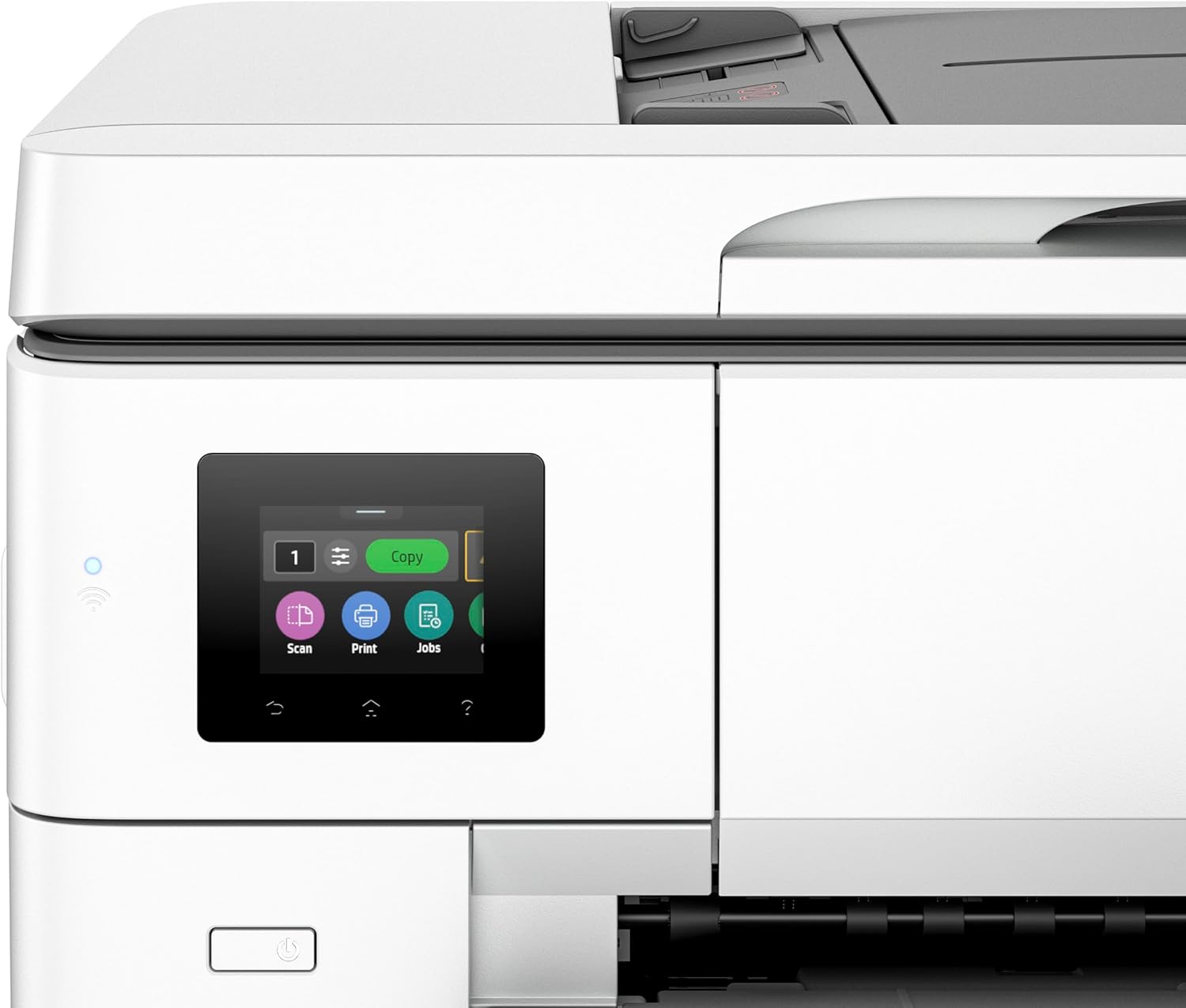
Figure 4.1: Close-up view of the printer's touchscreen display, showing various function icons.
4.2 Printing
To print, ensure the printer is connected to your device (via Wi-Fi, USB, or Ethernet). Select the print option from your application. Choose the HP OfficeJet Pro 9720 as your printer. Adjust settings such as paper size (including wide format up to A3/11x17"), print quality, and duplex (two-sided) printing as needed. The printer supports speeds of up to 22 ppm for black and white and 18 ppm for color.
4.3 Scanning
The printer supports both flatbed and automatic document feeder (ADF) scanning. For single pages or delicate items, use the flatbed scanner. For multiple pages, load them into the ADF. Select the 'Scan' option on the touchscreen or from your computer's HP Smart software. Choose scan destination (e.g., computer, email, network folder) and desired settings (resolution, color/grayscale).

Figure 4.2: Top view of the printer with the scanner lid open, revealing the flatbed scanner glass and document guides.
4.4 Copying
Place the document on the scanner glass or in the ADF. Select 'Copy' on the touchscreen. Adjust settings such as number of copies, copy quality, and whether to copy in color or black and white. Press 'Start' to begin copying.
4.5 Wireless Connectivity
The printer features dual-band, self-healing Wi-Fi for reliable wireless connection. To connect, navigate to the 'Wireless' or 'Network' settings on the touchscreen, select your Wi-Fi network, and enter the password. The printer can also be connected via USB or Ethernet.
5. Maintenance
5.1 Cleaning the Printer
Regularly clean the exterior of the printer with a soft, damp, lint-free cloth. For the scanner glass, use a glass cleaner applied to the cloth (not directly to the glass) to avoid streaks. Do not use abrasive cleaners.
5.2 Replacing Ink Cartridges
The printer uses ink bottles for refilling. When an ink tank is low, the printer will notify you. Purchase genuine HP ink bottles. Open the ink tank cover, open the cap of the corresponding color tank, and carefully pour the new ink into the tank until it reaches the fill line. Close the cap and cover securely.
5.3 Clearing Paper Jams
If a paper jam occurs, the printer's touchscreen will display instructions on how to clear it. Typically, this involves opening access doors and carefully pulling out jammed paper in the direction of the paper path. Ensure all torn pieces of paper are removed to prevent further jams.
6. Troubleshooting
This section addresses common issues you might encounter with your HP OfficeJet Pro 9720 printer.
| Problem | Possible Solution |
|---|---|
| Printer not responding | Check power connection, ensure printer is on, verify network connection (Wi-Fi/USB/Ethernet), restart printer and computer. |
| Poor print quality | Check ink levels, perform printhead cleaning from printer settings, ensure correct paper type is selected, use genuine HP ink. |
| Paper not feeding | Ensure paper is loaded correctly and paper guides are adjusted, check for paper jams, clean paper rollers if necessary. |
| Wireless connection issues | Restart printer and router, ensure printer is within Wi-Fi range, re-enter Wi-Fi password on printer, check for router interference. |
For more complex issues, refer to the HP support website or contact HP customer support.
7. Specifications
Key technical specifications for the HP OfficeJet Pro 9720 Wide Format All-in-One Printer:
- Model Name: 9720
- Model Number: 53N94C
- Functions: Print, Scan, Copy
- Print Technology: Thermal Inkjet
- Connectivity: Wi-Fi (Dual-band, self-healing), USB, Ethernet
- Maximum Print Speed (Black): Up to 22 ppm
- Maximum Print Speed (Color): Up to 18 ppm
- Maximum Print Resolution: 1200 x 1200 dpi (Black & Color)
- Maximum Media Size: Up to A3/11x17 inches (Wide Format)
- Input Capacity: Up to 250 sheets
- Scanner Type: Flatbed, Sheetfed (ADF)
- Special Features: Auto Document Feeder, Auto Duplex Printing, Touchscreen, Quiet Mode
- Item Dimensions (D x W x H): 40D x 47W x 23H centimeters
- Item Weight: 19.5 Kilograms
- Included Components: Ink Bottles
8. Warranty and Support
8.1 Warranty Information
The HP OfficeJet Pro 9720 printer comes with a 2 Years Onsite Warranty with 1-1 Exchange. Please retain your proof of purchase for warranty claims. For detailed terms and conditions, refer to the warranty documentation included with your product or visit the official HP support website.
8.2 Customer Support
For technical assistance, product registration, or to find drivers and software updates, please visit the official HP support website. You can also find contact information for HP customer service in your region on their website.
HP Support Website: https://support.hp.com