
1. Introduction
Welcome to the user manual for your new POWMUS Android 14 Tablet, Model L211. This guide provides essential information to help you set up, operate, maintain, and troubleshoot your device. Your tablet is equipped with the latest Android 14 OS, an Octa-Core processor, 24GB RAM, 128GB internal storage (expandable up to 1TB), a vibrant 10.1-inch HD IPS display with Widevine L1 support, an 8000mAh battery, and Wi-Fi 6 connectivity. Please read this manual thoroughly to ensure optimal performance and longevity of your tablet.
2. What's in the Box
Upon unboxing your POWMUS Android 14 Tablet, please verify that all the following items are included:
- POWMUS Android 14 Tablet (Model L211)
- Bluetooth Keyboard
- Wireless Mouse (with USB receiver)
- Power Adapter
- USB Type-C Cable
- OTG Adapter
- Stylus Pen
- User Manual (this document)

Image: The POWMUS Android 14 Tablet displayed with its full set of accessories, including the keyboard, mouse, power adapter, USB-C cable, OTG adapter, and stylus pen.
3. Product Overview
Familiarize yourself with the physical components of your tablet:
- Front Camera: Located at the top center when held vertically, used for video calls and selfies. (5MP)
- Display: 10.1-inch HD IPS touchscreen.
- Power Button: On the side, used to turn the tablet on/off or wake/sleep the screen.
- Volume Buttons: Adjacent to the power button, for adjusting audio levels.
- USB Type-C Port: For charging and data transfer.
- Headphone Jack: Standard 3.5mm port for audio output.
- SIM/TF Card Slot: For inserting a TF (microSD) card to expand storage.
- Rear Camera: Located on the back, used for taking photos and videos. (8MP)
- Speakers: Dual stereo speakers for enhanced audio experience.

Image: A detailed view of the POWMUS tablet highlighting the positions of the 8MP rear camera, flashlight, headphone jack, power button, volume buttons, reset button, SIM/TF card slot, Type-C port, and speakers.
4. Setup
4.1 Initial Charging
Before first use, fully charge your tablet. Connect the provided USB Type-C cable to the tablet's charging port and the power adapter to a wall outlet. The battery indicator on the screen will show charging status. A full charge typically takes approximately 5 hours.
4.2 Power On/Off
- To Power On: Press and hold the Power button until the POWMUS logo appears.
- To Power Off: Press and hold the Power button until the power options menu appears, then select 'Power off'.
- To Sleep/Wake: Briefly press the Power button.
4.3 Initial Setup Wizard
Upon first power-on, the tablet will guide you through the initial setup process:
- Select your preferred language.
- Connect to a Wi-Fi network.
- Accept the terms and conditions.
- Sign in with your Google account or create a new one. This is essential for accessing the Google Play Store and other Google services.
- Set up screen lock (PIN, pattern, password, or Face Unlock).
- Review and adjust other settings as prompted.
4.4 Connecting Accessories
Your tablet comes with a Bluetooth keyboard and a wireless mouse for enhanced productivity.
- Bluetooth Keyboard: Turn on the keyboard and put it into pairing mode (refer to the keyboard's specific instructions, usually by pressing a 'Connect' button or a function key combination). On your tablet, go to Settings > Connected devices > Pair new device and select the keyboard from the list.
- Wireless Mouse: Insert the USB receiver into the OTG adapter, then plug the OTG adapter into the tablet's USB Type-C port. Ensure the mouse is powered on. The tablet should automatically detect the mouse.
- Stylus Pen: The stylus is a passive pen and does not require pairing. Simply use it directly on the screen for navigation or drawing.

Image: The POWMUS tablet set up with its accompanying Bluetooth keyboard and wireless mouse, demonstrating a complete workstation.
5. Operating System (Android 14) Basics
Your tablet runs on the Android 14 operating system, offering an intuitive and customizable user experience.
5.1 Navigation
- Home Screen: The central hub for your apps and widgets. Swipe left or right to access additional home screens.
- App Drawer: Swipe up from the bottom of the home screen to view all installed applications.
- Quick Settings & Notifications: Swipe down from the top of the screen to access notifications and quick settings toggles (Wi-Fi, Bluetooth, brightness, etc.).
- Recent Apps: Swipe up from the bottom of the screen and hold, then release to see recently used applications. Swipe left or right to dismiss an app, or swipe up on an app to close it.
5.2 Split Screen Functionality
Android 14 allows you to run two apps simultaneously in split-screen mode, enhancing multitasking capabilities.
- Open the first app you want to use.
- Go to the Recent Apps screen.
- Tap the app icon at the top of the app's card.
- Select 'Split screen'.
- Choose the second app from your app list or recent apps to fill the other half of the screen.

Image: The POWMUS tablet demonstrating its split-screen feature, allowing two applications to be viewed and interacted with simultaneously.
5.3 Face Unlock
For convenient and secure access, you can set up Face Unlock.
- Go to Settings > Security & privacy > Device unlock > Face Unlock.
- Follow the on-screen instructions to register your face.
Image: A user demonstrating the Face Unlock feature on the POWMUS tablet, highlighting its convenience for secure access.
6. Connectivity
6.1 Wi-Fi 6
Your tablet supports Wi-Fi 6 (802.11ax) for faster and more reliable wireless connections.
- Go to Settings > Network & internet > Internet.
- Turn on Wi-Fi.
- Select your desired network from the list and enter the password if required.
6.2 Bluetooth 5.0
Connect wireless headphones, speakers, or other Bluetooth devices.
- Go to Settings > Connected devices > Connection preferences > Bluetooth.
- Turn on Bluetooth.
- Ensure your device is in pairing mode and select it from the 'Available devices' list.
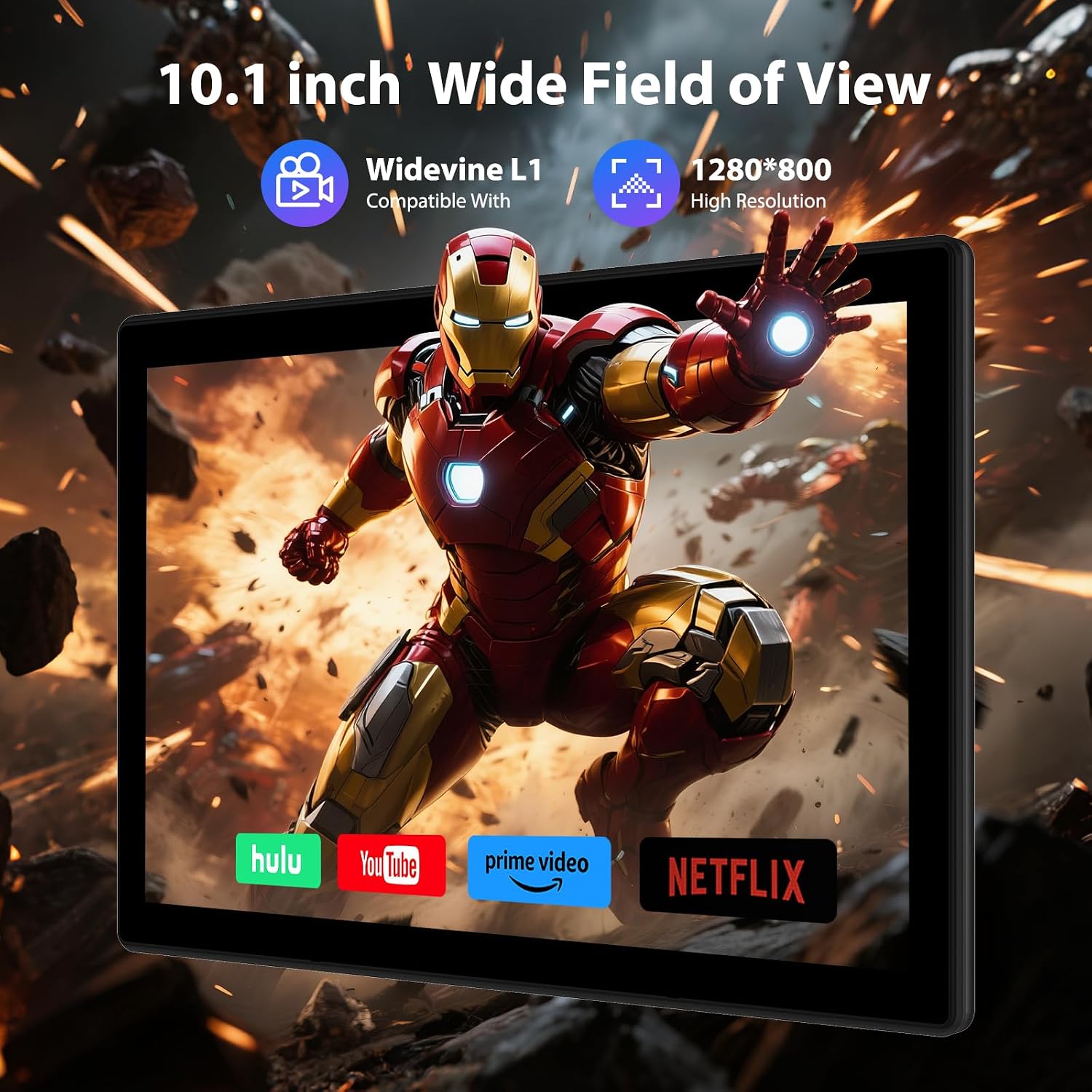
Image: Visual representation of the tablet's Wi-Fi 6 (5GHz/2.4GHz) and Bluetooth 5.0 capabilities, indicating fast and efficient wireless connections.
6.3 External Storage (TF Card)
Expand your tablet's storage up to 1TB using a TF (microSD) card (not included).
- Locate the SIM/TF card slot on the side of the tablet.
- Carefully insert the TF card into the slot until it clicks into place.
- The tablet will prompt you to set up the card (e.g., as portable storage or internal storage).

Image: A graphic illustrating the tablet's storage capabilities, featuring 128GB ROM and the option to expand up to 1TB using a TF card, alongside various media content.
7. Multimedia and Entertainment
7.1 Display Quality
The 10.1-inch HD IPS screen with 1280x800 resolution provides clear and vibrant visuals. With Widevine L1 certification, you can stream high-definition content from popular platforms like Netflix, Prime Video, and Hulu.

Image: The POWMUS tablet showcasing its 10.1-inch display with Widevine L1 compatibility and 1280x800 high resolution, ideal for streaming services.
7.2 Audio
Enjoy immersive sound with the tablet's dual stereo speakers, providing a rich audio experience for music, movies, and games.
7.3 Cameras
Capture moments with the tablet's dual cameras:
- Front Camera: 5 Megapixels, suitable for video calls and selfies.
- Rear Camera: 8 Megapixels, for general photography and video recording.
Image: Visuals highlighting the tablet's 5MP front camera and 8MP rear camera capabilities, suitable for various photographic needs.
8. Maintenance
Proper care will extend the life of your tablet.
- Cleaning: Use a soft, lint-free cloth to clean the screen and body. For stubborn smudges, slightly dampen the cloth with water or a screen cleaner. Avoid harsh chemicals.
- Battery Care: To maximize battery lifespan, avoid extreme temperatures. Do not let the battery drain completely regularly, and avoid keeping it at 100% charge for extended periods. The 8000mAh battery provides ample power for daily use.
- Software Updates: Regularly check for system updates in Settings > System > System update to ensure your tablet has the latest features and security patches.
- Storage Management: Periodically clear unnecessary files and uninstall unused apps to maintain optimal performance. You can check storage usage in Settings > Storage.
Image: The POWMUS tablet highlighting its substantial 8000mAh battery, designed for long-lasting power.
9. Troubleshooting
Here are solutions to common issues you might encounter:
- Tablet not turning on: Ensure the tablet is charged. Connect it to the charger for at least 30 minutes, then try powering it on again. If it still doesn't turn on, perform a forced restart by holding the power button for 10-15 seconds.
- Screen is unresponsive: If the screen freezes, press and hold the Power button for about 10 seconds to force a restart.
- Wi-Fi connection issues: Ensure Wi-Fi is enabled in settings. Restart your router and the tablet. Forget the network and reconnect.
- Slow performance: Close unused apps, clear cache, and free up storage space. Restart the tablet regularly. Consider a factory reset as a last resort (back up your data first).
- Apps crashing: Ensure apps are updated to their latest versions. Clear the app's cache and data in Settings > Apps > [App Name] > Storage & cache. Reinstall the app if the issue persists.
- Battery drains quickly: Reduce screen brightness, disable Wi-Fi/Bluetooth when not in use, close background apps, and limit location services. Check battery usage in Settings > Battery to identify power-hungry apps.
10. Specifications
| Feature | Specification |
|---|---|
| Brand | POWMUS |
| Model Name | L211 |
| Operating System | Android 14 |
| Processor | 2.0 GHz Octa-Core (Rockchip) |
| RAM | 24GB (8GB physical + 16GB virtual) |
| Internal Storage | 128GB |
| Expandable Storage | Up to 1TB via TF Card (not included) |
| Screen Size | 10.1 Inches |
| Display Resolution | 1280 x 800 pixels (HD IPS) |
| Widevine Certification | Widevine L1 |
| Front Camera | 5MP |
| Rear Camera | 8MP |
| Battery Capacity | 8000mAh |
| Charging Port | USB Type-C |
| Wi-Fi | Wi-Fi 6 (2.4GHz/5GHz Dual Band) |
| Bluetooth | Bluetooth 5.0 |
| Colour | Black |
| Item Dimensions | 33.7 x 19.5 x 4.2 cm |
| Item Weight | 1.26 kg |
11. Warranty and Support
POWMUS stands behind the quality of its products. Your tablet comes with a 1-year protection plan and lifetime technical support.
If you encounter any issues or have questions not covered in this manual, please do not hesitate to contact POWMUS customer support. We guarantee prompt solutions within 24 hours for any queries.
For support, please visit the official POWMUS store or contact us through the platform where you purchased the product.
Thank you for choosing POWMUS.