
1. Introduction
Thank you for choosing the VenirCool Q1 Pro+ WiFi Projector. This manual provides essential information for setting up, operating, and maintaining your projector to ensure optimal performance and longevity. The Q1 Pro+ is designed to deliver a high-quality home theater experience with advanced features such as auto focus, Android TV 11.0, 5G WiFi, Bluetooth 5.1, and dual Hi-Fi speakers.

Figure 1.1: VenirCool Q1 Pro+ Projector in use, showcasing its compact design and projected image.
2. What's in the Box
Please check the package contents to ensure all items are present:
- VenirCool Q1 Pro+ Projector
- Remote Control
- Power Cord
- HDMI Cable
- AV Cable
- User Manual (this document)
3. Product Overview
Familiarize yourself with the various parts and connections of your VenirCool Q1 Pro+ Projector.
3.1 Front View

Figure 3.1: The front of the projector features the projection lens and sensors for auto-focus and obstacle avoidance.
3.2 Side View

Figure 3.2: The side of the projector shows ventilation grilles for heat dissipation, ensuring stable operation.
3.3 Rear View and Ports
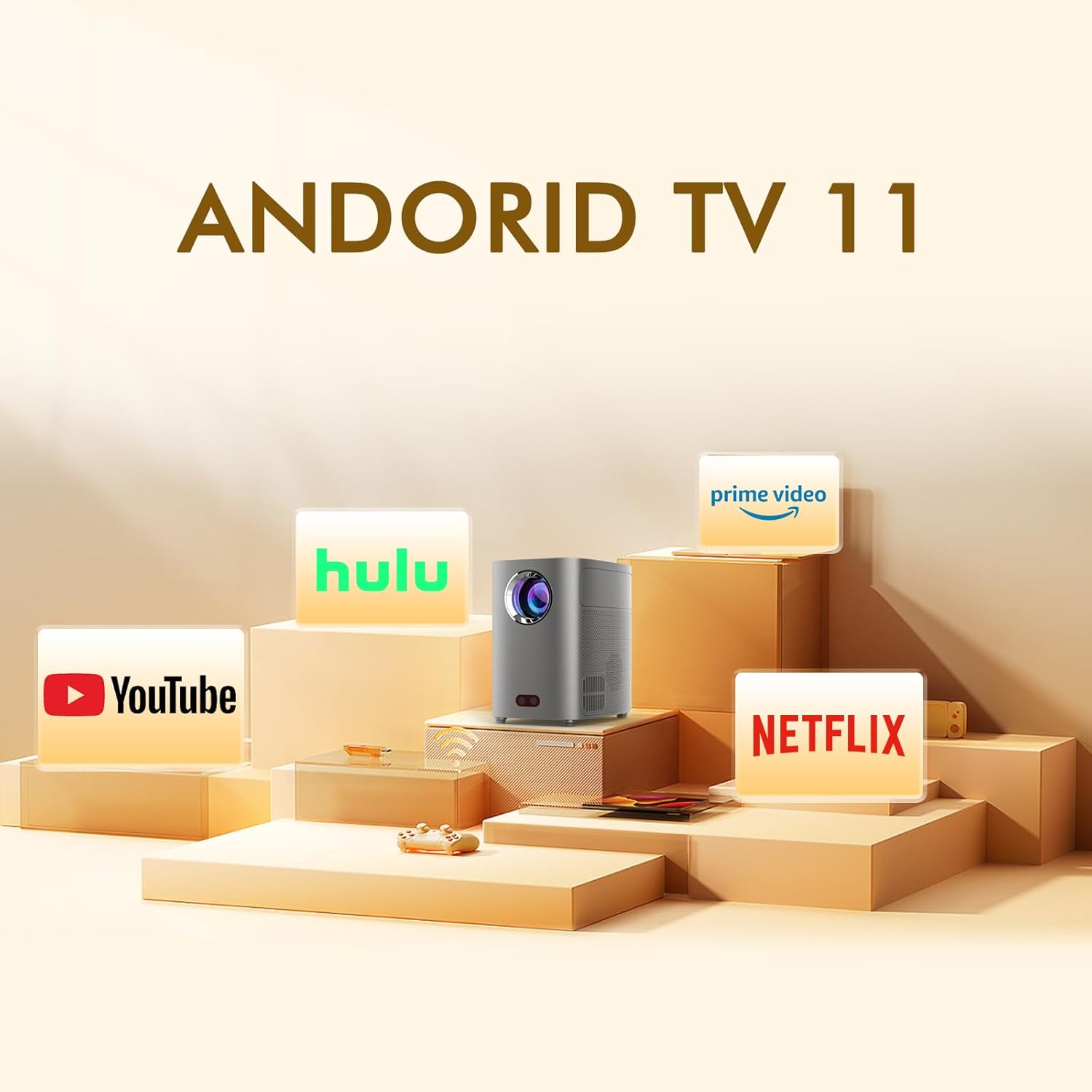
Figure 3.3: The rear panel includes various input/output ports: HDMI, USB, and AV, for connecting external devices.
The projector measures approximately 5.5 x 4.2 x 5.9 inches and weighs about 2.92 pounds, making it compact and portable.
4. Setup
4.1 Initial Placement and Power Connection
- Place the projector on a stable, flat surface. Ensure there is adequate ventilation around the device.
- Connect the power cord to the projector's power input and then to a power outlet.
- Press the power button on the projector or remote control to turn it on.
4.2 Adjusting Image Size and Distance
The VenirCool Q1 Pro+ can project an image up to 300 inches. The optimal viewing distance is approximately 8.2 feet for a balanced image size and clarity.

Figure 4.1: Recommended projection distances for various screen sizes, illustrating the flexibility of placement.
4.3 Auto Focus and Keystone Correction
The projector features intelligent auto-focus and auto keystone correction, automatically adjusting the image for clarity and proper rectangular shape.

Figure 4.2: The auto-focus system quickly sharpens the image without manual intervention.

Figure 4.3: Auto keystone correction automatically adjusts the image to be perfectly rectangular, even if the projector is placed at an angle.
5. Operating Instructions
5.1 Power On/Off and Navigation
To power on, press the power button. To power off, press the power button again and confirm shutdown. Navigate the on-screen menu using the arrow keys and OK button on the remote control.
5.2 Input Sources
The projector supports multiple input sources:
- HDMI: Connect devices like TV sticks, laptops, gaming consoles (PS4), or Blu-ray players.
- USB: Play media files directly from a USB flash drive.
- AV: Connect older devices using the provided AV cable.
5.3 Connectivity: WiFi and Bluetooth
The Q1 Pro+ features 5G WiFi and Bluetooth 5.1 for seamless wireless connections.

Figure 5.1: Enjoy stable wireless connectivity with 5G WiFi and Bluetooth 5.1 for various devices.
5.3.1 Wireless Screen Mirroring
Mirror your smartphone (iOS/Android) or tablet screen wirelessly to the projector. Note: Due to copyright restrictions, some streaming services (e.g., Netflix, Prime Video, Hulu, Disney) do not support screen mirroring. For these services, it is recommended to use an HDMI connection with a TV stick (e.g., Roku Express) or set-top box.
5.3.2 Bluetooth Connection
Connect external Bluetooth speakers or headphones for enhanced audio experience.
5.4 Android TV 11.0
The built-in Android TV 11.0 system allows you to access a wide range of entertainment directly from the projector.

Figure 5.2: Access popular streaming apps and more directly from the Android TV 11 interface.
- Streaming Apps: Watch content from Netflix, YouTube, Hulu, Prime Video, and more (subject to app availability and subscription).
- Google Play Store: Download and install additional applications.
5.5 Intelligent Features
5.5.1 Intelligent Obstacle Avoidance
The projector can automatically scale the image around obstacles like power outlets, picture frames, or plants, ensuring an uninterrupted viewing experience.

Figure 5.3: The projector intelligently adjusts the image to avoid objects on the projection surface.
5.5.2 Intelligent Eye Protection
With auto-induction, the device can adjust the page color temperature to be more suitable for your eyes. This feature can be enabled in the settings menu.
5.6 Audio Output
The Q1 Pro+ is equipped with dual HiFi stereo speakers, providing clear and immersive audio. For external audio, use the Bluetooth connection or the AV port.
6. Maintenance
Proper maintenance ensures the longevity and performance of your projector.
- Dust Filter: The projector includes a dust filter to prevent dust from entering the machine and affecting the lens or fan. Regularly clean the dust filter to maintain optimal airflow and prevent overheating. Refer to the specific instructions in the full manual for filter removal and cleaning.
- Lens Cleaning: Use a soft, lint-free cloth specifically designed for optical lenses to gently wipe the projector lens. Do not use abrasive cleaners or excessive force.
- General Cleaning: Wipe the exterior of the projector with a soft, dry cloth. Avoid using liquid cleaners directly on the device.
- Storage: When not in use for extended periods, store the projector in a cool, dry place, away from direct sunlight and extreme temperatures.
7. Troubleshooting
If you encounter issues with your projector, refer to the following common problems and solutions:
| Problem | Possible Cause | Solution |
|---|---|---|
| No image or distorted image | Loose cable connection, incorrect input source, focus/keystone issue. | Check all cable connections. Ensure the correct input source is selected. Allow auto-focus/keystone to complete or manually adjust if needed. |
| No sound | Volume too low, mute enabled, incorrect audio output selected, external speaker issue. | Increase volume. Check if mute is enabled. Ensure internal speakers are selected or Bluetooth speakers are properly paired. Check external speaker connection. |
| Remote control not working | Dead batteries, obstruction, remote not paired. | Replace batteries. Ensure no obstruction between remote and projector. Re-pair remote if necessary (refer to full manual). |
| Projector overheats or shuts down | Blocked ventilation, dust filter clogged. | Ensure proper ventilation around the projector. Clean the dust filter. Do not use in high-temperature environments. |
| Cannot connect to WiFi/Bluetooth | Incorrect password, out of range, interference. | Verify WiFi password. Move projector closer to router. Reduce interference from other devices. Restart projector and router. |
8. Specifications
Detailed technical specifications for the VenirCool Q1 Pro+ Projector:
| Feature | Specification |
|---|---|
| Brand | VenirCool |
| Model Number | Q1 Pro+ |
| Display Resolution | 1920 x 1080 (Full HD) |
| Brightness | 17000 LUX |
| Contrast Ratio | 10000:1 |
| Connectivity Technology | HDMI, USB, AV, 5G WiFi, Bluetooth 5.1 |
| Special Features | Auto Focus, Auto Keystone Correction, Intelligent Obstacle Avoidance, Android TV 11.0, Dual HiFi Speakers, Intelligent Eye Protection |
| Recommended Uses | Home Cinema |
| Product Dimensions | 5.5 x 4.2 x 5.9 inches |
| Item Weight | 2.92 pounds |
| Visible Screen Diagonal | Up to 300 inches (recommended optimal viewing distance 8.2 ft) |
9. Safety Information
Please observe the following safety precautions:
- Children under 12 years old require adult guardianship while using the device.
- Do not use the projector under strong direct lights or in high-temperature environments.
- Avoid looking directly into the projector lens when the lamp is on.
- Do not block the ventilation openings of the projector.
- Do not attempt to disassemble or repair the projector yourself. Contact qualified service personnel.
10. Warranty and Support
VenirCool is committed to providing high-quality products and customer satisfaction. For any inquiries, technical support, or warranty claims, please contact us through the following channels:
- Email Support: support@venircool.com
- Official Website: www.venircool.com
Please have your model number (Q1 Pro+) and purchase information ready when contacting support.


