1. Introduction
This manual provides detailed instructions for the setup, operation, and maintenance of your SNOODU Keyboard Case for the Samsung Galaxy Tab A9+ A9 Plus 11.0" (SM-X210/X216/X218). Please read this guide thoroughly before using the product to ensure optimal performance and longevity.

Image: SNOODU Keyboard Case with Samsung Galaxy Tab A9+ A9 Plus 11.0 inch tablet inserted, showing the keyboard and tablet in a laptop-like setup.
2. Package Contents
Verify that all items listed below are included in your package:
- Wireless keyboard for Samsung Tab A9+ Plus 11-inch
- Case with Pencil Holder
- USB Cable
- User Manual (this document)
3. Product Features
- Compatibility: Specifically designed for Samsung Galaxy Tab A9+ A9 Plus 11.0" (SM-X210/X216/X218) 2023 models.
- Backlit Keyboard: Features 3 zones with 7 color options and 3 brightness levels for enhanced visibility in various lighting conditions.
- Multi-Touch Trackpad: Integrated trackpad supports various gestures for navigation, providing a laptop-like experience without an external mouse.
- Detachable Design: The wireless Bluetooth keyboard is magnetically attached, allowing for flexible use as a lightweight laptop or a standalone tablet.
- Smart Protection: Durable leather case with a TPU shockproof design offers 360° protection against scratches and impacts.
- Multi-View Angles: Adjustable stand provides multiple viewing angles for typing, watching, reading, or video calls.
- S Pen Holder: Conveniently stores your S Pen to prevent loss.
- Long Battery Life: Equipped with a 750 mAh Lithium Polymer battery for extended use.

Image: SNOODU Keyboard Case in use, demonstrating typing and media consumption modes.

Image: Illustration of the magnetically detachable keyboard feature.
4. Setup Guide
4.1 Charging the Keyboard
Before initial use, fully charge the keyboard using the provided USB-C cable. Connect one end of the USB-C cable to the keyboard's charging port and the other end to a USB power adapter (not included) or a computer's USB port. The charging indicator light will show the charging status.
4.2 Bluetooth Pairing
Follow these steps to pair your keyboard with your Samsung Galaxy Tab A9+ A9 Plus 11.0":
- Ensure the keyboard is charged and powered on.
- Press and hold the Fn + C keys simultaneously for 3 seconds until the blue Bluetooth indicator light blinks. This indicates the keyboard is in pairing mode.
- On your Samsung Galaxy Tab A9+ A9 Plus 11.0", go to Settings > Connections > Bluetooth.
- Turn on Bluetooth. Your tablet will search for available devices.
- Select "Wireless Keyboard" from the list of available devices.
- Confirm the pairing request on your tablet. The blue indicator light on the keyboard will turn off once successfully paired.
Video: This video demonstrates the Bluetooth pairing process for the SNOODU Keyboard Case with a Samsung Galaxy Tab A9+ A9 Plus 11.0". It shows how to activate pairing mode on the keyboard and connect it via the tablet's Bluetooth settings.
5. Operating Instructions
5.1 Backlight Control
The keyboard features a 3-zone, 7-color backlit system with adjustable brightness. Use the following key combinations:
- Press Fn + A to cycle through 7 backlight colors for the left zone.
- Press Fn + S to cycle through 7 backlight colors for the middle zone.
- Press Fn + D to cycle through 7 backlight colors for the right zone.
- Press Fn + Light Bulb icon to adjust backlight brightness (3 levels) or turn off the backlight.
- The backlight will enter a breathing light mode for 15 seconds when idle to conserve power.

Image: Keyboard layout highlighting keys for backlight color and brightness control.
5.2 Multi-Touch Trackpad
The integrated trackpad supports various gestures for efficient navigation:
- Single Finger Tap: Left-click.
- Two Finger Tap: Right-click.
- Two Finger Scroll: Scroll up or down.
- Pinch to Zoom: Use two fingers to zoom in or out.
- To lock or unlock the trackpad, press Fn + Trackpad icon.
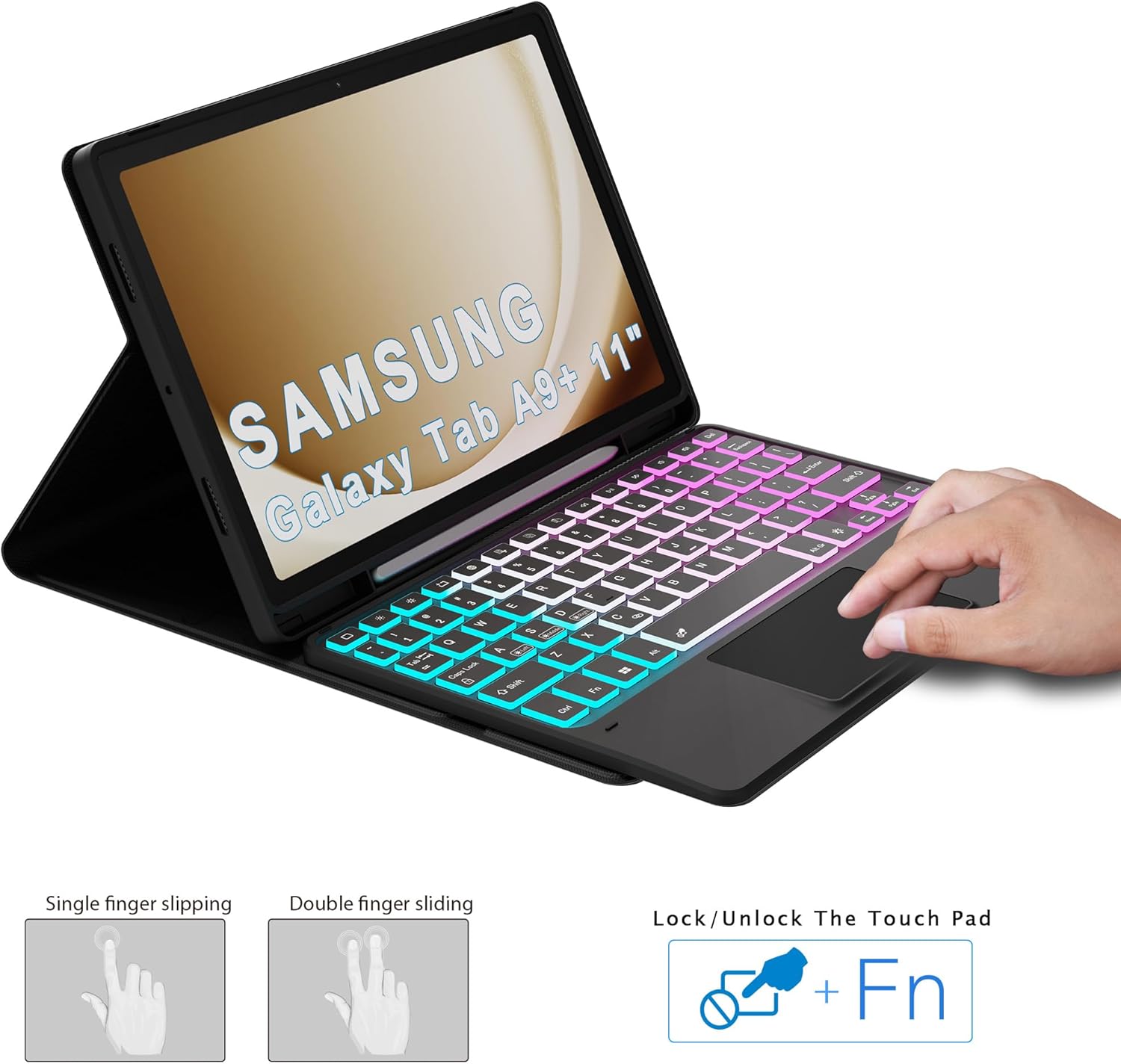
Image: Visual guide for trackpad gestures and lock function.
5.3 Android OS Shortcut Keys
The keyboard includes dedicated shortcut keys for common Android OS functions. Refer to the key labels for specific actions such as home, back, search, volume control, and media playback.

Image: Overview of Android OS shortcut keys on the keyboard.
6. Maintenance
- Keep the keyboard and case clean by wiping with a soft, dry cloth.
- Avoid exposing the product to extreme temperatures, humidity, or direct sunlight.
- Do not use harsh chemicals or abrasive cleaners.
- Store the keyboard and case in a safe place when not in use to prevent damage.
7. Troubleshooting
7.1 Keyboard Not Pairing
- Ensure the keyboard is fully charged.
- Verify that Bluetooth is enabled on your tablet.
- Make sure the keyboard is in pairing mode (blue light blinking after pressing Fn + C).
- If previously paired, try forgetting the device on your tablet and re-pairing.
- Restart both the tablet and the keyboard.
7.2 Backlight Not Working
- Ensure the keyboard is powered on.
- Press Fn + Light Bulb icon to cycle through brightness levels and ensure it's not turned off.
- The backlight automatically turns off after 15 seconds of inactivity to save power. Press any key to reactivate.
7.3 Trackpad Not Responding
- Ensure the trackpad is not locked. Press Fn + Trackpad icon to toggle its status.
- Check if the keyboard is properly connected via Bluetooth.
- Restart the keyboard and tablet.
8. Specifications
| Product Dimensions | 11 x 6.7 x 11 inches |
| Item Weight | 1.72 pounds |
| Manufacturer | SNOODU |
| Compatible Devices | Samsung Galaxy Tab A9+ A9 Plus 11.0" (SM-X210/X216/X218) |
| Connectivity Technology | Bluetooth |
| Keyboard Description | Wireless, Flexible |
| Special Features | Backlit, Ergonomic, Hotkeys and Media Keys, Rechargeable, Trackpad |
| Keyboard Backlighting Color Support | RGB (7 Colors) |
| Battery Type | Lithium Polymer (750 mAh) |
9. Warranty and Support
For warranty information and customer support, please refer to the documentation provided with your purchase or contact SNOODU customer service directly. Keep your purchase receipt for warranty claims.


