1. Introduction
This manual provides comprehensive instructions for the YOCOWOCO aptX Wireless Bluetooth 5.0 Adapter, designed to convert your wired Bose QuietComfort 3 (QC3) headphones into wireless Bluetooth headphones. This adapter features Bluetooth 5.0 for stable connectivity, aptX support for high-quality audio (when supported by the paired device), a built-in microphone for calls, and integrated controls for media playback and volume adjustment.

Image 1.1: YOCOWOCO aptX Wireless Bluetooth 5.0 Adapter
This image displays the compact black Bluetooth adapter with its 3.5mm audio jack, designed to seamlessly integrate with Bose QC3 headphones. Control buttons for volume and playback are visible on its side.
2. Compatibility
This wireless Bluetooth adapter is specifically designed for Bose QuietComfort 3 (QC3) headphones only. It is not compatible with any other headphone models.
3. Product Overview

Image 3.1: Detailed view of the adapter's features
This image highlights the various components of the Bluetooth adapter, including the gold-plated audio connector, built-in microphone, LED indicator, Micro USB charging port, and control buttons for volume up, power on/off/play/pause, and volume down.
- Gold Plated Audio Connector: For connecting to the headphone's audio jack.
- MIC: Built-in microphone for hands-free calls.
- Volume Up / Next Song Button: Increases volume or skips to the next track.
- Power On/Off / Play/Pause Button: Controls power, playback, and call functions.
- Volume Down / Previous Song Button: Decreases volume or goes to the previous track.
- Micro USB Charging Port: For charging the adapter's internal battery.
- LED Indicator: Displays device status (power, pairing, charging).
4. Setup & Installation
Follow these steps to correctly install the adapter onto your Bose QuietComfort 3 headphones:
- Align the adapter's audio connector with the headphone's audio jack.
- Gently insert the adapter into the headphone port.
- Ensure the three snap joints on the adapter securely hold it in place on the headphone, specifically mounting joint 1 to headphone position A, and snap joints 2 & 3 to headphone position B & C (between the headphone shell and ear cushion).

Image 4.1: Adapter Installation Guide
This image illustrates the step-by-step process of attaching the Bluetooth adapter to Bose QC3 headphones, showing how the audio jack is inserted and the adapter's clips secure it to the headphone's frame.

Image 4.2: Adapter Installed
This image shows the Bluetooth adapter fully installed on a pair of Bose QC3 headphones, demonstrating its integrated and low-profile design.
5. Pairing Instructions
To connect your YOCOWOCO Bluetooth adapter to a device:
- Ensure your Bose QC3 headphones are powered on by sliding their power button to the 'ON' position. The adapter can pair even if the headphones are initially powered off.
- Long press the Power On/Off / Play/Pause button on the adapter for 3 seconds to power it on. The LED indicator will flash blue.
- If the adapter does not automatically enter pairing mode (indicated by alternating red and blue LED flashes), long press the Power On/Off / Play/Pause button for 3 seconds again. This will force it into pairing mode.
- On your smartphone or other Bluetooth-enabled device, navigate to the Bluetooth settings.
- Search for available devices and select the device named "B25S" to pair.
- Once successfully paired, the LED indicator will flash blue slowly.
Video 5.1: How to Pair the Bluetooth Adapter
This video demonstrates the process of powering on the Bluetooth adapter and entering pairing mode, then connecting it to a smartphone by selecting the device named "B25S" from the Bluetooth settings.
6. Operating Instructions
6.1 Button Functions
- Power On/Off / Play/Pause Button:
- Long press for 3 seconds: Power On/Off.
- Short press: Play/Pause music.
- Short press during incoming call: Answer call.
- Short press during active call: End call.
- Volume Up / Next Song Button:
- Short press: Increase volume.
- Long press: Skip to next song.
- Volume Down / Previous Song Button:
- Short press: Decrease volume.
- Long press: Go to previous song.
6.2 LED Indicator Status
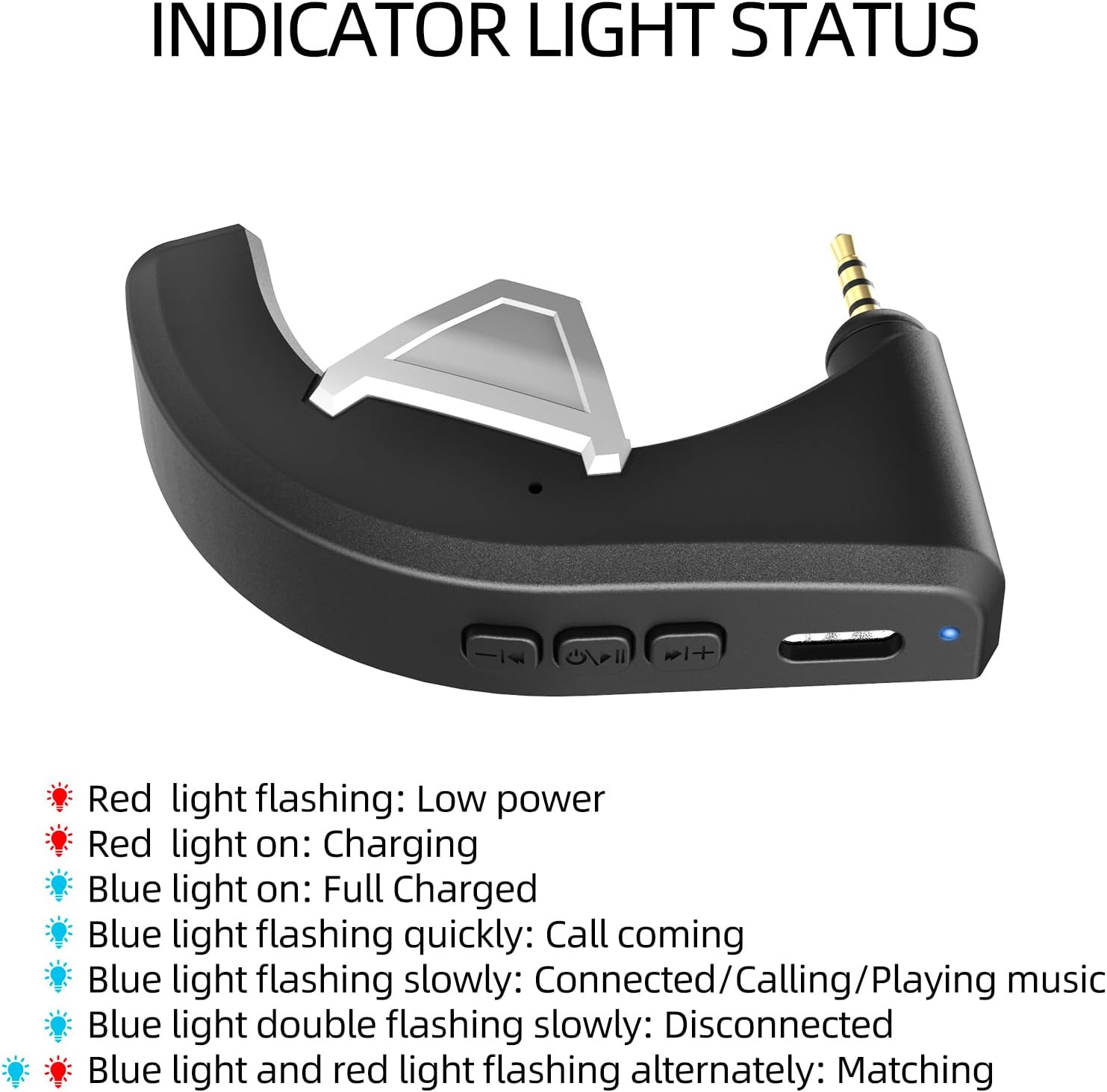
Image 6.1: LED Indicator Status
This image provides a visual guide to the different states of the LED indicator light on the Bluetooth adapter, explaining what each color and flashing pattern signifies.
- Red light flashing: Low power.
- Red light on: Charging.
- Blue light on: Fully charged.
- Blue light flashing quickly: Incoming call.
- Blue light flashing slowly: Connected, calling, or playing music.
- Blue light double flashing slowly: Disconnected.
- Blue light and red light flashing alternately: Pairing mode.
7. Charging
To charge your adapter:
- Connect the provided Micro USB charging cable to the Micro USB charging port on the adapter.
- Connect the other end of the cable to a USB power source (e.g., computer USB port, USB wall adapter).
- The LED indicator will show a red light while charging and turn blue when fully charged.

Image 7.1: Charging and Battery Life
This image illustrates the charging process and provides key battery life statistics: 2 hours for a full charge, 6 hours of music playback, and 10 days of standby time.
Battery Life:
- Charging Time: Approximately 2 hours.
- Music Playback Time: Approximately 6 hours.
- Standby Time: Approximately 10 days.
8. Maintenance
To ensure the longevity and optimal performance of your adapter:
- Keep the adapter dry and away from moisture.
- Clean the adapter gently with a soft, dry cloth. Avoid using harsh chemicals or abrasive materials.
- Store the adapter in a cool, dry place when not in use.
- Avoid exposing the adapter to extreme temperatures.
9. Troubleshooting
If you encounter issues with your adapter, refer to the following common solutions:
- Adapter not entering pairing mode (LED not flashing red and blue alternately):
This may occur if the adapter is already connected to another device. Long press the Power On/Off / Play/Pause button for 3 seconds to force it into pairing mode. - Cannot connect to a device:
- Ensure the adapter is in pairing mode (alternating red and blue LED flashes).
- Make sure Bluetooth is enabled on your device and it is searching for new devices.
- Try forgetting the device "B25S" from your device's Bluetooth settings and re-pairing.
- Ensure the adapter is sufficiently charged.
- Poor sound quality or no sound:
- Check that the adapter is securely connected to your Bose QC3 headphones.
- Ensure the volume on both your device and the adapter is turned up.
- If using aptX, verify that your connected device also supports aptX for optimal audio quality.
- Try resetting the adapter (see video below).
Video 9.1: How to Reset the Bluetooth Adapter
This video demonstrates two methods to reset the Bluetooth adapter: holding the volume up and down buttons simultaneously, or canceling pairing on the connected device.
10. Specifications
| Feature | Detail |
|---|---|
| Product Dimensions | 2.48 x 1.57 x 0.75 inches |
| Item Weight | 0.441 ounces |
| Bluetooth Version | 5.0 |
| Audio Codec Support | aptX (when supported by paired device) |
| Battery Type | 1 Lithium Polymer battery (included) |
| Charging Port | Micro USB |
| Compatible Headphones | Bose QuietComfort 3 (QC3) |
11. Warranty & Support
YOCOWOCO is committed to ensuring customer satisfaction. If you encounter any issues with your product or require support, please refer to the following:
- Warranty: For any product-related issues, please contact us for warranty support.
- Inquiries: For general inquiries, locate the seller's name "Mi& he" on the product page and select "Ask a question."
- Post-Purchase Support: For support after your purchase, you can also reach out to us directly through your order page on Amazon.