
GOL GOLXM
GOL XM 2G Unlocked Cell Phone User Manual
Model: GOLXM
Introduction
Welcome to the user manual for your new GOL XM 2G Unlocked Cell Phone. This guide provides comprehensive instructions on setting up, operating, maintaining, and troubleshooting your device. Please read this manual carefully to ensure optimal performance and longevity of your phone.
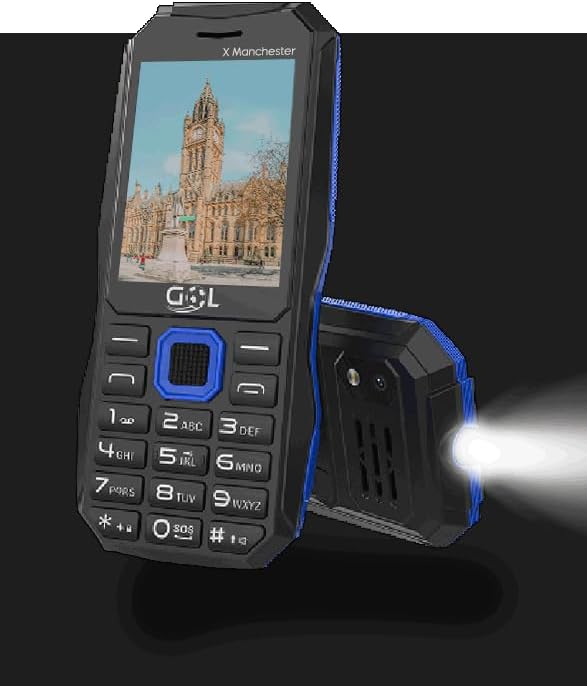
Image: Front view of the GOL XM 2G Unlocked Cell Phone, showcasing its screen and physical keypad.
What's in the Box
Upon opening your GOL XM 2G Cell Phone package, please verify that all the following items are included:
- GOL XM Cell Phone
- 1000mAh Lithium Ion Battery
- Earbuds
- Micro USB Charger
- User Manual (this document)

Image: Visual representation of the items included in the product package, showing icons for the phone, battery, earbuds, charger, and manual.
Product Overview and Features
The GOL XM 2G Cell Phone is designed for essential communication and multimedia functions. Key features include:
- Unlocked Cellphone: Compatible with any carrier of your choice.
- Dual SIM: Two SIM card slots for simultaneous use, ideal for managing work and personal lines.
- 2.4" Screen: A vibrant full-color display for clear viewing.
- Multimedia Support: Enjoy MP3 audio and MP4 video playback.
- FM Radio: Listen to your favorite radio stations.
- Bluetooth: For wireless connectivity with compatible devices.
- Camera: Capture moments with the integrated camera.
- Microphone: For calls and audio recording.
- 1000mAh Battery: Provides prolonged talk time and usage.
- LED Torch: A powerful LED light for illumination.

Image: An overview of the GOL XM phone highlighting its various features through icons and text, including screen size, multimedia capabilities, and connectivity options.

Image: A close-up view demonstrating the powerful LED torch feature of the GOL XM phone, showing it illuminating a path.
Setup
1. Battery Installation
- Locate the battery cover on the back of the phone.
- Gently slide or lift the cover to remove it.
- Align the gold contacts of the battery with the contacts inside the phone's battery compartment.
- Insert the battery firmly into place.
- Replace the battery cover, ensuring it clicks securely.
2. SIM Card Installation
The GOL XM supports Dual SIM cards.
- With the battery removed, locate the SIM card slots. There are typically two slots.
- Carefully insert your SIM card(s) into the designated slot(s) with the gold contacts facing down and the cut corner aligned as indicated.
- Ensure the SIM card(s) are fully seated.
- Reinstall the battery and battery cover.
3. Initial Power On and Charging
- Press and hold the Power/End Call button until the screen lights up.
- If the battery is low, connect the Micro USB charger to the phone's charging port and plug it into a power outlet. Allow the phone to charge fully before first use.
4. Language Settings
To change the display language of your phone, follow these steps:
- Navigate to Menu.
- Select Ajustes (Settings).
- Choose Option #2: Ajustes del telefonos (Phone settings).
- Select Configuracion de Idioma (Language Settings).
- Choose Mostrar Idioma (Display Language).
- Select your desired language: English, French, Portuguese, or Spanish.
Operating Instructions
Making and Receiving Calls
- To Dial: Enter the phone number using the keypad and press the Call button (usually green).
- To Answer: Press the Call button when the phone rings.
- To End Call: Press the End Call button (usually red).
Messaging (SMS)
- Navigate to the "Messages" or "SMS" menu.
- Select "New Message" or "Write Message".
- Enter the recipient's number and type your message using the keypad.
- Press "Send".
Multimedia Functions
- MP3/MP4 Player: Access the "Multimedia" or "Player" menu to play audio (MP3) and video (MP4) files stored on your phone or memory card (if supported).
- FM Radio: Plug in the included earbuds (they act as an antenna). Navigate to the "FM Radio" application. You can auto-scan for stations or manually tune.
Bluetooth Connectivity
- Go to "Settings" > "Bluetooth".
- Turn Bluetooth "On".
- Search for available devices and select the device you wish to pair with.
- Enter the passkey if prompted.
Camera Usage
- Access the "Camera" application from the main menu.
- Frame your shot using the screen.
- Press the designated button (often the center navigation button) to capture the image.

Image: A detailed view of the GOL XM phone's rear camera, indicating its position and design.
LED Torch
- The LED torch can typically be activated by a dedicated button or a long press of a specific key (e.g., '0' or a side button). Refer to your phone's on-screen prompts or quick guide for exact activation.
Maintenance
- Battery Care: To prolong battery life, avoid extreme temperatures. Charge the battery fully before it completely drains, but do not leave it plugged in for excessively long periods after it's full.
- Cleaning: Use a soft, dry, lint-free cloth to clean the phone's screen and body. Avoid using harsh chemicals or abrasive materials.
- Storage: Store the phone in a cool, dry place away from direct sunlight and moisture when not in use for extended periods.
Troubleshooting
| Problem | Possible Cause / Solution |
|---|---|
| Phone does not power on. | Battery might be completely discharged. Connect the charger and allow it to charge for at least 15 minutes before attempting to power on. Ensure the battery is correctly installed. |
| Cannot install the battery. | Ensure the battery is oriented correctly, aligning the gold contacts. Do not force the battery. If the battery cover is difficult to remove, gently slide or pry it open from the designated notch. Refer to the "Battery Installation" section. |
| No network signal / Cannot make calls. | Ensure your SIM card is properly inserted. Check if your carrier's network is available in your area. Verify that your phone plan is active and supports 2G networks. This phone is unlocked, but compatibility with specific carrier features may vary. |
| Cannot change language. | Follow the exact steps outlined in the "Language Settings" section: Menu > Ajustes > Ajustes del telefonos > Configuracion de Idioma > Mostrar Idioma. |
| FM Radio not working. | Ensure the earbuds are plugged into the phone's audio jack, as they function as the antenna for the FM radio. |
Specifications

Image: A visual summary of the GOL XM phone's key specifications, presented with illustrative icons.
| Feature | Detail |
|---|---|
| Brand | GOL |
| Model Name | GOLXM |
| Screen Size | 2.4 inches |
| Cellular Technology | 2G |
| Wireless Carrier | Unlocked for All Carriers |
| SIM Card Slot Count | Dual SIM |
| Battery Capacity | 1000 Milliamp Hours (1000mAh) |
| Operating System | iOS 3 (Note: This refers to the phone's internal feature phone operating system, not Apple's iOS.) |
| Connectivity Technologies | Bluetooth |
| Other Features | FM Radio, MP3/MP4 Playback, Camera (Rear, Front), Microphone, LED Torch |
| Form Factor | Bar |
| Color | BLACK |
| Item Weight | 5.4 ounces |
| Package Dimensions | 5 x 3 x 2.25 inches |
| Manufacturer | GOL |
| Country of Origin | China |
| Date First Available | October 12, 2023 |
Warranty and Support
For warranty information and technical support, please refer to the documentation provided with your purchase or contact the manufacturer directly. Keep your proof of purchase for warranty claims.
Manufacturer: GOL
For further assistance, you may visit the official GOL website or contact their customer service department.
Ask a question about this manual
Ask about setup, troubleshooting, compatibility, parts, safety, or missing instructions. Manuals+ will review the question and use this page’s manual context to help answer it.