
Introduction
The FILCO Majestouch Xacro M10SP is a high-performance, split ergonomic keyboard designed for enhanced comfort and productivity. It features a 72-key English layout and utilizes durable CHERRY MX Silent Red mechanical switches. This keyboard supports advanced macro programming, allowing for both hardware-level and software-based customization to suit individual user needs.
Key features include:
- Key Switch: CHERRY MX Silent Red (Linear, Silent type)
- Key Count: 72 keys (English layout)
- Key Pitch: 19mm
- Key Stroke: 3.7mm
- Interface: USB-C
- Macro Function: Hardware and Software macro support
- Keycaps: Durable PBT keycaps
Setup
1. Connecting the Keyboard
The Majestouch Xacro M10SP connects via USB-C. Use the provided cables to connect the two halves of the keyboard and then connect the keyboard to your computer.
- Connect the left and right keyboard halves using the supplied USB-C to USB-C bridge cable.
- Connect the left keyboard half to your computer using the supplied 1.8m USB-C to USB-A cable.

Image: The FILCO Majestouch Xacro M10SP keyboard fully connected, showing the two halves joined by a cable.

Image: The FILCO Majestouch Xacro M10SP keyboard in its split configuration, demonstrating its ergonomic design.
2. Adjusting Ergonomics and DIP Switches
The keyboard's split design allows for various ergonomic adjustments. You can adjust the tilt and position of each half to find your most comfortable typing posture. The underside of the keyboard features DIP switches for advanced configuration, including layout changes and operating system compatibility (e.g., Mac mode).

Image: Various tilt and positioning options for the FILCO Majestouch Xacro M10SP, including forward high, backward high, and inner high.
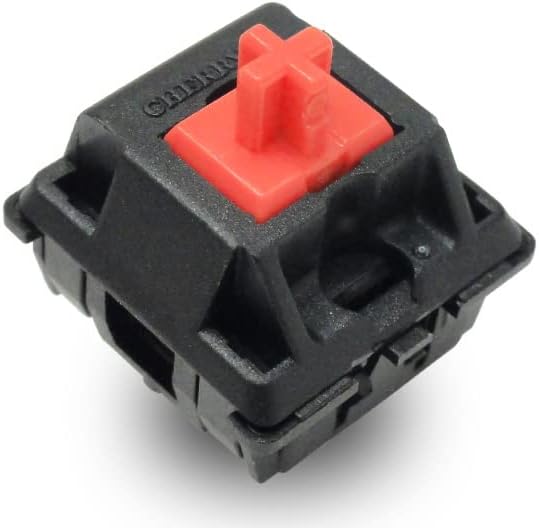
Image: A close-up view of the DIP switches located on the underside of the FILCO Majestouch Xacro M10SP, used for advanced keyboard configuration.
Operating
Macro Programming
The Majestouch Xacro M10SP supports both hardware and software macro programming. The keyboard features 10 dedicated macro keys (M1-M10) for quick access to custom functions.
- Hardware Macros: Refer to the detailed instructions in the included quick guide for on-the-fly macro recording without software.
- Software Macros: Utilize the FILCO Assist software for comprehensive macro creation, key remapping, and profile management. Connect the keyboard directly to your PC for optimal software functionality.

Image: A close-up of the M1-M5 dedicated macro keys on the left half of the FILCO Majestouch Xacro M10SP keyboard.

Image: A close-up of the M6-M10 dedicated macro keys on the right half of the FILCO Majestouch Xacro M10SP keyboard.

Image: Screenshot of the FILCO Assist software interface, demonstrating its capabilities for macro programming and key customization.
Indicator Lights
The keyboard features indicator lights for Caps Lock, Scroll Lock, Win Lock, and Layer status, providing visual feedback on the keyboard's current state.

Image: A close-up view of the indicator lights for Caps Lock, Scroll Lock, Win Lock, and Layer on the FILCO Majestouch Xacro M10SP.
Maintenance
Cleaning
To maintain optimal performance and appearance, regularly clean your keyboard. Use a soft, lint-free cloth to wipe down the keycaps and chassis. For deeper cleaning, you may use a can of compressed air to remove dust and debris from between the keys.
Keycap Replacement
The keyboard comes with a FILCO Key Puller and replacement keycaps. To replace a keycap:
- Gently attach the key puller to the keycap you wish to remove.
- Pull straight up with even force until the keycap detaches from the switch.
- Align the new keycap with the switch stem and press down firmly until it clicks into place.
Troubleshooting
Keyboard Not Responding
- Ensure all USB cables (bridge cable and connection to PC) are securely plugged in.
- Try connecting the keyboard to a different USB port on your computer.
- Restart your computer.
Macro Functions Not Working
- If using FILCO Assist software, ensure the keyboard is connected directly to your PC, not through a KVM switch or USB hub, as this can interfere with software communication.
- Verify that the correct layer is active if your macros are assigned to specific layers.
- Check the DIP switch settings on the underside of the keyboard to ensure they are configured correctly for your operating system and desired functionality.
- Consider resetting the keyboard to factory defaults using the appropriate DIP switch setting or software option, then re-program your macros.
Specifications
| Feature | Detail |
|---|---|
| Brand | FILCO |
| Model | Majestouch Xacro M10SP (FKBXS72MPS/EB) |
| Key Switch | CHERRY MX Silent Red (Linear) |
| Key Count | 72 keys |
| Key Layout | English (QWERTY) |
| Key Pitch | 19mm |
| Key Stroke | 3.7mm |
| Dimensions (L x W x H) | 33.6 x 12.3 x 3.9 cm |
| Weight | 840g |
| Interface | USB-C |
| Macro Function | Hardware Macro, Software Macro |
| Compatible OS | Windows (Mac compatibility via DIP switches) |
| Included Components | FILCO Key Puller, USB Cable (1.8m/USB-C to USB-A), Bridge Cable (USB-C to C), Replacement Keycaps |

Image: Detailed specifications for the CHERRY MX Silent Red switch, including click feel, actuation force, stroke, and contact point.
Warranty
This product is covered by the manufacturer's warranty. Please refer to the warranty card included in the packaging or visit the official FILCO website for detailed warranty terms and conditions.
Support
For technical assistance, product inquiries, or further support, please visit the official FILCO website or contact their customer service department. Contact information can typically be found on the manufacturer's website or in the product packaging.


