
1. Introduction
Thank you for choosing the Oberster 10-in-1 USB C Hub. This versatile adapter is designed to expand the connectivity of your USB-C enabled devices, providing a comprehensive solution for various peripherals and display needs. This manual will guide you through the setup, operation, and maintenance of your new hub to ensure optimal performance.
2. Product Overview
The Oberster 10-in-1 USB C Hub integrates multiple ports into a single compact device, offering enhanced connectivity for your laptop, tablet, or smartphone. Below is a detailed look at the hub's features and ports.
Key Features:
- 10-in-1 Connectivity: Provides 2x USB-A 3.0, 2x USB-A 2.0, 1x USB-C 3.0, 1x 4K HDMI, 1x PD 100W USB-C, 1x Audio/Microphone Jack, 1x SD Card Reader, and 1x TF Card Reader.
- 4K HDMI Output: Supports high-definition video output up to 4K at 30Hz for external displays.
- 100W Power Delivery: Allows for high-speed charging of your host device while using other hub functions.
- High-Speed Data Transfer: USB 3.0 ports offer data transfer rates up to 5Gbps.
- Plug and Play: No additional drivers or software installation required.
- Wide Compatibility: Compatible with various USB-C devices including MacBooks, Dell XPS, Surface, Asus ZenBook, and more.
Port Layout:

Image: The Oberster 10-in-1 USB C Hub displaying its various ports, including USB-A, USB-C, HDMI, and card reader slots, surrounded by compatible cables and memory cards.
- USB-C Input Cable: Connects to your host device (laptop, tablet, smartphone).
- HDMI Port: Connects to an external monitor, TV, or projector for video output.
- USB-C Power Delivery (PD) Port: For charging your host device (up to 100W).
- USB 3.0 Ports (2x USB-A, 1x USB-C): For high-speed data transfer and connecting USB peripherals.
- USB 2.0 Ports (2x USB-A): For connecting standard USB peripherals like mouse and keyboard.
- SD Card Slot: For reading SD, SDHC, SDXC cards.
- TF Card Slot: For reading Micro SD, Micro SDHC, Micro SDXC cards.
- 3.5mm Audio/Microphone Jack: For connecting headphones or speakers.
3. Setup Instructions
Setting up your Oberster 10-in-1 USB C Hub is a straightforward process. Follow these steps to get started:
- Connect the Hub to Your Device: Plug the integrated USB-C cable of the hub into an available USB-C port on your laptop, tablet, or smartphone. Ensure the USB-C port on your device supports data transfer and video output (DisplayPort Alternate Mode) for full functionality.
- Power Connection (Optional but Recommended): If your host device requires charging or if you are connecting power-intensive peripherals, connect your original USB-C power adapter to the USB-C Power Delivery (PD) port on the hub. This will charge your host device and provide stable power to all connected peripherals.
- Connect Peripherals: You can now connect your desired peripherals to the corresponding ports on the hub.

Image: A laptop connected to a wired mouse and keyboard through the Oberster USB C Hub, demonstrating convenient peripheral connection.

Image: A tablet connected to a wired mouse and keyboard through the Oberster USB C Hub, illustrating its use with portable devices.
The hub is plug-and-play, meaning your operating system should automatically detect and configure the connected devices without requiring manual driver installation.
4. Operating Instructions
4.1. Using the HDMI Port
Connect an HDMI cable from the hub's HDMI port to your external monitor, TV, or projector. Your device should automatically detect the external display. You can configure display settings (mirror or extend mode) through your operating system's display settings.

Image: An iPad Pro connected to an external monitor through the Oberster USB C Hub, demonstrating the 'Extend Mode' for expanded workspace.
4.2. Using USB Ports (USB 3.0 & USB 2.0)
Connect your USB devices such as external hard drives, flash drives, keyboards, mice, or printers to the available USB-A or USB-C data ports. The USB 3.0 ports (blue interior) offer faster data transfer speeds (up to 5Gbps) suitable for storage devices, while USB 2.0 ports are ideal for standard peripherals.

Image: A laptop connected to an external hard drive through the Oberster USB C Hub, highlighting the high-speed data transfer capabilities of the USB 3.0 ports.
4.3. Using SD/TF Card Readers
Insert your SD or TF (Micro SD) card into the corresponding slot on the hub. The card will appear as a removable drive on your computer, allowing you to access, transfer, or manage files. The card readers support capacities up to 2TB.
4.4. Using the 3.5mm Audio/Microphone Jack
Connect your headphones, speakers, or microphone to the 3.5mm audio jack. Your operating system should automatically switch audio output/input to the connected device. You may need to select the hub as the default audio device in your sound settings.
5. Specifications
| Brand | Oberster |
| Model Number | OB-HB025-E-011 |
| Color | Gray |
| Hardware Interface | HDMI, USB 3.0, USB C |
| Number of Ports | 10 (2x USB-A 3.0, 2x USB-A 2.0, 1x USB-C 3.0, 1x HDMI, 1x PD USB-C, 1x Audio, 1x SD, 1x TF) |
| Data Transfer Rate | 5 Gigabits per second (USB 3.0) |
| Power Delivery | Up to 100W via USB-C PD port |
| Video Output | 4K @ 30Hz via HDMI |
| Card Reader Support | SD, TF (Micro SD) up to 2TB |
| Compatible Operating Systems | macOS (10.12 Sierra and above), Windows, Linux, Chrome OS |
| Compatible Devices | Laptops, Tablets, Smartphones with USB-C port supporting DisplayPort Alt Mode and Power Delivery |
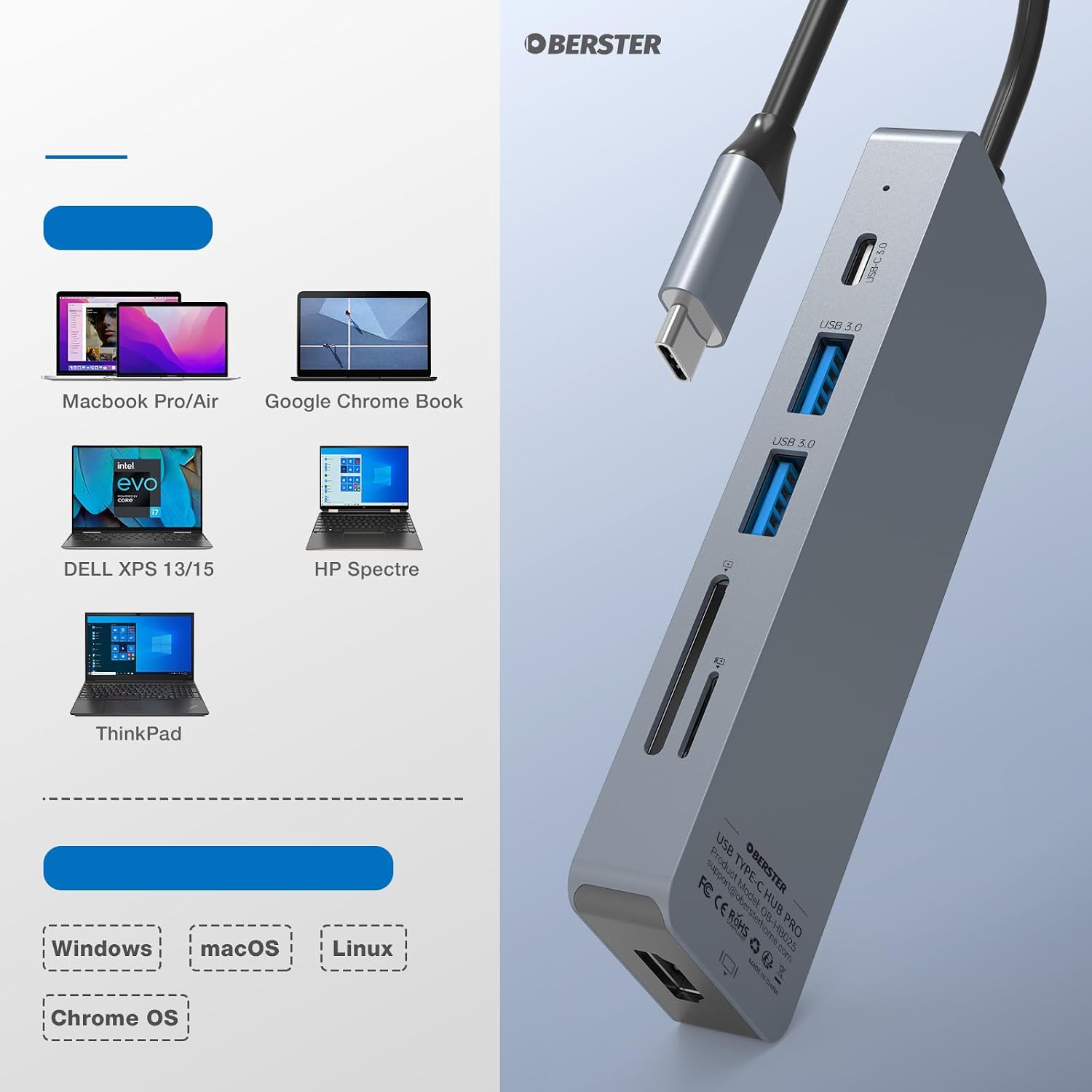
Image: The Oberster USB C Hub positioned next to illustrations of compatible devices, including MacBook Pro/Air, Google Chromebook, Dell XPS, HP Spectre, and ThinkPad, highlighting its broad compatibility.
6. Troubleshooting
If you encounter issues with your Oberster 10-in-1 USB C Hub, please refer to the following common solutions:
- No Display Output via HDMI:
- Ensure your host device's USB-C port supports DisplayPort Alternate Mode (Alt Mode).
- Try a different HDMI cable or monitor.
- Check your device's display settings to ensure the external monitor is detected and configured correctly.
- Peripherals Not Detected:
- Ensure the hub is securely connected to your host device.
- Try connecting the peripheral directly to your host device to verify its functionality.
- If using a high-power peripheral (e.g., external hard drive), ensure the hub is connected to a power source via its PD port.
- Restart your host device.
- Slow Data Transfer Speed:
- Ensure you are using the USB 3.0 ports (typically blue interior) for high-speed devices.
- Verify that your connected device also supports USB 3.0 speeds.
- Device Not Charging via PD Port:
- Ensure your host device's USB-C port supports Power Delivery (PD).
- Use your original power adapter and a high-quality USB-C to USB-C cable for connection to the hub's PD port.
- Check the power output of your adapter; it should be sufficient for your device and the hub.
- Audio Jack Not Working:
- Check your device's sound settings to ensure the hub's audio output is selected.
- Ensure your headphones/speakers are properly connected and functional.
7. Maintenance
To ensure the longevity and optimal performance of your Oberster 10-in-1 USB C Hub, follow these maintenance guidelines:
- Keep Clean: Regularly wipe the hub with a soft, dry cloth to remove dust and debris. Avoid using liquid cleaners or solvents.
- Avoid Physical Damage: Do not drop, bend, or expose the hub to excessive force.
- Temperature and Humidity: Store and operate the hub in a dry environment within normal room temperature. Avoid extreme heat, cold, or high humidity.
- Proper Disconnection: Always grasp the plug, not the cable, when disconnecting the hub or any connected peripherals.
- Ventilation: Ensure the hub has adequate ventilation, especially during prolonged use, to prevent overheating.
8. Warranty and Support
For warranty information or technical support, please refer to the documentation provided with your purchase or contact Oberster customer service through the retailer where you purchased the product. Please have your model number (OB-HB025-E-011) and proof of purchase ready when contacting support.

