
1. Introduction
Thank you for choosing the OBERSTER 10-in-1 USB C Hub. This versatile adapter is designed to expand the connectivity of your USB-C enabled devices, providing a wide range of ports for various peripherals and functions. This manual will guide you through the setup, operation, and maintenance of your new hub.
The OBERSTER USB C Hub transforms a single USB-C port into 10 essential ports, including HDMI, USB-A, USB-C, Power Delivery, SD/TF card readers, and an audio jack, enhancing your productivity and multimedia experience.
2. Product Overview
The OBERSTER 10-in-1 USB C Hub features a comprehensive array of ports to meet your connectivity needs. Below is a detailed description of each port and its function.
- 2 x USB-A 3.0 Ports: For high-speed data transfer up to 5Gbps, connecting USB peripherals like mice, keyboards, and external hard drives.
- 2 x USB-A 2.0 Ports: For connecting standard USB peripherals.
- 1 x USB-C 3.0 Port: For high-speed data transfer up to 5Gbps, connecting USB-C peripherals.
- 1 x HDMI 4K Port: Supports video output up to 4K resolution at 30Hz for connecting to external displays, projectors, or HDTVs.
- 1 x PD 100W USB-C Port: For power delivery, allowing you to charge your laptop while using the hub. Supports up to 100W input.
- 1 x Audio/Microphone Jack: A 3.5mm port for connecting headphones, speakers, or microphones.
- 1 x SD Card Reader: For reading and writing data from SD, SDHC, SDXC cards.
- 1 x TF Card Reader: For reading and writing data from Micro SD, Micro SDHC, Micro SDXC cards.

The OBERSTER USB C Hub with various cables and memory cards, highlighting its multi-functionality.

OBERSTER USB C Hub connected to a tablet, extending the display to an external monitor in 4K Ultra HD.

OBERSTER USB C Hub connected to a tablet, enabling convenient connection for wired mouse and keyboard.

OBERSTER USB C Hub demonstrating super-speed file transfer capabilities with USB 3.0.
3. Setup Instructions
- Connect the Hub: Plug the USB-C connector of the OBERSTER Hub into a compatible USB-C port on your laptop, tablet, or smartphone. The hub supports plug-and-play functionality, requiring no additional drivers or software installation.
- Connect Power (Optional): If your device requires charging or if you are connecting power-intensive peripherals, connect your original USB-C power adapter to the PD 100W USB-C port on the hub. Ensure your device's USB-C port supports Power Delivery for charging functionality.
- Connect Peripherals: Connect your desired devices to the corresponding ports on the hub:
- HDMI: Connect an HDMI cable from the hub to your monitor, TV, or projector.
- USB Devices: Plug USB-A or USB-C peripherals (e.g., mouse, keyboard, flash drive) into the respective USB ports.
- Memory Cards: Insert SD or TF cards into the dedicated card reader slots.
- Audio: Connect headphones or speakers to the 3.5mm audio jack.
4. Operating Instructions
Once connected, the OBERSTER USB C Hub operates seamlessly with your device. Here's how to utilize its various functions:
- HDMI Display Output:
Connect an external display via the HDMI port. Your device should automatically detect the external display. You can configure display settings (mirror or extend mode) through your operating system's display settings. The hub supports resolutions up to 4K@30Hz. - USB Data Transfer:
Use the USB 3.0 and USB 2.0 ports to connect external storage devices, keyboards, mice, and other USB peripherals. The USB 3.0 ports offer data transfer speeds of up to 5Gbps, allowing for quick transfer of large files. - Power Delivery (PD):
The PD 100W USB-C port allows power passthrough to charge your host device (laptop, tablet) while simultaneously using other hub functions. Ensure your device's original power adapter is connected to this port and that your device's USB-C port supports Power Delivery. - SD/TF Card Readers:
Insert your SD or TF (Micro SD) cards into the corresponding slots. The card readers will appear as removable drives on your computer, allowing you to access and transfer files. Both slots can be used simultaneously and support capacities up to 2TB. - Audio Output:
Connect your 3.5mm headphones or speakers to the audio jack for sound output. Your operating system may require you to select the hub's audio output in sound settings.

OBERSTER USB C Hub connected to a laptop, showcasing multiple peripheral connections for enhanced productivity.
5. Compatibility
The OBERSTER USB C Hub is designed for wide compatibility with various devices and operating systems that feature a full-function USB-C port (supporting data, video, and power delivery).
Compatible Devices:
- New MacBook models
- MacBook Pro (2021/2020/2019/2018/2017)
- MacBook Air (2020/2019/2018)
- Dell XPS 13/15
- Surface Go/Book 2
- Asus ZenBook 3
- Google Chromebook
- HP Spectre
- ThinkPad
- Other laptops, tablets, and smartphones with a full-featured USB-C port.
Compatible Operating Systems:
- macOS (10.12 Sierra and later)
- Windows
- Linux
- Chrome OS
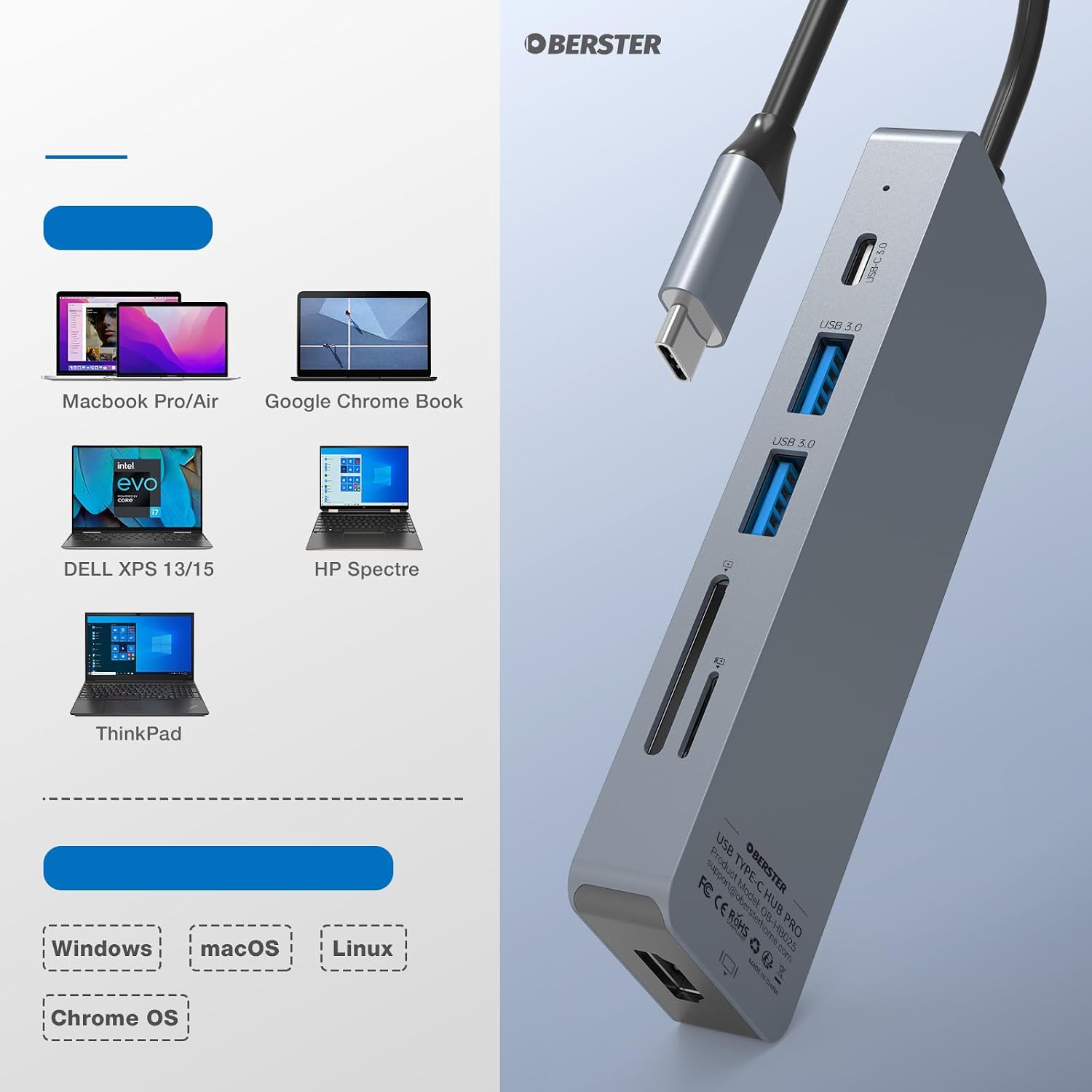
OBERSTER USB C Hub compatibility with various laptops and operating systems, including Windows, macOS, Linux, and Chrome OS.
6. Troubleshooting
If you encounter issues with your OBERSTER USB C Hub, please refer to the following common solutions:
- No Display Output via HDMI:
- Ensure your device's USB-C port supports video output (DisplayPort Alternate Mode).
- Check the HDMI cable connection between the hub and the display.
- Try a different HDMI cable or display.
- Restart your host device.
- Power Delivery Not Working:
- Verify that your device's USB-C port supports Power Delivery.
- Ensure your original power adapter is connected to the hub's PD USB-C port.
- Check if the power adapter is functioning correctly.
- USB Devices Not Recognized:
- Ensure the hub is securely connected to your host device.
- Try connecting the USB device directly to your host device to confirm it works.
- If connecting a high-power USB device, ensure the hub is connected to a power source via the PD port.
- Slow Data Transfer:
- Ensure you are using the USB 3.0 ports for high-speed devices.
- Verify that your connected device also supports USB 3.0 speeds.
- Hub Overheating:
It is normal for the hub to become warm during extended use, especially when multiple ports are active or when charging. If it becomes excessively hot, disconnect it and allow it to cool down. Ensure adequate ventilation.
7. Specifications
| Feature | Specification |
|---|---|
| Brand | OBERSTER |
| Model Number | OB-HB025-E-004 |
| Color | Grey |
| Ports | 2x USB-A 3.0, 2x USB-A 2.0, 1x USB-C 3.0, 1x HDMI 4K, 1x PD 100W USB-C, 1x Audio/Mic Jack, 1x SD Card Reader, 1x TF Card Reader (Total 10 ports/functions) |
| HDMI Resolution | Up to 4K@30Hz |
| USB Data Transfer Rate | Up to 5Gbps (USB 3.0 ports) |
| Power Delivery | Up to 100W |
| Card Reader Capacity | Up to 2TB (SD/TF) |
| Special Features | Fast Data Transfer, Plug and Play, Portable Design |
| Compatible OS | macOS 10.12 Sierra+, Windows, Linux, Chrome OS |
| UPC | 764143361847 |
| ASIN | B0CKW9XR3Z |
8. Maintenance
To ensure the longevity and optimal performance of your OBERSTER USB C Hub, please follow these maintenance guidelines:
- Cleaning: Use a soft, dry cloth to clean the hub. Avoid using liquid cleaners or aerosols.
- Storage: Store the hub in a cool, dry place away from direct sunlight and extreme temperatures.
- Handling: Avoid dropping the hub or subjecting it to strong impacts. Do not bend or pull the integrated USB-C cable excessively.
- Ventilation: Ensure the hub has adequate ventilation during operation to prevent overheating.
9. Warranty and Support
Information regarding product warranty and customer support is typically provided with your purchase documentation or on the manufacturer's official website. Please refer to those resources for details on warranty coverage, technical assistance, and contact information.

