
1. Introduction
The LabelRange BT320 is a high-speed thermal label printer designed to streamline your shipping and labeling processes. Utilizing advanced direct thermal technology, this printer eliminates the need for ink or toner, ensuring reliable operation. It offers versatile connectivity options, including Bluetooth for mobile devices and USB for computers, making it compatible with a wide range of operating systems and platforms.
With a high resolution of 203 DPI, the BT320 produces clear and scannable labels at a speed of up to 72 labels per minute (for 4x6 inch labels). Its automatic label identification feature simplifies setup, and its compact design makes it suitable for various environments.

Image: The LabelRange BT320 thermal label printer, emphasizing its key features such as thermal technology (no ink), a 203 DPI print head for high quality, a print speed of up to 72 labels per minute, and automatic label identification.
2. Setup Guide
2.1. Package Contents
Before beginning, please verify that all components are present in the package:
- LabelRange BT320 Printer
- User Manual
- 100 sheets of 4x6 inch Thermal Labels
- Power Cord
- USB Cable
- Power Adapter
- USB C Adapter

Image: The LabelRange BT320 printer and its complete set of included accessories, which are the user manual, 100 sheets of 4x6 thermal labels, power cord, USB cable, power adapter, and a USB-C adapter.
2.2. Physical Connection
- Connect the power adapter to the printer's power port and then plug the power cord into an electrical outlet.
- Ensure the printer is powered on. The power indicator light should illuminate.
2.3. Loading Labels
Follow these steps to properly load thermal labels into your BT320 printer:
- Open the top cover of the printer.
- Place the stack of thermal labels into the label compartment, ensuring the printable side is facing upwards.
- Adjust the label guides to fit snugly against the edges of the labels, preventing misalignment.
- Close the top cover. The printer will automatically detect and calibrate the label size.

Image: The LabelRange BT320 thermal label printer actively printing a shipping label. A stack of blank 4x6 labels is positioned beside the printer, and a USB-C adapter is also visible.
2.4. Software and Driver Installation
The BT320 printer supports both Bluetooth and USB connectivity, depending on your device and operating system.
- For Bluetooth Printing (iOS, Android, Windows, Mac M1/M2/M3 chips): Download the "Rekdom Printer" app from the Google Play Store (for Android) or Apple App Store (for iOS/iPad). Follow the in-app instructions to pair your device with the printer via Bluetooth.
- For USB Printing (Windows, Mac OS, Linux, Chrome OS): Connect the printer to your computer using the provided USB cable. For Windows, drivers may install automatically. If not, refer to the official LabelRange website for driver downloads. Mac, Linux, and Chrome OS users will primarily use USB connectivity, except for Macs with M1, M2, or M3 chips which can also utilize the "Rekdom Printer" app for Bluetooth printing.

Image: Connectivity options for the LabelRange BT320 printer, detailing Bluetooth compatibility with Android, iOS, iPad, and Windows, and USB cable compatibility with Windows, Mac OS, Linux, and Chromebook. The image shows the printer connected to a laptop via USB and a smartphone via Bluetooth.
3. Operating Instructions
3.1. Printing via Bluetooth (Using "Rekdom Printer" App)
- Ensure your BT320 printer is powered on and loaded with labels.
- Open the "Rekdom Printer" app on your Android, iOS, or compatible Mac device.
- Within the app, select your BT320 printer from the list of available Bluetooth devices.
- Import or create the label you wish to print.
- Adjust print settings (e.g., number of copies, print density) as needed.
- Initiate the print command from the app.
3.2. Printing via USB Cable
- Ensure your BT320 printer is powered on and loaded with labels.
- Connect the printer to your computer using the provided USB cable.
- Open the document or application from which you intend to print (e.g., a PDF viewer, shipping software).
- Select the LabelRange BT320 printer from your computer's print dialogue box.
- Verify print settings, especially ensuring the label size matches your loaded labels (e.g., 4x6 inches).
- Click "Print" to send the job to the printer.
4. Label Compatibility
The LabelRange BT320 printer is designed to accommodate a wide range of direct thermal labels. It supports label widths from 1.5 inches to 4.1 inches and label heights from 1 inch to 9.5 inches.
This versatility makes it suitable for various label types, including:
- 4x6 inch shipping labels
- 3x2 inch product labels
- 3x1 inch address labels
- 2x2 inch circle labels
- 2.25x1.25 inch product SKU labels
- 2x1 inch barcode labels
- Warehouse, mailing, and multipurpose labels

Image: The LabelRange BT320 printer's capability to print various label sizes, ranging from 1.5 to 4.1 inches in width and 1 to 9.5 inches in height. Examples of printed labels include 4x6 shipping labels, 3x2 product labels, 3x1 address labels, 2.25x1.25 SKU labels, 2x1 barcode labels, and specialized circular and fragile labels.
5. Platform Compatibility
The LabelRange BT320 printer is compatible with a broad array of major shipping and selling platforms, facilitating efficient label printing for your business operations.
5.1. Supported Shipping Platforms
- USPS
- UPS
- Shippo
- Pirate Ship
- ShipStation
- ShipWorks
- EasyPost
- EasyShip
- ShippingEasy
5.2. Supported Selling Platforms
- Amazon
- eBay
- Etsy
- Shopify
- Poshmark
- PayPal
- Whatnot
Important Note: Most platforms now generate 4x6 inch labels directly. Always ensure you select the 4x6 inch label format within your platform's settings before creating and printing your labels to ensure proper output.
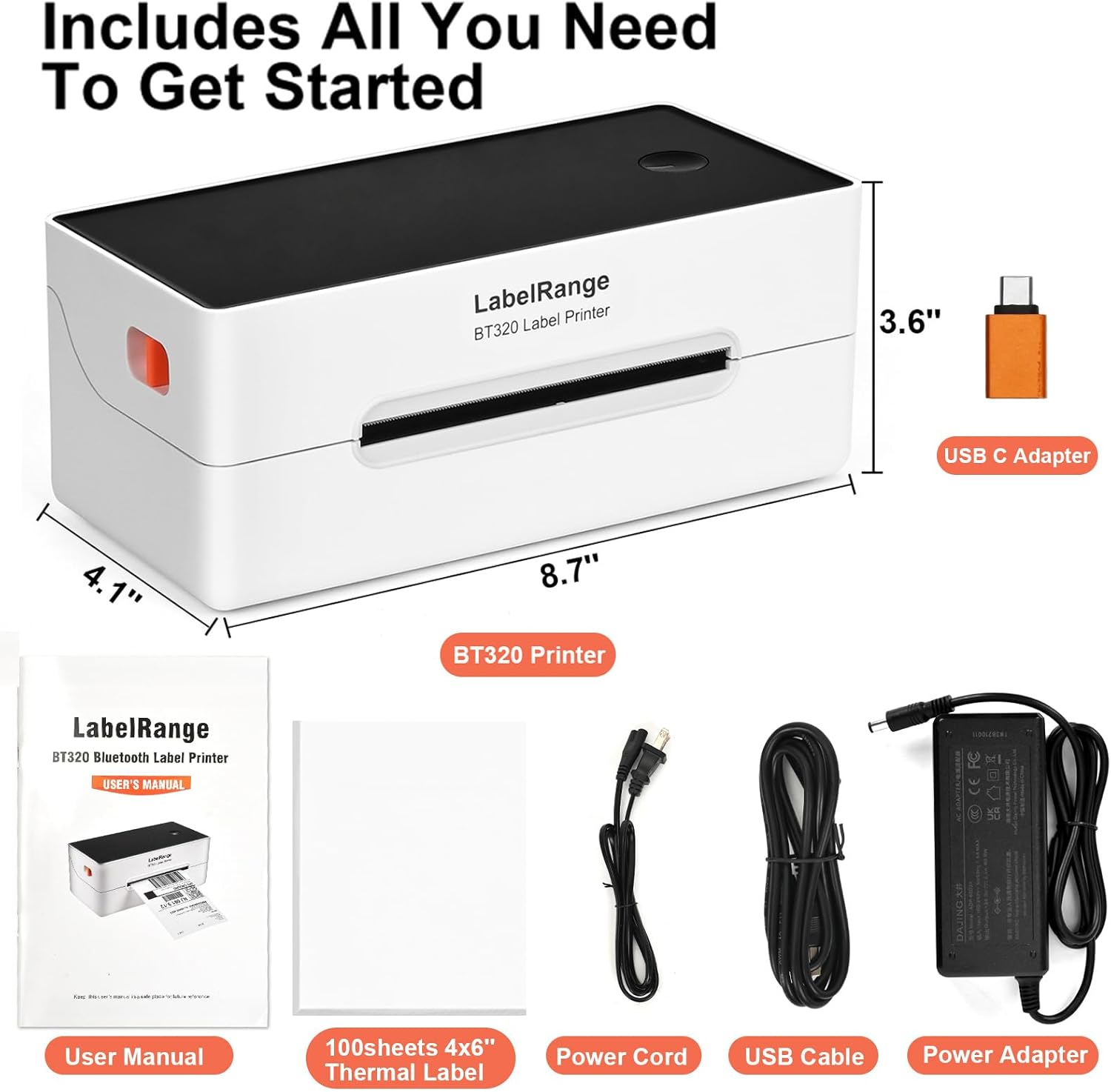
Image: The LabelRange BT320 printer's extensive compatibility with numerous selling and shipping platforms, such as Pirate Ship, USPS, Shopify, Shippo, ShipWorks, ShippingEasy, Amazon, Facebook, ShipStation, Etsy, EasyPost, eBay, PayPal, Poshmark, UPS, and EasyShip.
6. Maintenance
Regular maintenance ensures optimal performance and extends the lifespan of your LabelRange BT320 printer.
6.1. Cleaning the Print Head
The print head should be cleaned periodically to maintain print quality. Use a cotton swab lightly dampened with isopropyl alcohol (70% or higher). Gently wipe the print head surface from one end to the other. Allow the print head to dry completely before using the printer again.
6.2. General Care
- Keep the printer in a clean, dust-free environment.
- Avoid exposing the printer to direct sunlight or extreme temperatures.
- Do not use abrasive cleaners or solvents on the printer's exterior. Use a soft, damp cloth for cleaning.
- Ensure proper ventilation around the printer during operation.
7. Troubleshooting
If you encounter issues with your LabelRange BT320 printer, please refer to the following common troubleshooting steps:
- Printer Not Responding: Ensure the printer is powered on and all cables (power, USB) are securely connected. For Bluetooth, verify the printer is paired and selected in the app.
- Poor Print Quality: Check if the thermal labels are loaded correctly with the printable side up. Clean the print head as described in the Maintenance section. Adjust print density settings in your software or app.
- Labels Not Feeding Correctly: Ensure the label guides are properly adjusted to hold the labels snugly. Check for any obstructions in the label path. Make sure you are using direct thermal labels.
- Bluetooth Connection Issues: Ensure Bluetooth is enabled on your device and the printer. Try restarting both the printer and your device. Re-pair the printer through the "Rekdom Printer" app.
- Incorrect Label Size: Verify that the label size selected in your printing software or app matches the physical labels loaded in the printer.
If these steps do not resolve the issue, please contact LabelRange customer support for further assistance.
8. Specifications
| Feature | Specification |
|---|---|
| Brand | LabelRange |
| Model Name | BT320 |
| Connectivity Technology | Bluetooth, USB |
| Printing Technology | Thermal |
| Print Resolution | 203 DPI |
| Maximum Print Speed | 150 mm/s (approx. 72 labels per minute for 4x6 inch labels) |
| Supported Label Width | 1.5 to 4.1 inches |
| Supported Label Height | 1 to 9.5 inches |
| Color | White+Black+Orange |
| Item Weight | 2.6 Pounds |
9. Warranty and Support
LabelRange is committed to providing excellent customer service. The BT320 printer comes with a 2-year warranty, ensuring peace of mind for your purchase.
If you require assistance or have any questions regarding your LabelRange BT320 printer, please do not hesitate to contact our customer service team. We offer support via both phone and email. Our experienced team has been providing expert support since 2019, and most common issues can be resolved quickly, often within 10 minutes.
Please refer to the contact information provided in your product packaging or on the official LabelRange website for the most current support details.
