
1. Introduction
This manual provides detailed instructions for the installation, operation, and maintenance of your DRIKSWVE Android Auto Screen. This device is designed to enhance your driving experience by integrating advanced multimedia and connectivity features into your Audi Q5.
Compatibility: This unit is specifically designed for Audi Q5 vehicles equipped with the Multimedia MMI 3G+ system, manufactured between 2010 and 2017. Please verify your vehicle's MMI system before proceeding with installation.

Image 1.1: A compatibility guide illustrating which Audi Q5 MMI systems are compatible with the DRIKSWVE screen. It highlights compatibility with Audi Multimedia (2010-2017) and incompatibility with Symphony, Concert, Chorus, and CD Changer versions.

Image 1.2: A visual comparison of an Audi Q5 dashboard before and after the installation of the DRIKSWVE screen, confirming its fit for the Audi Multimedia version.
2. Safety Information
- Always prioritize safe driving. Do not operate the device in a manner that distracts you from the road.
- Ensure all connections are secure to prevent electrical hazards or damage to the vehicle's systems.
- Professional installation is recommended to avoid damage to the product or vehicle.
- Do not attempt to disassemble or modify the unit. This may void the warranty and cause damage.
- Keep the screen clean and free from obstructions to maintain clear visibility.
3. Package Contents
Please check the package for the following items:
- Main Host Unit (Android Auto Screen)
- Power Cable
- GPS Antenna
- 4G Antenna
- USB Cable
- SIM Card and Reversing Video Input Cable

Image 3.1: A visual representation of all components included in the package: the main host unit, power cable, GPS antenna, 4G antenna, USB cable, and the SIM card/reversing video input cable.
4. Setup and Installation
Installation of this unit requires technical knowledge and experience with automotive electronics. It is highly recommended to have the unit installed by a qualified professional.
General Installation Steps (Consult a professional for detailed vehicle-specific instructions):
- Disconnect Battery: Before starting, disconnect the vehicle's battery to prevent electrical shorts.
- Remove Original Screen/Trim: Carefully remove the original Audi Q5 screen and any necessary dashboard trim panels to access the MMI unit.
- Connect Power Cable: Connect the provided power cable to the vehicle's wiring harness and the new Android Auto screen. Ensure all connections are secure.
- Connect Antennas: Attach the GPS antenna and 4G antenna to their respective ports on the main unit. Position the antennas in a location with clear signal reception, typically on the dashboard or under the windshield.
- Connect USB Cable: Route the USB cable to a convenient location, such as the glove compartment, for future connectivity.
- Connect SIM Card/Reversing Video Input Cable: If using a SIM card for 4G connectivity or connecting a reversing camera, attach the corresponding cables.
- Test Functionality: Before reassembling the dashboard, reconnect the battery and power on the unit to test basic functions, including display, touch response, and sound.
- Reassemble: Once confirmed working, carefully reassemble all dashboard trim panels and secure the new screen in place.
5. Operating Instructions
5.1 User Interface Overview
Upon startup, the screen will display the main Android interface, featuring various application icons for navigation, media, phone functions, and settings.
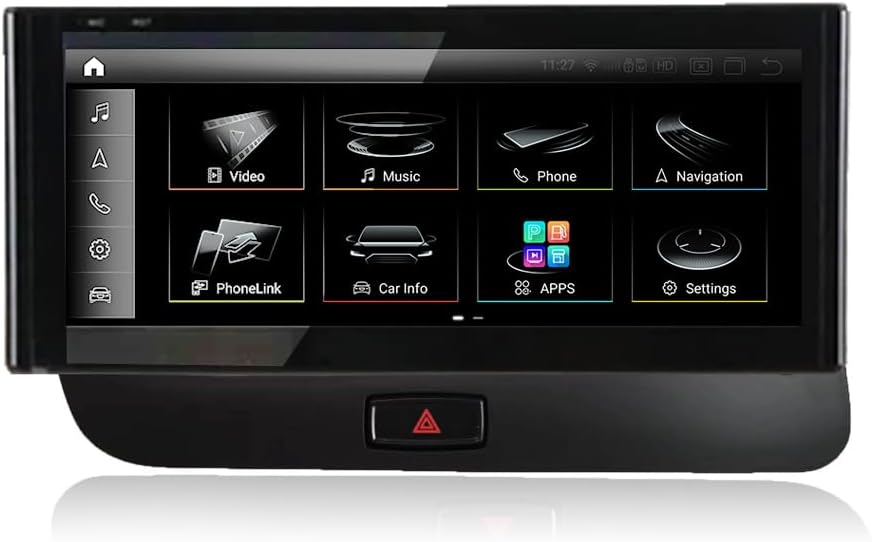
Image 5.1: The DRIKSWVE Android Auto Screen displaying its main user interface with icons for various functions like video, music, phone, navigation, and car information.
5.2 Android Auto and Apple CarPlay
The unit supports both wireless and wired Android Auto and Apple CarPlay for seamless smartphone integration.
- Wireless Connection:
- Ensure Bluetooth is enabled on your smartphone and the DRIKSWVE unit.
- Pair your smartphone with the unit via Bluetooth.
- On the unit, select the 'ZLINK5' application and wait for the connection to establish.
- Wired Connection: Connect your smartphone to the unit using a USB cable. The system should automatically detect and launch Android Auto or Apple CarPlay.

Image 5.2: Step-by-step instructions on how to connect wireless CarPlay and Android Auto, involving Bluetooth connection and selecting 'ZLINK5'.

Image 5.3: The DRIKSWVE screen integrated into an Audi Q5 dashboard, demonstrating both Android Auto and Apple CarPlay interfaces. A smartphone is shown connecting wirelessly.
5.3 Mirror Link
Mirror Link allows you to display your smartphone's screen directly onto the unit's display. Refer to the unit's specific Mirror Link application for connection instructions.
5.4 Dual System Switching
The unit allows seamless switching between the Android system and your vehicle's original MMI system. This ensures you retain access to all original car functions.

Image 5.4: A visual representation of the seamless switching capability between the original car system and the new Android Auto system within the vehicle's dashboard.

Image 5.5: Demonstration of the dual system functionality, allowing seamless switching between the Android system and the original Audi car system. It also shows support for original features like CD/Radio, reversing radar, steering wheel control, and car audio.
5.5 Connectivity (4G, Wi-Fi, Bluetooth)
- 4G Network: Insert a compatible SIM card into the designated slot to enable 4G internet access.
- Wi-Fi: Connect to available Wi-Fi networks for internet access.
- Bluetooth 5.0: Use Bluetooth for hands-free calling, music streaming, and connecting compatible accessories.
5.6 Display Features
- 1920*720 HD Resolution: Provides clear and vivid visuals.
- AG Anti-Glare Technology: Reduces reflections for better visibility in various lighting conditions.
- Split Screen: Allows two applications to run simultaneously on the screen, such as navigation and music.

Image 5.6: An overview of connectivity options, detailing both wired and wireless Android Auto, CarPlay, and Mirror Link. It also illustrates the split-screen feature, showing music and map applications running simultaneously.

Image 5.7: An overview of advanced features including split-screen multitasking, display of original car information, 4G network support, and Bluetooth 5.0 connectivity.
5.7 Voice Control
Utilize voice commands for various functions, including navigation, calling, and music playback, to minimize distractions while driving.

Image 5.8: An illustration of the voice control capabilities, showing commands like 'Call Tom please' and 'Navigate to nearby'. Below, the interfaces for wireless and wired Android Auto and Apple CarPlay are displayed.
5.8 GPS Navigation
The integrated GPS module provides accurate navigation. You can use pre-installed navigation apps or download others from the app store.

Image 5.9: The DRIKSWVE screen showing a detailed GPS navigation map, indicating routes and points of interest.
5.9 Original Car System Integration
The unit maintains compatibility with several original Audi Q5 features:
- Steering Wheel Controls: Continue to use your vehicle's steering wheel buttons to control audio, calls, and other functions.
- Original Rear Camera: If your vehicle has an original rear camera, its feed will be displayed on the screen when reversing.
- Original Car Audio: The unit integrates with the existing car audio system.

Image 5.10: A close-up image of an Audi steering wheel, indicating that the DRIKSWVE screen supports the original steering wheel controls for integrated operation.

Image 5.11: The DRIKSWVE screen displaying the feed from an original rear camera, showing parking lines and surrounding vehicles.
6. Maintenance
- Cleaning the Screen: Use a soft, lint-free cloth slightly dampened with water or a screen cleaner specifically designed for electronics. Avoid harsh chemicals or abrasive materials.
- Software Updates: Periodically check for software updates to ensure optimal performance and access to new features. Updates can typically be found in the system settings or on the manufacturer's website.
- Temperature: Avoid exposing the unit to extreme temperatures for prolonged periods.
7. Troubleshooting
| Problem | Possible Cause | Solution |
|---|---|---|
| No power to the unit | Loose power connection, blown fuse | Check all power cables and vehicle fuses. Ensure the battery is connected. |
| No sound | Volume too low, incorrect audio source, loose audio cables | Increase volume. Verify the correct audio input is selected. Check audio cable connections. |
| Android Auto/CarPlay not connecting | Bluetooth/USB connection issue, incompatible phone, app not updated | Ensure Bluetooth is on and paired. Try a different USB cable. Update phone OS and apps. Restart both devices. |
| GPS signal lost or inaccurate | GPS antenna obstruction, poor placement, faulty antenna | Ensure GPS antenna has a clear view of the sky. Reposition the antenna. Check antenna connection. |
| Touch screen unresponsive | Software glitch, screen damage | Restart the unit. If the problem persists, contact support. |
If you encounter issues not listed here or if the suggested solutions do not resolve the problem, please contact customer support.
8. Specifications
| Feature | Detail |
|---|---|
| Model Number | Q5 High |
| Display Size | 10.25 Inches |
| Resolution | 1920 x 720 HD |
| Processor | Qualcomm Snapdragon 665 (SIM6125) 8 Core (2.0GHz+1.8GHz) |
| GPU | Adreno 610 950MHz |
| Memory | 8GB RAM + 128GB Storage (UFS2.1+LPDDR4X) |
| Operating System | Android 13 |
| Connectivity | 4G, Dual-band Wi-Fi (2.4G+5G), Bluetooth 5.0, USB |
| Special Features | Built-in Wireless/Wired CarPlay & Android Auto, Mirror Link, Split Screen, Anti-Glare, Voice Command, Supports Original Car Information Display |
| Control Method | Touch, Buttons, Microphone, Mouse |
| Item Weight | 6.6 pounds |
| Package Dimensions | 16.34 x 8.86 x 8.27 inches |
9. Warranty and Support
Warranty: This product comes with a 1-year manufacturer's warranty from the date of purchase. This warranty covers defects in materials and workmanship under normal use.
Support: For technical assistance, troubleshooting, or warranty claims, please contact DRIKSWVE customer support through the retailer where the product was purchased or refer to the official DRIKSWVE website for contact information.